Table of Contents

Rosy Web Application
(Release version 1.1.2)
User Manual
(Admin Portal)
1. Introduction
Welcome to the User Manual for ROSY – Axess Law's Proprietary Conveyancing System. Developed with the vision of redefining real estate legal services in Canada, ROSY combines innovation, security, and simplicity to streamline the conveyancing process for legal professionals. Designed exclusively for Axess Law's internal teams and partners, this web-based application offers a secure virtual environment to manage real estate transactions efficiently. Whether preparing documents, tracking deal progress, or managing client information, ROSY provides a seamless and intuitive experience that reflects Axess Law's commitment to accessibility, transparency, and cutting-edge legal solutions. test
2. General Information
ROSY is a secure, web-based application specifically developed to support and enhance the conveyancing processes used by Axess Law. The platform allows legal professionals to manage real estate transactions efficiently, from initial client intake to final closing. ROSY supports multiple user roles with varying access levels, ensuring that sensitive information remains protected while allowing seamless collaboration. The system is designed to operate across modern browsers and devices, requiring only a stable internet connection for access. All data entered into ROSY is stored securely, with regular backups and compliance with industry-standard data protection protocols. This manual provides a comprehensive overview of the application’s capabilities and how to use them effectively.
2.1 System Overview
The web application has the following functionalities:
- File Management Process
- Automated Email Templates
- Communication Channels
- Document Control
- Transaction Deal Stage Queues and Tasks
- Dynamic Roles and Permissions
- Typeforms, Triggers, and Questions
- Syngrafii Integration
- Transaction Closing Date Calendar
- Dashboard Development
- Title Search Integration
- Treefort Integration
- API Exposure and Integration
3. Getting Started
3.1 Language Option
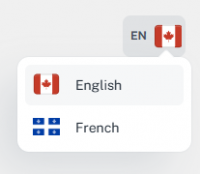
ROSY supports multiple language options to accommodate users with diverse language preferences. Users can easily switch between available languages for a more personalized experience.
3.2 Sign In
The application features a secure login option to ensure authorized access to user accounts. Users must enter their credentials to access the system and work within the platform.

3.2.1 Valid Information
First, enter your valid username and valid password, and then click the login button.
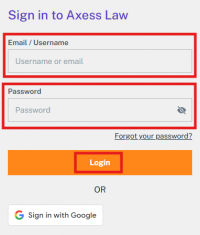
Your application will be successfully logged in.
3.2.2 Invalid Information
If your username or password is incorrect, the system will notify you with a message saying 'Invalid username or password'.
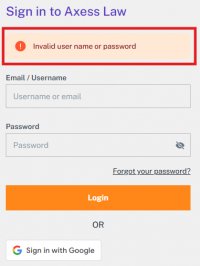
Enter the correct username and password and try logging in again. If the credentials are accurate, you will be logged in successfully; otherwise, the same error will be displayed again.
3.2.3 Reset Forgotten Password
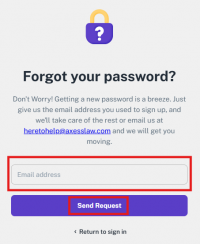
The system provides a 'Forgot Password' option if you do not remember your password. You can click on it to recover your password.
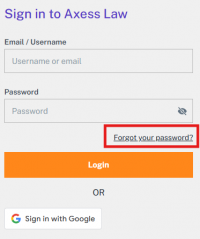
After clicking on 'Forgot Password', a screen will appear where you can enter your email address and click on 'Send Request' to submit a password reset request.
When you enter your email and send the request, you will see a screen displaying the message: “Verification Email Sent.”
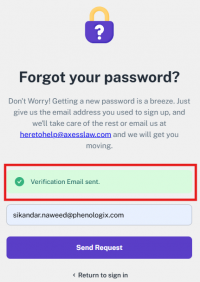
Then you need to check your email. You should have received an email containing a confirmation link—click on that link to proceed.

After clicking on the link, you will be directed to a screen where you can set your new password and then submit it.
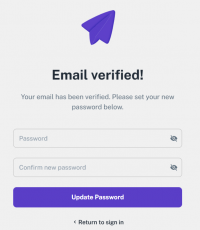
On this screen, you need to enter your new password and then re-enter the same password for confirmation. After that, click on “Update Password” to successfully reset your password.
3.2.4 Sign in with Google
The application offers a “Sign in with Google” feature for quick and secure access. This allows users to log in using their existing Google account credentials without creating a separate login.
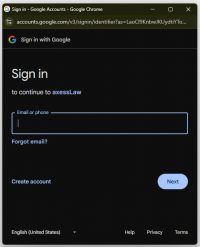
If you want to continue by signing in with Google, you can enter the email of your existing Google account, click Next, and follow the Google sign-in steps to log in through your Google account.
4. User Account
This application features a comprehensive user management system that allows users to manage their accounts fully. Within this system, you can update your profile information, such as name, email, and contact details, as well as customize your account settings according to your preferences. This includes options for changing your password and controlling privacy settings, ensuring a more personalized and secure user experience.
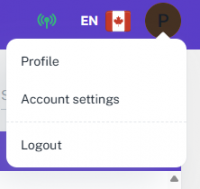
4.1 Profile
4.1.1 Change Profile Image
The application allows users to change their profile images from their account settings easily. This helps personalize the user experience and keeps profiles up to date.
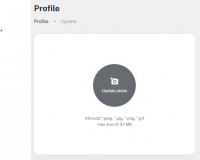
Where it says Upload Photo, click there — a system dialog box will appear, allowing you to choose and upload any picture of your choice.
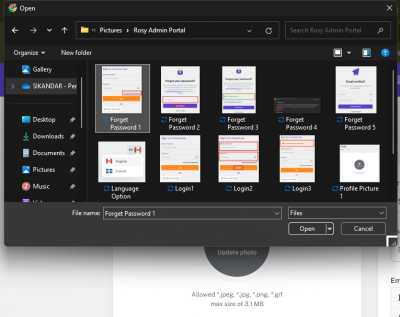
Once you select the picture and click Open, your profile picture will be successfully updated.
4.1.2 Update User Information
The application provides an option to update user information, such as name, contact details, and email signature. This ensures that user profiles remain accurate and up to date.
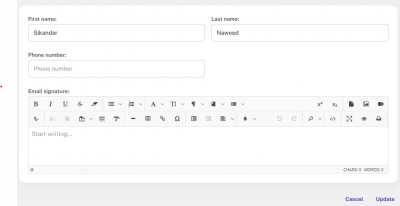
In this section, you have the option to update your first name, last name, phone number, and email signature. You can click on any text field to edit the information. Once you're done, click the Update button to save the changes. At any time, you can also cancel the process and exit the profile management section by clicking the Cancel button.
4.2 Account Settings
Under User Management, there is also an Account Settings option, which includes the ability to change your password.
4.2.1 Change Password
The application includes a change password feature, allowing users to update their login credentials securely. This helps maintain account security and user control.
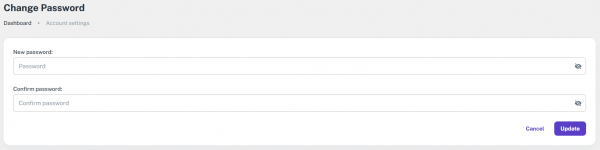
4.2.2 Password Validation
When changing the password, validation rules are applied. If the new password doesn't meet the criteria, an error will be displayed. The first rule is: Password must contain at least 8 characters, including uppercase and lowercase letters, numbers, and special characters. An error message will be shown accordingly if the password doesn't follow this rule.
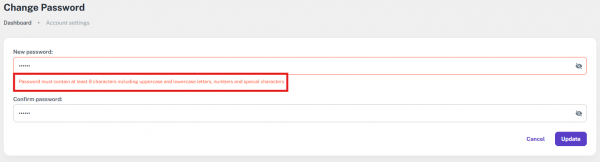
If all the password rules are followed but the values in both password fields do not match, then the second rule applies: Passwords must match. If this rule is not met, an error message will be displayed accordingly.
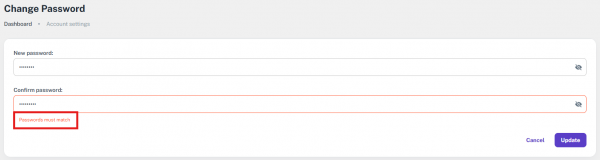
Once both rules are fulfilled — the password meets all validation criteria and both password fields match — click the Update button to change the password successfully. If the user wishes to cancel the process at any time, they can click the Cancel button to exit the User Management section.
4.3 Logout
The application includes a logout option, enabling users to end their session securely. This ensures user data privacy and prevents unauthorized access.
5. User Management
The application also includes a fully functional User Management module. You are directed to this module when you navigate to the “Users” section from the Admin sidebar.
On the main screen of the User Management module, you will see a complete list of all registered users. Each entry displays important details such as the user's title, name, role, email address, and account status. Additionally, there is an action column provided against each user, allowing admins to perform actions like editing user information and activating/deactivating accounts.
This module gives administrators full control over user-related operations and helps maintain a structured and secure environment within the application.
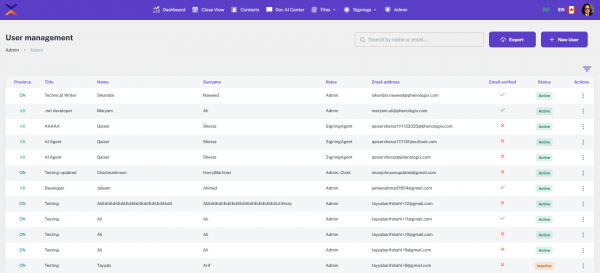
At the top of the User Management screen, the first feature you'll see is a search bar. This allows you to search for users by their name or email address, making it easy to quickly locate a specific user from the list.
Next to the search bar is an “Export” button. When you click this button, the entire list of users is instantly downloaded to your device in CSV format. This feature is especially useful for reporting, record-keeping, or sharing user data in a structured and portable format.

5.1 New User
In the User Management module, the admin has the authority to add new users to the system. This functionality is provided through the “New User” button located at the top right corner of the page.
As soon as you click the “New User” button, a dedicated form window opens where you can enter the details for the new user.
This feature ensures that administrators can easily and securely manage user onboarding directly from the dashboard.
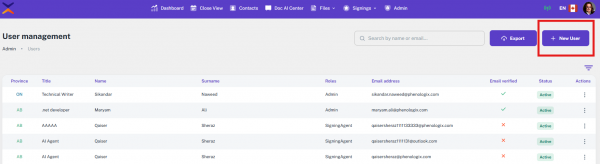
When you click on the “New User” button, a separate form window opens where multiple fields are available for input.
5.1.1 Add New User Form
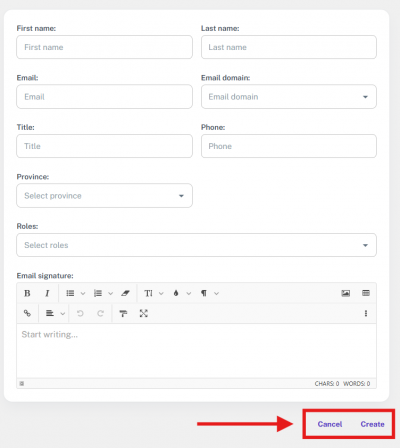
At the top of the form, there's an option to upload a profile picture directly from your device. Besides that, the form includes various personal information fields, such as:
- First Name
- Last Name
- Email Address
- Title
Toward the end of the form, there’s also an option to add an email signature. This allows for more formal identification and adds authenticity to the user's profile within the system.

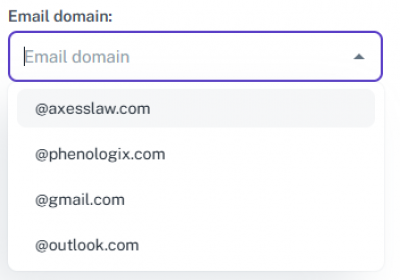
In addition to the personal information fields, the form also includes several drop-downs. The first dropdown is for selecting the email domain.
This dropdown contains a list of registered domains, and the admin can choose any one of them based on which domain the new user’s email should be created under. This ensures that users are added with the correct organizational email structure, and the domain selection remains flexible and controlled by the admin during user creation.
The second dropdown in the form is for selecting the user's province. It provides a list of available provinces, allowing the admin to choose the appropriate one based on the user's location. This helps in accurately recording the user's regional information, which can be useful for administrative, reporting, or policy-based segmentation within the system.

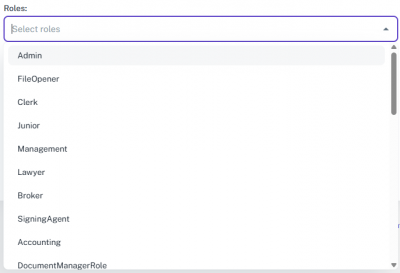
The third and most important dropdown is for selecting the user's role. This dropdown allows the admin to assign a specific role to the user, which is crucial because each role comes with predefined permissions and access levels. By selecting the appropriate role, the admin ensures that the user has access only to the features and sections relevant to their responsibilities, maintaining both security and efficiency within the system.
At the end of the form, there are two options: Cancel and Create. If you click Cancel, the form will close immediately, and you'll be taken back to the main User Management screen without saving any information. If you click Create, the system will process the entered details, and a new user will be successfully created based on the provided information.
5.2 Filters
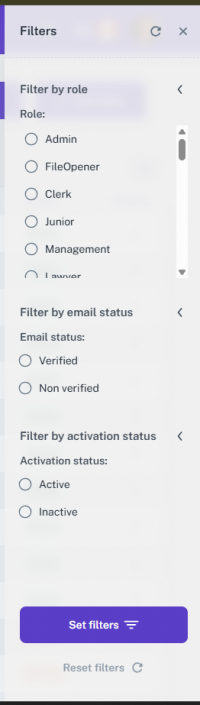
The User Management module also includes a comprehensive filtering system to help admins quickly locate specific users. There are three main types of filters available:
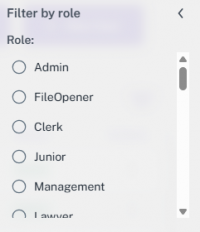
5.2.1 Filter by Role
This allows the admin to filter users based on their assigned roles. From the list of available roles, the admin can select a specific one to view users associated with that role only.
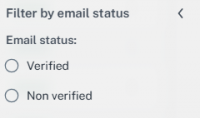
5.2.2 Filter by Email Status
This filter lets the admin choose between verified and non-verified email users. It helps identify users who have not yet confirmed their email addresses.
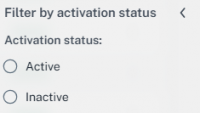
5.2.3 Filter by Activation Status
This option allows filtering users based on their account status. The admin can view either active users or inactive users, depending on the need.
At the end of the filters section, there is a “Set Filters” button to apply the selected filters, and a “Reset Filters” button that clears all applied filters, returning the list to its default state. This makes it easy to manage and refine the user list efficiently.
6. Roles & Permissions
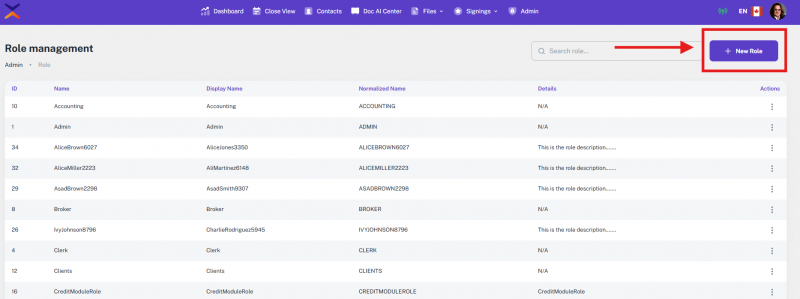
The application also includes a fully functional Role Management module. When you navigate to the “Roles” section from the Admin sidebar, you're directed to this module.
On the main screen of the Role Management module, you can view a list of all roles that have been added to the application. Each role is displayed with the following details:
- ID – Unique identifier for each role
- Name – System name of the role
- Display Name – User-friendly name shown in the application
- Normalized Name – Standardized name used internally for comparisons
- Details – Description or notes about the role
- Actions – Options to edit or delete the role as needed
This module provides a clear overview and control of all user roles, making it easier for the admin to manage permissions and access levels throughout the system.

6.1 Add New Role
On the Role Management screen, there is a “New Role” button located at the top right corner. When you click on this button, a separate window opens where you can add a new role to the system.
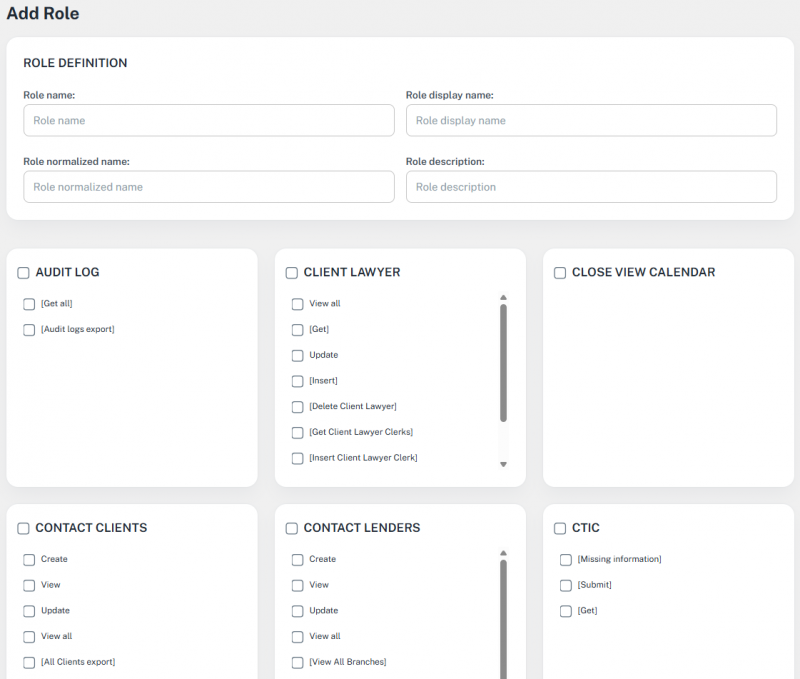
When the “Add Role” form opens, it contains four input fields:
- Role Name
- Role Display Name
- Role Normalized Name
- Role Description
Below these fields, you’ll find a complete list of permissions available across the entire application. While creating a new role, the admin can select exactly which permissions to assign. This allows for full control over what the new role can access or perform within the system, and all permissions are set right at the time of role creation.
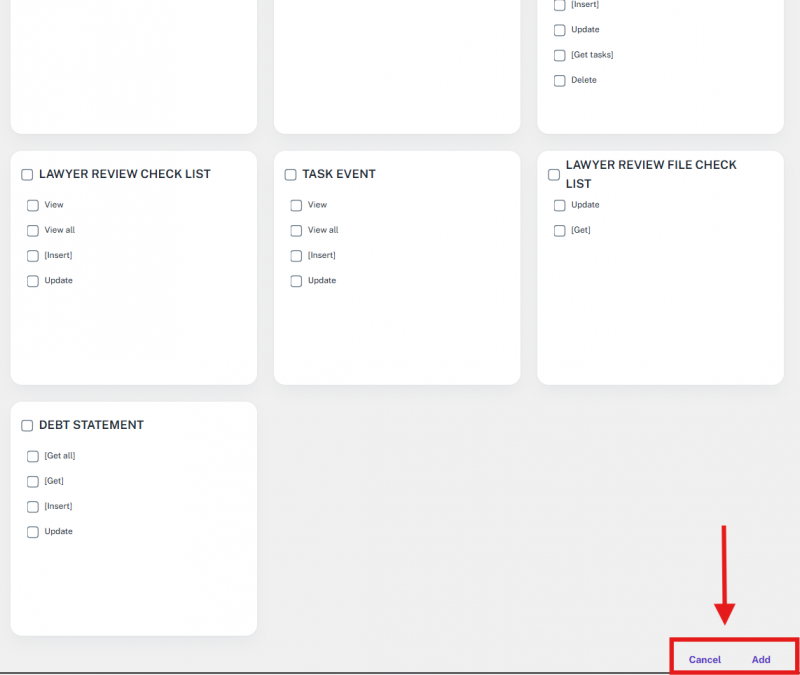
At the end of the Add Role form, after filling in all the fields and selecting the desired permissions, there are two action buttons:
- Cancel – Clicking this will close the form and take the user back to the main Role Management screen without saving any changes.
- Add – Clicking this will create a new role based on the entered details and selected permissions.
Once created, the new role will be reflected throughout the application and will also appear as an option in the User Management module when adding a new user.
6.2 Permissions
The Permissions functionality in this application is highly efficient and well-structured. It allows centralized control over all access levels across the platform. From this single module, permissions for every role can be easily managed.
You have the flexibility to set precise permissions for:
- Each module
- Every view
- And all functionalities within the application
This ensures that users only have access to the features relevant to their role, enhancing both security and usability of the system.

7. Dashboard
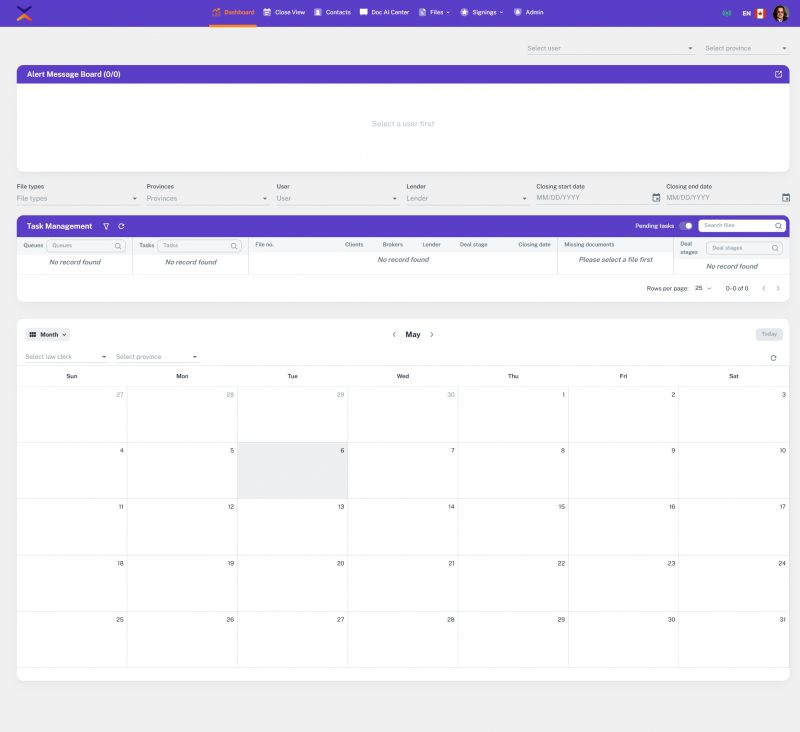
The Rosy Admin Portal dashboard is the command center for users. It’s the first screen a user sees after logging in and serves as a quick access point to all critical information and actions. Designed with clarity and functionality in mind, the dashboard enables users to quickly understand what's happening in the system without needing to delve into different modules.
It displays key metrics, summaries, and real-time data, such as pending tasks, alerts, user activities, and recent updates. This immediate visibility allows users to prioritize their actions and respond to urgent matters efficiently.
A prominent alerts section notifies users of upcoming deadlines, overdue items, or system-wide announcements. The notification panel highlights recent activity, such as task assignments, status changes, or file updates, keeping users aware of everything relevant to their role.
Additionally, the dashboard features a comprehensive task management section, complete with advanced filters. These filters allow users to efficiently search, sort, and locate specific files or tasks based on various criteria. Whether by date, category, status, or assigned user, the filtering system ensures smooth navigation and faster access to the required information, greatly improving productivity and control over daily operations.
Overall, the Rosy Admin Portal dashboard transforms complex workflows into a clean, informative, and action-oriented experience, making it easier for users to manage their responsibilities effectively from a single, unified interface.
7.1 Alert Message Board
The first section of the Dashboard is the Alert Message Board, where all important notifications are displayed. This section keeps the user informed about system alerts, updates, and any actions that require attention, making it a central place to stay up to date with the application’s activities.
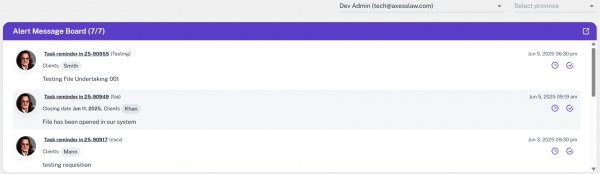
At the top of the Alert Message Board, there are two drop-downs for filtering:
- User Dropdown – Allows you to select a specific user.
- Province Dropdown – lets you choose a province.
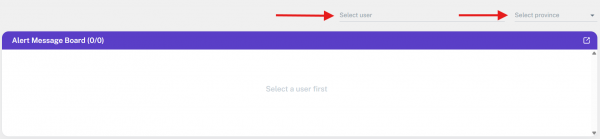
Based on the selected user and province, the alert board dynamically displays notifications relevant to that specific combination. This filtering makes it easy to view targeted alerts and manage notifications more effectively.
Next to the heading of the Alert Message Board, in the top-right corner, there is a pop-up button. When you click on it, a separate window opens showing all notifications along with the user dropdown.
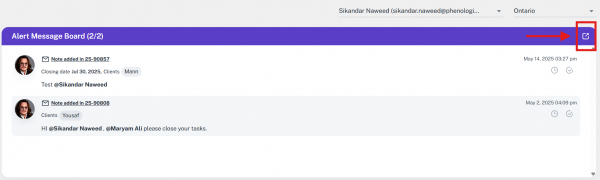
In this popup window, you can also change the user from the dropdown, and the notifications will instantly update based on the selected user. This feature provides a quick and focused view of user-specific alerts without navigating away from the main dashboard.
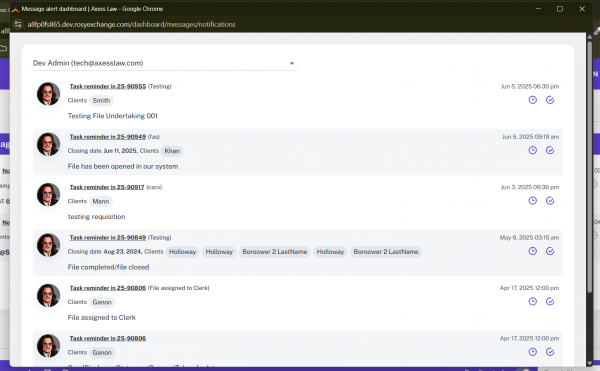
Each alert or notification displayed on the Alert Message Board includes two action buttons beside it.
The first action button appears with a tooltip saying “Remind Me Later” when you hover over it. This feature is designed to let users set a reminder for that specific alert to be notified again later.
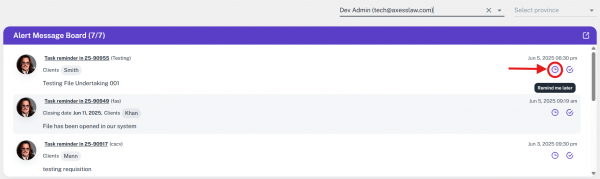
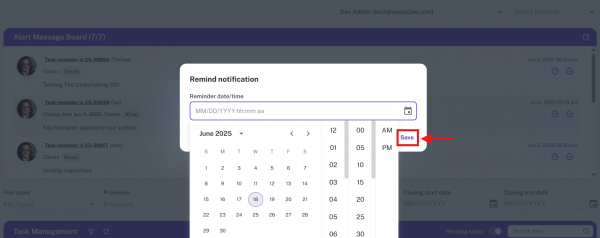
As soon as you click this button, a pop-up window appears where you can select a specific date and time to receive the reminder. Once set, the reminder will be saved by clicking on the save button, and the system will alert the user accordingly at the chosen time.
The second action button is for acknowledging the notification. When you click on it, the selected alert is immediately marked as acknowledged and removed from the Alert Message Board.
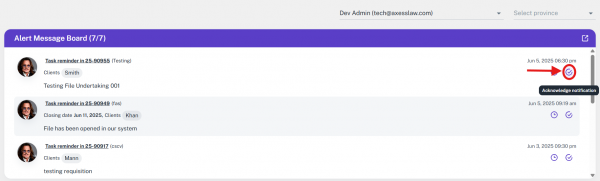
This helps in keeping the dashboard clean by showing only the pending or active alerts, ensuring better focus on unresolved items.
7.2 Task Management
The second section of the dashboard is Task Management, which primarily displays all the files in the system. This section organizes and presents data from multiple perspectives to help users efficiently track and manage their work.
At the top, there is a set of filters including:
- File Type
- Province
- User
- Lender
- Closing Start Date
- Closing End Date
These filters allow users to narrow down the view and locate specific files or tasks quickly.
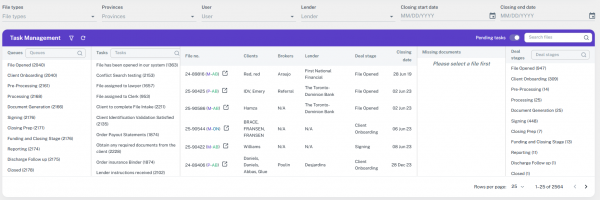
Below the filters is the main Task Management view, which is divided into five columns:
- Queues
- Tasks
- Files
- Missing Documents
- Deal Stages
This layout gives a comprehensive overview of all ongoing processes, helping users identify priorities, bottlenecks, and pending actions with clarity.
7.2.1 Filters
At the very top of the Task Management section, there is a filter bar containing a total of six filters:
- File Type
- Province
- User
- Lender
- Closing Start Date
- Closing End Date

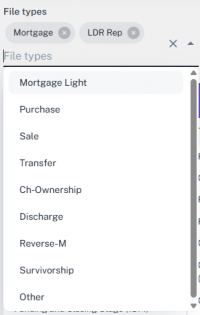
The File Type filter is a multi-select dropdown that lists all available file types in the system. It allows users to select one or multiple file types at the same time. By choosing specific file types from this dropdown, users can easily refine the task view to focus only on the relevant categories, improving both visibility and workflow efficiency.
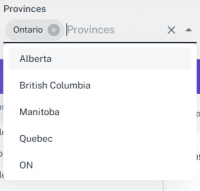
The second filter is for Provinces. This is also a multi-select dropdown that contains a complete list of all available provinces. Users can select one or multiple provinces from this list to filter the task data accordingly. This helps in narrowing down the displayed tasks based on geographical location, making it easier to manage and track province-specific files.
The third filter is the User filter, which is also implemented as a dropdown. It displays the complete list of users in the system. From this dropdown, you can select one user at a time to view the files and tasks specifically assigned to or associated with that user. Unlike the province filter, this is a single-select dropdown, allowing you to focus on the task data relevant to the selected user only.

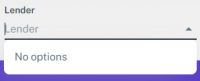
The fourth filter is the Lender filter, also presented as a dropdown. It contains a list of all the available lenders in the system. By selecting a lender from this list, you can further narrow down the files and tasks displayed, making it easier to focus on data related to a specific lender.
The fifth filter is used to set a specific date. It includes a calendar icon, and when you click on it, a calendar opens, allowing you to select any desired date. This helps in filtering files and tasks based on the selected closing start date for more precise data visibility.
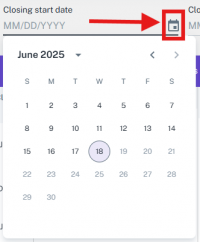
The sixth filter is used to set the closing end date. It also includes a calendar icon, and when clicked, a calendar pop-up appears where you can select any specific end date. This helps in narrowing down tasks and files that are scheduled to close by the selected date, allowing for better tracking and organization.

7.2.2 Task Management View
Below the filters is the main Task Management view, which is divided into five key columns:
- Queues
- Tasks
- Files
- Missing Documents
- Deal Stages
Next to the Task Management heading, there is a “Select Columns” button. This allows users to customize the view by choosing which columns to display. Currently, it provides the option to show or hide two specific columns: Queues and Tasks, helping users focus on the information they find most relevant.

Next to the “Select Columns” button, there is also a “Reset Filters” button. When clicked, it clears all the applied filters and resets the view to its default state, showing the unfiltered, complete data set. This allows users to quickly return to the original view without manually removing each filter.

On the heading bar, at the extreme right, there is a search bar that allows users to quickly locate specific files by entering relevant keywords.
Right next to the search bar, there is a toggle button that lets you switch between Pending Tasks and Closed Tasks views.
- If you select “Closed Tasks”, the system will display only those files that contain tasks marked as closed.
- If the toggle is set to “Pending Tasks”, you'll see all files with tasks that are still open or in progress.
This functionality helps users focus on specific types of tasks for better management and tracking.


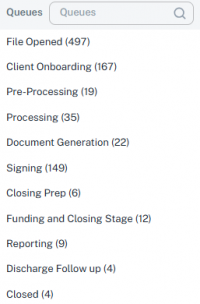
In the Task Management view, the first column is “Queues”, which displays a list of all available queues.
- At the top of this column, there's a search bar that allows you to quickly find any specific queue by typing its name.
- Each queue has a file count shown in brackets next to its name, indicating how many files are currently associated with that queue.
- You can select multiple queues at once, and as you do so, the files displayed in the view will update dynamically based on the selected queues.
This makes it easy to filter and manage tasks by focusing on specific workflows or categories.
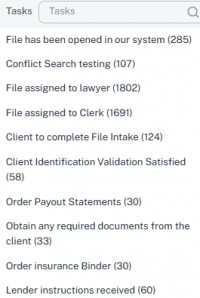
In the Task Management view, the second column is “Tasks”, which displays a list of all tasks within the system.
- At the top of this column, there is a search bar that allows users to quickly search for specific tasks by name.
- Each task in the list shows a file count in brackets next to it, indicating how many files that task is associated with.
- Users can select multiple tasks simultaneously, and based on the selected tasks, the data in the view dynamically updates to show only the files related to those tasks.
This feature allows for focused task tracking and filtering, helping users manage workloads and monitor task distribution more efficiently.
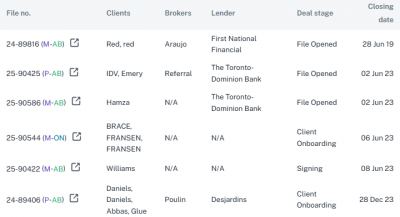
In the Task Management view, the third column is the “Files” column, which displays the actual data records, whether filters are applied or not.
This column presents the core file-level information, including:
- File No – The unique identification number of the file
- Clients – The name(s) of the client(s) associated with the file
- Brokers – The broker handling or linked to that file
- Lender – The financial institution or lender involved in the deal
- Deal Stage – The current progress status of the file in the workflow
- Closing Date – The scheduled or actual closing date for the file
This column acts as the main data display area, updating automatically based on the filters selected from the top (like user, province, lender, date, etc.) or displaying all records when no filters are applied.
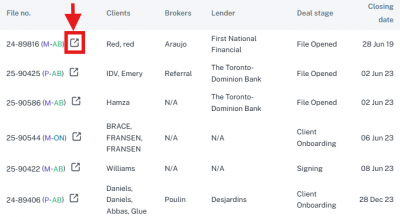
In the “File No” column of the Task Management view, each file number is accompanied by a small “open file” icon. When you click on this icon, it opens that specific file in a separate window or tab, allowing you to view all the details related to that file without navigating away from the main dashboard.
This feature ensures quick access to file-level information while maintaining your current view in the Task Management section.
In the fourth column of the Task Management view, labeled “Missing Documents”, the system displays any documents that are missing for a particular file.
When you click on any file from the Files column, the system checks that file and automatically shows the list of missing documents in this column. This allows users to quickly identify what important documents are still pending for each selected file, helping streamline follow-ups and documentation completion.
And if no document is missing for the selected file, the “Missing Documents” column will simply display the message: “No record found”, indicating that all required documents are already uploaded and complete for that file.
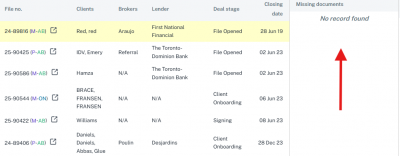
In the fifth column of the view, labeled “Deal Stages”, all the deal stages are displayed. This column also includes a search bar, allowing users to quickly find a specific deal stage by typing its name.
Next to each deal stage, there is a count in brackets indicating how many files currently exist in that particular stage.
Unlike other filters, multiple selection is not allowed here — users can select only one stage at a time, and the view will update accordingly to show files associated with the selected deal stage.

7.3 Calendar
The third section of the dashboard is the Calendar, which helps users visually track and manage important dates and scheduled activities.
There are three display options available for viewing the calendar:
- Monthly View (default)
- Weekly View
- Daily View
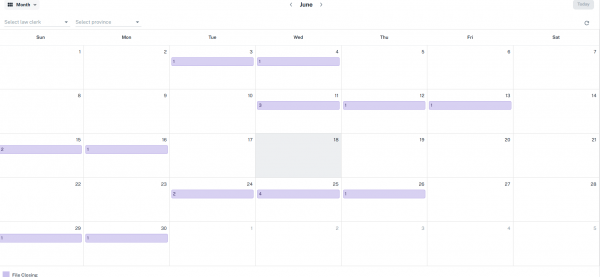
At the top-left corner of the Calendar section, you'll find a view selector dropdown. By default, it shows “Month”, but you can easily switch it to “Week” or “Day” as needed. This flexibility allows users to view scheduled events in broader or more detailed formats, depending on their preference or requirements.
This calendar essentially displays the closing dates of files. For each date, it shows:
- Which files are scheduled to close, and
- A count of how many closings are set for that particular day.

This feature allows users to quickly identify busy days and plan accordingly by simply glancing at the calendar. It's especially helpful for keeping track of workload and ensuring that no important closing deadlines are missed.
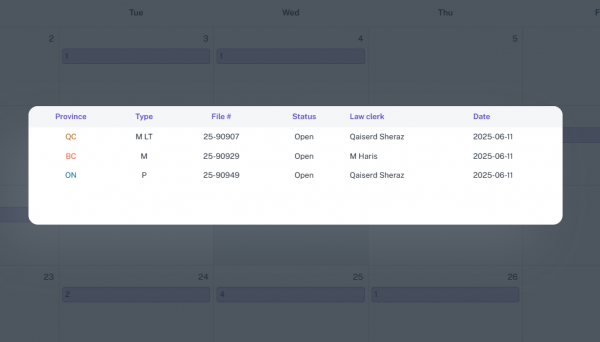
When you click on a specific date in the calendar, a pop-up window opens that displays the detailed information of all the files scheduled to close on that particular day.
This detailed view includes the following columns:
- Province – Indicates the province associated with the file.
- Type – The type of the file.
- File No – The unique identification number of the file.
- Status – Shows the current status of the file.
- Law Clerk – Name of the law clerk assigned to the file.
- Date – The scheduled closing date of the file.
This pop-up helps users get a focused view of daily closings, improving planning and follow-up efficiency.
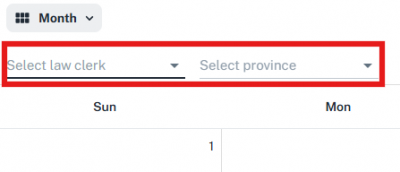
This calendar section also includes filtering options to narrow down the displayed data for better clarity and control.
You can filter the calendar by Law Clerk and by Province:
- The Law Clerk filter lets you select a specific law clerk, showing only the closings assigned to that individual.
- The Province filter allows you to view closings for a particular province.
Only one law clerk and one province can be selected at a time — multiple selection is not allowed.
These filters help users focus on relevant closings based on their role or region, making the calendar view more efficient and personalized.
8. Close View
In the Rosy Admin Portal, there's a feature called Close View, located right next to the Dashboard. This section provides a specialized calendar view focused on file closings, helping users get a clear picture of workload distribution across law clerks and provinces.

Key Features of the Close View Calendar:
- Monthly Calendar Display (Default):
By default, the calendar shows the current month, displaying all closing-related data for each day.
- Sidebar with Law Clerks:
On the left side, there’s a sidebar listing all the law clerks’ names.
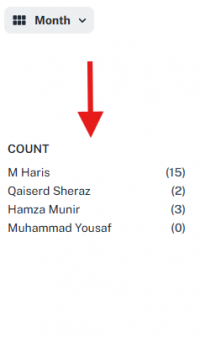 Each name includes a count in brackets showing how many files are assigned to that clerk.
- Province Color Bands:
At the top of the calendar, all provinces are listed, each with a unique color band.
These colors are consistently used in the calendar tiles to visually represent the province of each file.
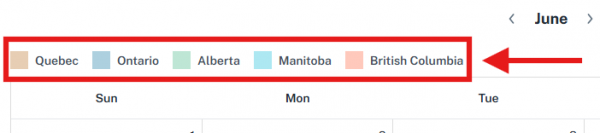
- Daily Tiles in the Calendar:
Each day on the calendar may contain one or more tiles. Each tile represents a law clerk and displays:
- The law clerk’s name
- The number of closings they are handling on that particular day
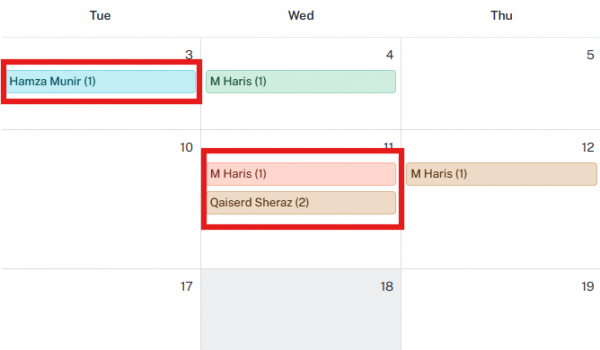
If multiple clerks have closings on the same day, multiple tiles will appear, each showing respective clerk-specific details.
This Close View makes it extremely easy for admins and managers to:
- Monitor upcoming closings
- Understand workload distribution by day, clerk, and province
- Quickly identify who is handling how many closings and when
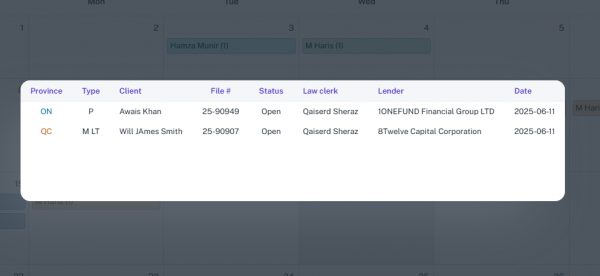
When you click on a specific tile in the calendar, a pop-up window opens that displays the detailed information of all the files scheduled to close on that particular day.
This detailed view includes the following columns:
- Province – Indicates the province associated with the file.
- Type – The type of the file.
- File No – The unique identification number of the file.
- Status – Shows the current status of the file.
- Law Clerk – Name of the law clerk assigned to the file.
- Lender - The financial institution or lender involved in the deal
- Date – The scheduled closing date of the file.
This pop-up helps users get a focused view of daily closings, improving planning and follow-up efficiency.
8.1 Filters in the Close View
In the Close View calendar, there's a filters panel located on the extreme right side of the screen. This filtering feature allows users to narrow down and refine the displayed results, making it easier to focus on specific data points.
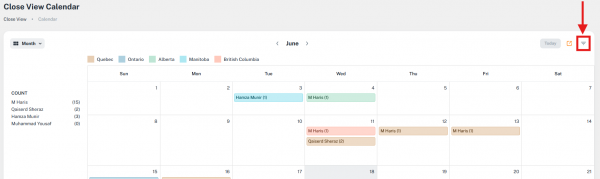
There are three types of dropdown filters available in the filter panel.
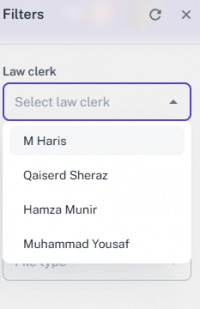
Law Clerk Filter A dropdown list of all available law clerks. You can select one law clerk at a time. The calendar will then only display the closing files assigned to the selected law clerk.
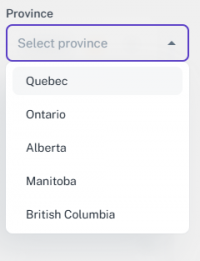
Province Filter Contains a dropdown list of all provinces. Allows selection of one province at a time. Once selected, only the closing entries related to that province will be visible on the calendar.
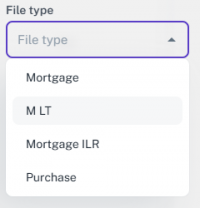
File Type Filter A dropdown showing different types of files handled in the system. You can pick one file type to filter closings shown on the calendar accordingly.
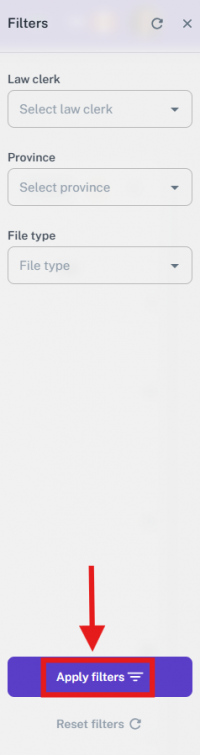
At the end of the filters panel in the Close View calendar, there are two action buttons:
Apply Filters Once you have selected values from any of the dropdowns (Law Clerk, Province, or File Type), Clicking “Apply Filters” will:
- Apply your selected criteria.
- Update the calendar view to show results only matching the selected filters.
- This helps in narrowing down the view to the most relevant data.
Reset Filters If you click “Reset Filters”, it will:
- Clear all the selections you made from the dropdown filters.
- Reload the calendar view back to the default mode (i.e., showing all closings without any filters applied).
- This is useful when you want to remove filters quickly and view the complete, unfiltered data again.
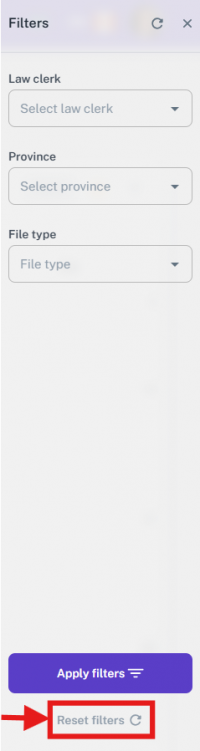
These buttons ensure users can control and customize their calendar view smoothly and efficiently, enhancing the usability of the Close View feature.
9. Contacts
In the Rosy Admin Portal, there is a section called “Contacts” located right next to the “Close View” tab. This section serves as a comprehensive contact directory for the portal.
Purpose of the Contacts Module: The Contacts module is designed to provide quick access to all essential contact information stored within the application. It centralizes communication details for easier coordination and reference.
Key Features: The main screen displays a list of all contacts available in the system.
For each contact, the following details are shown:
- Full Name – The complete name of the contact person.
- Phone Number – The associated contact number.
- Email Address – The email used for communication or registration.
- Created Date – The date on which the contact was added to the system.
- Registered in Portal – Indicates whether the contact has an active registration in the Rosy Portal.
- IDV Status – Shows the status of identity verification (e.g., Verified / Pending / Not Started).
- Status in Portal – Indicates the contact’s engagement or activity level in the portal.
- Status – General status (e.g., Active, Inactive, or any other tag defined by the system).
- Actions – Provides admin users the ability to edit or delete the contact as needed.
This Contact module is designed to allow administrators to efficiently manage communication, track portal usage, and verify contact legitimacy. It is particularly useful for maintaining a clean, organized, and searchable contact database across the entire application.

In the Contacts view, the very first element located at the top right corner is a search bar. This search functionality allows you to quickly locate a specific contact by typing keywords such as the name, email address, or phone number.
This makes it easy to filter through a large number of contacts without manually scrolling, helping you find the exact record you're looking for efficiently.

Right next to the search bar, there is a “Export” button. When you click on this button, it instantly generates a CSV file containing the data currently visible on the screen.
This file is then automatically downloaded to your device, allowing you to keep a backup, share the contact list externally, or analyze the data in spreadsheet software like Excel. This feature is especially useful for reporting and administrative purposes.

9.1 New Contact
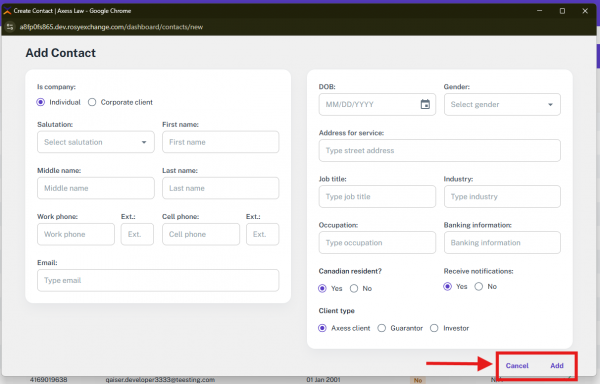
Next to the Export button, there is another button labeled “New Contact”. When you click on this button, a separate window opens up that allows you to create a new contact.

This window contains a form where the admin can enter all relevant contact details.
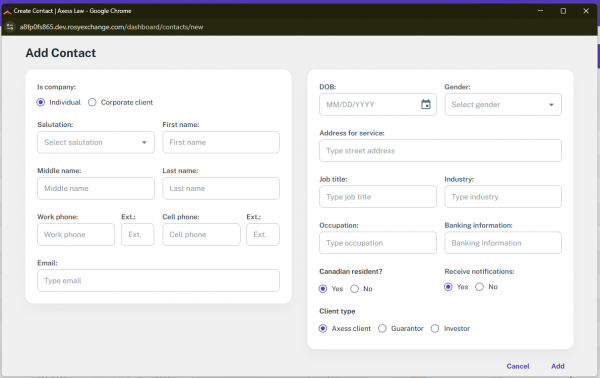
When the new window opens to create a contact, the first field in the form is related to the type of contact, labeled “Is Company”.
This field includes two radio button options:
- Individual – Select this if the contact is a personal client.
- Corporate Client – Select this if the contact is representing a company or organization.
Based on the selection, the rest of the form may adapt slightly to match the nature of the client, ensuring the appropriate information is collected.

If “Individual” is selected: The left side of the form displays fields specifically designed for individual clients:
- Salutation – A dropdown (e.g., Mr., Mrs., Ms., Dr.)
- First Name
- Middle Name
- Last Name
- Work Phone
- Extension (for work phone)
- Cell Phone
- Extension (for cell phone)
- Email Address

These fields ensure that all essential personal and communication details of the individual client are collected properly.
If Corporate Client is selected, the fields on the left side of the form will remain the same as in the Individual case, except that a “Company Name” field will be added at the top of the form.
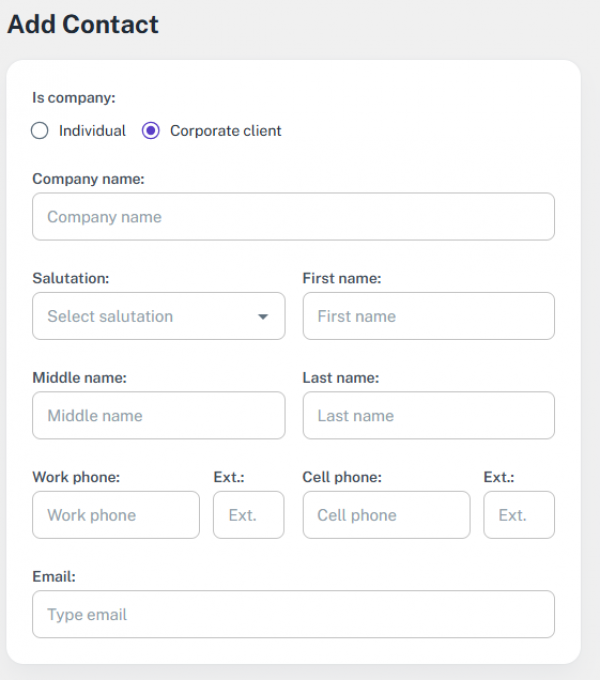
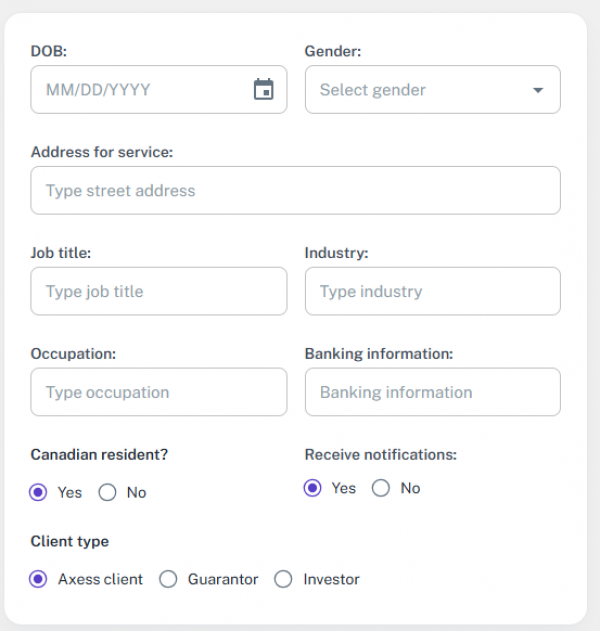
The right side of the form remains the same for both Individual and Corporate Client types. This section includes the following fields:
- Date of Birth (DOB): A date picker is provided where the user can select their date of birth from a calendar.
- Gender: A dropdown menu allows the selection of gender.
- Address for Service: A text field to input the official address of the client.
- Job Title: The client’s professional designation or role.
- Industry: A dropdown or input field to specify the industry the client works in.
- Occupation: The client's specific job or profession.
- Banking Information: A section to input relevant banking details, if required.
Additionally, there are radio button options for: Canadian Resident: The user must select either Yes or No to indicate residency status. Receive Notifications: This option allows the user to choose whether or not they wish to receive notifications (Yes or No). Finally, the Client Type field allows the admin to categorize the contact by selecting one of the following options: (Axess Client/Guarantor/Investor)
At the end of the form, two action buttons are available:
Cancel: Clicking this button will close the form without saving any information, and the user will return to the main Contact List view.
Add: Clicking this button will save the entered information and create a new contact. The newly added contact will then appear in the contact list.
9.2 Update Contact
In the Contact List, clicking directly on a contact’s name opens a separate window that allows you to update that contact’s information.
This edit functionality is exclusively accessible by clicking on the name — clicking on any other field (e.g., phone number, email, or status) will not trigger the update window.
This design ensures that updates are intentional and controlled, minimizing the risk of accidental edits.
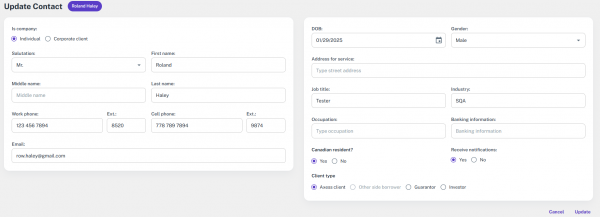
The update contact form mirrors the same structure and fields as the New Contact form.
- If you're editing an individual contact, the form will display fields specific to an individual.
- If you're editing a corporate client, the form will show the corresponding fields for a corporate client.
All fields within the form are editable. You can update any detail as required.
Once you've made the necessary changes, simply click the “Update” button at the end of the form.
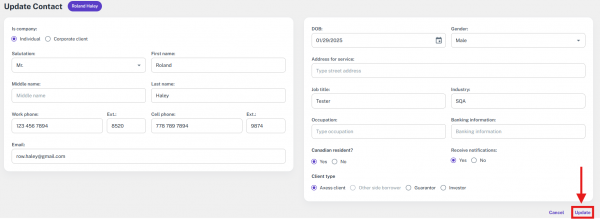
All your modifications will then be saved successfully, and the updated information will reflect in the Contact List.
9.2.1 Add Report
When updating a contact, an additional option appears at the bottom of the form labeled “Add Report”.
This allows the user to attach or associate a report with the contact during the update process. It enhances the contact’s record by letting users add relevant documentation, notes, or follow-up details directly from the same window where the contact is being edited.
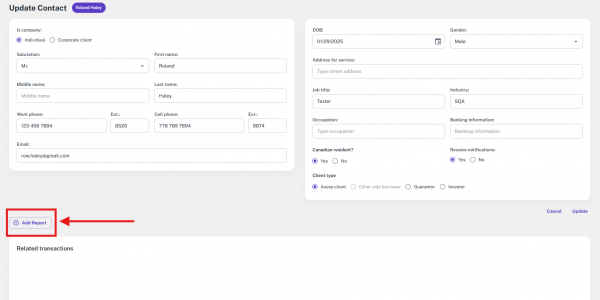
When you click on “Add Report”, a form titled “Report Form” opens up. This form is structured into two main sections:
Section 1: Basic Contact Details This section includes six fields for entering the personal information of the individual:
- First Name
- Middle Name
- Last Name
- Email
- Phone Number
- Date of Birth (with a calendar picker to select the date)
Section 2: Primary Identification Below the contact details, there's a sub-heading labeled “Primary Identification”, which includes five additional fields related to the individual's ID:
- Document Number – a text field to enter the ID number
- Document Type – a dropdown with options like Passport, Driver’s License, National ID, etc.
- Document Expiry Date – a calendar field to pick the expiration date
- Issuing Country – a dropdown or text field to mention which country issued the document
- Issuing Authority – the name of the authority/agency that issued the document
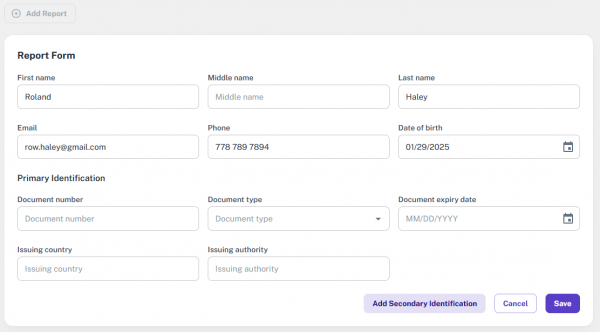
At the end of the Report Form, there are three action buttons:
Add Secondary Identification Clicking this button dynamically expands the form and adds a section under the heading “Secondary Identification”. This section includes five fields, identical to the Primary Identification section:
- Document Number – a text input for the secondary ID number
- Document Type – a dropdown with options like Passport, Driver’s License, National ID, etc.
- Document Expiry Date – a calendar picker to choose the expiry date
- Issuing Country – a field to specify the issuing country
- Issuing Authority – a field to enter the authority that issued the document
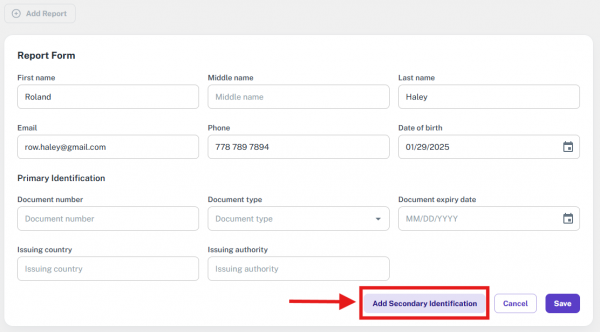
Next to the “Secondary Identification” heading, there is also a delete button, allowing you to remove this section if it's no longer needed.
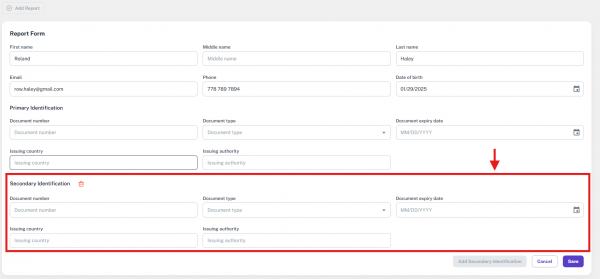
Cancel If you click Cancel, the form will close without saving any data, and the “Add Report” option will reappear in the Update Contact window. You will remain on the same contact update screen, allowing you to take further actions if needed.
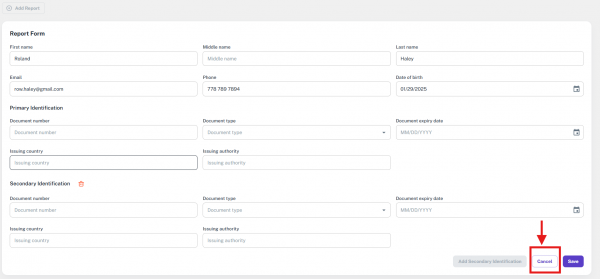
Save If you click Save, all the data entered in the Report Form (including Primary and Secondary Identification if added) will be saved successfully. The report will then be attached to the contact, and you will stay on the Update Contact window with the newly added report reflected in the interface.

10. Doc AI Center
The Doc AI Center allows users to import, review, and validate mortgage, lender, client, and property information extracted from uploaded documents using the SortSpoke API. This helps reduce manual data entry, ensures accuracy, and makes it easier to link documents to the correct file in Rosy.
10.1 Interface
Method 1: Uploading & Assigning New Documents
Use this method when new documents arrive and need to be linked to a file.
Step 1 – Upload Document
- Go to Portal → Doc AI Center.
- Upload the required document (e.g., mortgage package, client forms).
- The SortSpoke API will automatically read the document and extract key values (e.g., property address, lender name, client info).
- Extracted records appear in the Unassigned section.
Step 2 – Assign to File
In Unassigned, click Assign File.
A window opens showing extracted values, such as:
- Mortgage Terms – Principal, Term, Payment, Net Advance, etc.
- Lender Info – Name, Address, Contact.
- Client Info – Borrower, Guarantor, Investor details.
- Property Address – From AI extraction
The system also suggests Possible Matching Files.
Select the correct file and click Assign.
Possible Matching Files
- Based on the extracted data (borrower names, property address, lender info), AI compares with existing files in Rosy.
- If similarities are found, the system lists them under Possible Matching Files.
- This helps prevent the creation of duplicate files or assigning the same client/lender to multiple files incorrectly.
How to Use:
- Review the suggested files shown by the system.
- Compare the AI-Extracted Values with the existing file data.
- If details match → Select that file.
- If details don’t match (e.g., different borrower or property) → Do not select it, instead assign it to a new or correct file.
- Once confirmed, click Assign to finalize.
Method 2: Reviewing Ready-to-Import Data
Use this method when documents are already assigned and ready for validation.
Step 1 – Open Ready to Import
- In Doc AI Center, click Ready to Import.
- A table appears with columns: Search, Name, Finished On, File No, File Type, and Actions.
Step 2 – Compare Values
- In Actions, click Import Data.
- A 3-column comparison view opens:
- Field Name
- AI Extracted Value (from SortSpoke)
- Rosy Value (existing system data)
Step 3 – Choose Actions
- For each field, select one of the options:
- Add as New → Insert new extracted values.
- Replace Existing Value → Replace Rosy values with AI-extracted ones.
- Keep Rosy Value → If AI sends empty/null, the Rosy value stays.
Examples:
- Mortgage: If AI detects a new lender, it will be added unless the lender already exists in Rosy.
- Property: If AI sends a new address, you can choose to replace the old one. Null values will not overwrite existing Rosy data.
- Clients:
- If borrower email matches existing client → link to same client.
- If new → add as a new client.
- For guarantors and investors → AI data is added as new, or existing entries can be updated.
- Lawyers: AI extracts lawyer names, but you must select from Rosy’s registered lawyer list.
Method 3: Re-importing Completed Files
Use this method when a file has already been imported but requires corrections or updates.
Step 1 – Open Completed Section
- In Doc AI Center, go to Completed.
- A list view shows: Search, Name, Finished On, File No, File Type, Actions.
Step 2 – Re-import Data
- In Actions, click Re-import Data.
- The same comparison window opens (AI extracted data or Rosy data).
Step 3 – Finalize Updates
- Replace outdated values with new AI-extracted ones.
- Keep existing Rosy values where needed.
- This ensures completed files remain accurate and up to date.
10.2 Functionality
The integration of SortSpoke AI with the Doc AI Center directly impacts how users work with documents, assign files, and manage client and lender data. Below are the main functional impacts explained step by step:
1. Automated Data Extraction
- When users upload a document, the SortSpoke AI API automatically scans and extracts relevant fields.
- Extracted data includes:
- Mortgage Terms (Principal, Net Advance, Payment, Term, Dates, Interest Rate, etc.)
- Lender Details (Name, Address, Contact)
- File Property (from mortgage package)
- Client Details (Borrower, Guarantor, Investor info, Contact details)
- File Digest (Field name and date)
- This eliminates the need for manual entry of lengthy forms.
2. Unassigned Data Handling
- Extracted records first appear in the Unassigned section.
- Users can:
- Search unassigned docs by Name or Status (Finished / In-progress).
- Open a preview of AI Extracted Values.
- Assign the extracted data to the correct file using the Assign File feature.
3. Smart File Matching
- While assigning, AI suggests Possible Matching Files based on extracted details (e.g., borrower names, property addresses, or lender info).
- This reduces the chance of linking a document to the wrong file.
4. Intelligent Data Import
- In the Ready to Import or Re-import stage, AI data is compared with Rosy’s existing values in a side-by-side view:
- AI Extracted Value (from SortSpoke)
- Rosy Value (system value)
User Options:
- Add as New – Insert extracted data as a new entry.
- Replace Existing Value – Update Rosy with AI value (only when AI value is valid).
- Keep Rosy Value – Prevent overwriting, especially when AI sends a null/empty field.
5. Rules for Lenders
- If the lender extracted by AI already exists in Rosy’s Lender Table, it is not duplicated.
- If it does not exist, the new lender is added automatically.
- For mortgages, AI ensures that at least one lender is always linked to the file.
6. Rules for Clients (Borrower, Guarantor, Investor)
- Borrower:
- If the borrower’s email ID matches an existing client in Rosy, the system links them automatically.
- If not, a new client record is created.
- Guarantor:
- Always added as new entries unless already linked.
- Investor:
- Similar rules as borrowers; system checks email and prevents duplicates.
- Replacement Rule:
- Existing data can be replaced only if AI provides a non-null new value.
- Null values from AI will never overwrite Rosy data.
7. Property Data Management
- AI extracts Property Address, Condo/Collateral details, Jurisdiction.
- If Rosy already has a value:
- AI data can replace existing values if more accurate.
- If AI sends null → Rosy values remain untouched.
8. File Broker & Fees
- AI may extract Broker info and Fees.
- Extracted data is available for validation, but it cannot be overwritten directly with Rosy values.
- Users must manually confirm and update broker-related details if required.
9. Lawyer Information
- AI extracts the Lawyer’s Name from the document.
- In Rosy, lawyers exist as registered users.
- Users must select the correct Rosy Lawyer that matches the AI suggestion.
- This ensures system consistency and prevents duplicate lawyer records.
10. Province-Specific AI Models
- AI behavior adapts depending on the province:
- Ontario: Data is enriched using Teranet integration.
- Other provinces: Data is processed through SortSpoke extraction.
- This ensures higher accuracy for different regions.
11. File Digest Updates
- AI can update File Digest details such as:
- Intended File
- Closing Date
- Other transaction metadata
- These updates keep the file summary consistent and up to date
11. Files
In the Rosy Admin Portal, the “Files” section appears next to the Doc AI Center in the top navigation bar. This module is considered the core component of the entire platform, as it manages the heart of the application: real estate transactions.
The Files module is the most critical part of the Rosy Admin Portal. It is where all legal and transactional records related to real estate cases are created, managed, tracked, and updated throughout their lifecycle. These files represent individual client cases or property-related matters, and the system has been designed to support a wide variety of real estate transaction types.
Each file corresponds to a different type of transaction, which helps the system organize and manage legal workflows efficiently. The supported file types include:
- Mortgage
- Purchase
- Sale
- LDR Representation
- Transfer
- Change of Ownership
- Discharge
- Reverse Mortgage
- Survivorship
These categories cover a comprehensive range of real estate scenarios, from buying and selling properties to more complex legal matters like inheritance, refinancing, and title transfers.
Because each file contains sensitive, time-bound, and legally significant data, this module is deeply integrated with:
- Task management
- Calendar scheduling
- Document automation
- Contact and client communication
- Workflow approvals and tracking
The “Files” module ensures that every real estate transaction is properly documented, processed, and tracked—from initiation to completion—making it an indispensable tool for law clerks, lawyers, and back-office teams using the Rosy Admin Portal.
11.1 New File
Inside the Files module, the very first option you'll see is the “New File” button. This button allows users to initiate a new real estate transaction by navigating to the “Create File” form.
Clicking “New File” takes you to a dedicated form where you can input all necessary details to create a new file in the system. This could be for any type of real estate transaction, such as a mortgage, purchase, sale, transfer, or other legal matters.

In the “Create File” form, the structure and fields vary based on the selected transaction type.
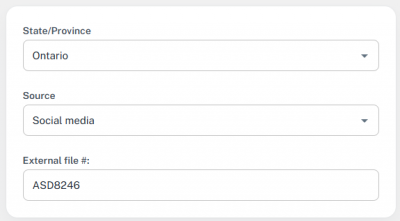
The form begins with three key fields:
State/Province → This is a dropdown field where you can select the relevant province or territory in which the transaction is taking place (e.g., Ontario, Alberta, British Columbia, etc.). It helps ensure the file is associated with the correct jurisdiction, as legal documentation and workflows often differ by region.
Source → Another dropdown field, used to select the source of the file. Selecting the source helps in tracking and reporting the origin of business leads.
External File → This is a text input field where the user can enter an external reference number (if available). This is typically used to store file IDs or reference numbers from outside systems (e.g., lender portals, client management platforms) for easy cross-referencing.
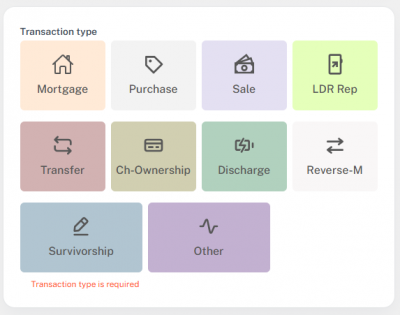
The next section of the Create File form is the Transaction Type selection.
This section contains a set of selectable options that have all supported real estate transaction types, such as:
- Mortgage
- Purchase
- Sale
- Transfer
- Discharge
- LDR Rep
- Change of Ownership
- Reverse Mortgage
- Survivorship
- Other
Below the Transaction Type section, the next part of the Create File form is the Client Details section. This section is straightforward and includes only one dropdown field: Client Details → This dropdown allows you to select a client from the list of all previously registered or existing clients in the system.
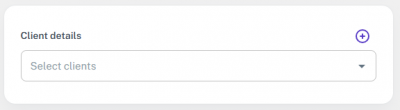
Once a client is selected, their basic information (like contact details, address, and email) may automatically populate in the backend or other sections of the file, depending on the configuration of the system.
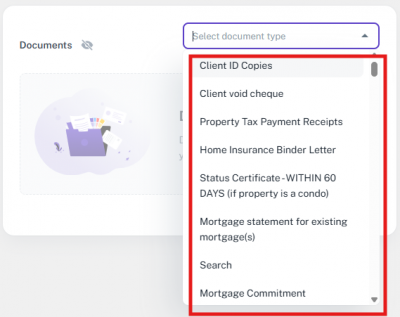
The next section of the Create File form is the Documents section.
This section is dependent on two key inputs:
- Province (State/Region)
- Transaction Type
Until both the province and the transaction type are selected, this section will remain empty or inactive.

Once you select a province and a transaction type, the system dynamically loads a list of required documents that are relevant to that specific combination. For example → A Mortgage in Ontario may require different forms than a Purchase in British Columbia.
On the right side of the Create File form, there is a dedicated section that contains additional important details needed to finalize the file setup.
Here’s a breakdown of the fields in this section:
Property Details (Text Field) → This is a standard input field where the user can enter the address or description of the property involved in the transaction.
Closing Date (Calendar Field) → A date picker that lets you select the expected closing date for the transaction. This is a key detail that affects timelines and scheduling across departments.
Acting For (Dropdown) → This dropdown allows you to define whom the legal team is representing in the transaction. Options typically include:
- Borrower only
- Borrower and Lender
Referral Partner Information (Dropdown + Add Option) → A dropdown where you can select a referral partner if the file originated from an external source or agency. Next to the dropdown, there’s also an option to add a new referral partner on the spot if it doesn’t already exist in the system.
Special Comments (Text Field) → This is a free-text area where you can enter any additional instructions, notes, or context related to the transaction. It helps other team members understand specific concerns or requirements for this file.
Law Clerk (Dropdown) → Assign the file to a Law Clerk from the available list. Only one can be selected.
Lawyer (Dropdown) → Assign a supervising lawyer responsible for reviewing or signing off on the file.
Junior Clerk (Dropdown) → Optionally assign a junior team member to assist with document prep or follow-ups.
Lender (Dropdown) → Choose the lending institution involved in the file. This list is populated from the system’s lender database and ensures consistency in lender data.

At the very end of the Create File form, there is a “Create File” button.

Once all the required fields have been filled out, including transaction details, client selection, document requirements, property and referral information, and staff assignments, you can simply click on the “Create File” button.
As soon as you click it, the system processes all the provided information. If everything is valid, a new file is successfully created in the system. The file will then appear in the main Files module list and can be tracked, edited, and managed from there.
This action finalizes the setup of a new real estate transaction within the Rosy Admin Portal.
11.2 My Files
The second option in the Files menu is “My Files.”
The My Files section displays all the files that are specifically associated with the currently logged-in user. Whether the user is a Law Clerk, Lawyer, Junior Clerk, or Admin, they will only see the files that are assigned to them. This provides a personalized and focused view of responsibilities and ongoing tasks. It helps users manage their workload efficiently without being distracted by files that are not relevant to them.
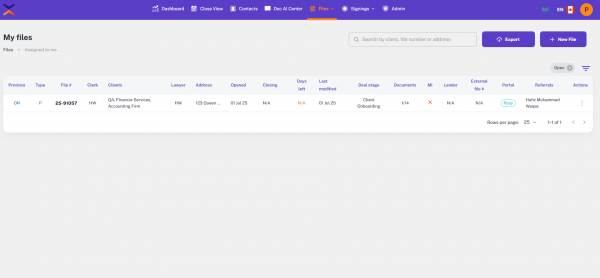
Each file shown here contains key details such as:
- Province
- Type
- File #
- Clerk
- Clients
- Lawyer
- Address
- Opened
- Closing
- Days Left
- Last Modified
- Deal Stage
- Documents
- MI
- Lender
- External File #
- Portal
- Referrals
- Actions
This section plays a crucial role in helping team members stay organized and on top of their assigned transactions.
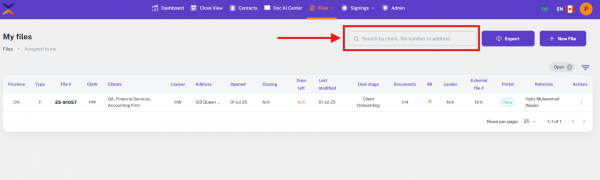
At the top-right corner of the My Files section, there is a search bar that allows users to locate specific files quickly. As you type, the list below filters in real-time, showing only the files that match the search criteria. This makes it easy and efficient to locate a specific file without having to scroll through the entire list.
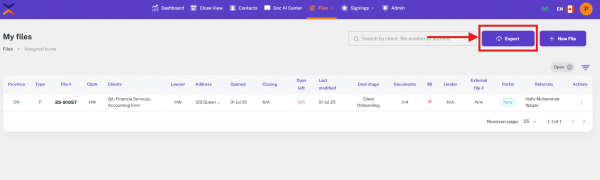
Next to the search bar in the My Files section, there is an “Export” button.
When you click the Export button, the system generates a CSV file containing all the file data that is currently being displayed on the screen. This includes filtered results (if any) or the complete list of assigned files. The CSV file is then automatically downloaded to your device.
Next to the Export button in the My Files section, there is a “New File” button.
Clicking on the New File button takes the user directly to the Create File form. From there, users can start a new real estate transaction file by filling out all the required fields.
All details related to creating a new file are already thoroughly explained under section 11.1 – New File.
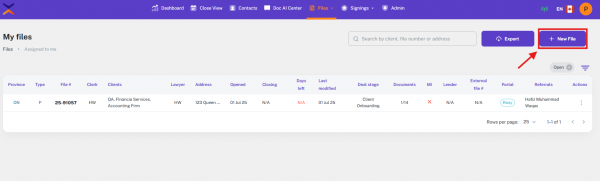
This shortcut ensures that users can easily add new files without navigating back to the main Files menu.
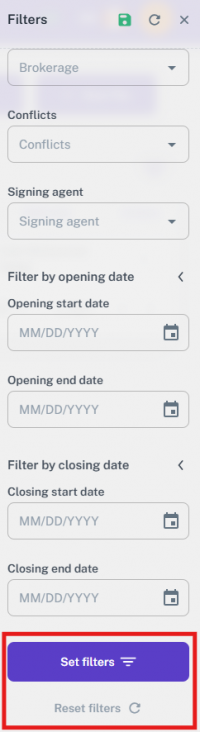
11.2.1 Filters
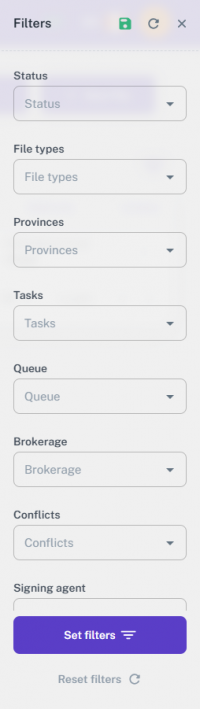
The My Files section also includes a Filters option, allowing users to narrow down the displayed data based on specific criteria. Users can apply multiple filters simultaneously to customize the view according to their needs.

In the Filters sidebar of the My Files section, the top area provides three key control options:
Save Filters → Allows users to save their current filter selections for future use. This is helpful if you often search using the same criteria—just save once and reuse anytime.
Reset Filters → Clears all the applied filters and resets the view back to default, showing all associated files.
Close Sidebar → Closes the filter panel without applying or changing anything, returning to the full-screen file list.
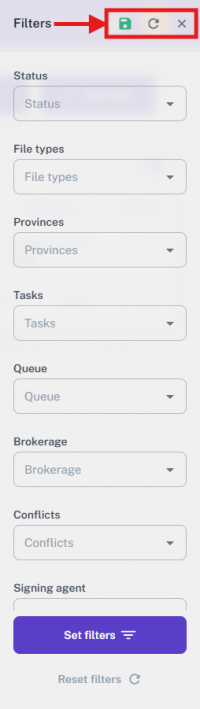
Below the top control buttons in the Filters sidebar of the My Files section, users are presented with several filtering fields to refine their search:
Status → Allows users to filter files based on their current status (e.g., open, closed, in-progress).
File Type → Filters files by transaction types such as Mortgage, Purchase, Sale, LDR Rep, Transfer, CH-Ownership, etc.
Provinces → Enables filtering based on the geographical region or province where the file is being processed.
Tasks → Filters files depending on the tasks associated with them, helping to narrow down by specific workflow stages.
Queue → Lets users filter files by queue category, organizing work by type or team.
Brokerage → Filters based on the brokerage firm associated with a particular file.
Conflicts → Helps in identifying files that are marked with conflict status for compliance or review.
Signing Agent → Allows filtering files according to the assigned signing agent, often used in closing and legal stages.
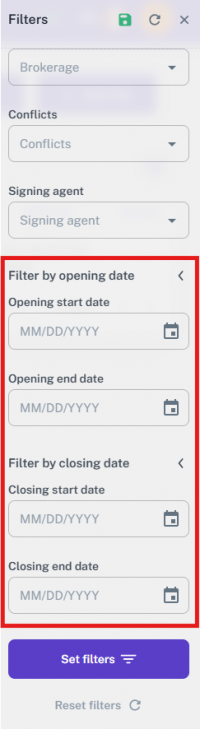
In addition to the dropdown and selection filters, the My Files sidebar also includes date-based filters to refine file searches by timeline:
Filter by Opening Date This filter helps users narrow files based on when they were opened.
It includes two calendar fields:
- Start Date
- End Date
Users can specify a custom range to view files opened within that period.
Filter by Closing Date Similar to the opening date filter, but focuses on when files are expected to or have been closed.
Also includes two calendar fields:
- Start Date
- End Date
Useful for tracking deadlines, planning reviews, or checking recent completions.
At the very end of the Filters sidebar in the My Files section, two action buttons control how filters are applied or cleared:
Set Filters → Clicking this button applies all the selected filters above. The file list will automatically update to display only the data that matches the selected criteria.
Reset Filters → This button clears all selected filters in one click. After resetting, the sidebar closes automatically, and the view returns to showing all available files without any filtering.
11.3 All Files
The third option under the Files menu is All Files.
This section displays every file that exists in the system, regardless of who it is assigned to. It includes:
- All files are assigned to different users
- Any files you have permission to view or access
Unlike My Files, which is limited to the current logged-in user’s associated files, All Files provides a more global view of the data within the application. It's especially useful for admins, managers, or supervisory roles who need visibility across all real estate transactions in the system.
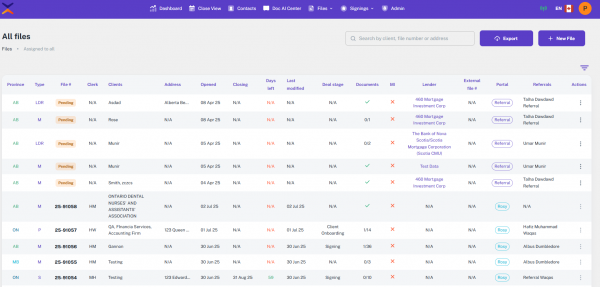
Each file shown here contains key details such as:
- Province
- Type
- File #
- Clerk
- Clients
- Address
- Opened
- Closing
- Days Left
- Last Modified
- Deal Stage
- Documents
- MI
- Lender
- External File #
- Portal
- Referrals
- Actions
12. File Details
The File Details page provides a summary of key file information, including file type, number, and the parties involved. It also displays task progress, property details, and client information, and allows for efficient task management through various cards at the bottom.
Method 1: Accessing Files and File Details
Step 1: Logging In to Rosy Portal
- Open the Rosy Portal on your browser.
- Enter your credentials (username and password) to log in.
- Click “Login” to access the portal.
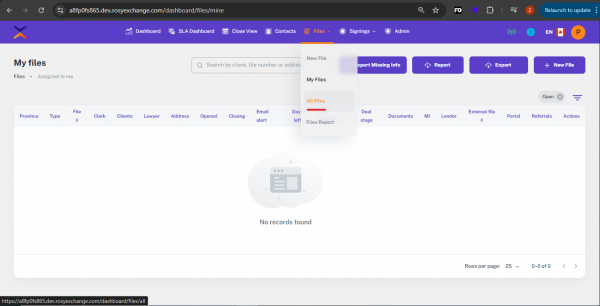
Step 2: Accessing All Files
- After successfully logging in, navigate to the Files section from the main dashboard.
- Click on All Files to view the complete list of available files.
- Scroll through the list or search for the desired file number.
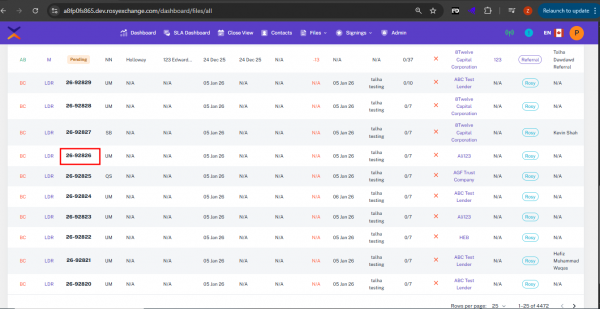
Step 3: Selecting a File
- Once you have the list of files, click on the File Number of the file you wish to view.
- This action will take you to the File Details page for the selected file.
12.1 File Summary
Step 1: Overview of File Summary
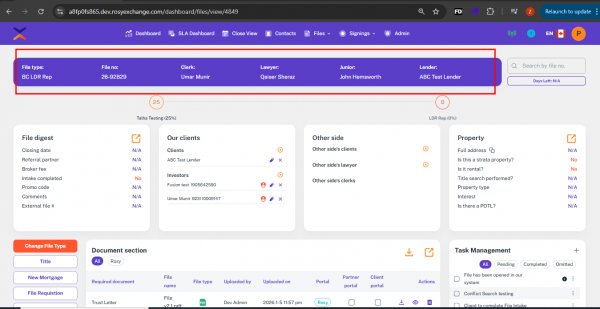
- Upon entering the File Details page, you will see a Top File Summary at the top of the page.
The summary includes key information such as:
- File Type
- File Number
- Clerk
- Lawyer
- Junior
- Lender
Step 2: Information Display
- All the key details are highlighted in a Blue Ribbon for easy identification.
12.2 Pizza Timeline
Step 1: Queues Section
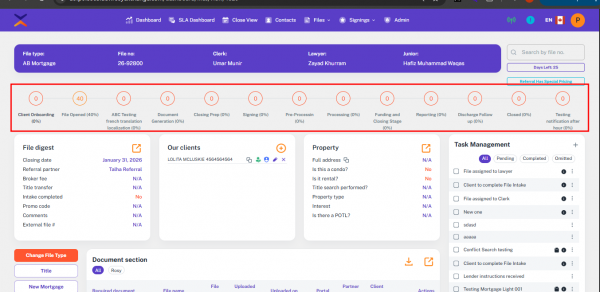
- Below the File Summary, you will see the Queues section pizza style timeline.
- This section displays the progress percentage of the tasks related to the file.
Step 2: Hovering Over Queues
- Hover your mouse over the Queue progress bar.
- A detailed breakdown of the tasks within that queue will be shown.
12.3 File Digest
The File Digest section gives you a quick summary of the most important details for each file. It appears on the File Details page when you open any file from the Files Section. Different file types (Purchase, Sale, Mortgage, or LDR Rep, Transfer, Ch-Ownership, Discharge, Survivorship, and Other) may show slightly different fields.

12.3.1 Interface
Common Fields in File Digest
- These fields may appear across multiple file types.
Step 1 – External File
- An optional number you can add when creating a file. This will be used as the file number in the third-party app.
- If not added at creation, you can edit it later here.

Step 2 – Date of Agreement
- Enter the date when the agreement was signed.

Step 3 – Requisition Date (Purchase/Sale only)
- Mandatory reminder by which requisition actions must be performed on this file.

Step 4 – Intended Closing Date / Initial Close Date
- Add the expected file closing date.

Step 5 – Conflict Found
- Select Yes or No from the dropdown.
- If Yes, you must provide conflict details.

Step 6 – Review Section
- Schedule a file review.
- Review Date – Enter the planned review date.
- Review Lawyer – Select any user from the system.

Step 7 – Virtual Signed
- Select Yes to enable digital signatures.

Step 8 – New Build (Purchase only)
- Check this box if the property is a new build.

Step 9 – Team Assignment
- Assign or update file roles:
- Law Clerk
- Lawyer
- Junior Clerk
- Lender (or Client in LDR Rep files)

Step 10 – Referral Partner Information
- Shows referral partner linked to the file.
- Can be added during file creation or updated later and add multiple at the time.

Step 11 – Deal Initiator
- Dropdown showing how the client came in (auto-filled if linked to a referral source).

Step 12 – Source Options
- Choose from:
- Referral – Friend/Family
- Referral – Real Estate Agent
- Referral – Mortgage Agent
- Referral – Other Law Firm

Step 13 – Deal Billing / Broker Fee / Promo Code
- Enter billing amount, broker fee, or promo code if applicable.

Step 14 – Commercial Deal
- Select Yes for commercial, No for domestic/other.

Step 15 – POA (Power of Attorney)
- Select Yes if a power of attorney is involved.

Step 16 – Status
- Choose from:
- On Hold – Requires a reason.
- Cancelled – Requires a cancellation reason.

Step 17 – Comments
- Shows comments added during file creation.
- You can edit or add new comments here.

Step 18 – Intake Completed (Yes/No)
- If set to Yes, the related File Intake task in Task Management will auto-complete.

Step 19 – Update or Cancel
- Update – Save the changes.
- Cancel – Discard changes and return to the list.

Purchase / Sale Files
- In addition to the common fields, these files include:
- Requisition Date – Mandatory deadline.
- New Build – Checkbox (Purchase only).

Mortgage Files & Other File types
- For mortgage files and Other File Types, you will see:
- Intended Closing Date
- Mortgage Maturity Date
- Is there a title transfer taking place? (Yes/No)

LDR Rep Files
- Same as Mortgage Files, except:
- The Lender section is replaced by the Client section.

Editing File Digest
- All fields in the File Digest are editable after file creation.
- Any updates are saved directly and instantly reflected in the system.

12.4 Communication Section
The Communication section shows messages and notes related to a file. It appears when you open a file (by clicking its File Number in All Files) and also when a new file is created.
From All Files: Click the file number → the file details open → Communication section is displayed. When creating a new file: After the file is created (or in the new-file view), the Communication section is visible.


12.4.1 Interface
Communication UI — Tabs
The Communication section contains five main tabs:
- All
- Inbox
- Sent
- Notes
- System
- There is also a + (plus/Add) control and a New Window button that provide options to create or view communications.


Method 1 — Use the + (Add) button (inside Communication)
- Open the file and go to the Communication section.
- Click the + (Add) button.
- A small menu appears with two options: Email and Notes.
- Choose Email to compose/send an email, or choose Notes to add an internal note.
- Complete the fields and save/send as required.
Method 2 — Use the New Window button
- Open the file and go to the Communication section.
- Click New Window.
- The same options (Email, Notes) are available in the new window.
- Select Email or Notes, then compose and send/save.
- Quick steps (at a glance)
- To view communications: All Files → click File Number → Communication tab.
- To add Email/Note quickly: Communication → click + → choose Email or Notes.
- To work in a separate window: Communication → New Window → choose Email or Notes.
- The All tab aggregates items from Inbox, Sent, Notes and System for an overall view.
- Both the + button and New Window provide the same creation options (Email, Notes); use whichever fits your workflow.
12.4.2 Functionality
The Communication section helps track all file-related interactions, including emails, notes, and system-generated updates. Each tab has a specific purpose:
All
- Displays everything in one place.
- Shows all emails (Inbox + Sent), Notes, and System messages together.
- Inbox
- Shows emails that are added/received in the file.
- Sent
- Displays emails sent from the system to clients, referrals, or custom users.

Notes
- Contains notes manually added to the file.
- Notes can be tagged automatically and mentioned in messages.
- Notes also appear on the Dashboard and under All.
- Example: Notes may include details about an account created on the Rosy Portal.

System
- Shows emails or messages sent automatically through Triggers.
- Helps track automated system communications separately from user-sent items.

Reply with AI
The Reply with AI option simplifies sending responses directly from the Communication section when we send the message.
- Key Functions:
- Auto-Pick Recipient
- When clicked, the system automatically picks the recipient’s email (e.g., Client or Referral).
- No need to manually re-enter the email address if it already exists in the file.

Portal Visibility
- Emails sent through this option are also visible in the Client Portal or Referral Portal (if that portal is enabled/selected).
Editing & Customization
- Users can edit the AI-generated reply before sending.
- Option to add a custom email address if needed.

Reply To:
New Email
- When a user generates a New Email from the portal:
- The email is sent from the Rosy account to the selected recipients.
- Recipients receive the email in their inbox.
- The email is also logged in the Communication section of the relevant portal(s).
Client & Referral Recipients:
- If the user wants the email and its replies to also appear in the Client Portal or Referral Portal, then these recipients must be explicitly selected from the available recipients list.
- If any custom email address is added, it will be treated as a custom recipient only (not shown in Client/Referral portals).
- Once Client or Referral recipients are selected, the email will also appear in the respective portal’s Communication section.
👉 Note:
- If a recipient replies to this email from their inbox, the reply handling process (described below) will be applied.
Reply (Inbox Reply)
- When a user replies from their email inbox (not using Reply All):
- The reply is first received by Rosy (replyto@axesslaw.com).
- Rosy checks the To field and forwards the reply to the correct recipients.
- The reply is logged in the Communication section of the portal(s).
- Recipients also receive the reply in their inbox.
- If another reply is made, the same cycle continues:
- Inbox reply → Rosy receives → Rosy checks → Forwards → Updates Communication section.
👉 Thread Creation Rule:
- Replies from the inbox will continue to build a thread in the Communication section.
- This loop will repeat as long as replies are sent from inbox.
Reply (Portal Reply or AI Reply)
- If a user replies directly from the portal communication section (Rosy) or uses the AI Reply function
- It is treated as a new email, not a reply to the last message.
- No thread is created for these replies.
- The email will appear in the Communication section as a new entry.
Reply All (Inbox)
- When a user clicks Reply All from their inbox:
- The user may receive duplicate emails because:
- One email comes directly (since the user is in the To field).
- Another email comes via Rosy (which forwards the message).
- This can result in users getting the same message twice.
- Only replies handled by Rosy are tracked in the Communication section.
- Direct replies that bypass Rosy are not tracked.
Threads
Old Threads
- Old threads created before the recent changes are not tracked in Rosy.
- Replies to those emails will not appear in the Communication section.
- New Threads (After Changes)
- To track communication properly, users must start a new thread directly from Rosy
- Communication.
Once a new thread is started:
- All replies from inbox will be captured by Rosy.
- Rosy will forward replies to all recipients and update the Communication section in relevant portals (Rosy, Client, Referral).
- The thread stays active in Rosy as long as replies continue via inbox.
- Replies made from Rosy Communication or via AI Reply will generate new standalone emails, not part of the previous thread.
👉 Impact: Only new threads created in Rosy after the changes will be tracked across Rosy, Client, and Referral portals. Old threads cannot be tracked.
- Common Rules Across All Portals
- The same reply behavior applies to Rosy, Referral Portal, and Client Portal.
Tracking Limitation:
- Only emails that go through Rosy are tracked. Direct inbox-to-inbox replies outside Rosy are not visible in the portal’s Communication section.
- Add Communication — Using the + Button
- When you click the + button in the Communication section, two options appear: Email and Notes.
Method 1: Send Email
- Recipients
- Select the recipient(s) to whom the email will be sent.
- Custom Recipient:
- Must be added before selecting from the list.
- If you try to add a custom email after selecting, it will not be allowed.
Multiple Clients:
- You can add more than one client as recipients.
Important Note:
- If you enter the same email as a client but mark it as Custom, it will be treated as a custom email and will not appear in the Client Portal.
- When you add Clients or Referrals, the email will also appear in the Client Portal or Referral Portal.
Email Template
- Select the email template to be used.
- This helps standardize communication.
Subject
- Enter the subject of the email.
Message
- Write the message body.
- Attachments
- All available documents related to the file are displayed.
- Select the document(s) you want to attach.
Method 2: Add Notes
- Enter the note content.
- Mention the note if required (so it appears in Messages)
- Appears on the Dashboard.
- Appears under All in Communication.
Notes
- may include system-generated entries such as account creation in the Rosy Portal.

Method 3: Use New Window
- Click New Window to open the Communication section separately.
- It displays the same features (Email and Notes) but allows working in a dedicated window.
- Each file maintains its own Communication history.

12.5 Property
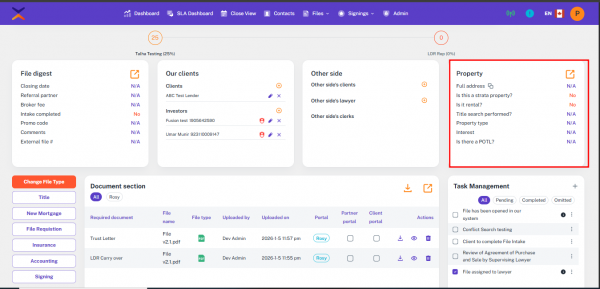
The Property Card includes details about the property, such as:
- Address
- State Property
- Is it Rental?
- Title Search Performed
- Property Type
- Interest
- Is there a POTL?
Updating Property Information
Step 1: Accessing Property Information
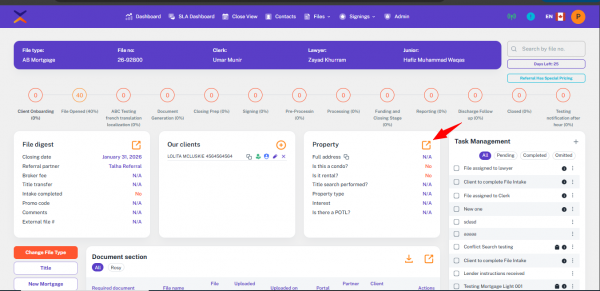
- In the File Details page, click on the Property section to open a new window where you can update property details.
Step 2: File Details in Blue Ribbon
At the top of the property update window, the Blue Ribbon will display essential file details, including:
- File Type
- File Number
- Clerk
- Lawyer
- Junior
- Lender
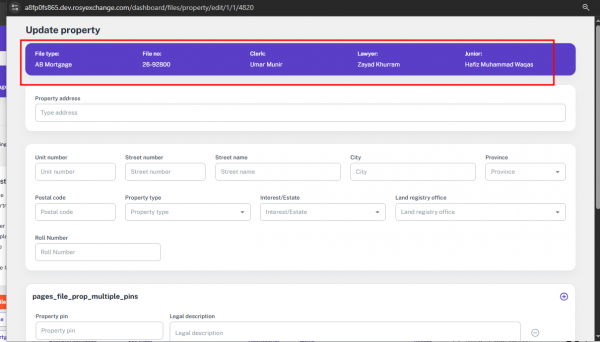
Step 3: Entering Property Address
- Below the Blue Ribbon, you'll find the Property Address field.
Enter the full address including:
- Unit Number
- Street Number
- Street Name
- City
- Province
- Postal Code
Step 4: Selecting Property Details
Below the address fields, you'll find a card where you can select various property details:
- Property Type (dropdown selection)
- Interest/Estate (dropdown selection)
- Land Registry Office (dropdown selection)
- Roll Number
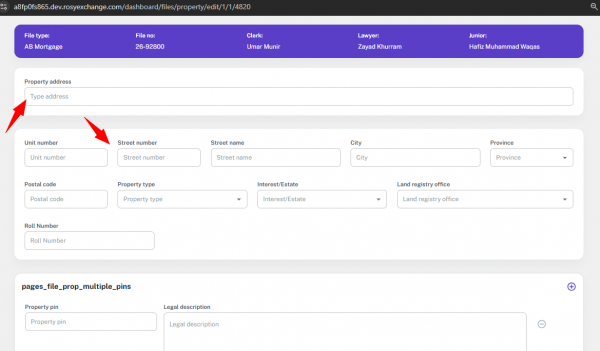
Step 5: Adding Property Pin and Legal Description
- Below the property details, there's another card for Pages File Prop Multiple Pins.
- Here, you can add the Property Pin and Legal Description.
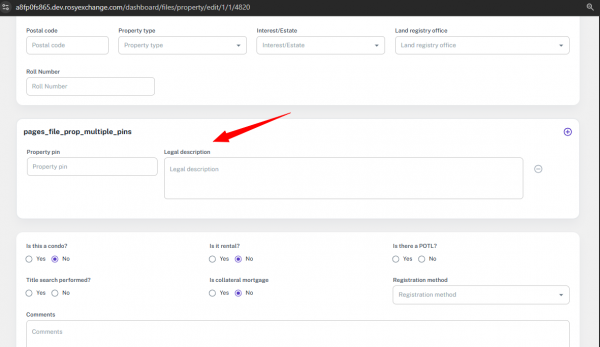
Step 6: Additional Property Information
Below the property pin section, you will find the following cards for additional details:
- Is this a Condo? (Yes/No selection)
- Is it Rental? (Yes/No selection)
- Is there a POTL? (Yes/No selection)
- Title Search Performed? (Yes/No selection)
- Is Collateral Mortgage? (Yes/No selection)
- Registration Method (dropdown selection)
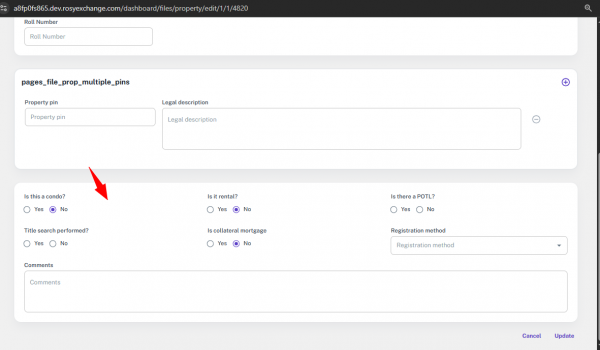
Global Imports and Property Pricing
Step 1: Global Imports for Property Information
- The Property information is imported globally from the relevant section, ensuring that the most accurate and up-to-date details are used in templates and tokens.
- These imported properties are then used in the system to generate specific data points.
Step 2: Using Property in Tokens and Templates
- The imported Property information is utilized within tokens that are inserted into templates.
- This ensures that the templates are populated with the correct property details, such as address, property type, and other relevant data, without manual entry.
Step 3: Impact on Pricing Module
- The imported property data plays a crucial role in affecting the Pricing Module.
- The system uses the property’s details to adjust pricing based on location and other factors.
Step 4: Location-Based Pricing Adjustments
- Tax rates are calculated based on the property’s location, which is critical for accurate pricing:
- For example, properties in Quebec will have the Quebec Transfer Tax applied.
- Properties in Toronto will apply a different tax based on Toronto's specific regulations.
- These location-based tax adjustments ensure that the pricing module reflects accurate regional differences in taxes and other fees.
12.6 Doc Store
The Document Section is your central hub for all files and legal documents related to a specific case. Use this guide to navigate its features, ensuring your files are organized, accessible, and ready for collaboration.

- In the attached image above, you can see the Doc Store section of a particular file.
- You can download all the documents by clicking the arrow in the header, which will provide a ZIP file containing all the documents.
- In this grid view, you will be able to see the details of your uploaded documents.
- You can share these documents with referrals and clients by selecting the checkboxes.
- You will be able to download or preview any specific document.
- You can expand the section to view additional features of our Doc Store.
12.6.1 Managing Your Documents
The main document list provides an overview of all files.
- By selecting multiple checkboxes, you can easily preview these documents in a single window.

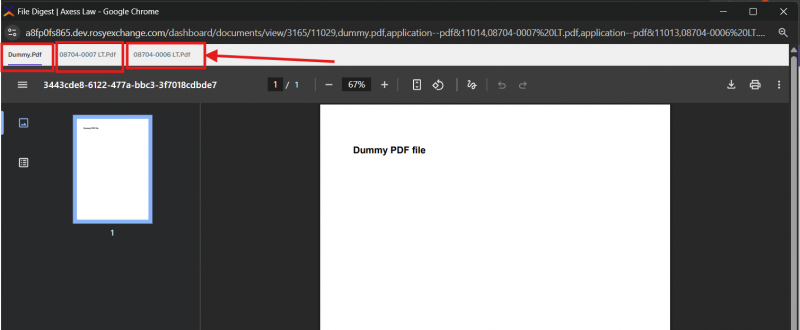
- View: To view a document without downloading it, click the eye icon in the “Actions” column.
- Download: To save a single document to your computer, click the download icon in the “Actions” column. You can also download all documents at once by clicking the download icon at the top of the section.

- By clicking the book icon, you can manipulate the document using the available features in ROSY.

- Delete: To remove a document, click the trash can icon.
- Portal Links: Documents may be linked to external portals like ROSY or TeranetConnect. Clicking the portal name will open the document in the corresponding external system.
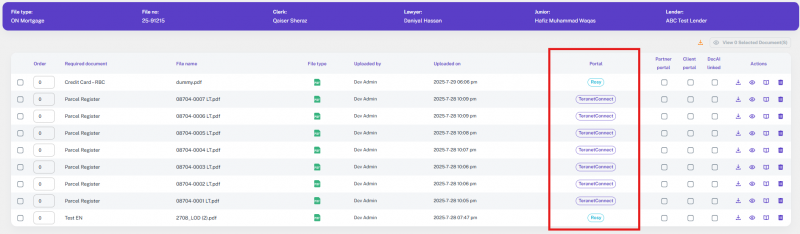
12.6.2 Uploading Documents
- To add a new document to this file, click the “Upload” button at the top of the screen.
- Select Document Type: Before uploading, choose the appropriate Document type from the dropdown menu. This categorizes the document within the system.
- Add Your File: You have two options to add the file:
- Drag and Drop: You can drag the file from your computer and drop it directly into the designated area.
- Browse: Alternatively, click the “browse through your machine” link to open a file selection dialog and choose the file you want to upload.
- Confirm Upload: After selecting your file, click the final “Upload” button to complete the process and add the document to the file.
12.6.3 Merging Documents
The “Merge” feature allows you to combine multiple PDF documents into a single, organized file. This is useful for creating consolidated packages or reports.
- Select Documents to Merge
- First, navigate to the Document Section and select the documents you wish to combine.
- Checkboxes: Click the checkbox next to each document you want to include in the merge.
- Name the New Document
- Document Type: Use the dropdown menu to select the appropriate type for the new document (e.g., “Property Tax Payment Receipts” as shown in the example).
- Document Name: Enter a descriptive name for the new file in the “Document name” field. This is how the new merged document will appear in your document list (e.g., “Latest Report”).
- Complete the Merge
- Once you have specified the document type and name, click the final “Merge” button within the pop-up window. The system will then combine your selected files into a single PDF and add it to your document list.
12.6.4 Generating Documents from Packages/Templates
The “Generate” function creates new documents using pre-configured templates.
- Click the “Generate” button.
- In the left pane, you can select a Package or choose individual templates from Axess Documents or Lender Documents.
- The “Selection” area will display the templates you've chosen.
- Drag and drop the selected item(s) to change their sequence as well.
- In the Generate section at the bottom, name your new document and select the Document type from the dropdown.
- If you select a package, the document name and type will default to the package name. If you do not select a package, the name of your first template will be used as the default document name and type.
- Choose your desired format: Word or PDF.
- If you try to generate a combination of Word and HTML templates, the output will only be generated as a PDF.
- However, in the case of multiple DOCX selections, you will have the option to generate the documents in either DOCX or PDF format.
- In the case of a PDF, the user will be able to preview the document online.
- In the case of a DOCX, the user will not be able to preview the document online; it must be downloaded first to view it.
- Click “Preview” to review the document before creating it, or click “Save As” to generate and save the final file.
12.6.5 Sharing Documents
To send documents to others, use the “Share” feature.
- Select the documents you want to share by checking the boxes next to their names.
- Click the “Share” button.
- In the pop-up window, select the recipients you want to send the documents to.
- Write a brief message if needed.
- The selected documents will be listed as attachments.
- Click “Send” to email the documents to your recipients.
12.6.6 Document Manipulation
Accessing the Manipulation Tool:
- Navigate to the main document list.
- Click the “Manipulation” button in the top navigation bar.
- Select the document you wish to edit from the list.
Editing Pages:
To begin manipulating a document, you must first select it.
- Accessing Manipulation: Click the book icon in the “Actions” column next to the document you wish to edit. This will open the manipulation tool, showing a thumbnail view of all pages.
- Rotate Pages: To rotate a page, click the circular arrow icon on the page thumbnail. Each click rotates the page by 90 degrees.
- Reorder Pages: To change the order of pages, drag and drop a page thumbnail to its desired position.
- Delete Pages: To delete a page, uncheck the box located on the page thumbnail. Any pages that are unchecked will be removed from the document when you save your changes.
Saving Your Changes:
Once you have made all your edits, you have two options for saving:
- Save: Click the “Save” button at the top of the screen to apply all changes directly to the original document. This will overwrite the existing file.
- Save As: Click the “Save As” button to create a new document with your changes. This is useful for keeping the original document intact. A pop-up window will appear where you can specify the Document type and Document name for the new file. After entering the details, click “Save” to add the new, manipulated document to your file list.
12.6.7 Document Warning
The “Warnings” section, also known as the Document Portal Access Manager, gives you granular control over which documents are visible to your clients and brokers. This ensures that sensitive information is only shared with the appropriate parties.
Accessing the Document Warning Section:
Click the “Warnings” button in the top navigation bar. This will take you to a table that lists all possible document types.
Managing Document Visibility:
The main table shows you every document type and its current visibility settings for external portals.
- “Show in Broker Portal” Column: Use the checkboxes in this column to control which document types are visible to your brokers.
- Check the box to make the document type visible in the broker portal.
- Uncheck the box to hide the document type from the broker portal.
- “Show in Client Portal” Column: Use the checkboxes in this column to control which document types are visible to your clients.
- Check the box to make the document type visible in the client portal.
- Uncheck the box to hide the document type from the client portal.
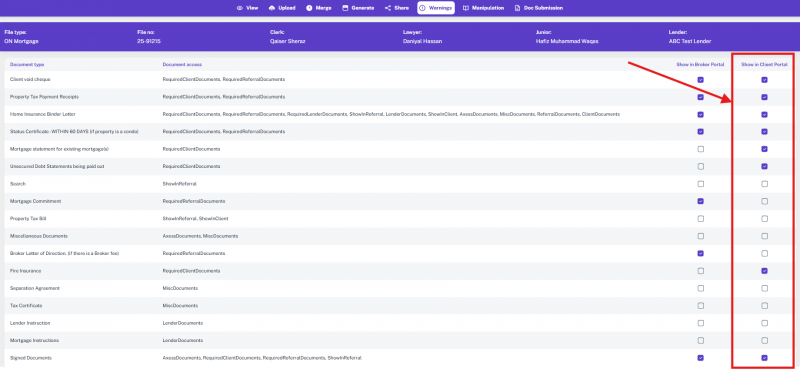
12.7 Task Management
Step 1: Task Management Card
The Task Management Card is located at the bottom of the page and shows the status of various files:
- All
- Pending Files
- Completed Files
- Omitted Files
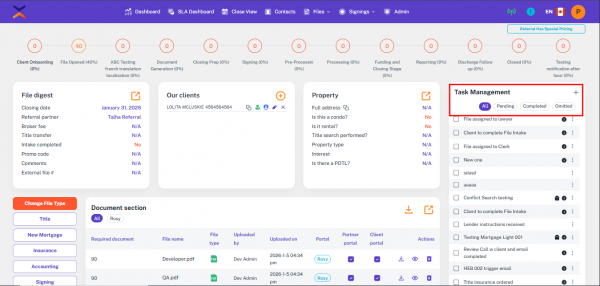
Step 2: Adding Tasks
- You can add new tasks by clicking on the Add Task button within the Task Management section.
- Fill in the task details and save them to update the task list.
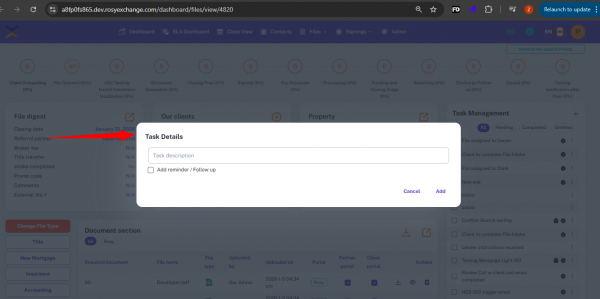
Step 3: Viewing Tasks in All Section
- In the Task Management section, the All tab displays all tasks related to the file, regardless of their status.
- This includes tasks that are pending, completed, or omitted.
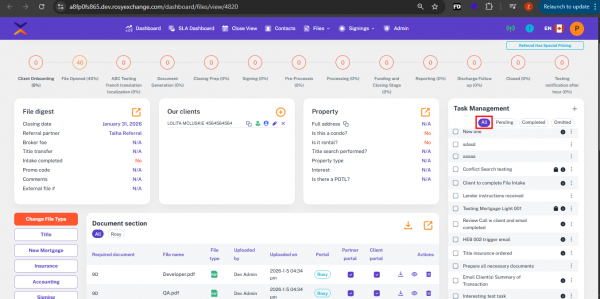
Step 4: Viewing Pending Tasks
- The Pending tab only shows the tasks that are yet to be completed.
- These are the tasks that are still in progress or waiting to be started.
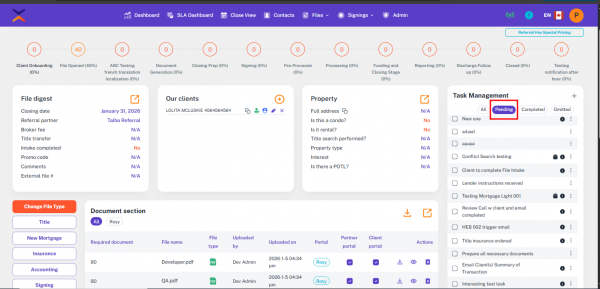
Step 5: Viewing Completed Tasks
- The Completed tab displays the tasks that have been successfully completed.
- Once a task is finished, it will automatically appear here.
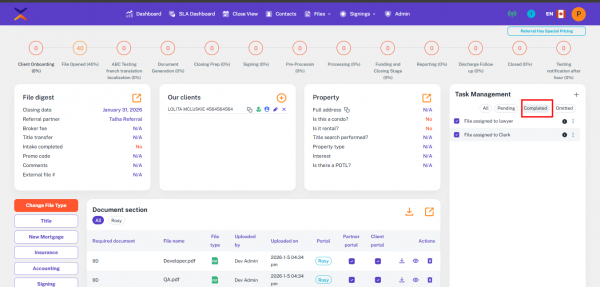
Step 6: Viewing Omitted Tasks
- The Omitted tab shows tasks that have been marked as not to be done.
- These tasks are intentionally excluded from further processing.
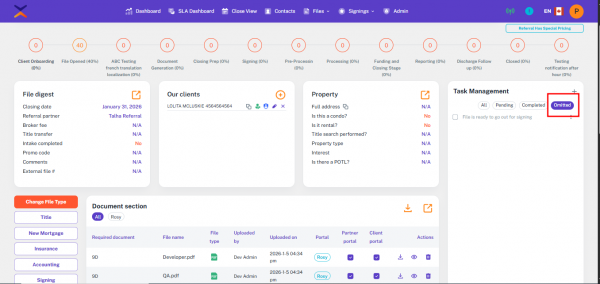
Step 7: Setting Task Reminders
- You can set reminders for specific tasks by clicking on the Reminder option within the Task Management section.
- In the reminder settings, you’ll need to input the following:
- Start Date
- End Date
- Once a reminder is set, a notification will be triggered.
- The notification will appear in both the File Details page and the Dashboard.
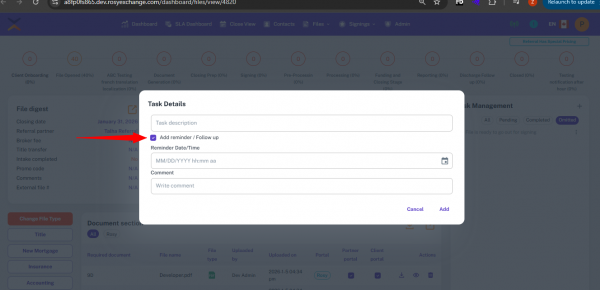
Step 8: Managing Task Reminders
- You will receive reminders based on the start and end dates you’ve specified.
- Notifications will keep you updated about upcoming or overdue tasks, ensuring you stay on track with task deadlines.
12.8 Related Transactions
This guide will help you find and open related transactions for a client inside the Files module. The Related Transactions section makes it easy to see all files linked with the same client.
Method – Accessing Related Transactions
- Use this method when you want to view other files connected with the same client.
Step 1 – Open File Details
- Go to the All Files list.
- Open the details page of any file.

Step 2 – Scroll to Related Transactions
- On the file details page, scroll down to the bottom section.
- You will see the Related Transactions panel.

Step 3 – Review the Related Transactions Table
- The section shows a list of File Numbers linked with the same client.
- Column
- File No – Displays the number of another file where the same client is involved.

Step 4 – Open a File from Related Transactions
- Click any File No in the list.
- The system will redirect you to that file’s Details Page, where you can view full information.

Key Notes
- Only files where the selected Client User is added as a client will appear here.
- This feature helps track multiple transactions for the same client across the system.
12.9 Title tab
The Title tab displays title and property data for a file and provides integrated search options (via Teranet) to fetch official land registry information. Follow the steps below to open the Title tab, run searches, review parcel details, and import results into the file.

12.9.1 Interface
Method 1 — From All Files
- Open All Files.
- Click the File Number you want to open.
- The Main File Details page opens.
- Click the Title tab.
- The Title View opens and displays file details at the top.

Method 2 — After Creating a File
- Create and save the new file.
- From the confirmation or All Files, click the new file’s File Number.
- The Main File Details page opens.
- Click the Title tab to open the Title View.

Title View — Address & Property Fields
- At the top you will see File Details (file number, client, etc.).
- In the Address section some fields may be pre-filled.
- Under the Property sub-tab, enter required fields when not pre-filled:
- Instrument Number
- PIN (Property Identification Number)

Teranet Integration
- To use Teranet services, you must first connect with valid credentials.
Step 1 — Connect to Teranet
- On the top-left corner of the Title Tab window, click the Connect to Teranet button.
- A Login pop-up appears.
- Enter your valid User ID and Password (credentials provided by Teranet).
- Click Connect to establish the connection.

Step 2 — Invalid Login Scenario
- If you enter an invalid User ID or Password in the Teranet login pop-up and click Connect, the system will fail to authenticate.
- Verify credentials and try again with the valid credentials provided by Teranet.
Step 3 — Successful Connection
- Once connected, the Teranet Connect pop-up closes, and you can proceed to run searches (Address, Instrument, PIN, or Name).

Search Methods
Important Rule
- The Land Registry Office alone cannot be searched.
- You must select at least one additional field along with it (e.g., Address, Instrument Number, PIN, or Name).
Method 1 — Search by Address
- Enter the property Address details:
- Unit Number
- Street Number
- Street Name
- Select the Land Registry Office.
- Click Search.
- System queries Teranet and returns matching parcel(s).
- Review the returned parcel(s) in the results.

Method 2 — Search by Instrument Number
- Enter the Instrument Number.
- Select the Land Registry Office.
- Click Search.
- The system returns property records linked to that instrument.
- Review details (owner, instrument, writs, etc.).
Method 3 — Search by PIN
- Enter the PIN (Property Identification Number).
- Select the Land Registry Office (required).
- Click Search.
- System returns the parcel data for that PIN..
Add Client
- Enter the following detail to add a client.
- First Name
- Middle Name
- Last Name
- Company Name

Viewing and Purchasing Parcel Details
- Once you are connected to Teranet and enter the Land Registry Office, Street Number, and Street Name, the system retrieves and displays Parcel Details in the search results.

Step 1 — View Search Results
- The search results display PIN details based on your entered criteria.
- You can select one or multiple parcels from the list.
Step 2 — Purchase Parcel(s)
- After selecting the required parcels, click Purchase Parcel.
- A confirmation pop-up appears.
- Click Proceed to confirm the purchase.
- The purchase is processed through Teranet, and a PIN Purchase Number is generated.
- Select the purchased PIN to view its complete details.

Step 3 — View Property Details
- The Property Details section includes:
- Street Name
- Land Registry Office (LRO)
- PIN Number
- Unit Number
- Registration Type
- Status (Active/Inactive)
- Street Suffix
- City
- Estate Type
- PIN Creation Date
- Title Status
Remarks
"You can also View or Download related documents directly from this section."

Step 4 — Owner Information
- Click the Owners tab to view ownership details such as:
- Owner Name
- Person Type
- Share Percentage
- Capacity

Step 5 — Instrument Details
- The Instruments tab displays all instrument records linked to the property.
- Multiple instruments can be selected and added to requisition if needed.
- The Certified Instruments option shows certified records, and deleted instruments are also listed when applicable.
- Users can download multiple instruments simultaneously.

Step 6 — Writs
- Under the Writs section, you can view:
- Party Names
- Certificate Request Date
- Search Status / Writ Details
- Actions (e.g., search by order name: )

Search by Order
- When you select a Writ and choose Search by Order Name, the system performs a database check to verify the client’s writ status.
- A pop-up appears
- Click Continue to proceed with the search.
- Once the search completes, the Search Status / Writ Details field displays one of the following results
- Clear: No active writs or claims found.
- Not Clear: One or more active writs exist.

Not Clear:
Viewing Writ Details
- If the status is Not Clear, an arrow icon appears next to the client’s name.
- Click the arrow to expand and view the complete Writ Details.
The following information is displayed:
- Document Information:
- Effective Date
- Company Name (Creditor)
- File Number
- Given Name
- Surname
- Cost Amount
- Cost Amount Specified
- Cost Currency
- Cost Interest Rate
- Cost Interest Rate Specified
- Judgment Amount
- Judgment Amount Specified
- You can also open the full document by clicking View Writ Details in the Pages_Files_Title_WritDetailsView section.
- Add Requisition
- From the Writ Details view, you can click Add Requisition to attach the writ record to the file for legal review or further processing.
Step 7 — Search Cost
- The Search Cost shows the writs cost and section shows
- Type
- Cost
- HST
- Other Charges
- Total Amount

Step 8 — Adjacent Map
- The Adjacent Map tab displays a map showing all parcels adjacent to the selected PIN for visual reference.

Add Existing Mortgage:
Step — Add Existing Mortgage
- When adding an Existing Mortgage, follow the steps below to enter and manage all related details.
Open Add Existing Mortgage
- Click on Add Existing Mortgage from the Mortgage section of the file.
Enter Required Information
- Fill in the following details:
- Instrument Type
- Mortgage Registration Number
- Mortgage Registration Date
- Transfer Registration
Select Mortgage Status (Is To Be)
- In the Is To Be dropdown, select one of the following options:
- To Be Discharged — If the mortgage is to be cleared or paid off.
- To Remain — If the mortgage will stay active on the property.
Mortgage Payout Calculation (only for “To Be Discharged”)
- When you select To Be Discharged, the system displays a Mortgage Payout Calculation section.
- This includes:
- Amount Payable to Discharge this Mortgage
- Total Interest
- After confirming, the total Payable Amount automatically appeared on the Trust Ledger.
Additional Details
- Enter the following information for record and tracking:
- Mortgage Maturity Date
- Discharge is to be Registered By: (Law Firm or Lender)
- Follow-Up Date
- Undertaking Status: Select Outstanding or Fulfilled
- Is Active: Choose Yes or No
Add Mortgage Lender
- Click Add Mortgage Lender to specify the lender’s information.
- Once all details are complete, click Create to save the mortgage record.
Note:
- If Is To Be is set to To Remain, the Pricing / Payout Calculation section will not appear.

Importing Results into the File
From the search results, select the parcel or instrument record you want to import.
- Click Import.
- Teranet Integration:
- Teranet provides existing Mortgage Information, Property Details, and Client Information.
- This data is fetched directly from Teranet and added to the file’s Section.
Finalize Import:
- Confirm the selection.
- The imported data is added to the file’s Title Section and becomes available for further actions (viewing writs, mortgages, execution details, etc.)

12.9.2 Functionality
Accurate Data Retrieval:
- The Title Tab ensures precise property data by directly connecting with Teranet to fetch verified land registry, ownership, and mortgage details.
Improved Efficiency:
- Users can perform multiple types of searches (Address, PIN, Instrument, or Name) and import results instantly, reducing manual entry and saving time.
Centralized Property Management:
- All title, ownership, and parcel information is stored within the file’s Title Section, ensuring organized and easily accessible property records.
Enhanced Transparency:
- Search costs, parcel details, and adjacent maps provide complete visibility, helping users make informed decisions with official Teranet-sourced data.
12.10 Mortgage
Step 1: Accessing the Mortgage Section
- In the File Details page, navigate to the Mortgage section and click on it.
- A new tab will open with the New Mortgage Tab where all related mortgage information is displayed in a table.
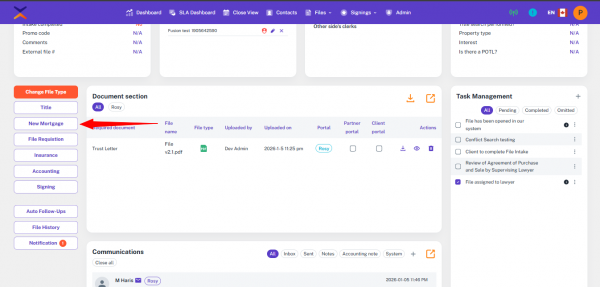
Step 2: Mortgage Information Table
The mortgage information table contains the following columns:
- Name
- Priority
- Principal Amount
- Net Advance
- Mortgage Type
- Mortgage Number
- Registration Number
- Date
- Action (where you can Edit or Delete the mortgage entry)
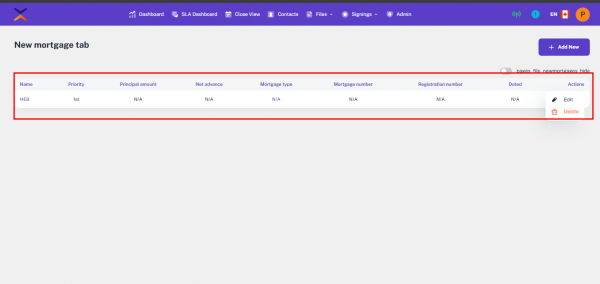
Step 3: Adding a New Mortgage
- To add a new mortgage, click on the Add New button.
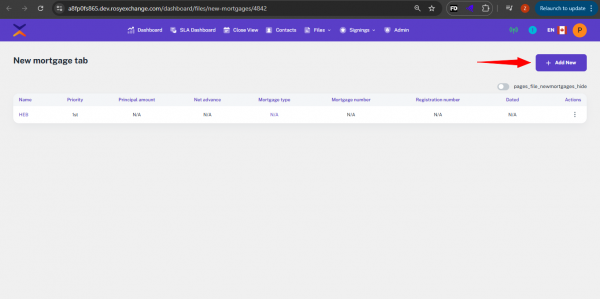
A new window will open, displaying the File Details in the Blue Ribbon section, which includes:
- File Type
- File Number
- Clerk
- Lawyer
- Junior
- Lender
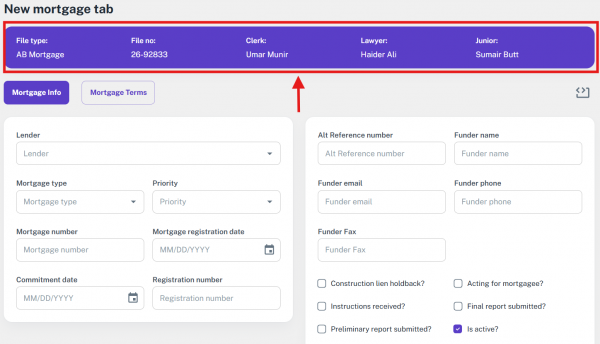
Step 4: Entering Mortgage Information
Below the Blue Ribbon, you will see a card with Mortgage Information fields, including:
- Lender: Select from the dropdown.
- Mortgage Type: Select the mortgage type.
- Priority: Select the priority level.
- Mortgage Number: Enter the mortgage number.
- Mortgage Registration Date: Select the registration date.
- Commitment Date: Enter the commitment date.
- Registration Number: Enter the registration number.
Step 5: Additional Mortgage Details
- In the next card, the following fields will be available for input:
- ALT Reference Number: Enter the reference number.
- Funder Name: Enter the name of the funder.
- Funder Email: Enter the funder’s email.
- Funder Phone: Enter the funder’s phone number.
- Funder Fax: Enter the funder’s fax number.
- Checkboxes for the following options:
- Construction Lien Holdback? (Yes/No)
- Instruction Received? (Yes/No)
- Preliminary Report Submitted? (Yes/No)
- High Ratio Mortgage? (Yes/No)
- Acting for Mortgagee? (Yes/No)
- Final Report Submitted? (Yes/No)
- Is Active? (Yes/No)
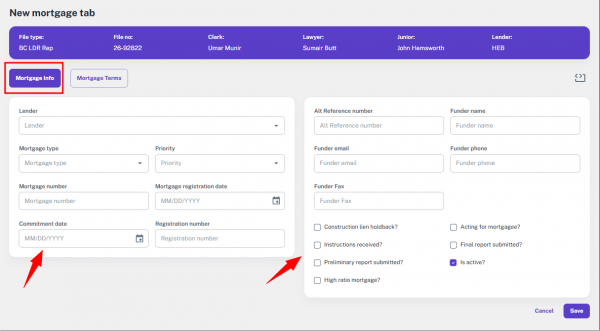
Step 6: Mortgage Term and Amortization Details
Below the mortgage information, you will find two additional cards to input further mortgage details:
Card 1:
- Term (Years): Select the term in years.
- Amortization Period (Years): Select the amortization period.
- Principal Amount: Enter the principal amount.
- Net Advance: Enter the net advance.
- Payment Amount: Enter the payment amount.
- Interest Rate: Enter the interest rate.
- SCT No: Enter the SCT number.
- Insurance: Select from the dropdown.
- Payment Frequency: Select from the dropdown.
- Interest Adjustment Date: Select the interest adjustment date.
- Alternate Frequency: Select Yes/No.
Card 2:
- First Payment Date: Select the first payment date.
- Maturity Date: Enter the maturity date.
- Tax Portion: Enter the tax portion.
- Product Type: Enter the product type.
- Payment Date: Enter the payment date.
- Calculation Period: Enter the calculation period.
- Interest Rate Type: Select between Fixed or Variable.
- Interest Only: Select Yes/No.
- Taxes Paid Through Mortgagee: Select Yes/No.
- Assignment of Rents: Select Yes/No.
- General Security Agreement: Select Yes/No.
- Is Active?: Select Yes/No.
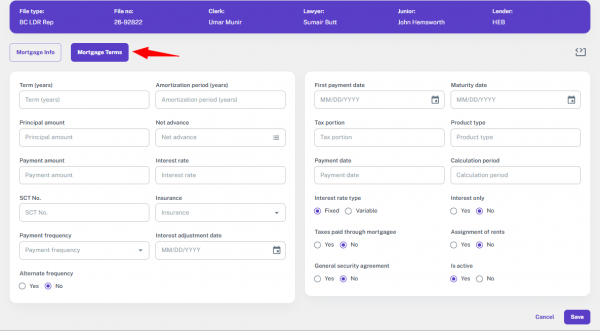
12.11 Requisition
The Requisition module is designed to manage the internal documentation and data collection process necessary for initiating and processing a real estate transaction. It serves as a structured form where law clerks or administrative users input essential information required from clients, such as property details, mortgage instructions, identification documents, and any specific legal requirements tied to the deal. This module ensures that no crucial step or document is missed by presenting a standardized set of questions and file upload fields tailored to the type of transaction and jurisdiction (province). The form layout is dynamic; certain sections appear or change based on inputs like transaction type (purchase, sale, refinance) or whether the file involves a lender.
Once submitted, the requisition data becomes an integral part of the file's record and is accessible to authorized team members for review or action. This centralization supports collaboration between lawyers, law clerks, and administrative staff by providing a clear picture of what has been collected and what’s pending. Additionally, it helps streamline the legal workflow, reduce errors, and improve client communication, since the system can notify users of missing requisitions or incomplete data. The Requisition module acts as the foundation for moving a transaction file into active legal processing.
12.11.1 Requisition Template
The first feature within the Requisition module is the Requisition Templates, which can be accessed via the admin sidebar. Clicking on this option navigates the user to a dedicated templates screen where all existing requisition templates are listed. Each template includes key details such as its name, associated transaction type or province (if applicable), and its current status (active or inactive). This provides an at-a-glance view of all reusable templates created for different types of real estate transactions.
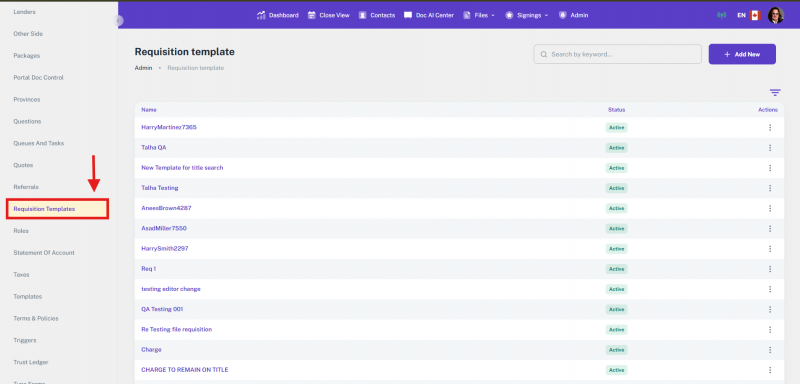
12.11.2 Add New
In the top-right corner of the Requisition Templates screen, there is an “Add New” button. Clicking on this button opens a form that allows users to create a new requisition template.
This functionality is especially useful for administrators who need to customize the information gathering process for different transaction scenarios. By using the Add New option, organizations can ensure that each template is tailored to suit specific needs, which enhances operational efficiency and reduces repetitive manual entry across files.
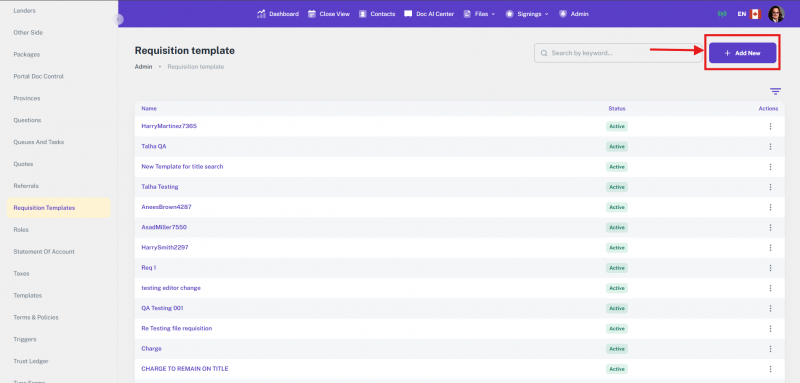
12.12 Insurance Tab
Overview
The Insurance tab is available within the File Details page. This tab allows users to submit and manage Firm Insurance details and request Title Insurance for a file. All submitted information is saved in the system and used for further processing by the Axess team and insurance providers.
Accessing the Insurance Tab
- Open a file from All Files or My Files.
- Navigate to the File Details page.
- Click on the Insurance tab.
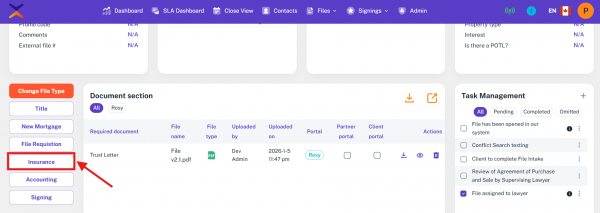
12.12.1 Firm Insurance
The Firm Insurance section allows users to submit basic insurance details related to the firm.
1. Company Information
- Company Name (Required)
- Enter the name of the insurance company.
2. Broker Information
- Enter broker-related details in this card:
- Broker Agency (Required)
- Broker Address (Optional)
- First Name (Required)
- Middle Name (Optional)
- Last Name (Required)
3. Insurance Information
- Provide the insurance policy details:
- Policy Number (Required)
- Binder Number (Required)
- Expiry Date (Required)
- Coverage Amount (Required)
- Guaranteed Replacement Coverage (Optional checkbox)
After entering all required information, submit the Firm Insurance details. The information is saved in the system.
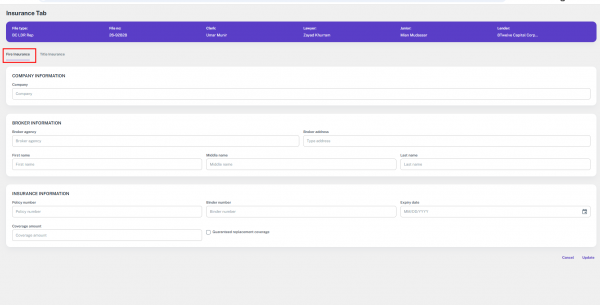
12.12.2 Title Insurance
Click the Title Insurance button to request title insurance for the file.
Available Title Insurance Providers
The following four options are displayed:
- Chicago Title
- Stewart Title
- FCT
- Title Plus
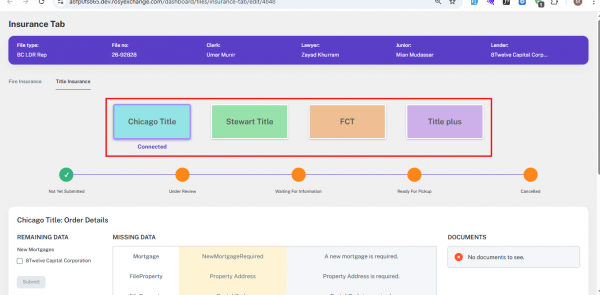
Note:
- Only Chicago Title can be submitted directly through the system.
Clicking Stewart Title, FCT, or Title Plus redirects the user to their respective external websites.
Chicago Title Submission
Chicago Title Statuses
Once a Chicago Title request is created, its status is displayed as one of the following:
- Submitted
- Under Review
- Waiting for Information
- Ready for Pickup
- Cancelled
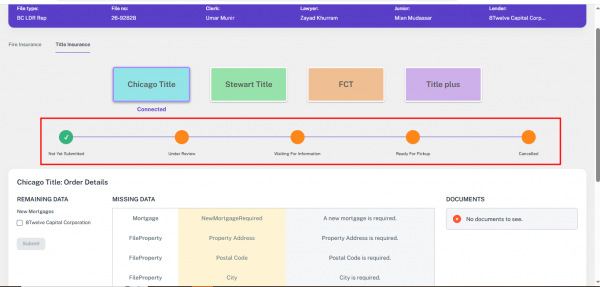
Missing Information
If the required details are incomplete, a Missing Information card is displayed. The Chicago Title request cannot be submitted until all required information is completed.
Required New Mortgage Details
- Lender (Required for most file types)
- Priority (Required)
- Principal Amount (Required)
- Note: For Purchase files, the request can be submitted without selecting a lender.
Required Property Details
The following property details must be completed:
- Property Address
- Postal Code
- City
- Property Identifier (PIN)
- Property Interest
- Property Type
Required Documents
- If any documents are required for the title insurance request, they are displayed in this section.
- All required documents must be uploaded before submission.
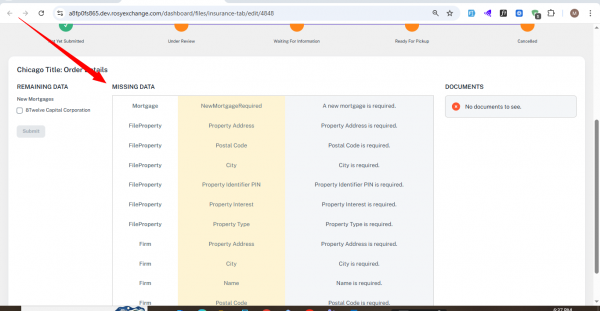
Submit & Resubmit Behavior
- Once all required mortgage, property, and document details are completed, the Submit button becomes available. Also able to cancel submitted deals.
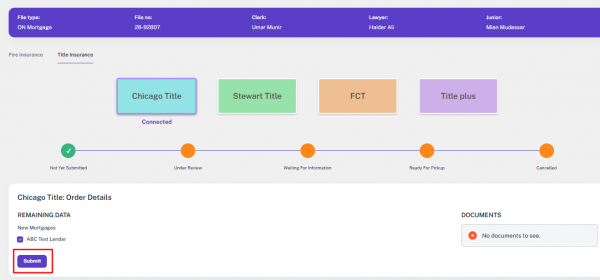
- If changes are made to the Mortgage or Property sections after submission, a Resubmit button is displayed.
- The resubmission sends the updated information for review again.
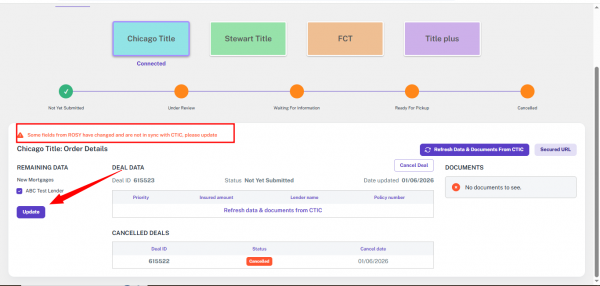
Key Notes
- All required fields must be completed before submission.
- Optional fields are clearly marked and can be left empty.
- Status updates help track the progress of the Chicago Title request.
- External title insurance providers open in a new browser window.
12.13 Accounting
The Accounting tab in the Rosy Admin Portal is a key feature designed to manage and maintain all finance and account-related activities associated with real estate transactions. Built specifically for Canadian law firms, this module streamlines critical financial documentation based on the transaction type (e.g., mortgage, purchase, sale, etc.). It centralizes financial operations, including the Statement of Account, Trust Ledger, Statement of Adjustments, Broker Commission calculations, and Unsecured Debts tracking. Each section provides a structured layout to input, view, and manage relevant data, ensuring compliance and accuracy in financial handling.
This feature allows legal teams to monitor and update client financials in real-time throughout the lifecycle of a transaction file. The integration of these accounting components ensures that law clerks, lawyers, and finance personnel can collaborate effectively—minimizing errors, maintaining transparency, and ensuring timely disbursements and reconciliations. The design supports the diverse accounting needs of a legal practice, aligning with Canadian legal standards and transaction workflows.
12.13.1 Statement Of Account
The Statement of Accounts section provides a detailed breakdown of all financial entries associated with a file. This section intelligently auto-populates specific fees based on the File Type and Province selected during file creation. These default fees are configured from the Admin side, ensuring consistency and accuracy across all files. Once a file is created and approved, the pre-defined charges such as legal fees, disbursements, and standard service costs are automatically added to the statement, reducing manual input and streamlining the accounting workflow for legal teams.
1 Transaction-Based Statement View
- Each file can contain one or more custom statement tabs (e.g., Statement of Account 1), allowing itemized entries per file.
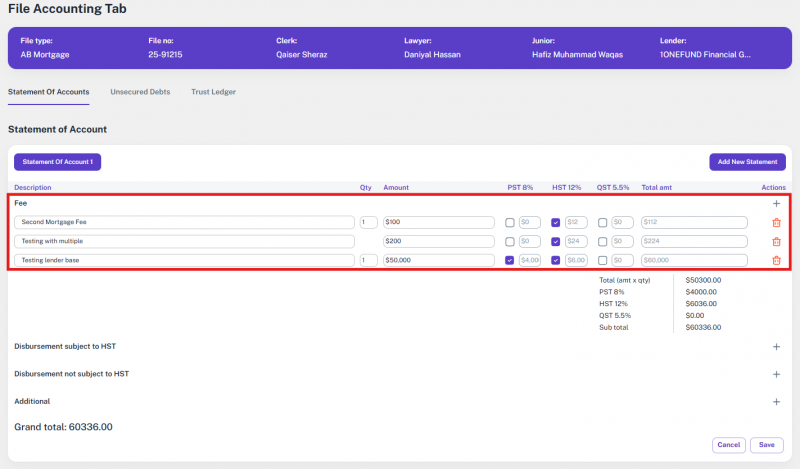
2 Dynamic Fee Description Input
- Fees such as “Second Mortgage Fee” and “Testing lender base” can be entered and customized per transaction. These may be auto-populated based on file type and province as set from the Admin panel.
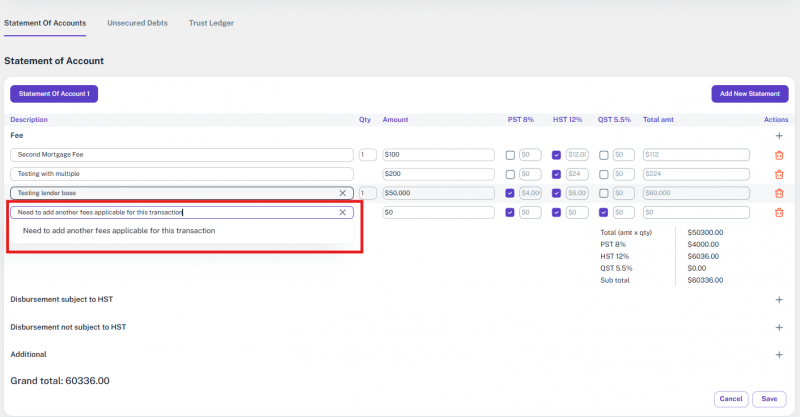
3 Quantity Field (Qty)
- Adjustable quantity per fee item. Total amount calculations automatically factor in the quantity entered.
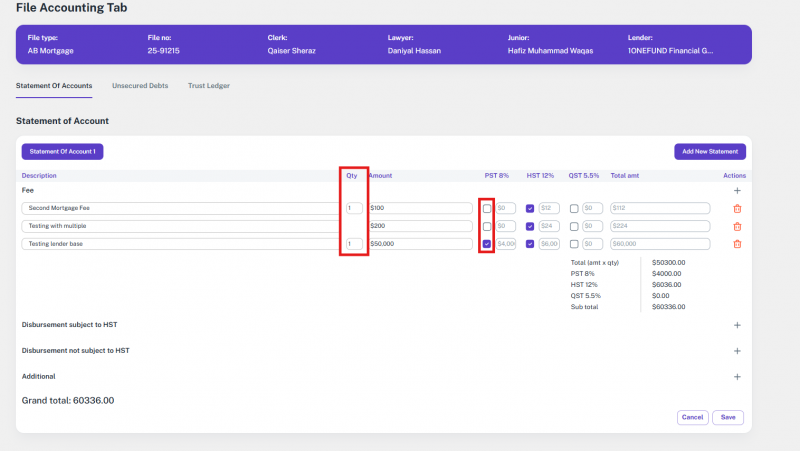
4 Flexible Amount Entry
- Custom amounts can be added per fee item in dollars (e.g., $100, $200, $50,000).
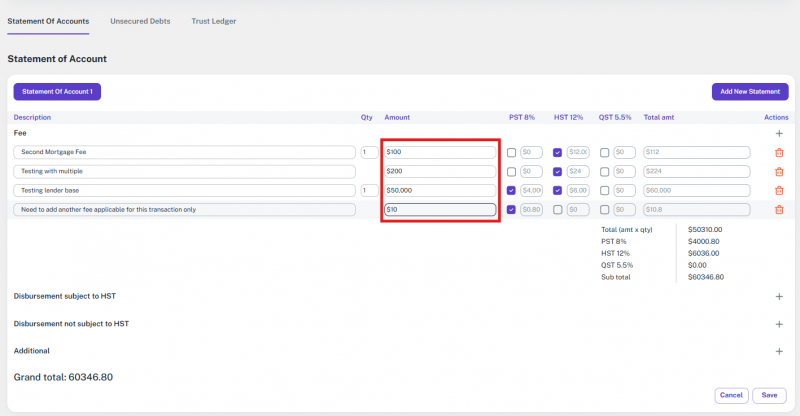
5 Tax Management
Three tax categories are available for each fee:
- PST 8%
- HST 12%
- QST 5.5%
Checkboxes enable selective tax application on a per-fee basis.
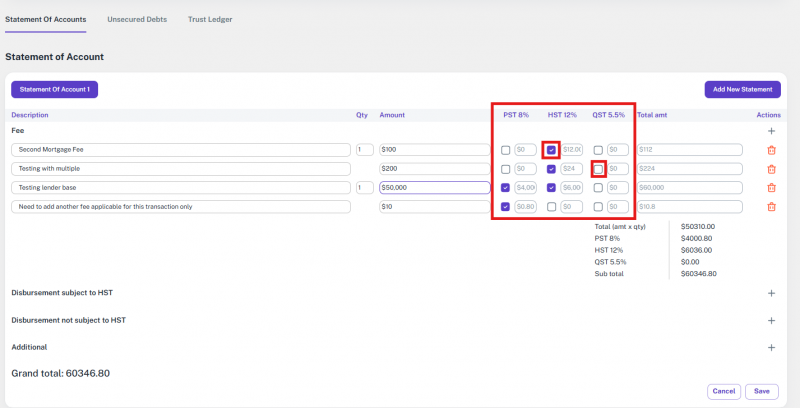
6 Automated Totals Per Line
- Each row automatically calculates the total based on quantity, amount, and applicable taxes.
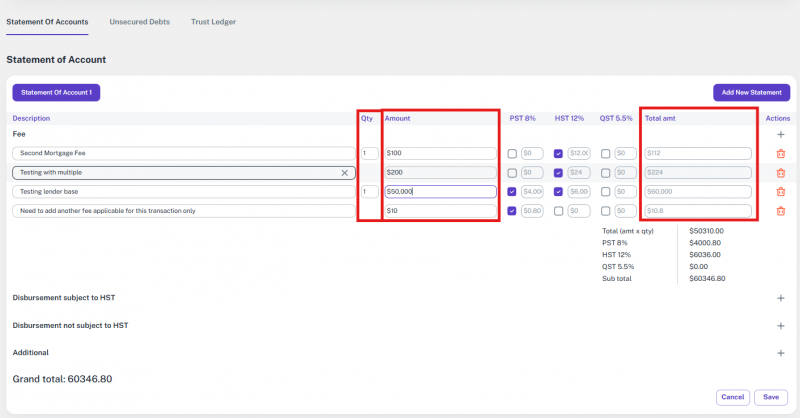
7 Comprehensive Summary
The right-hand column shows:
- Line total (amt × qty)
- Total tax per category
- Subtotal
- Grand Total at the bottom (e.g., 60336.00)
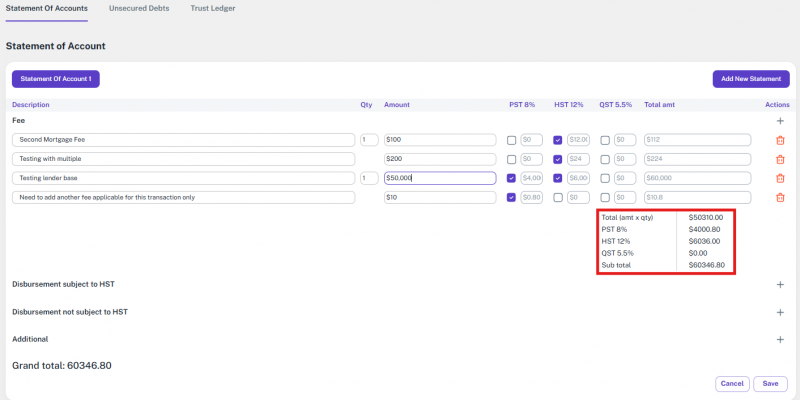
8 Support for Disbursements
Separate areas for:
- Disbursements subject to HST
- Disbursements not subject to HST
- Additional costs if applicable
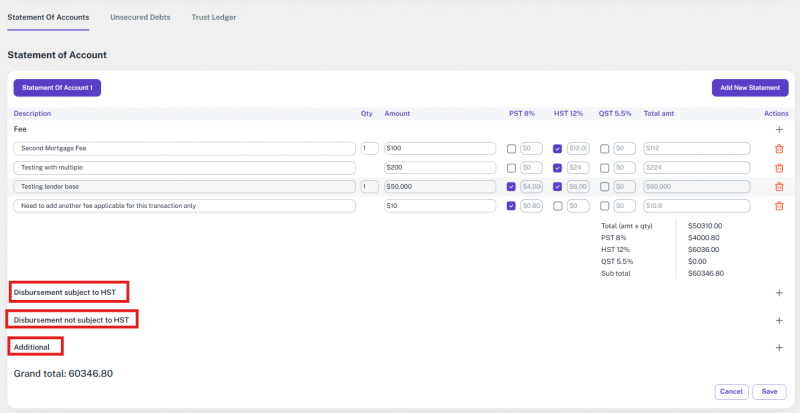
9 Add/Delete Items
- Add new fee rows to the statement
- Delete individual fee rows
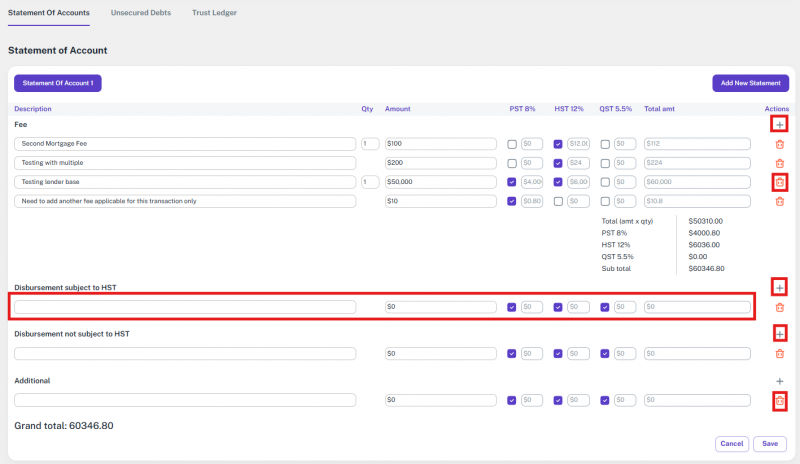
10 Add New Statement Tab
- Ability to create multiple statement tabs per file (via the “Add New Statement” button).
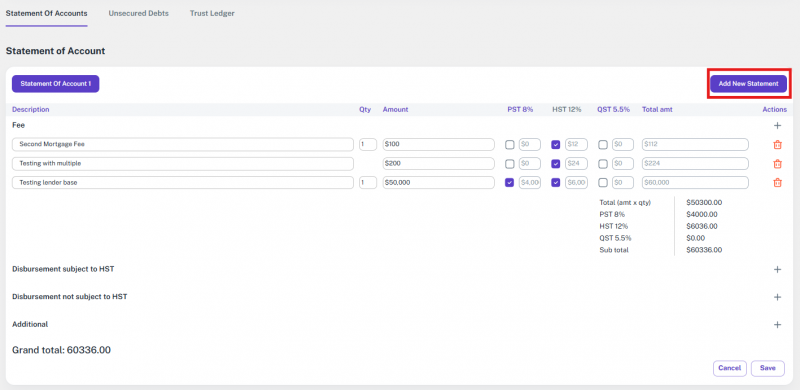
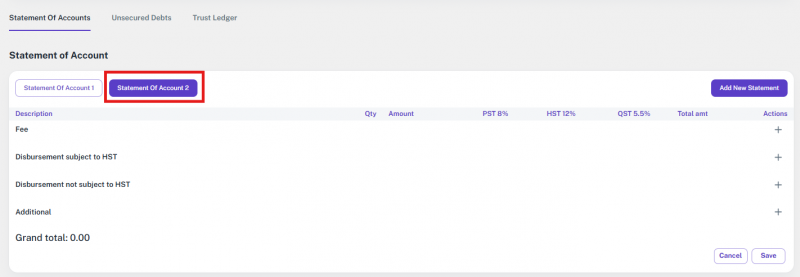
11 Save or Cancel Changes
- Bottom-right buttons provide quick options to Save or Cancel the current edits.
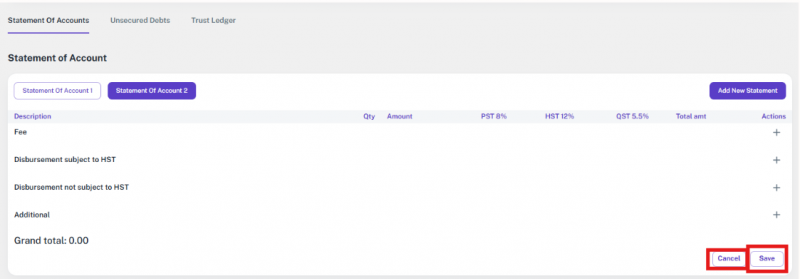
12.13.2 Unsecured Debts
The Unsecured Debts section in the File Accounting Tab allows legal staff to manage and document all unsecured liabilities associated with a specific transaction file. This is a crucial step in tracking outstanding debts that are not secured against property, especially in mortgage and refinancing transactions.
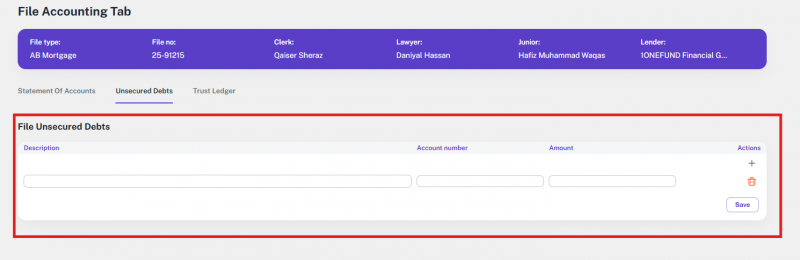
1 Description Field
- Users can enter a clear label or identifier for the unsecured debt (e.g., Credit Card, Personal Loan, Line of Credit).
- This helps in organizing and distinguishing multiple debt entries.

2 Account Number
- This field is used to input the reference or account number associated with the debt.
- It assists in accurate record-keeping and easy identification of creditors.

3 Amount
- Enter the monetary value of the unsecured debt.
- This ensures all liabilities are properly accounted for in the file's financial records.

4 Add Row
- Use the plus (+) icon under the “Actions” column to add a new unsecured debt entry.
- Multiple entries can be added as needed.

5 Delete Row
- Click the trash icon to remove an unsecured debt entry if it was added in error or is no longer applicable.

6 Save Button
- Once the unsecured debt entries are filled in, click the “Save” button to store the data.
- Saved data becomes part of the official file record and may be used in financial summaries like the Statement of Adjustments.

7 Attach Document
- Users have the option to upload any supporting documents related to the unsecured debt directly from the action button.
- Once uploaded, the document is viewable immediately within the Unsecured Debts section.


8 Auto-Sync with File Doc Store
- Any document uploaded in this section is automatically added to the file’s central document store.
- This ensures all relevant documents are consolidated and accessible in one place.
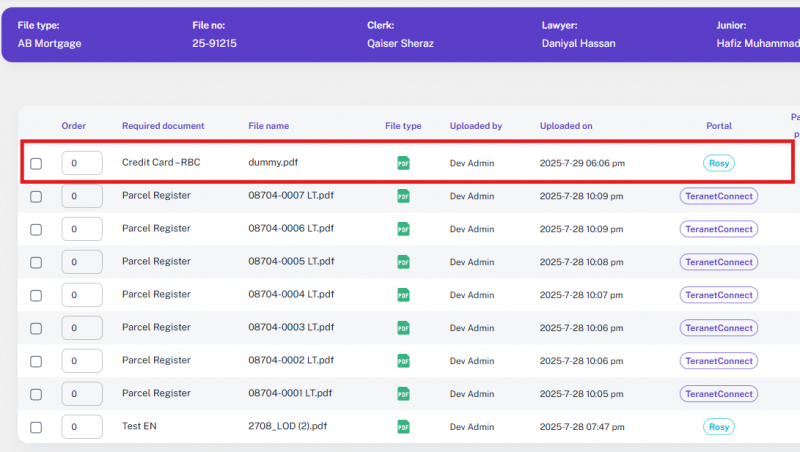
12.13.3 Trust Ledger
The Trust Ledger module is designed to provide a comprehensive summary of all trust-related financial transactions within a file. This section ensures that all financial inputs and outputs tied to a transaction are well-documented, balanced, and traceable. The ledger supports various categories, each playing a critical role in outlining the financial picture of a file:
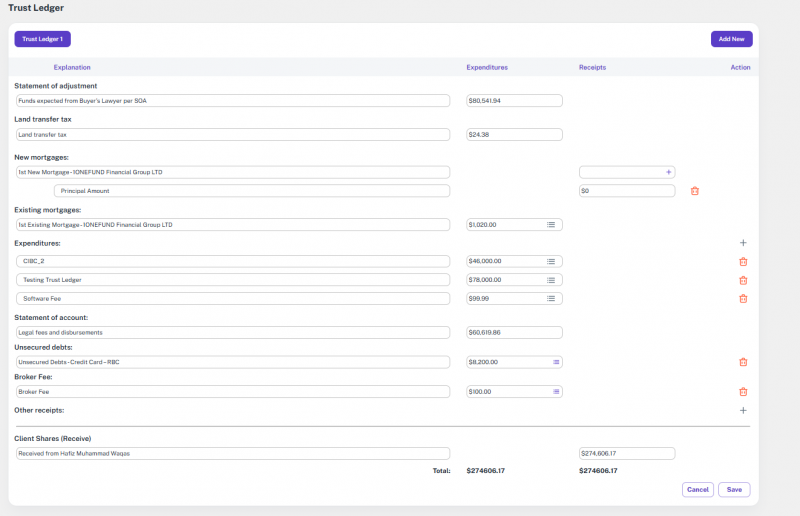
1 Statement of Adjustment
Automatically populated with the amount expected from the Buyer’s lawyer as per the Statement of Adjustment. Users can also modify this field manually if required.
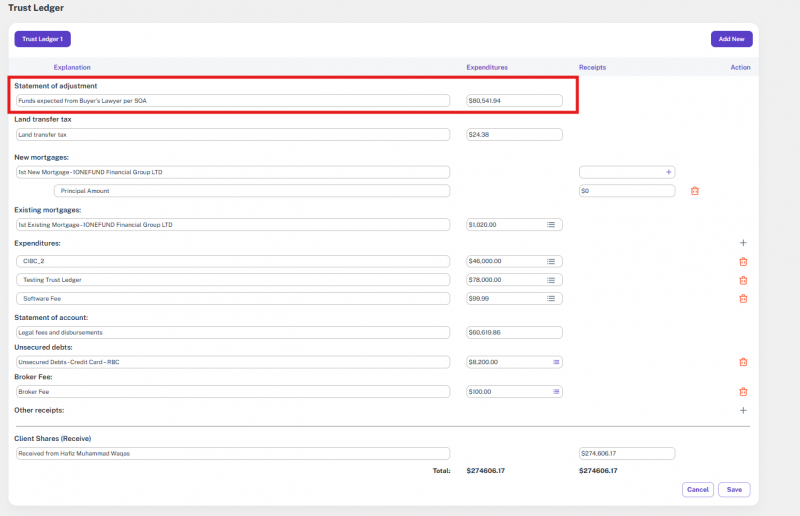
2 Land Transfer Tax
Displays the applicable Land Transfer Tax amount, either fetched automatically or entered manually.
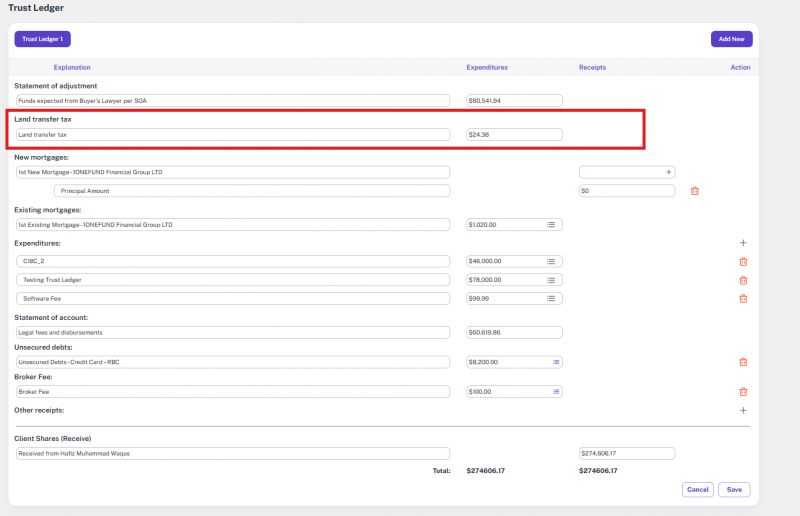
3 New Mortgages
- The entered principal amount is automatically appended to the Trust Ledger. If any changes are made from within the Trust Ledger, they will reflect back in the “New Mortgage” section of the main file record as well.
- Allows users to add one or more new entries. Each new entry has a description and an amount field. Clicking the (+) icon lets you add multiple line items.
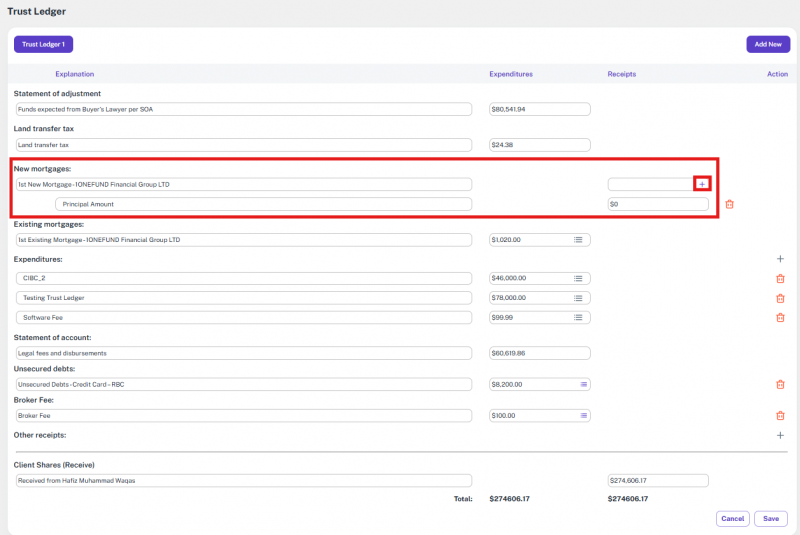
4 Existing Mortgages
- The payout amounts entered here are also automatically reflected in the Trust Ledger. Any update made to the payout from within the Trust Ledger will update the “Existing Mortgage” section of the file accordingly.
- Enables input of existing mortgage payouts. Each entry displays the lender and the payout amount. The 3-line icon (≡) opens an interest calculator used to determine accrued interest, which is then added to the total payout (discharge to mortgage) in the Trust Ledger.
- This interest calculation feature is not applicable for purchase files. It will not appear or be used in purchase files, and any calculated amount will not be shown in those cases.

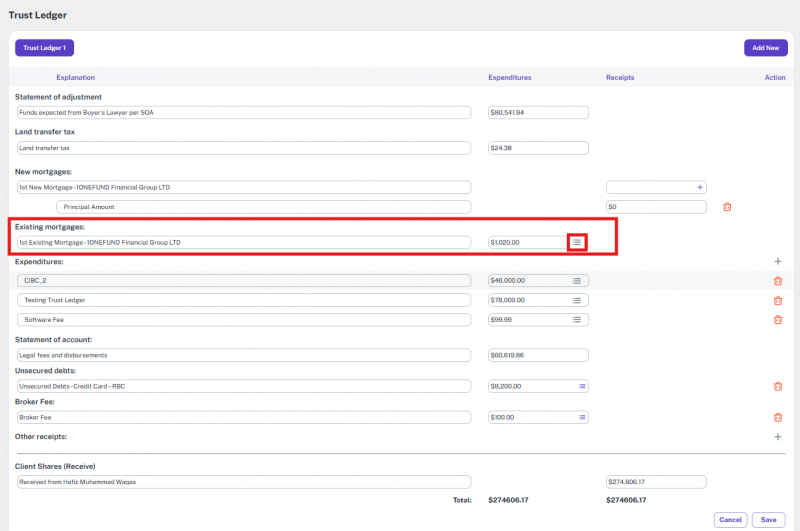
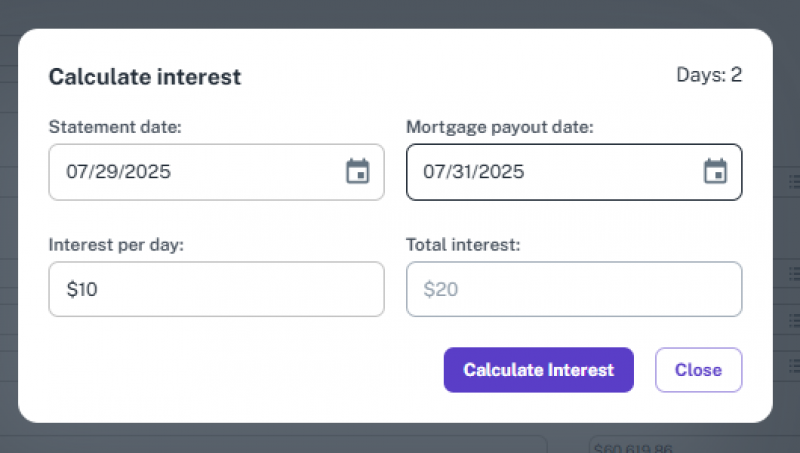
5 Expenditures
- This is where all the outgoing payments are listed. These could include fees to third parties (e.g., banks, vendors, software charges). Each expenditure can be expanded via the 3-line icon for detailed itemization.
- Allows users to add one or more new entries. Each new entry has a description and an amount field. Clicking the (+) icon lets you add multiple line items.
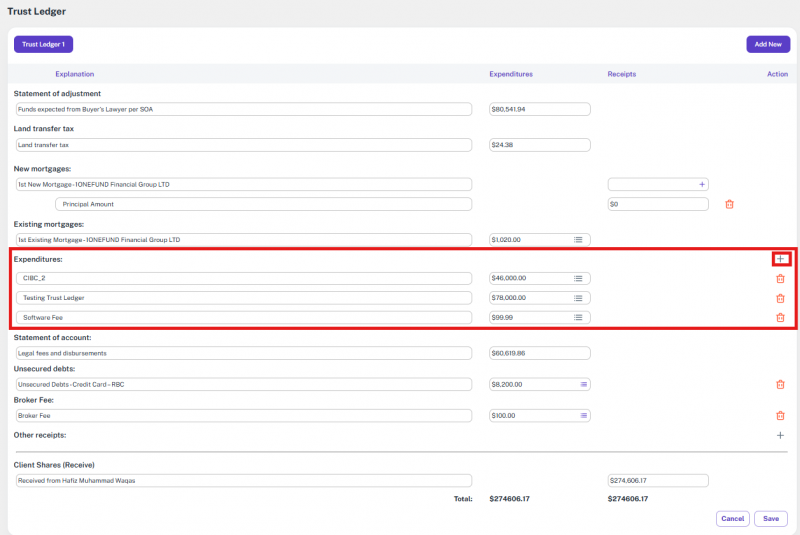
6 Statement of Account
Captures any legal fees, disbursements, or service charges set up from the Statement of Account section. These are auto-populated based on the file type and province.
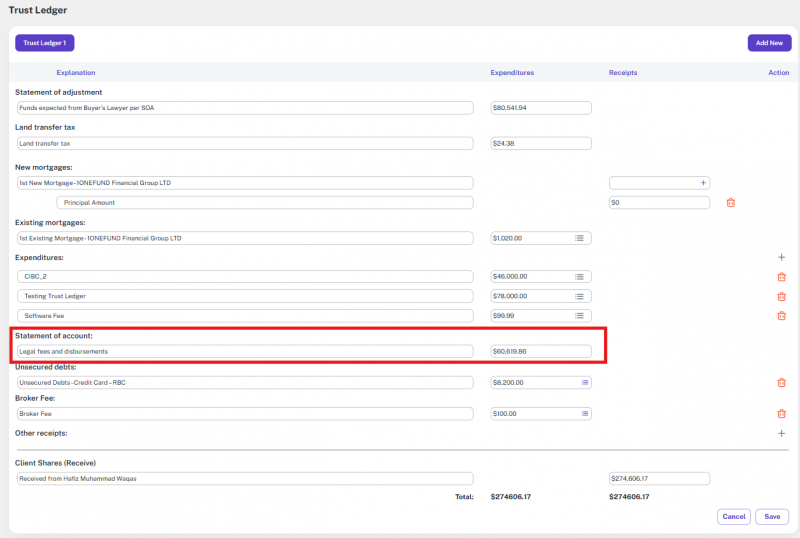
7 Unsecured Debts
Includes credit card or personal debt entries. Each of these can also be expanded for further detail using the 3-line icon.

8 Broker Fee
A separate input field for any brokerage fees associated with the file. These can be itemized further.
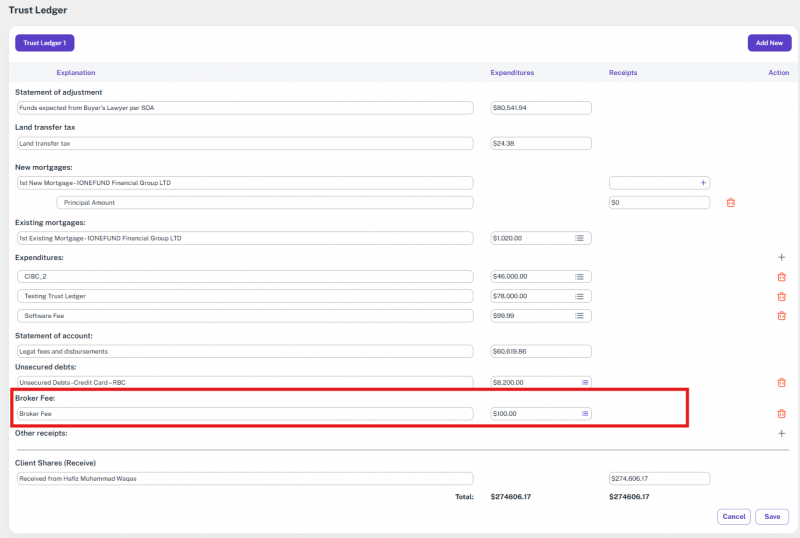
9 Other Receipts
- A section to enter any miscellaneous receipts not falling into the above categories.
- Allows users to add one or more new entries. Each new entry has a description and an amount field. Clicking the (+) icon lets you add multiple line items.
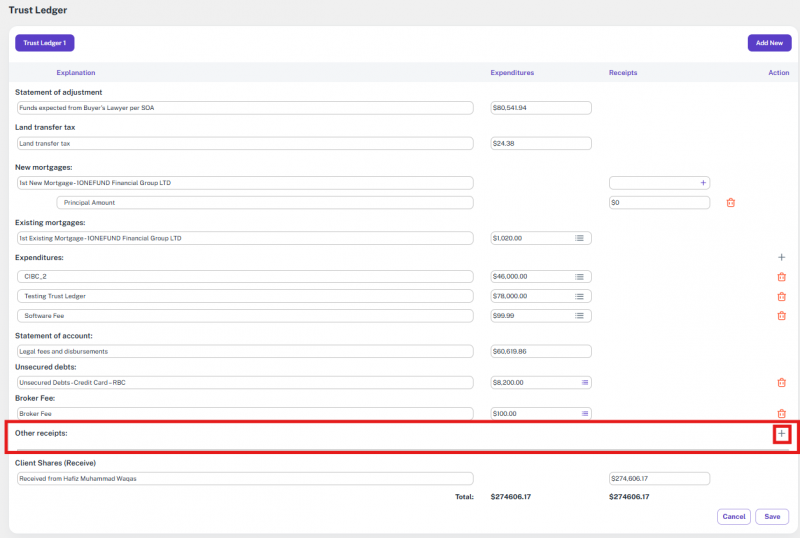
10 Client Shares (Receive)
This editable field allows entry of the final amount received from the client. The label of this section can be renamed by the user to reflect custom language (e.g., “Received from [Client Name]”).

11 Ledger Summary
At the bottom, the Trust Ledger displays the total of all receipts and expenditures. Both sides must match to ensure the ledger is balanced. If there’s a discrepancy, users should review the entries for accuracy.
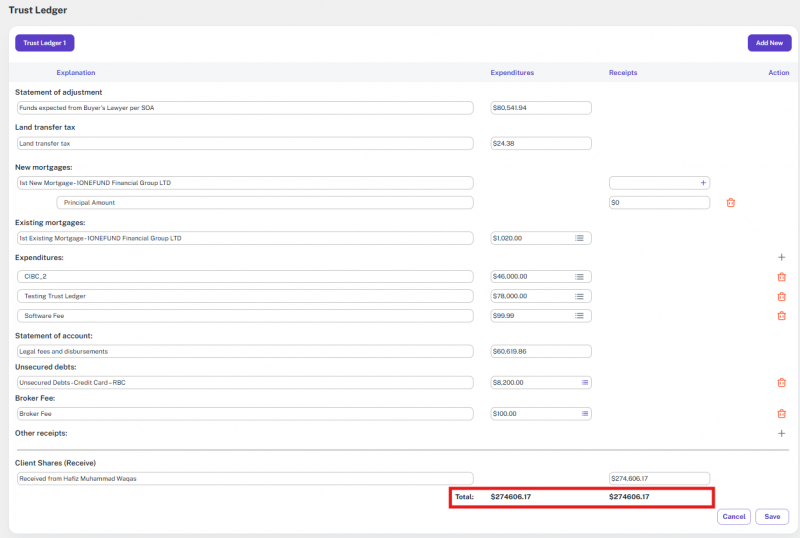
12 Add Multiple Ledgers
- You can create more than one trust ledger using the Add New button at the top-right corner.
- Each new ledger can be customized for specific financial purposes or separate transactions.
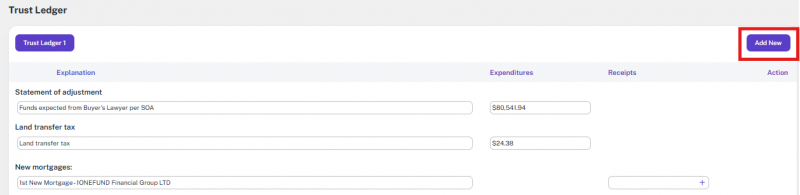
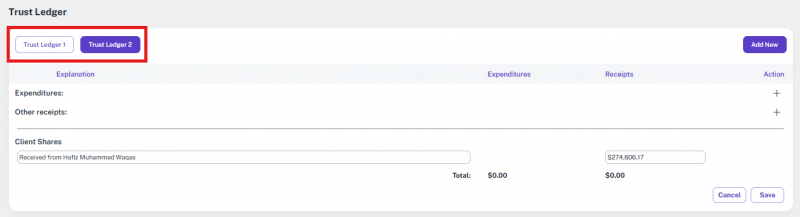
13 Expandable Line Items
- Many entries (such as New Mortgages, Expenditures, Unsecured Debts, and Broker Fees) feature a three-line (≡) icon.
- Clicking this icon allows users to expand the item and enter additional details or sub-items.
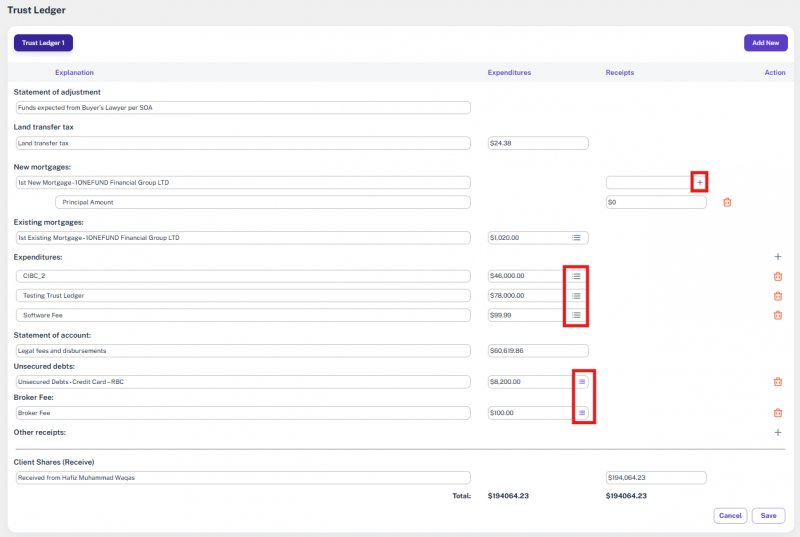

14 Add/Delete Individual Items
- You can easily add more line items using the plus (+) icon beside each category.
- Likewise, you can delete unwanted entries by clicking the red trash can icon next to each line.
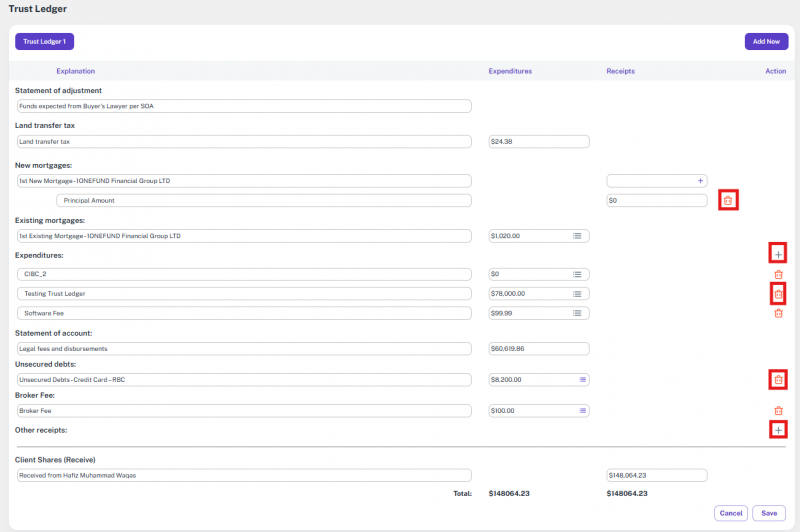
15 Save and Cancel Options
- Once all data has been entered, you can click Save to store the information.
- Use Cancel if you want to discard any unsaved changes.
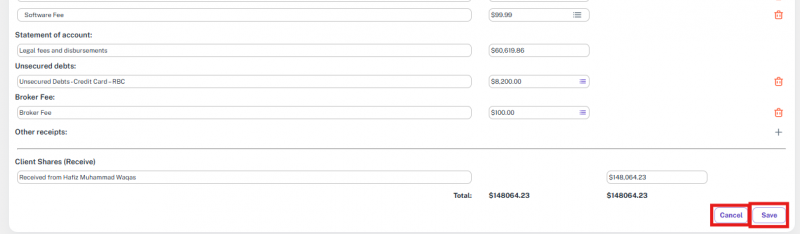
12.13.4 Statement Of Adjustment
The Statement of Adjustments section allows users to calculate the final amount payable at closing by accounting for the sale price, deposit, applicable adjustments, and credits. Below are the core functionalities and features available within this module.
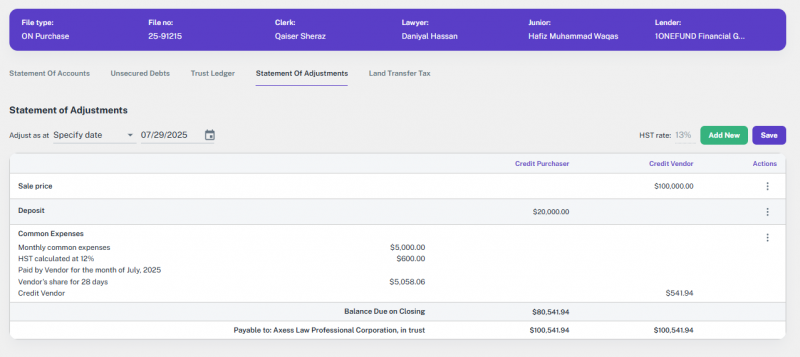
1 Setting the Adjustment Date
- Specify date: Click on the date field to open the calendar and select the specific date you want to use for all calculations. This is typically the closing date of the transaction.
- Closing date: This option automatically uses the closing date of the file.
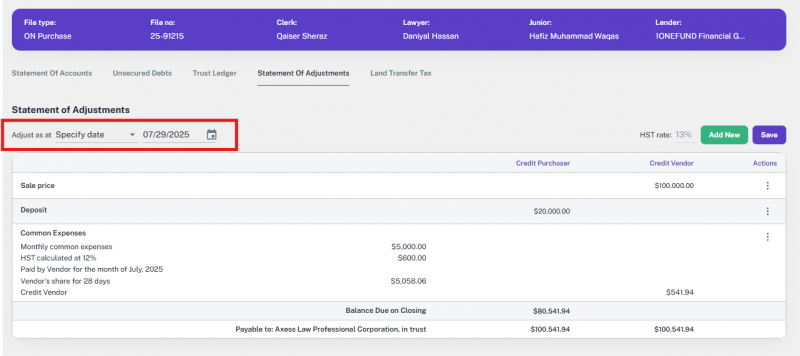
2 Adding a New Adjustment
To add a new adjustment, click the “Add New” button. A dropdown menu will appear with the following categories:
a. Taxes
Use this for real estate tax adjustments. You can input the total tax for a given year, specify a percentage increase, and indicate if the vendor has paid the taxes in full.
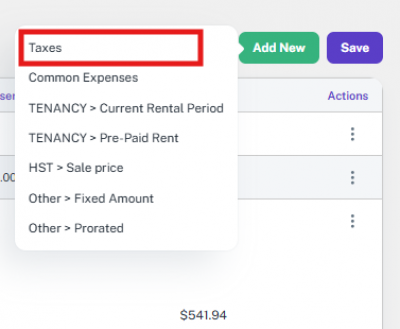
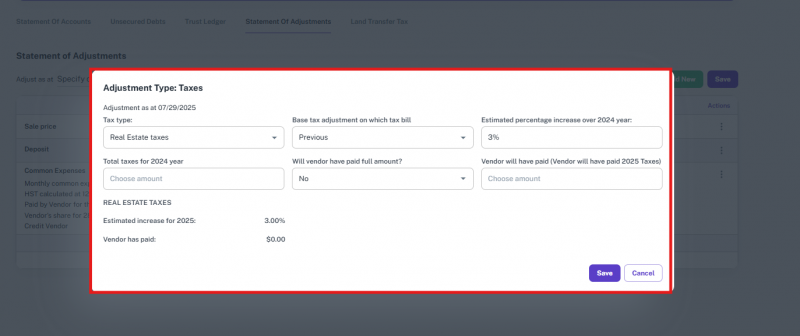
b. Common Expenses
Use this for prorating shared expenses, such as monthly condo or strata fees. Enter the total monthly amount, and the system will automatically calculate the vendor's share based on the adjustment date.
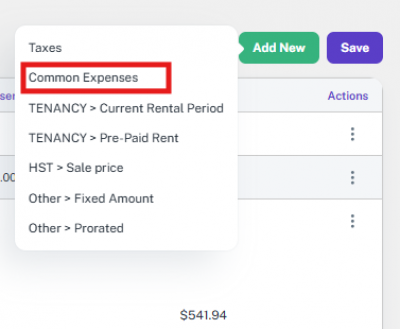
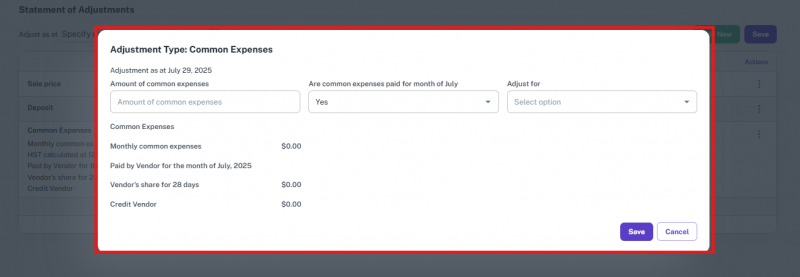
c. TENANCY > Current Rental Period
If the property has a tenant, use this to prorate the current month's rent. You will enter the start and end dates of the rental period and the total rent amount. The system will then calculate the credit due to the purchaser for any rent collected by the vendor for the period after closing.
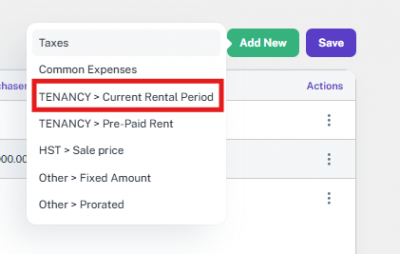
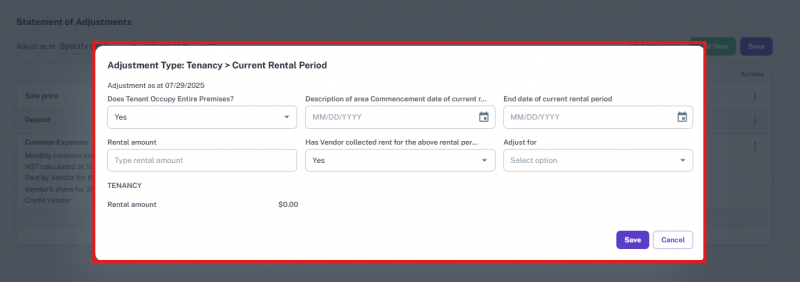
d. TENANCY > Pre-Paid Rent
Use this for situations where a tenant has paid rent in advance beyond the closing date. You can specify the amount of pre-paid rent and whether the purchaser should receive credit with or without interest.
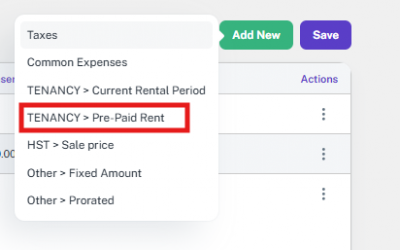
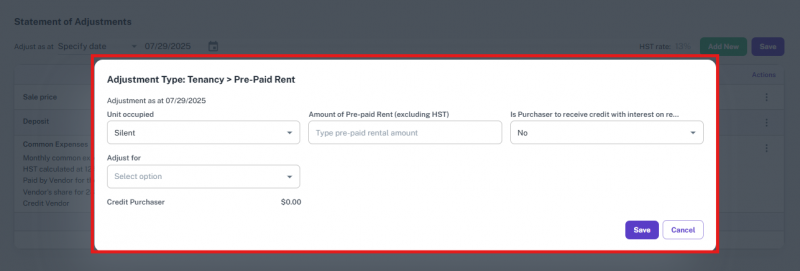
e. HST > Sale Price
Use this to calculate the HST payable on the total consideration of the property. You will specify the party to be credited and the HST percentage.
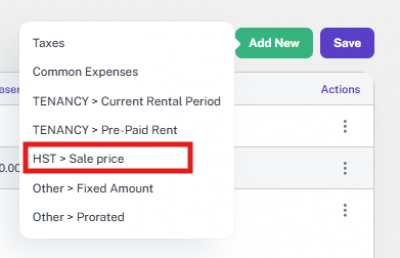
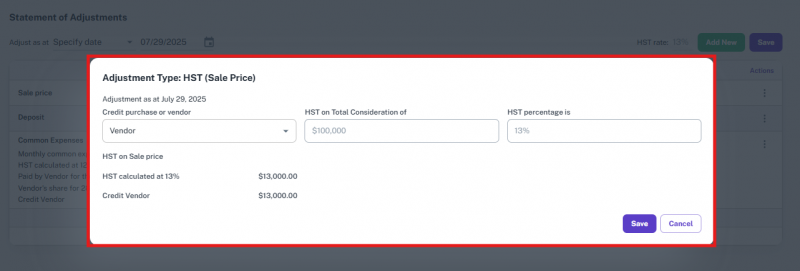
f. Other > Fixed Amount
This is a flexible option for any non-standard, one-time adjustment. Simply provide a heading and a description for the adjustment and the corresponding fixed amount.
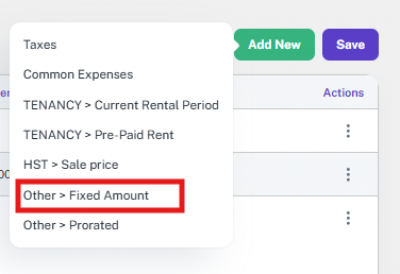
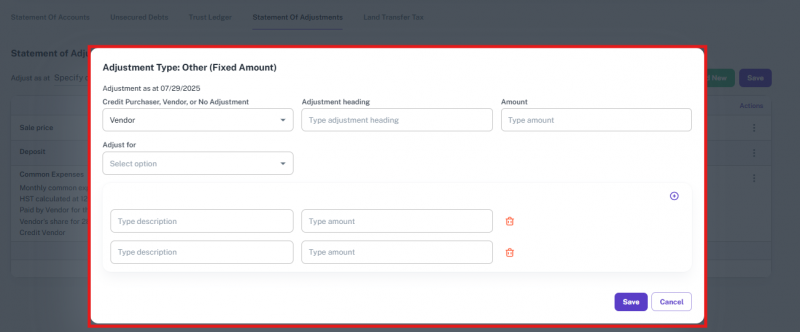
g. Other > Prorated
This option is for custom prorated adjustments that are not covered by the other categories. It allows you to specify a custom period and amount.
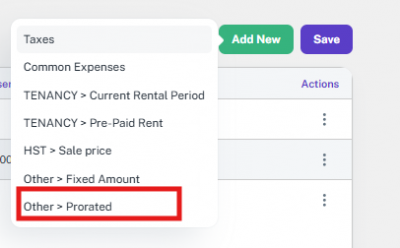
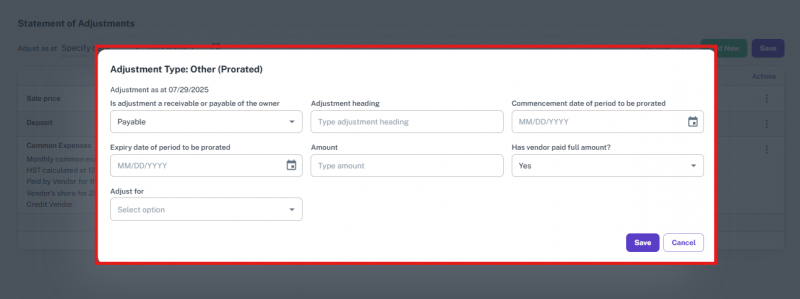
3 Saving Your Work
- After filling out an adjustment form, click “Save” to apply the changes and return to the main statement.
- To save all adjustments and the entire statement, click the “Save” button at the top right of the main page.
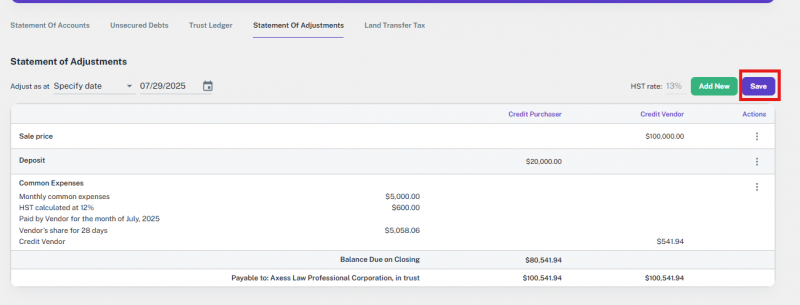
4 Credit Purchaser / Credit Vendor
These columns show which party is receiving credit for each item.
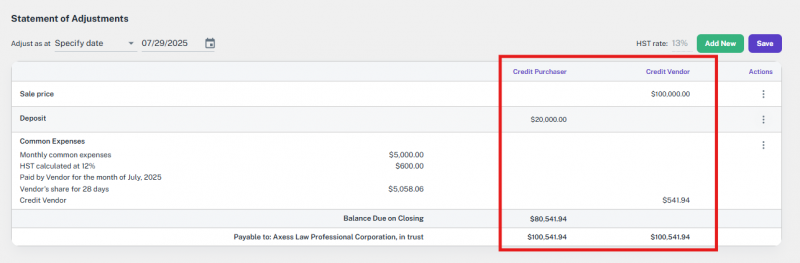
5 Balance Due on Closing
This is the net amount calculated by the system, taking into account all adjustments.
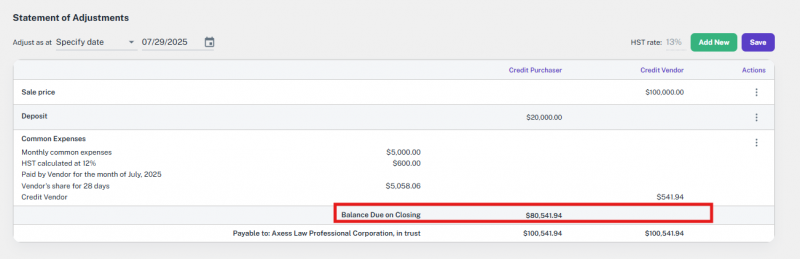
6 Payable to: [Law Firm Name], in trust
This line shows the final total amount that needs to be paid into the law firm's trust account to complete the transaction.
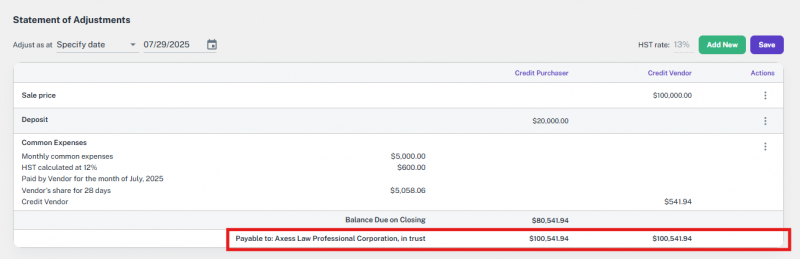
12.13.5 Land Transfer Tax (LTT)
The Land Transfer Tax section allows users to input details required for calculating the applicable LTT based on transaction value and location, specifically tailored for residential property transactions.
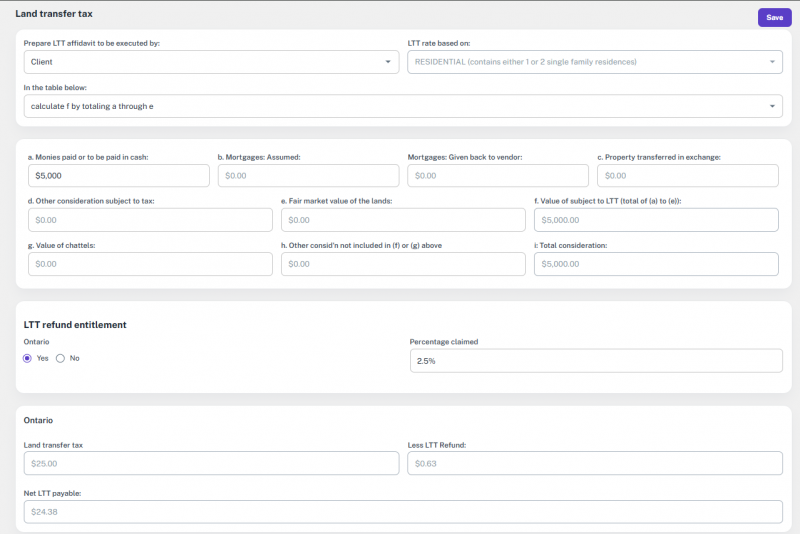
1 Prepare LTT Affidavit To Be Executed By
Dropdown field to select who will execute the affidavit (e.g., Client, Lawyer).
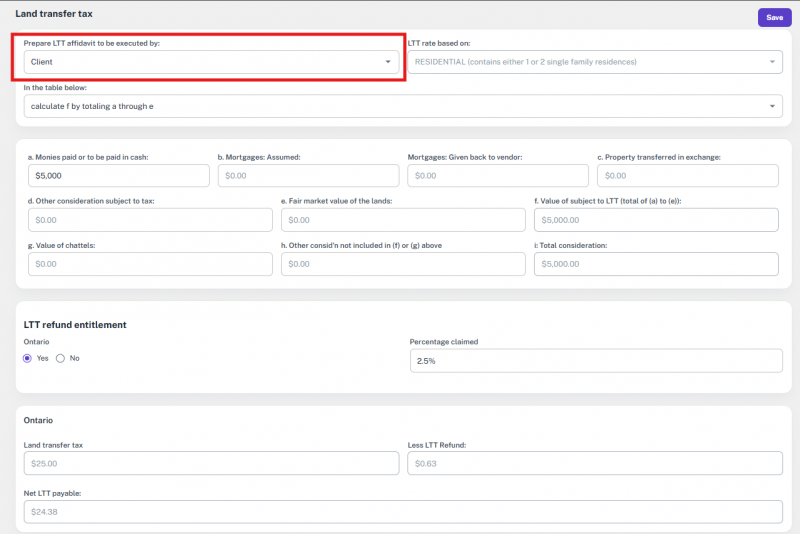
2 LTT Rate Based On
This field is pre-set to “RESIDENTIAL (contains either 1 or 2 single-family residences)” by default and cannot be changed by the user.
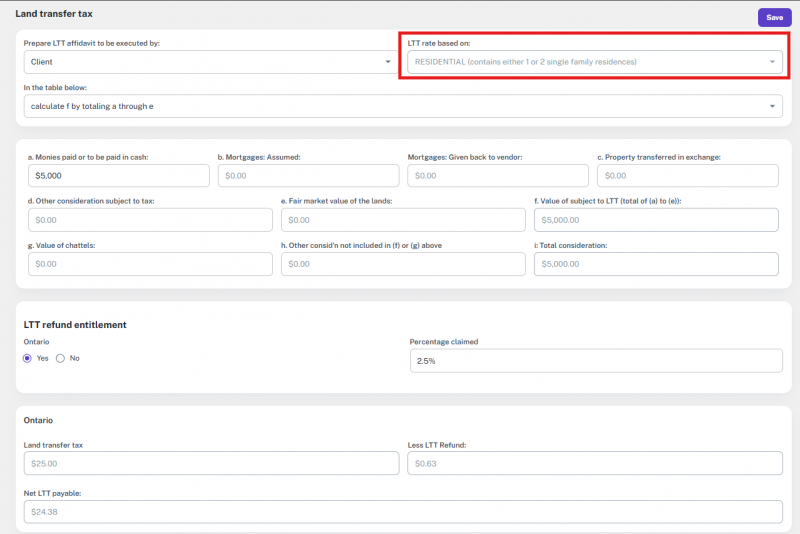
3 Consideration Table
This section is used to input all financial components that contribute to the total consideration of the property. Each field is described below:
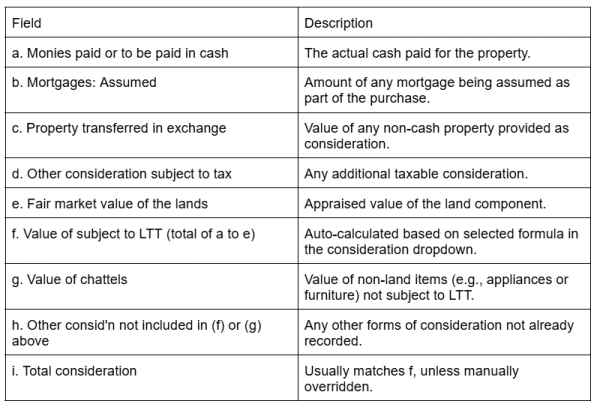
4 Consideration Details Table
This dropdown defines how the system calculates the value for field f (Value of subject to LTT) and field a (Monies paid or to be paid in cash). It determines the internal logic used for computing the Land Transfer Tax. The available options are:
- Calculate f by totaling a through e
- This option totals the values from fields a to e and assigns the result to field f.
- The amount in a equals the amount in f
- This option makes f equal to the value entered in a only, ignoring the other fields.
- Calculate a by subtracting b through e from f
- This reverses the logic: field a is automatically calculated by subtracting the values of b, c, d, and e from f.
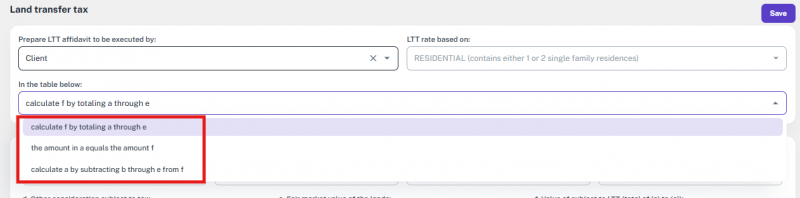

5 LTT Refund Entitlement
This section checks for eligibility for a Land Transfer Tax refund, specifically in Ontario.
- Select “Yes” or “No” for Ontario refund eligibility.
- Enter the Percentage Claimed (e.g., 2.5%).

6 LTT Summary – Ontario
This section provides the final tax calculation:
- Land Transfer Tax: Total tax computed based on the inputs and calculation method.
- Less LTT Refund: Amount eligible for refund (if applicable).
- Net LTT Payable: Final amount the client is liable to pay after adjustments.

12.14 Teraview Import
This guide will walk you through the process of importing mortgage information directly from a Teraview XML file. This feature automates data entry, saving time and ensuring accuracy.
12.14.1 Accessing the Export Function
To import a mortgage, you must first be on the “New mortgage tab”. Once there, locate the Teraview export icon in the top-right corner of the screen, next to the file details.
- Locate the Export Icon: This icon looks like a document with a download symbol, as highlighted in the images.
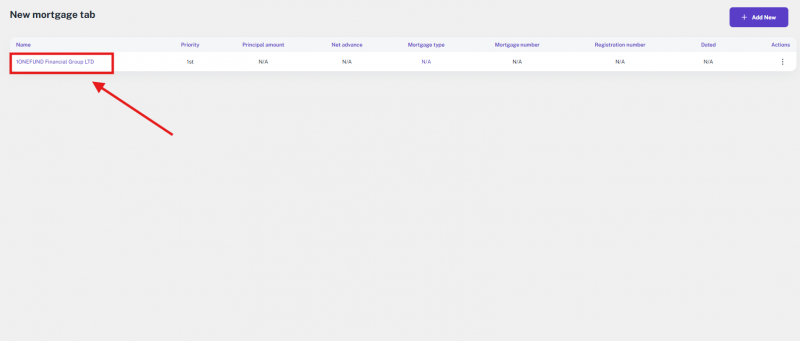
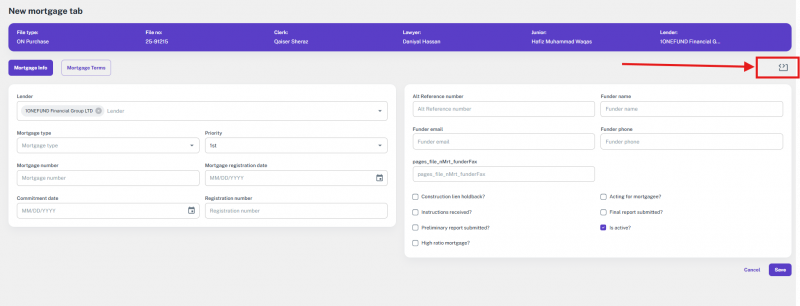
12.14.2 Generating the XML Data
Clicking this icon will generate the necessary XML data for your mortgage.
- URL Generation: The system will not prompt you for a file. Instead, it will generate a unique URL containing the XML data. A “Copied!” message will appear, confirming that this URL has been copied to your clipboard.
- Accessing the XML Code: Paste the copied URL into a new browser tab. This action will display the raw XML code, which contains all the mortgage information in the Teraview-compatible format.
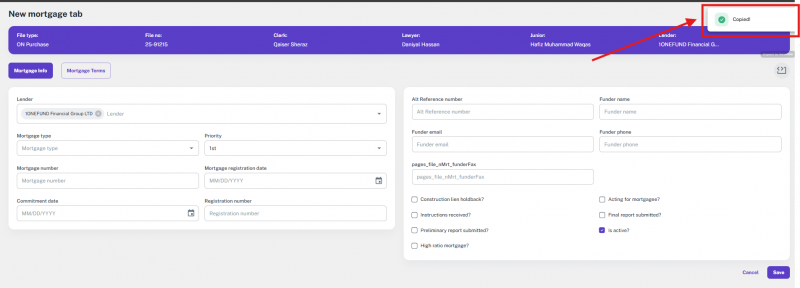
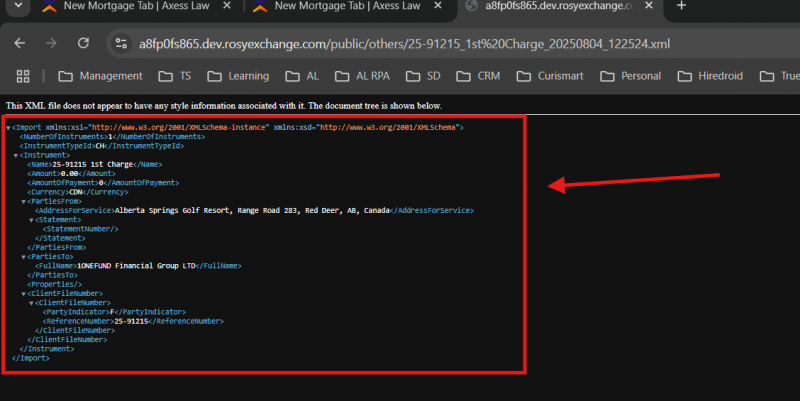
12.14.3 Importing into Teraview Portal
Once you have the XML code displayed in your browser:
- Copy the XML: Select and copy all of the XML code from the browser tab.
- Paste into Teraview: Go to the Teraview Portal and paste this copied XML code into the appropriate section to import and process the mortgage information.
This process allows you to quickly and accurately transfer mortgage details from our system to the Teraview Portal without manual data entry.
12.14.4 Teraview Export via Doc Submission
This guide explains how to use the “Doc Submission” feature to prepare and export mortgage information for the Teraview Portal. This process ensures all necessary data is complete before export, preventing errors in the Teraview system.
12.14.5 Accessing the Doc Submission Feature
Navigate to the “Doc Store” and select the “Doc Submission” tab. This is where you will manage and prepare the documents for external portals like Teraview.
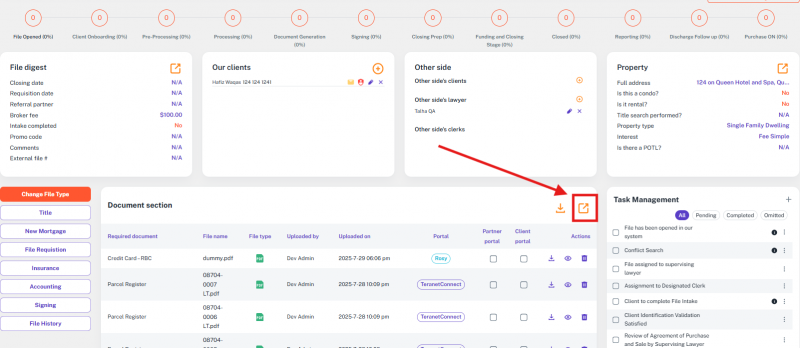
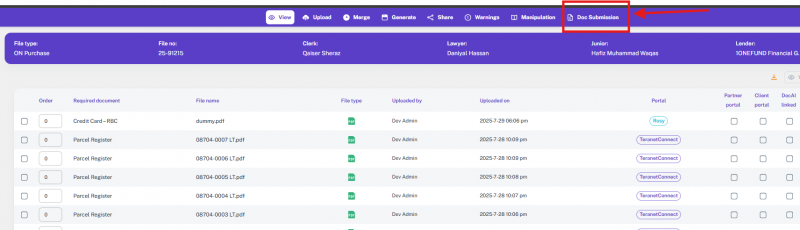

12.14.6 Exporting via XML View
This method is ideal for a quick copy-and-paste into the Teraview Portal.
- Validate Data: Before generating the XML, the system performs a validation check. If any required fields are missing, a list of these fields will be displayed as a red-highlighted alert. You must fill in all of the listed fields before you can proceed with the export.
- Generate and View XML: To begin, click the view icon (an eye symbol) in the “Actions” column next to the document you want to export. This action will open a pop-up window displaying the raw XML code.
- Copy and Paste: Select and copy the entire XML code from the pop-up window. Then, go to the Teraview Portal and paste the code into the appropriate section to import the data.

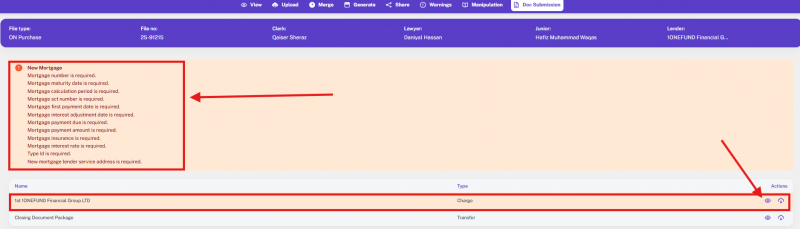

12.14.7 Exporting via XML Download
This method is useful if you prefer to work with a physical file.
- Validate Data: Similar to the view option, the system will first check for any missing required fields. If an alert appears, you must fill in the necessary information before you can download the file.
- Download XML File: To download the file, click the download icon (an arrow pointing down) in the “Actions” column next to the document. The system will download a Teraview-compatible XML file directly to your computer.
- Import to Teraview: Once the file is downloaded, you can import this XML file into the Teraview Portal to process the mortgage information.

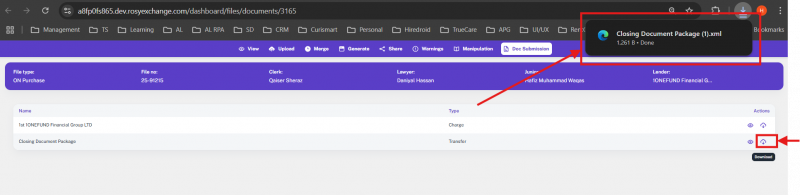
13. Signing
13.1 Interface
The Signing Module helps clients and signing agents perform document signings in a secure and compliant way. You can perform signings through:
- In-Person
- Concurrent (online signing)
- Virtual Video Conference (Online Meeting)
This guide explains how to access the Signing Module, view signings, and manage different signing types.
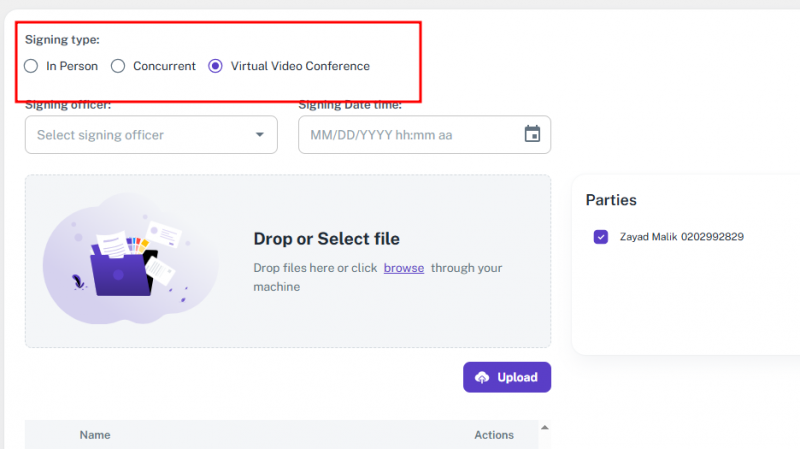
Method 1: Accessing the Signing Module
Step 1 – Open the Signing Menu
- Go to the top menu bar.
- Hover over Signing.
Step 2 – Choose a Section
- My Signings – View all signing requests assigned to you as a signing agent
- Manage Signings – Add or edit signings.
- Missed Signings – Track signings that were not completed.

Method 2: My Signings
Step 1 – View Assigned Signings
- Open My Signings to see your list.
Step 2 – Review Details
The table includes:
- File No.
- Parties
- Clerk
- Signing Agent
- Date & Time
- Signing Type (In-person, Virtual, etc.)
- Status (Scheduled, Completed, Pending)
- Manage options
Method 3: Manage Signings
Step 1 – Open Manage Signings
- Go to Manage Signings in the menu.
Step 2 – Select an Action
- View signing details.
- Edit or update information.
- Add a new signing type when needed.
Method 4: Missed Signings
Step 1 – Open Missed Signings
- Select Missed Signings from the menu.
Step 2 – Review Missed Entries
The table includes:
- File No.
- Parties
- Clerk
- Signing Agent
- Date & Time
- Signing Type
- Status
- Manage (View or Reschedule)
Method 5: File Signing Tab
Step 1 – Open the File Signing Tab
- Go to the specific file and click the Signing Tab.
Step 2 – Review File Details Ribbon
You will see:
- File Type, File No., Clerk, Lawyer, Junior, Lender.
Step 3 – Review Signing Entries
Each entry shows:
- Signing Type
- Signing Agent
- Date & Time
- VSR Link (for Virtual Signings)
- Package in Syngrafii
- Drafted / Completed status
- Manage options (Edit, Message, Cancel)
Method 6: Adding a New Signing
Option A – In-Person Signing
- Step 1 – Select a Signing Officer
- Step 2 – Choose Date & Time
- Step 3 – Add Comments if needed
- Step 4 – Save or Cancel
- Rule: Only one signing can be active at a time.
Option B – Concurrent Signing
- Step 1 – Select Sign By Date/Time
- Step 2 – Upload Files
- Step 3 – Choose Parties to Sign
- Step 4 – Add Comments
- Step 5 – Save & Send to Parties
Functional Flow:
- Sent to Syngrafii for management.
- Select signers and finalize the package.
- Clients receive email invitations.
- Once signed → Status updates to Completed
Option C – Virtual Video Conference Signing
- Step 1 – Select a Signing Officer
- Step 2 – Choose Date & Time
- Step 3 – Upload Files
- Step 4 – Select Parties
- Step 5 – Add Comments
- Step 6 – Choose Action:
- Cancel Signing
- Save as Draft
- Edit Package in Syngrafii
- Save & Send Invitations
Functional Flow:
- Clients receive an email invitation with the date, time, and conference link.
- During the call, all parties review & sign.
- Once complete, → Status updates to Completed.
Method 7: Client Portal – Signature Appointment
When a client is selected for signing, the details also appear inside the Client Portal under the Signature Appointment section.
From here, clients can directly view their signing type and take action accordingly.
Step 1 – Client Login
- Client logs in to the Client Portal.
Step 2 – Open Signature Appointment
- Navigate to the Signature Appointment section.
- The system shows signing details based on the Signing Type.
Step 3 – Signing Actions by Type
- In-Person Signing
- Client sees the Scheduled Date & Time.
- No meeting link is provided (signing will be done physically with the Signing Officer).
- Concurrent Signing
- Client sees the Signing Document(s) listed.
- By clicking the document, the client can directly review and sign online.
- Virtual Video Conference Signing
- Client sees the Meeting Link with the scheduled Date & Time.
- By clicking the link, the client joins the virtual meeting, reviews documents, and signs them during the session.

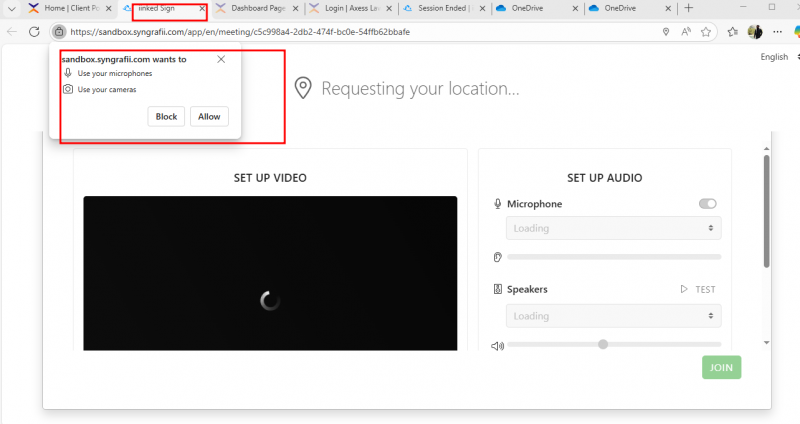
Step 4 – Status Update
- Once the signing is completed, the system updates the status to Completed in both:
- Rosy Signing Module
- Client’s Portal
13.2 Functionality
The Signing feature ensures that clients sign all required documents through different signing methods (In-Person, Concurrent, or Virtual Video Conference). This process helps maintain legal compliance and provides a complete audit trail of signatures.
Key Functional Impacts
1. Controlled Signing Flow
- A new signing can only be created after the previous signing is either completed or canceled.
- This prevents duplication and ensures the signing process remains sequential and accurate.
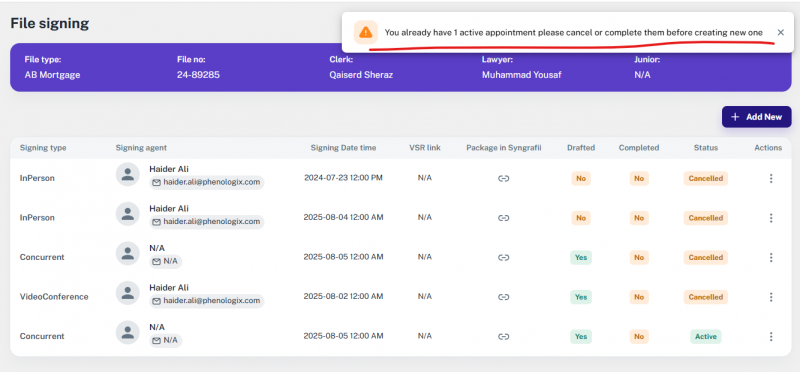
2. Flexible Signing Options
- Users can choose the appropriate signing type based on the situation:
- In-Person – physical signing managed by a signing officer.
- Concurrent – multiple parties sign documents online within a set date.
- Virtual Video Conference – parties join a video call to review and sign together.
3. Automated Notifications & Tracking
- Clients receive email invitations with signing details (date, time, and links).
- Once documents are signed, the system updates the status to Completed automatically.
- This provides real-time visibility of signing progress.

4. Integration with Syngrafii
- For Concurrent and Virtual signings, Signings are managed through Syngrafii.
- Users can upload documents, add signers, edit packages, or save drafts before sending.
- Ensures compliance and flexibility when handling digital signings.
5. Audit & Compliance
- All signing records (file number, parties, officer, date/time, type, and status) are stored in the system.
- Provides a complete audit trail for verification and compliance.
6. Signing in to task management
- Signing Package: When at least one document is uploaded against a signing package document tag.
- Appointment Set: When a Video Conference Signing is scheduled.
- Two Tasks: The signing takes place, and the signed document is uploaded. This happens only when Syngrafii returns the signed documents to the system.
- Manual Appointment: If a signing appointment is manually marked as true but no signing is actually created (i.e., no date and time are set in the signing appointment), then it will not be considered true.
14. Admin
14.1 Audit Log
The Audit Log module tracks every action in the system by all user roles — Admins, Clients, Referrals, and Lenders. It helps maintain transparency, makes debugging easier, and monitors system performance.
Key Features
- View real-time activity logs for all users and system operations.
- Search logs by Method Name.
- Filter logs by Date Range, Log Type, or User.
- Export logs to CSV or Excel format.
- Monitor execution times, exceptions, and performance issues.
Method 1 – Access the Audit Log
Step 1 – Open the Admin Panel
- Go to the Admin Panel in your application.
- From the left-hand menu, click Audit Log.
- The Audit Log page will open, showing a table of all recorded logs.
Method 2 – Understanding the Page Layout
Step 1 – Header Area
- Top Left: Displays the section title “Audit Log”.
- Breadcrumb Navigation: Shows your location: Admin > Audit Log.
- Top Right:
- Search Field – Search logs by Method Name.
- Export Button – Download the log table as CSV or Excel.
Method 3 – Using Filters
Filters help you narrow down logs for review.
Available Filters:
- Date Range – Select start and end dates.
- Log Type – Choose:
- New
- Info
- Error
- User Filter – Search and select a specific user.
- Actions:
- Set Filter – Apply selected filters to update the table.
- Reset Filter – Clear all filters and return to the default view.
Method 4 – Understanding the Logs Table
The Logs table lists all tracked actions in detail.
Table Columns:
- User Name – Who acted.
- Service Name – Which section or module was used?
- Method Name – The specific method or function executed.
- Parameters – Input data used in the action.
- Log Type – New, Info, or Error.
- Exception Message – Error details (if any).
- Execution Time & Date – Exact time and date of execution.
- Duration – Time taken to execute (ms or s).
14.2 Brokerage
The Brokerage Section lets administrators create and manage brokerage records used across the platform—especially for referrals and file filtering.
Once a brokerage is added, it becomes available for selection in different modules, ensuring consistency and centralized control.
14.2.1 Interface
Method 1 – Accessing the Brokerage Section
Step 1 – Go to the Admin Panel
- Open the Admin Panel from the main navigation.
- In the left-hand menu, click “Brokerage.”
- The Brokerage page will open.
Method 2 – Searching and Adding a Broker
Step 1 – Search for an Existing Broker
- At the top of the page, type the broker’s name in the search bar.
Step 2 – Add a New Broker
- Click the Add Broker button next to the search bar.
- The Add Broker Form will appear.
Method 3 – Using Filters
Step 1 – Open the Filter Panel
- Click the Filter icon under the Add Broker button.
- The filter panel will slide open.
Step 2 – Apply or Reset Filters
- Set a Date Range or other filter criteria.
- Click Set Filter to apply filters.
- Click Reset Filter to clear and reload all results.
Method 4 – Understanding the Brokerage Table
The Brokerage table displays the following columns:
- Name – Click to edit the brokerage.
- Parent Company – The company the brokerage belongs to.
- Operating Brand – The brand name used.
- Type – The brokerage category.
- Created By – User who added the record.
- Updated By – User who last edited the record.
- Date Created – When it was first added.
- Date Updated – Last edit date.
- Status – Active or Inactive.
- Action Button – Click to open edit options.
Method 5 – Adding a New Brokerage
Step 1 – Open the Add Broker Form
- Click Add Broker on the Brokerage page.
Step 2 – Fill in the Required Fields
Required:
- Name
Optional but Recommended:
- Parent Company (dropdown)
- Operating Brand (dropdown)
- Phone Number
- EXT
- Brokerage Type (dropdown)
- Account Owner User (dropdown)
- Principal Broker (dropdown)
- License Number
- Billing Address, Street Name, City, Province (dropdown), Postal Code
- Description
- Is Active (checkbox)
Step 3 – Save or Cancel
- Click Create to save the record.
- Click Cancel to discard changes.
Method 6 – Editing an Existing Brokerage
Step 1 – Open the Edit Form
- Either click directly on the Brokerage Name in the table, OR click the three-dot Action Button and select Edit.
Step 2 – Update Details
- The form will open pre-filled with the existing data.
- Make the necessary changes and save.
14.2.2 Functionality
Managing Brokerage During Referral Creation and Filtering Files
This guide explains how to select a brokerage when creating a referral and how to filter files by brokerage in the Files section.
Brokerages are linked across different fields in the referral form, similar to a parent–child relationship.
Part 1 – Selecting Brokerage in Referral Creation
Use these steps when adding a new referral.
Step 1 – Open the Referral Form
- Navigate to the Referrals section from the Admin Menu.
- Click Add New Referral.
Step 2 – Select Brokerage Information (First Card of Form)
There are three interconnected brokerage fields:
- Brokerage Field – Select the brokerage created earlier.
- Parent Company Field – Select the parent company (brokerage).
- Operating Brand Field – Select the brand name (brokerage).
These fields update each other automatically based on your selections, just like parent–child linked dropdowns.
Part 2 – Filtering Files by Brokerage
Use these steps to display only files linked to a specific brokerage.
Step 1 – Go to the Files Tab
- Navigate to the Files section.
Step 2 – Open the Filter Panel
- Click the Filter button to expand the panel.
Step 3 – Apply Brokerage Filter
- Find the Brokerage dropdown.
- Select the desired brokerage from the list.
- Click Apply Filter.
The system will now display only files associated with that brokerage.
14.3 Debt Statements
This guide explains how to view, search, and add debt statement records in the system.
Debt statements are predefined debt records that can be used later in Statements of Account and Trust Ledger under file details.
They help keep debt-related entries consistent and accurate across the platform.
14.3.1 Interface
Method 1 – Open the Debt Statements Section
Step 1 – Go to the Admin Tab
- Click the Admin tab in the top navigation bar.
Step 2 – Select Debt Statements
- The left-side menu will appear.
- Click Debt Statements from the list.
- You will now be on the Debt Statements management page.
Method 2 – Search and Add Debt Records
Step 1 – Search for a Record
- Use the Search bar at the top to find existing debt statements by Name.
Step 2 – Open the Add Debt Form
- Click the Add Debt button next to the search bar.
- The Add New Debt form will open.
Method 3 – Understanding the Debt Table
The table on this page lists all debt statements with these details:
- Name – Name of the debt record.
- Filter Type – Category or type of the debt.
- Province – The province where the debt applies.
- Status – Whether the debt is Active or Inactive.
- Action Button – Allows you to edit a record.
Tip: You can click the Name or the Action Button to edit any record.
Method 4 – Add a New Debt Statement
Step 1 – Open the Form
- Click the Add Debt button.
Step 2 – Fill in the Details
- Name: Enter the debt name (e.g., Payable to Bank) — Required field.
- Transaction Type: Select from the dropdown (e.g., Credit, Debit).
- Province: Select the applicable province.
- Status: Check the box to mark as Active, or leave unchecked to keep as Inactive.
Step 3 – Save or Cancel
- Click Add to save the record.
- Click Cancel to close without saving.
14.3.2 Functionality
Using Debt Statements in the Platform
This guide explains where and how to use Debt Statements within the File Details page. Using predefined Debt Statements ensures accuracy and consistency in account transactions.
Method 1: Add in the “Statements of Account” Section
Use this method when you want to link a Debt Statement directly to the file’s Statements of Account.
Step 1 – Open the Accounts Tab
- Open the file you’re working on.
- Click the Accounts tab.
Step 2 – Go to Statements of Account
- Under Statements of Account, click Add New Entry.
Step 3 – Select a Debt Statement
- In the entry form, find the Debt Statements dropdown.
- Choose the relevant predefined Debt Statement.
Method 2: Add in the “Trust Ledger” Section
Use this method when you want to record a Debt Statement in the Trust Ledger.
Step 1 – Open the Accounts Tab
- Open the same file and click the Accounts tab.
Step 2 – Go to the Trust Ledger
- Under Trust Ledger, click Add New Entry.
Step 3 – Select a Debt Statement
- In the entry form, find the Debt Statements dropdown.
- Choose the relevant predefined Debt Statement.
14.4 Designations
This guide explains how to create and manage designations within the system.
Designations are job titles or position labels (e.g., Mortgage Agent, Regional Manager, Broker) used in the Referrals module.
They are not linked to internal user roles (like Law Clerk, Lawyer, Admin) and do not control system permissions or access.
14.4.1 Interface
Step 1 – Open the Designations Section
- From the top header menu, click the Admin tab.
- A left-side panel will appear.
- In the panel, select Designations to open the module.
Step 2 – View the Designations Page:
- Name Column – Shows the list of existing designations (e.g., Mortgage Agent, Assistant Manager).
- The Designations page displays all job titles or position labels used in referrals.
- Actions Column – Allows editing of existing designation names. (No delete option is available.)
Step 3 – Add a New Designation
- Click the Add New Designation button.
- A form will appear—enter the new designation name.
- Save your changes to update the list.
14.4.2 Functionality
Functional Effect on User – Designations
The Designations module allows administrators to create and manage official title labels (e.g., Mortgage Agent, Broker, Manager) used exclusively in the Referrals module.
How It Works
* Adding a Designation
- When an admin adds a new designation on the Designations page, it is automatically added to the Designation dropdown in the Referrals form.
* Where It Appears
- The dropdown is used in both the Primary Information section and the Associate section when creating or editing a referral.
* Benefits
- Ensures consistent labeling of referral contact titles across the platform.
- Speeds up data entry and reduces the chance of manual errors when creating or updating referrals.
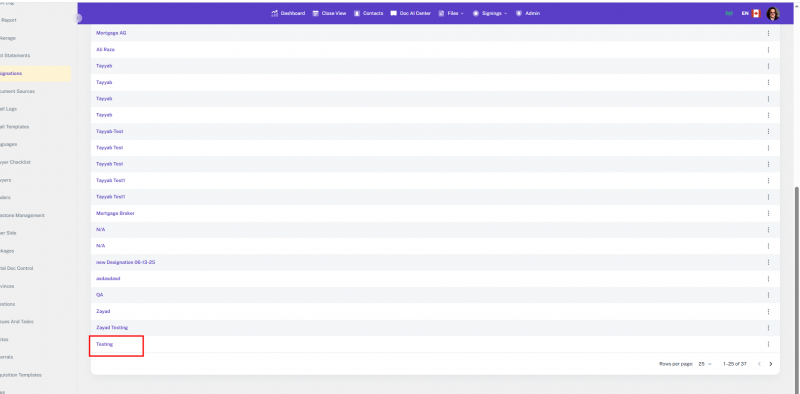
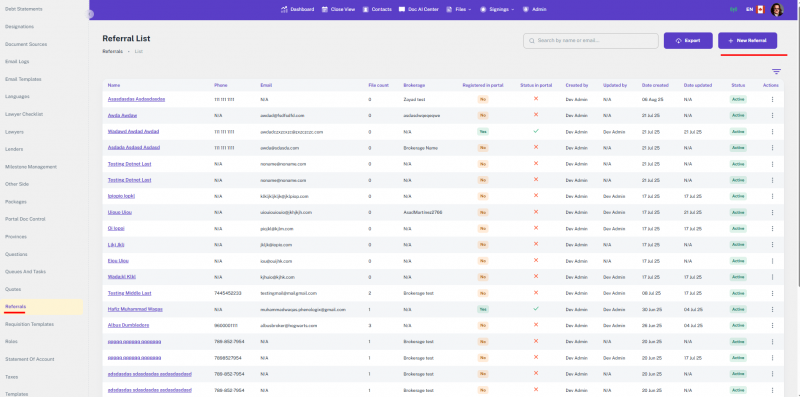
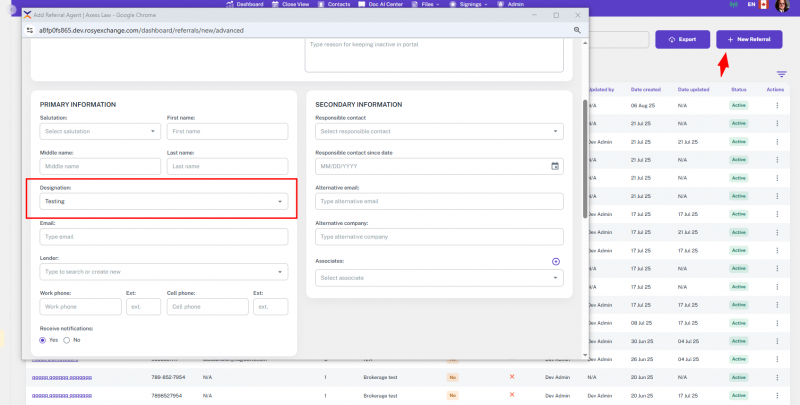
14.5 Document Sources
This guide will help you add, edit, and filter document sources in the system.
Document sources define the origin or type of documents used across the platform. Once added, they become available in other areas, such as the Templates module.
14.5.1 Interface
Method 1 – Adding a New Document Source
Step 1 – Open the Document Sources Section
- Click the Admin tab from the top header menu.
- In the left navigation panel, select Document Sources.
- The main page will display a list of existing document sources.
Step 2 – Add a New Source
- Click the Add New Source button (top-right of the page).
- In the form that appears:
- Enter the Document Source Name.
- Check or uncheck the Active box to set the status.
Step 3 – Save the New Source
- Click Add to save the entry.
- Click Cancel to close the form without saving.
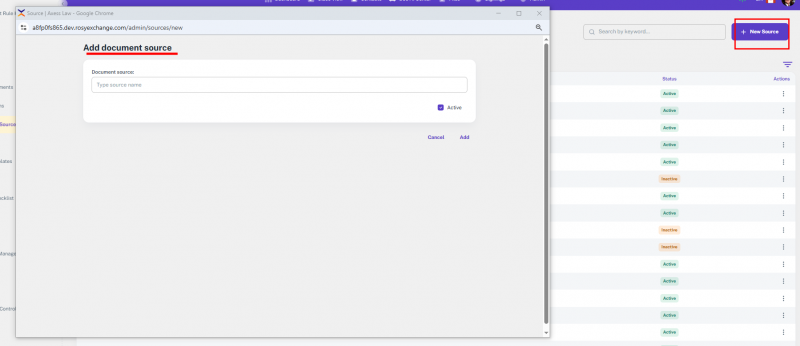
Method 2 – Editing an Existing Document Source
Step 1 – Find the Source to Edit
- In the main table, locate the document source you want to update.
Step 2 – Open the Edit Form
- In the Actions column, click the Edit button.
Step 3 – Make Changes
- Update the Document Source Name as needed.
- Adjust the Active status if necessary.
Step 4 – Save Updates
- Click Save to apply changes.
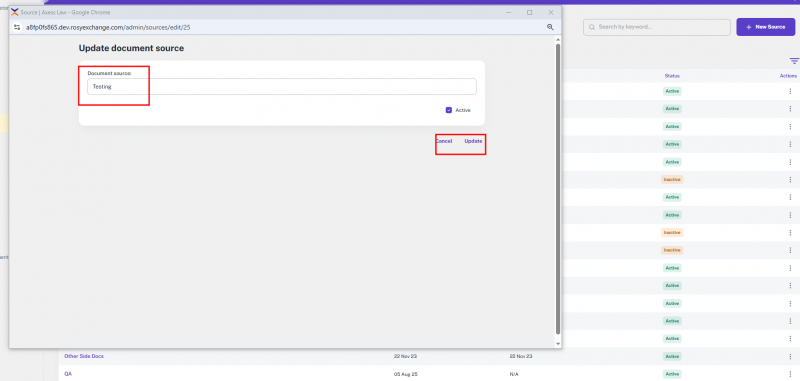
Method 3 – Filtering Document Sources
Step 1 – Open Filters
- In the Document Sources section, locate the filter panel.
Step 2 – Set Date Filters
- Select Created Date – Start Date.
- Select Created Date – End Date.
Step 3 – Apply Filter
- The table will update to show only document sources created in the selected date range.
14.5.2 Functionality
Template Integration
- Any new document source automatically appears in the Source dropdown when adding a new template in the Templates module.
- Helps in tagging and organizing templates based on document origin.
Document Store Usage
- In the Doc Store → All Files → Details view:
- Open the Document section and click Detail View.
- Click Generate, which is at the top it will open a page where you can select both Axess Documents and Lender Documents.
- Ensures consistency and accuracy in document management workflows.
14.6 Email Logs
The Email Logs section lets administrators review failed email attempts within the system.
It provides detailed information about undelivered emails, helping admins quickly investigate and resolve delivery issues—improving communication reliability and system accountability.
14.6.1 Interface
Step 1 – Open the Email Logs Section
- From the top header menu, click the Admin tab.
- A left-side panel will appear.
- Select Email Logs to open the page.
Step 2 – Understand the Email Logs Table
The table contains the following columns:
- Subject – The email’s subject line.
- From – The sender’s email address.
- TOs – Recipients listed in the “To” field.
- CCs – Recipients listed in the “CC” field.
- BCCs – Recipients listed in the “BCC” field.
- Response – The system’s feedback after trying to send the email.
- Status – Shows the delivery status (this section only lists failed emails).
- Dated – The date and time the email was attempted.
- Action – A View button to see detailed information about the email.
Step 3 – Filter Email Logs
- Use the Start Date and End Date filters to display only logs within a specific period.
- This helps narrow results and focus on relevant failed email attempts.
14.6.2 Functionality
The Email Logs feature gives administrators real-time visibility into failed email deliveries.
How It Helps:
* Focused Monitoring
- Only failed emails are listed, allowing users to quickly identify and address communication issues caused by technical errors or incorrect recipient details.
* Detailed Troubleshooting
- The View action provides full details of each failed email, making it easier to diagnose and resolve problems.
* Improved Communication Reliability
- Proactive monitoring ensures system-generated emails reach their intended recipients, enhancing both reliability and accountability in communication.
14.7 Email Templates
The Email Templates module lets administrators create, manage, and configure pre-written email templates.
These templates are used across the system for automated or manual communication with users, clients, lenders, and other stakeholders.
14.7.1 Interface
Method 1 – Accessing the Email Templates Section
Use this method if you want to view, search, or create templates.
Step 1 – Open the Admin Tab
- Click the Admin tab in the top navigation bar.
- A left-side panel will open.
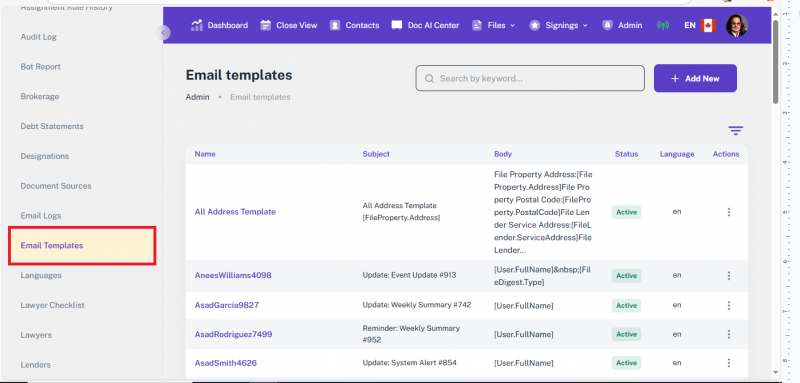
Step 2 – Go to Email Templates
- In the left panel, click Email Templates.
- You will be taken to the Email Templates section.
Method 2 – Understanding the Section Layout
Header Area
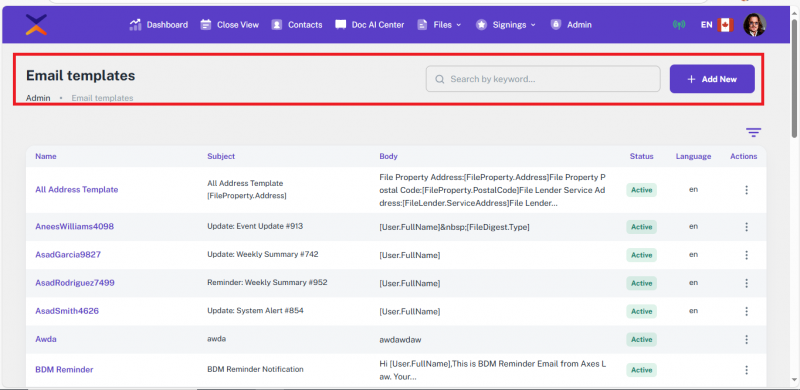
- Top-Left: Page title: Email Templates
- Breadcrumb: Admin > Email Templates
- Top-Right:
- Search Field – Type a template name to search.
- Add New Template – Click to create a new template.
- Filters Panel
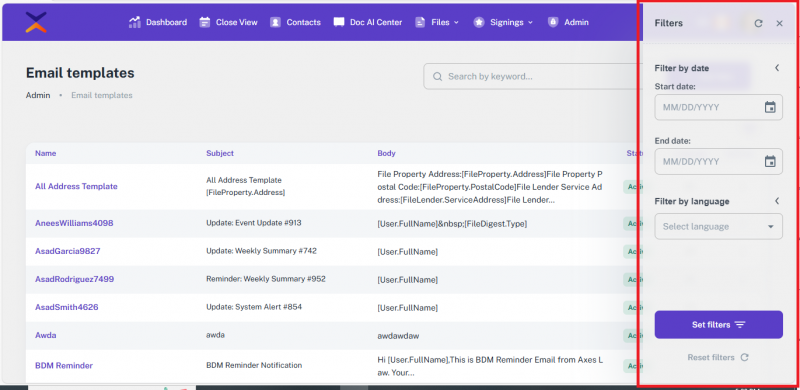
- Click the Filter icon below the “Add New Template” button to open filter options.
- Top Buttons:
- Reset – Clear all filters.
- Close Filters – Hide the filter panel.
- Available Filters:
- Date range (From Date, To Date)
- Language/Province: EN (English) or FR (French)
- Bottom Buttons:
- Set Filter – Apply filters.
- Reset Filter – Clear all and reset the list.
Method 3 – Viewing the Email Templates Table
Table Columns
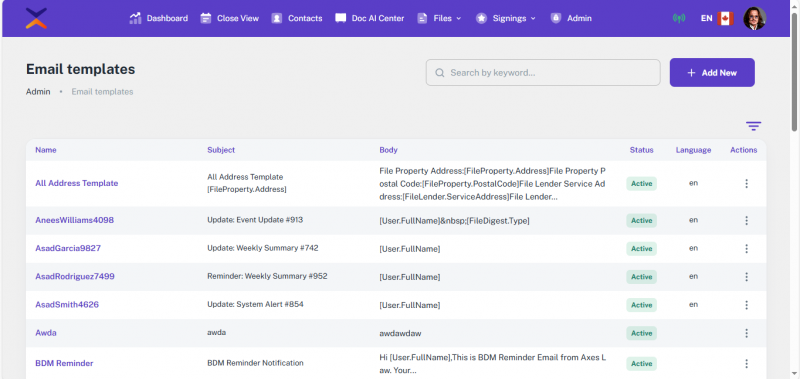
- Template Name – Click to open template for editing.
- Subject – Shows the email’s subject line.
- Body – Shows a preview of the email content.
- Status – Active or Inactive.
- Language – EN or FR.
- Action – Three-dot menu with:
- Edit – Open in edit mode.
- View – Open a read-only preview
- Pagination
- Navigate between pages.
- Rows per page: 25, 50, 75, 100.
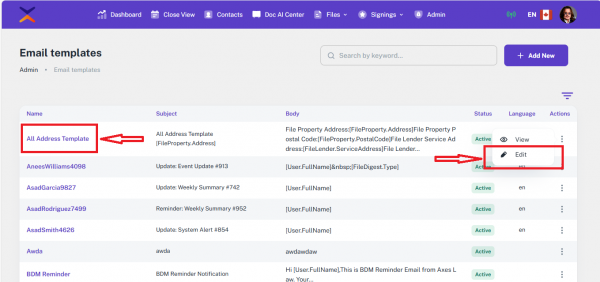
Method 4 – Creating a New Email Template
Step 1 – Click Create New
- In the Email Templates section, click Create New.
- The “Create New Email Template” form will appear.
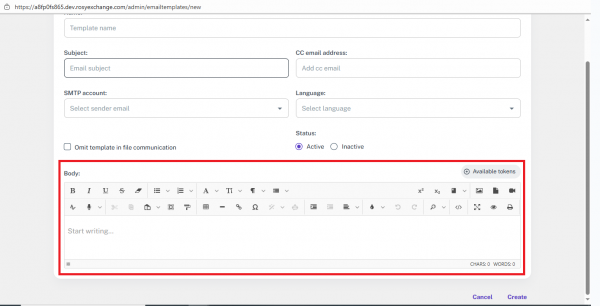
Step 2 – Fill Out the Form
- Template Name (required) – Enter the template name.
- Subject (required) – Enter the subject line.
- CC Email Address – Enter one or more CC addresses.
- SMTP Account – Select from the existing SMTP configurations.
- Language – Select EN or FR.
- Omit Template in File Communication – Tick if this template should not be used in file communications.
- Status – Select Active or Inactive.
- Email Body (required) – Write your message in the rich text editor:
- Supports bold, italic, and underline
- Fonts, sizes, colors
- Images, videos, audio files
Step 3 – Use Available Tokens
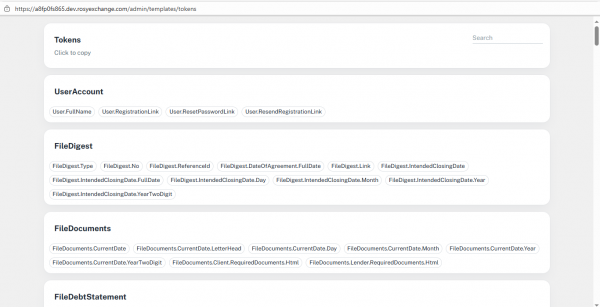
- Locate the Available Tokens Button
- The Available Tokens button is displayed above the body section on the right side.
- Open the Tokens Page
- Click the Available Tokens button.
- A page will open listing all available tokens.
- Search for Tokens
- Use the search bar on the tokens page to quickly find the token you need.
- Copy a Token
- Click on any token from the list.
- The selected token will automatically be copied.
- Insert Multiple Tokens
- Paste the token into the template body.
- You can repeat this process to insert multiple tokens as required.
Step 4 – Save or Cancel
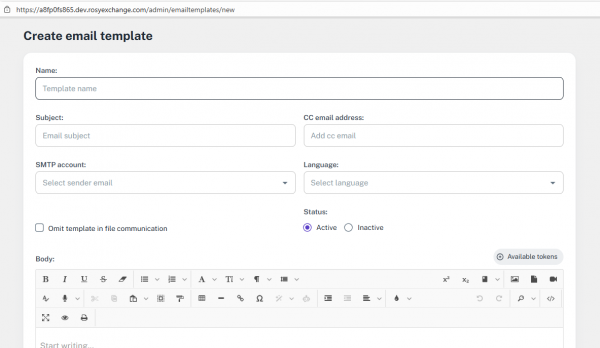
- Create – Save the new template.
- Cancel – Discard changes and return to the list.
Method 5 – Editing an Existing Template
- Option 1: Click the Template Name in the table.
- Option 2: Click the Action Menu (three dots) → Edit.
- The form opens pre-filled. Update the details and save.
14.7.2 Functionality
This guide explains how to use Admin-created email templates for sending messages and automating workflows. Templates help save time by pre-filling subject and body content, reducing typing and errors.
Method 1: Send an Email Using a Template (Communication Section – User Side)
Use this method if you want to send an email directly from a file’s Communication section.
Step 1 – Open File Details
- Go to the File section.
- Open the required file detail.
- Scroll down to the Communication section.
Step 2 – Add a New Email
- Click the Add New Communication button.
- Choose Email (instead of “Note”).
Step 3 – Select Recipient and Template
- In the Create Email form, select the recipient.
- After selecting the recipient, the Email Template dropdown will appear.
- Choose a template from the dropdown.
- The Subject and Body fields will be auto-filled based on the selected template.
Step 4 – Edit and Send
- Make any necessary changes to the email content.
- Click Send to deliver the email.
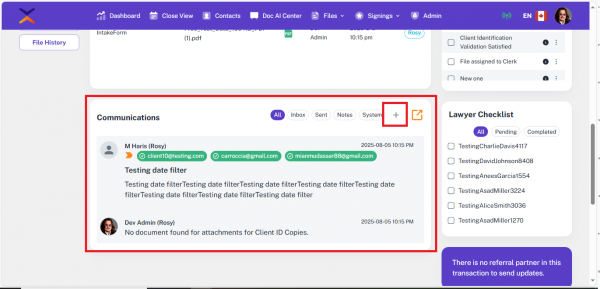
Method 2: Use Email Templates in Triggers (Automation – Admin Side)
Templates can also be linked to automated workflows through the Trigger feature.
1. Trigger Creation
- Go to the Trigger tab in Admin.
- Click the Add New button to create a trigger, or use the Menu button to edit an existing trigger.
- When creating a trigger, select an Email Template from the dropdown.
- When the trigger conditions are met in a file, the system automatically sends the email using the selected template.
- The email is sent to:
- The assigned user (based on the task or trigger)
- Any addresses in the TO, CC, and BCC fields
- Any custom BCC email addresses set in the trigger setup
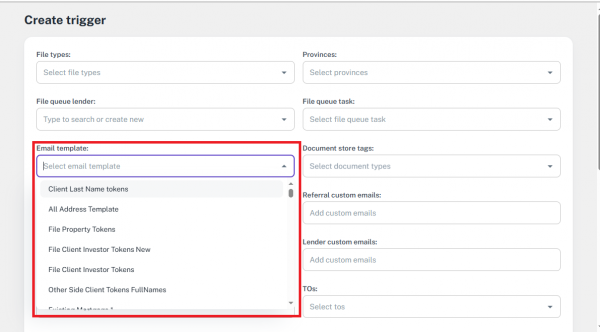
2. Trigger Linked to File Tasks
- If a trigger is assigned to a task:
- When the task is completed, the trigger activates.
- The system sends the email automatically using the chosen template.

3. Trigger Rules with Templates
- While configuring Trigger Rules, admins can select an Email Template.
- This template defines the content of the email sent when the rule’s conditions are met.
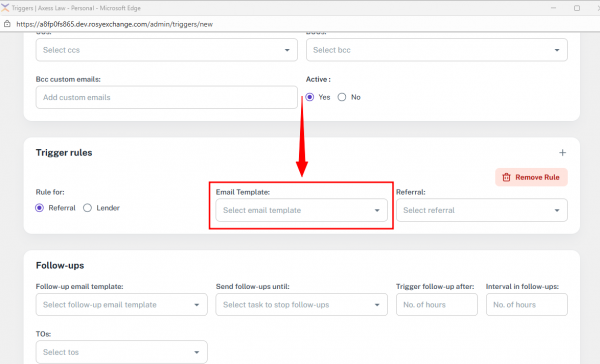
4. Follow-Up Triggers
- If a Follow-Up includes a trigger, selecting an email template is mandatory.
- Once the follow-up condition is fulfilled, the system automatically sends the associated email.
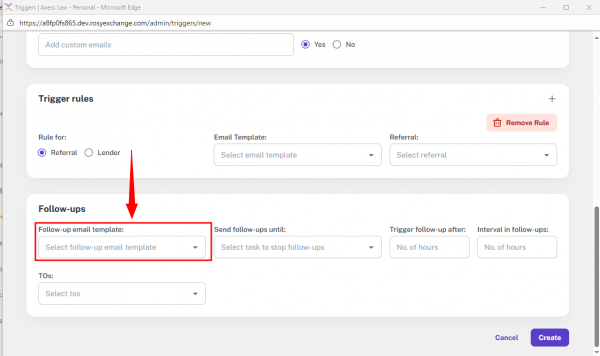
Method 3: Use Email Templates in Follow-Ups (Admin Side)
Email Templates can also be linked directly when creating or updating Follow-Ups in the Admin panel.
1. Access Follow-Up Section
- Go to the Admin tab.
- Select Follow-Up from the left-side menu.
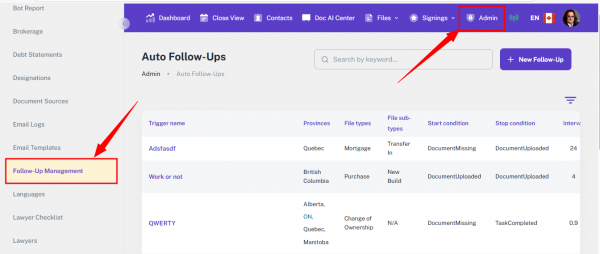
2. Create or Update a Follow-Up
- Click the Add New button to create a follow-up, or use the Edit option to update an existing one.
3. Define Follow-Up Roles → Recipients
- In the Recipients section, select the relevant checkboxes:
- Client
- Referral
- Lawyer
- Law Clerk
- External Contact
4. Select Email Template
- After choosing the recipients, select an Email Template from the dropdown list.
- The chosen template will be used as the email content for the follow-up.
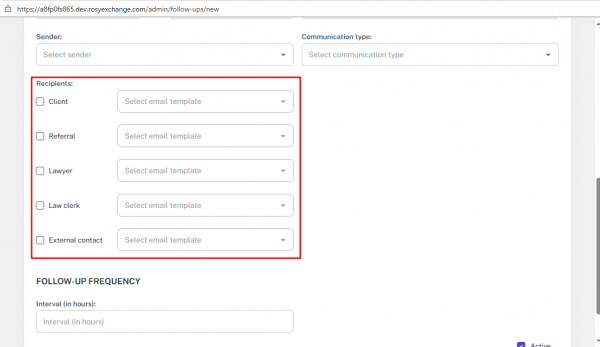
5. Follow-Up Execution
- Once the follow-up condition is met, the system will automatically send the email to the selected recipients using the assigned template.
14.8 Languages
The Language section allows administrators to manage system translations for English (EN) and French (FR). From here, admins can edit existing translations, add new ones, and filter entries by language.
This centralized management supports seamless bilingual functionality, improving localization and enhancing the user experience for multilingual teams.
14.8.1 Interface
Step 1 – Open the Language Section
- From the top header menu, click the Admin tab.
- A left-side panel will appear.
- Select Language to open the section.
Step 2 – View the Language Table
- The Language table contains:
- Language – Displays the code (e.g., EN, FR).
- Name – The resource key (e.g., account.account.deactivation.deactivated).
- Value – The translation text (e.g., Account Has Been Deactivated. Update).
- Actions – Edit option to modify an existing value.
A Select Language dropdown is also available to filter the table by the chosen language.

Step 3 – Add a New Translation Entry
- Click Add New to open the translation form.
- Fill in:
- Language Selection – Choose EN or FR.
- Resource Name – Enter the resource key (e.g., account.account.deactivation.deactivated).
- Resource Value – Enter the translated text.
- Click Add to save or Cancel to discard changes.
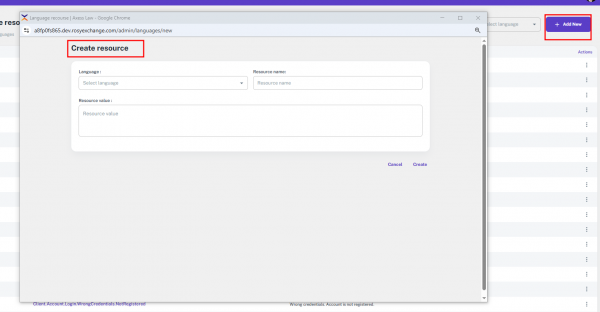
Step 4 – Change Language from the Header
- Click the profile icon in the top header.
- Use the language selector to switch between EN (English) and FR (French).
- The interface will update immediately for the current session.
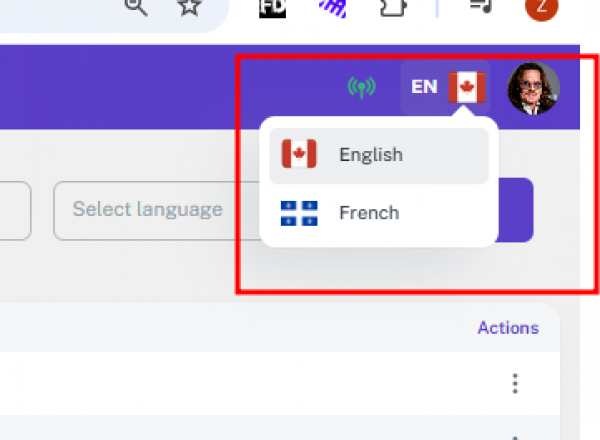
14.8.2 Functionality
The Language module ensures smooth bilingual support for English (EN) and French (FR) across the platform.
How It Helps:
- Instant Language Switching
- Users can change the interface language directly from the header without going to the Admin panel.
- Centralized Translation Management
- Admins can view, edit, and add translation keys and values for both languages from a single location.
- Improved Localization
- Consistent translation of UI text enhances the user experience for multilingual teams and clients.
14.9 Lawyer Checklist
The Lawyer Checklist section allows administrators to create and manage checklist items filtered by File Type and Province.
These checklist items ensure consistent legal reviews by automatically linking the relevant tasks to a file based on its province and file type.
14.9.1 Interface
Step 1 – Open the Lawyer Checklist Section
- From the top header menu, click the Admin tab.
- A left-side panel will appear.
- Select the Lawyer Checklist to open the page.
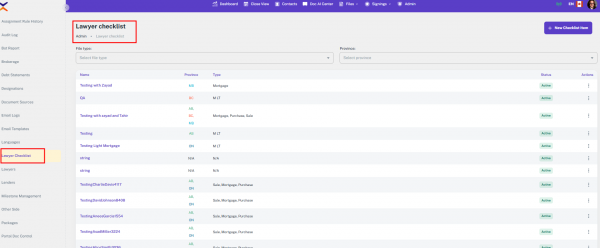
Step 2 – Filter Checklist Items
At the top of the page, use the dropdown filters to narrow results:
- File Type – Select a specific file type.
- Province – Select a province.

These filters help users narrow down and search relevant checklist items quickly.
Step 3 – Understand the Lawyer Checklist Table
The table displays the following columns:
- Name – The checklist item’s title.
- Province – The province(s) where the checklist applies.
- Type – The file type(s) linked to the checklist.
- Status – Active or Inactive.
- Actions – Edit button to update the checklist item.

Step 4 – Add a New Lawyer Checklist Item
- Click Add New Checklist Item to open the “Add Lawyer Checklist” form.
- Fill in:
- Lawyer Checklist Item – Enter the checklist name.
- File Types – Choose one or multiple file types.
- Provinces – Choose one or multiple provinces.
- Status – Mark as Active or leave Inactive.
- Click Add to save or Cancel to discard changes.
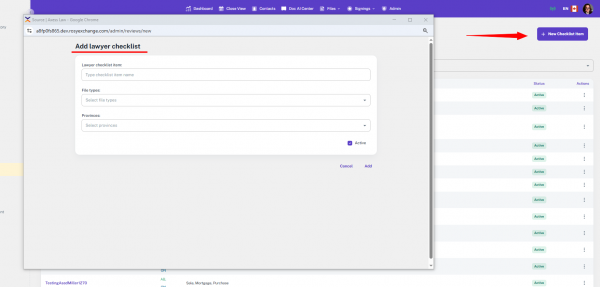
Step 5 – Edit an Existing Checklist Item
- In the Actions column, click Edit to open the “Update Lawyer Checklist” form.
- Modify the checklist name, file types, provinces, or status as needed.
- Save the changes or cancel the update.
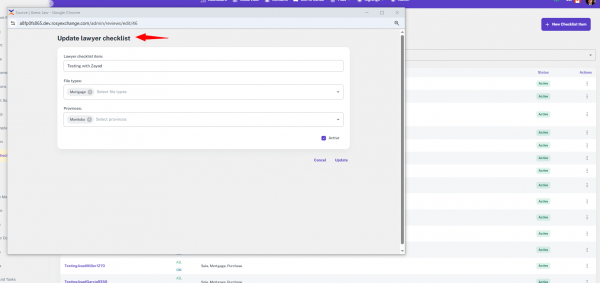
14.9.2 Functionality
The Lawyer Checklist feature ensures that relevant legal review items are automatically linked to new files based on the selected Province and File Type.
How It Works:
- Automatic Linking
- When creating a file, the system matches the chosen province and file type against the Lawyer Checklist database and attaches the applicable items to the file.
- In-File Visibility
- The linked checklist items appear in the Lawyer Checklist section of the File Details page.
- Ongoing Tracking
- Users such as Law Clerks or Lawyers can view, check, or uncheck items as the file progresses.
- Consistent Legal Processes
- Helps maintain standardized review procedures according to regional and file-type requirements.
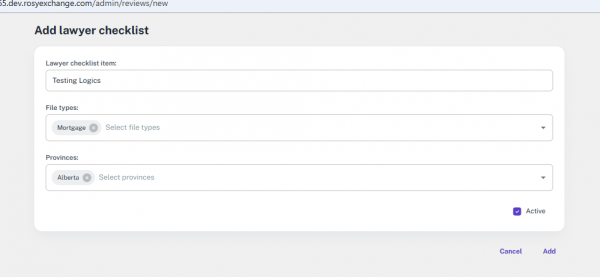

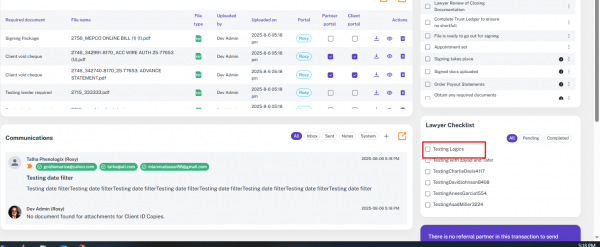
14.10 Lawyers
This guide explains how to add, edit, search, and delete lawyer records. Lawyers are stored in the system to facilitate easy reference in legal files, particularly when collaborating with external parties. Each lawyer's record contains personal and firm details to assist in communication and tracking.
14.10.1 Interface
Method 1 – Access the Lawyers Section
Use this method when you need to view, manage, or add information about lawyers.
Step 1 – Open the Admin Tab
- Click the Admin tab in the top navigation bar.
Step 2 – Select Lawyers
- A left-side menu will appear.
- Click Lawyers from the menu.
Step 3 – Lawyers Management Screen
- You will now see the Lawyers Management Screen, where you can search, add, edit, or delete lawyer records.
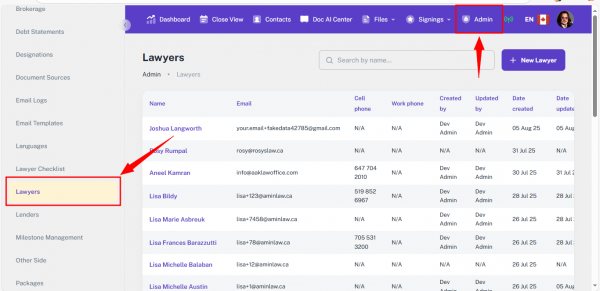
Method 2 – Search and Add a Lawyer
Step 1 – Search for a Lawyer
- Use the Search Bar at the top to find a lawyer by name.
Step 2 – Add a Lawyer
- Click the Add Lawyer button (next to the search bar) to create a new entry.
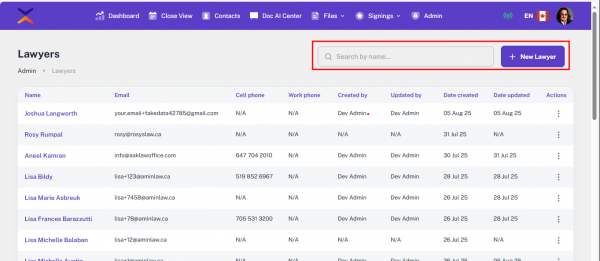
Method 3 – Understanding the Lawyers' Table
The table lists all lawyers and displays:
- Name
- Email
- Cell Phone
- Work Phone
- Created By
- Updated By
- Created Date
- Date Updated
- Action Button (three-dot menu)
Available Actions:
- Click the Name or the Action button to:
- Edit lawyer details
- Delete the lawyer record
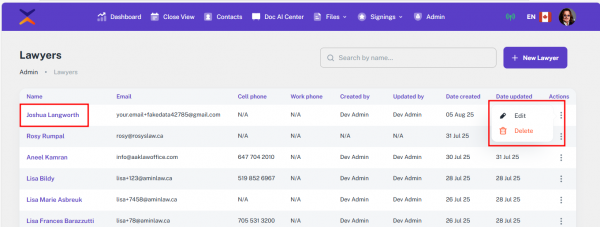
Method 4 – Add a New Lawyer
Step 1 – Open the Add Lawyer Form
- Click the Add Lawyer button.
- The Add Lawyer Form will appear, divided into two sections:
Card 1 – Personal & Contact Information
- First Name (Required)
- Middle Name (Optional)
- Last Name (Required)
- Email (Required)
- Work Phone
- EXT (Work)
- Cell Phone
- EXT (Cell)
- Address
- Street Name
- City
- Province (Searchable dropdown)
- Postal Code
- Country
- Fax Number
- Lawyer Comment (Optional)
Card 2 – Firm Details
- Firm Name
- Firm Address
- Firm Comment (Optional)
Form Action Buttons
- Add – Saves the lawyer record to the system.
- Cancel – Discards the changes and closes the form.
💡 Note: Only First Name, Last Name, and Email are required. All other fields are optional.
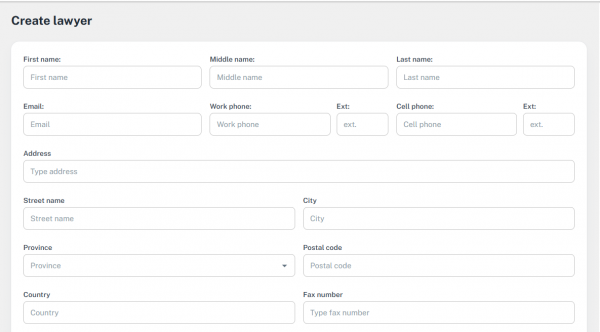
Method 5 – Edit or Delete a Lawyer
Step 1 – Select a Lawyer
- Click on the Lawyer's Name in the table or
- Click the Action button at the end of the row.
Step 2 – Edit or Delete
- Edit: Update the details using the same form as when adding a lawyer.
- Delete: Remove the lawyer record if no longer needed.
14.10.2 Functionality
This guide explains how to add and manage lawyers from the other party’s side (not your firm’s internal lawyers) in the File Section.
The option to add a lawyer depends on the Transaction Type you select for the file.
Method 1 – Adding a Lawyer When Creating or Editing a File
Step 1 – Select a Supported Transaction Type
- Create a new file or edit an existing one.
- In the Transaction Type dropdown, choose any of these:
- Purchase
- Sale
- LDR Rep
- Change of Ownership
- Discharge
- Reverse-M
- Once a supported type is selected, the Lawyer and Clerk fields will appear under the End/Other Side Client section.
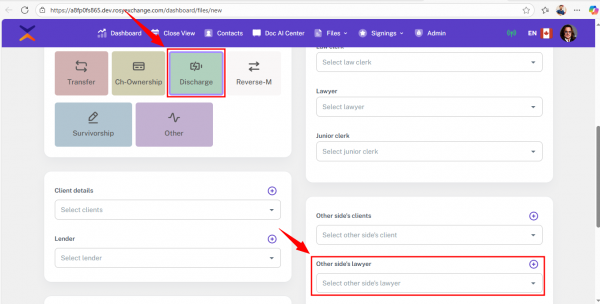
Step 2 – Select or Add a Lawyer
- Open the Lawyer dropdown to choose from existing lawyers.
- If the required lawyer is not listed, click the Add button to create a new one.
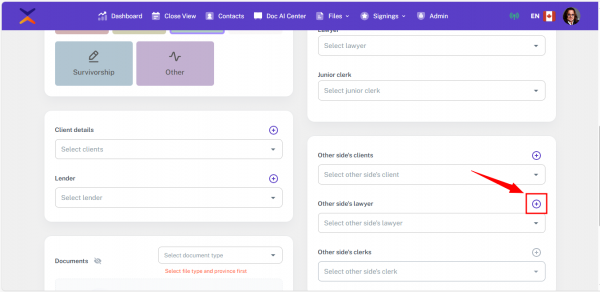
When adding a new lawyer this way:
- They will be automatically selected for the current file.
- They will also be saved under Admin → Lawyers for future use.
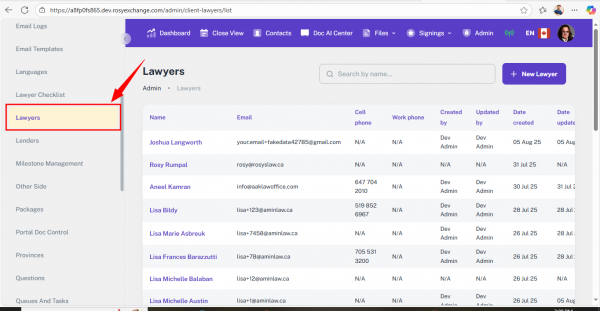
Step 3 – Confirm Lawyer in the File
- After saving the file, the selected lawyer will appear in the Other Side card of the file.
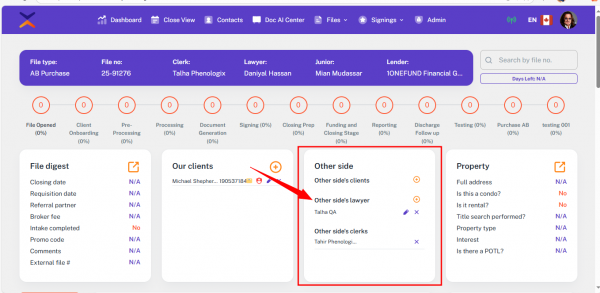
Note: If the file’s transaction type was something else and is later changed to one of the supported types, the option to add or update a lawyer will appear again.
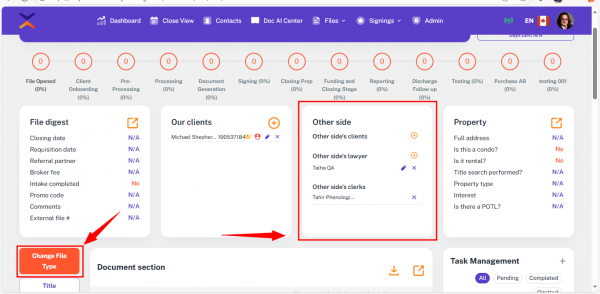
Method 2 – Editing or Changing an Existing Lawyer
Step 1 – Open the File with the Linked Lawyer
- If a lawyer is already linked to the file, you can:
- Click the Edit icon to update their details, or
- Add a different lawyer if needed.
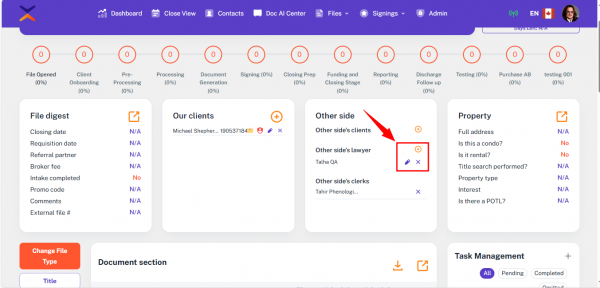
Step 2 – Save Changes
- Any newly added lawyer will also be stored in Admin → Lawyers for future selection.
Important Notes – External Party Lawyers
- This feature is only for adding lawyers from the opposite party’s side.
- These lawyers represent the other party in the transaction and are not part of your own firm.
14.11 Lenders
The Lenders module in the Admin Panel allows you to manage all lender-related records used throughout the platform. These records are referenced during file creation, document generation, communication, and other automated processes. This section supports detailed lender information, including contacts, discharge, and payout details.
14.11.1 Interface
Method 1 – Access the Lenders Section
Use this method to open the Lenders Management Page.
Step 1 – Open the Admin Tab
- Click the Admin tab in the top navigation bar.
Step 2 – Select Lenders
- From the left-side menu, click Lenders.
- You’ll be redirected to the Lenders Management Page.
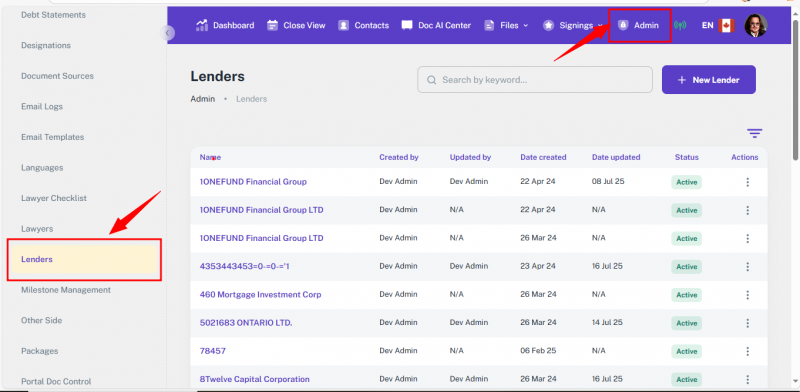
Method 2 – Search and Filter Lenders
Use this method to quickly locate specific lender records.
Step 1 – Search by Name
- Type the lender’s name in the Search bar.
Step 2 – Filter by Date
- Use Created Date (Start) and Created Date (End) filters to narrow down results.
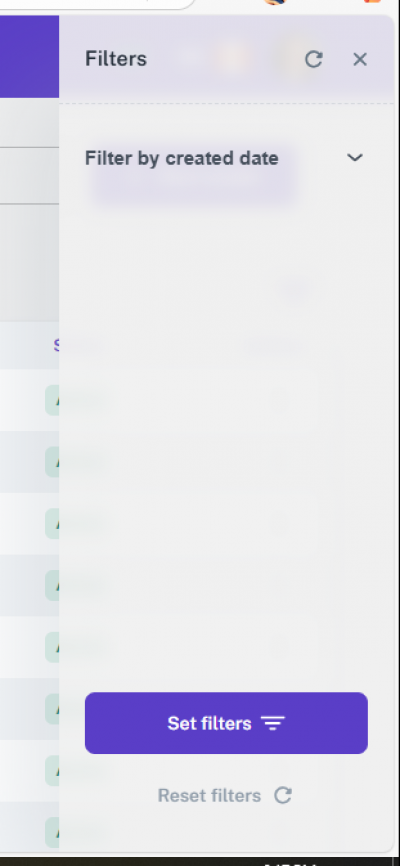
Method 3 – Add a New Lender
Use this method to create a lender record.
Step 1 – Open the Add Lender Form
- Click the Add Lender button near the search bar.
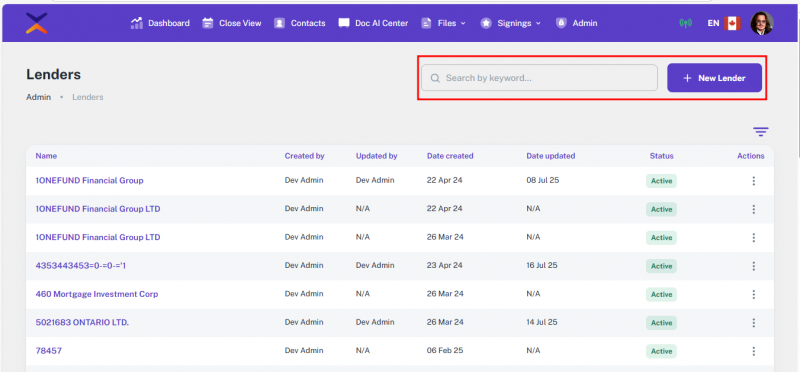
Step 2 – Fill in Lender Details
The form is divided into multiple sections (cards):
Personal Information
- Name (Required)
- Lender Type (Required)
- Institution Number, Email, Phone, EXT, Fax
- Full Address (Street No, Name, City, Province, Postal Code)
- Comments
- Active (Checkbox)
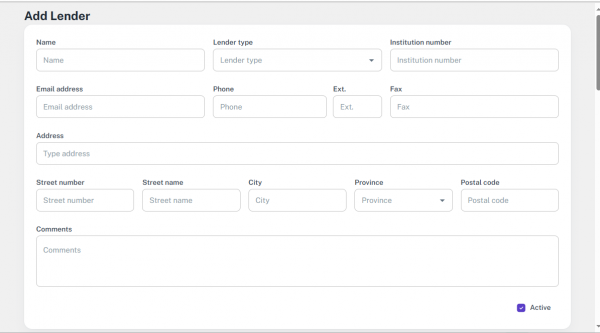
Escalation Contact
- Email, Phone, EXT, Fax
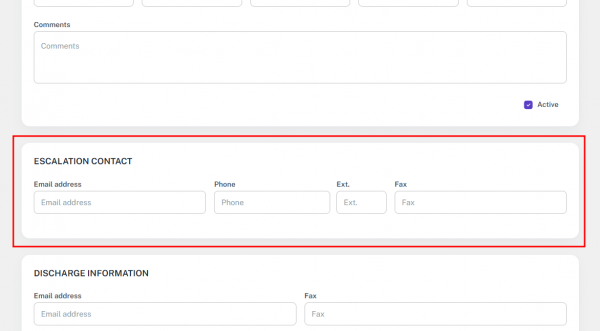
Discharge Information
- Email, Fax
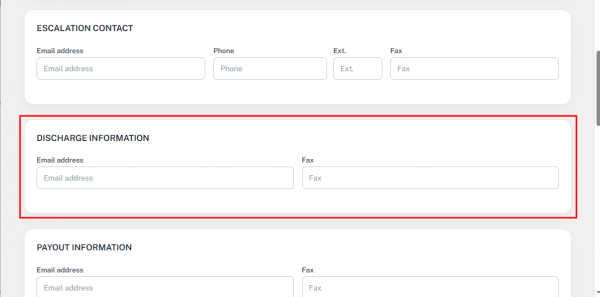
Payout Information
- Email, Fax, Payout Statement URL
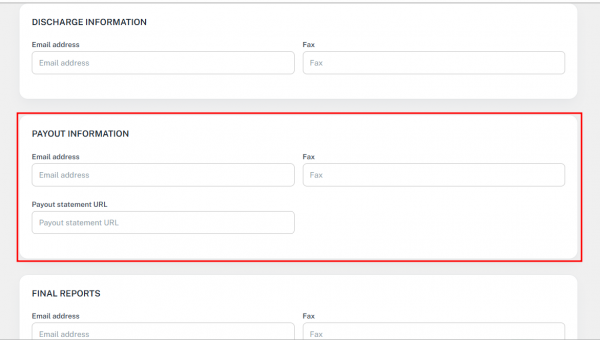
Final Report
- Email, Fax
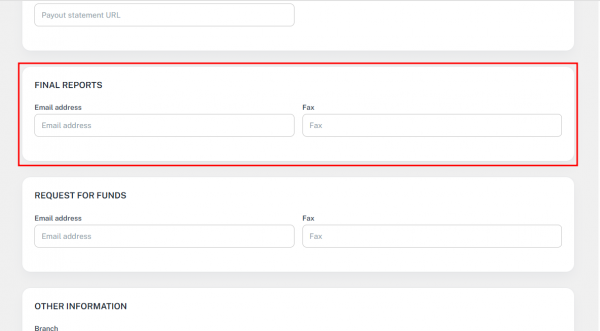
Required Funds
- Email, Fax
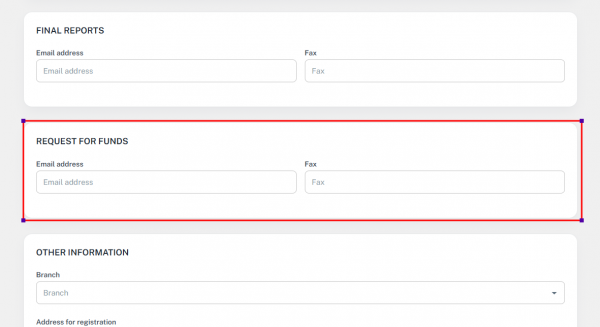
Other Information
- Branch (Dropdown)
- Address for Registration and Service (Street, City, Province, Postal Code)
- Signing Authority: Lawyer / Signing Agent / Both
- Virtual Document: Yes / No / Unknown
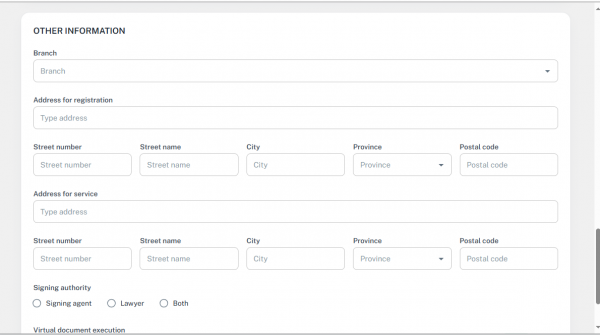
Step 3 – Save the Lender
- Click Create to save.
- Click Cancel to discard changes.
✅ Note: Only Name and Lender Type are required. All other fields are optional.
Method 4 – Edit an Existing Lender
Use this method to update lender details.
Step 1 – Open the Lender Record
- Click the lender Name in the table, OR
- Use the Action Button and select Edit.
Step 2 – Update the Details
- The same form used for creation will appear with existing data.
- Make the changes and click Update.
14.11.2 Functionality
This guide explains how the Lender selection works in the File Section for different transaction types, especially for LDR Rep files. In most cases, the Lender is displayed as “Lender,” but in LDR Rep transactions, it appears as “Client” while still being saved as a Lender in the backend.
Method 1 – Adding a Lender When Creating a File
Step 1 – Open the File Creation Form
- When creating a new file, locate the Lender dropdown.
- Use the dropdown to select an existing lender.
- If the lender you need is not listed, click the Add (+) button above the dropdown to create a new one.
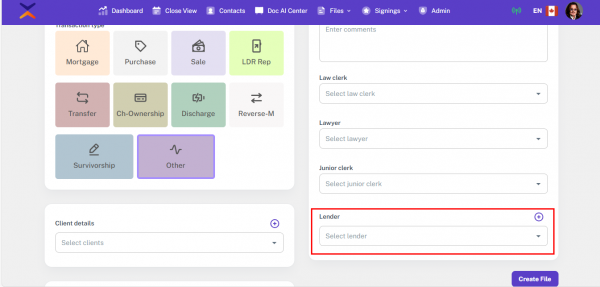
Step 2 – Label Display for Different Transactions
- For all Transaction Types except LDR Rep, this field appears as Lender.
- For LDR Rep, the label changes to Client in the UI but is still stored as a Lender in the backend.
Method 2 – Special Behavior for LDR Rep Transactions
Step 1 – Select LDR Rep as Transaction Type
- In the file creation form, set the Transaction Type to LDR Rep.
- The Lender field label will now show Client in the UI.
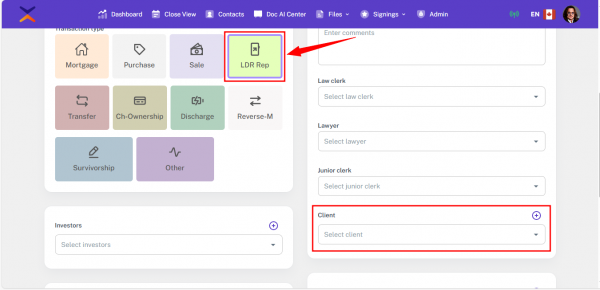
14.12 Other Side
The Other Side section is designed to manage records of external clients or third-party individuals who are involved in legal transactions but are not internal. This functionality supports accurate record-keeping and facilitates communication, service delivery, and legal notifications.
The system also allows the integration of these clients into legal files based on specific transaction types, making it easier to manage and reference external parties during file processing.
14.12.1 Interface
Method 1 – Accessing the Other Side Section
Step 1 – Go to the Admin Tab
- From the top navigation bar, click the Admin tab.
Step 2 – Open the Other Side Page
- In the left-side menu, click Other Side.
- You’ll be redirected to the Other Side Client Management Page.
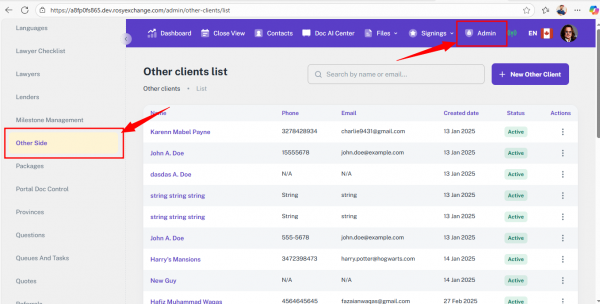
Method 2 – Search and Add New Clients
Step 1 – Search for an Existing Client
- Use the Search Bar to find clients by Name or Email.
Step 2 – Add a New Client
- Click the Add New Client button.
- A form will appear to create a new entry.
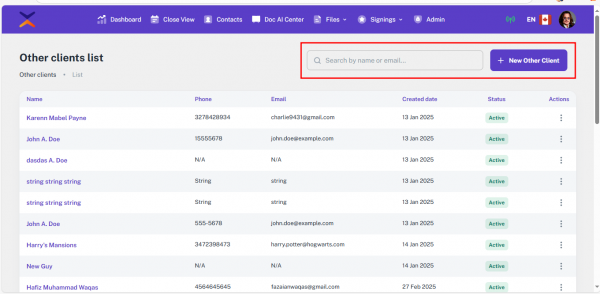
Table View – Columns Shown
- Name
- Phone Number
- Email
- Created Date
- Status (Active / Inactive)
- Action Button (Edit options)
Method 3 – Adding a New Other Side Client
Step 1 – Open the Add Client Form
- Click Add New Client.
Step 2 – Fill Out Client Details
- Salutation (Mr., Ms., Dr.)
- First Name (Required)
- Middle Name
- Last Name (Required)
- Work Phone and EXT (Work)
- Cell Phone and EXT (Cell)
- Email Address (Required)
- Date of Birth (DOB)
- Gender (Dropdown)
- Address for Services
- Receive Notifications (Yes / No toggle)
Step 3 – Save or Cancel
- Add – Saves and creates the client record.
- Cancel – Discards changes and returns to the list.
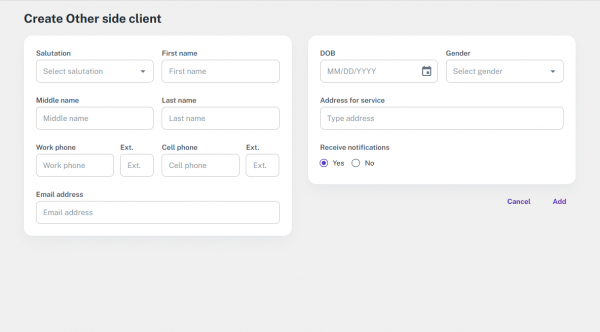
Method 4 – Editing an Existing Client
Step 1 – Select a Client to Edit
- Click directly on the client’s name in the table, or
- Use the Action Button (three dots) → select Edit.
Step 2 – Update the Details
- The form will open with pre-filled data.
- Make necessary changes and save.
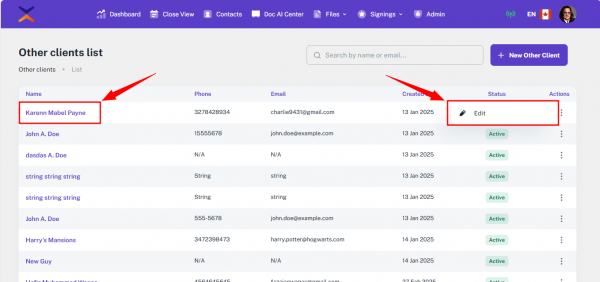
14.12.2 Functionality
This guide will help you add, edit, and manage Other Side Clients for legal files.
- These are external parties involved in a legal transaction — they are not your internal team or direct clients.
- The section only appears for certain transaction types.
Method 1 – When the Other Side Client Section is Available
When Creating the File then the Other Side Client section only appears when the Transaction Type is one of the following:
- Purchase
- Sale
- LDR Rep
- Change of Ownership
- Discharge
- Reverse-Mortgage
Step 1 – Access the Other Side Client Section
- Open the file.
- In the Transaction Type dropdown, select one of the above types.
The End/Other Side Client section will appear with two options:
- Add Other Side Client
- Add Clerk

Step 2 – Select or Add an Other Side Client
- Use the dropdown to select an existing Other Side Client.
- If the client is not listed:
- Click Add.
- Fill in the required client details.
- Submit the form.
- After submission:
- The client will be immediately linked to the file.
- The client will also be saved in Admin → Other Side Clients for future use.

Step 3 – View the Linked Client
- Once linked, the Other Side Client appears in the Other Side card within the File Details view.
- If the Transaction Type changes:
- The Other Side section will automatically show or hide based on the new type.
- You can add, update, or remove clients anytime.

Step 4 – Edit an Existing Client
- To update a linked client:
- Click the Edit icon next to their name, or
- Add a new client if needed.
- All updates here are automatically reflected in Admin → Other Side Clients.

Important Note – Who Counts as an Other Side Client?
- The Other Side Client section is for people or entities who are:
- On the opposite side of the legal transaction
- Not your internal or direct client
- Usually represented by their own legal counsel
14.13 Referrals
The Referral Management module in the Admin panel allows administrators to create, manage, and update referral records. Referrals can be linked to files, integrated into the Referral Portal, and configured with preferences, pricing, and other administrative options
14.13.1 Interface
Accessing the Referral Management Section
Step 1 – Open the Admin Panel
- From the top navigation bar, click the Admin tab.
Step 2 – Open the Referral Section
- A left-side menu will appear.
- Click Referral from the list.
- You will now see the Referral Management page.

Features in Referral Management
Search & Export
- Search Bar – Type a name or detail to find a referral.
- Export Button – Download the referral list in Excel format.

Add New Referral
- Click the Add New button to open the Add Referral form.
Filters
- Click the Filter button to open filter options:
- Start Date / End Date – Filter by creation date
- Status – Show only active or inactive referrals.
- Apply – Apply selected filters.
- Reset – Clear all filters.

Referral List Table – What You See
The table shows:
- Name
- Phone
- Email
- File Count
- Brokerage
- Registered in Portal
- Status in Portal
- Created By / Updated By
- Date Created / Date Updated
- Status
Action Buttons:
- Activate/Inactivate – Change referral status.

- Register in Referral Portal – Sends registration email.
(After the referral clicks the email link, they can complete their portal signup.)

- Edit – Update referral details.


Add Referral Form – Sections & Fields
Brokerage Details
- Brokerage – Select from dropdown.
- Parent Company – Select from dropdown.
- Operation Brand – Select from dropdown.
- Portal Registration Link – Read-only.
- Portal Registration Link Expiry – Read-only.
- Registered in Portal – Checkbox.
- Active in Portal – Checkbox.
- Reason – Read-only.

Primary Information
- Salutation – Mr, Ms, Mrs, Dr.
- First Name / Middle Name / Last Name
- Designation – Select from dropdown.
- Email
- Lender – Select from dropdown.
- Work Phone & Extension
- Cell Phone & Extension
- Receive Notification – Yes/No.
(If “Yes”, the user will get emails when added to a file.)

Secondary Information
- Responsible Contact – Select a user from the app.
- Responsible Since Date
- Alternative Email
- Alternative Company
- Associate – Multiple selection allowed.
- Add Associate Button – Opens a form to add a new associate:
- Salutation, Name, Designation, Email, Alt Email, Work Phone, Ext, Cell Phone, Ext, Receive Notification (Yes/No).

Brokerage Preferences
- Add Preference Button – Add:
- File Type
- Province
- Law Clerk
- Lawyer
- Junior Clerk
- Priority
- Delete Button – Remove a preference.
- Multiple preferences can be added.

Admin Options
- Special Agreement Note
- Charge New Builds – Yes/No.
- Special Pricing 2 – Add multiple entries:
- File Type
- Province
- Price
- Active Checkbox
- CIMBC Member – Checkbox.
- Charge Title Searches – Yes/No.
- Special Pricing 1 – Shows in file details under “Days Left” if applicable.

- Head Office Location
- Address, Street, City, Province, Postal Code, Country

Form Actions
- Cancel – Close the form without saving.
- Add – Save the new referral.
14.13.2 Functionality
The Referral feature lets you quickly select, create, and manage referrals directly while working on files and admin triggers. You can pick existing referrals or add new ones without leaving your current workflow.
Method 1 – Selecting a Referral While Creating a File
Use this method if you are adding a referral while making a new file.
Step 1 – Open the File Creation Form
- Go to the File Creation page.
- Find the Referral field in the form.
Step 2 – Select or Add a Referral
- From the dropdown, choose an existing referral.
- If the referral you need is not listed, click the Add (+) button above the referral text field.

Step 3 – Add a New Referral
- Fill in the required details in the popup form.
- Click Save — the referral will be:
- Automatically selected for the file you’re creating.
- Added to Admin → Referral for future use.
Method 2 – Updating a Referral in File Details (File Digest Section)
Step 1 – Open File Details
- Go to the File Details page.
- Scroll to the File Digest section.
Step 2 – View or Edit the Referral
- The current referral for the file is displayed here.
- Click Edit to:
- Select a different referral.
- Add a new referral directly from this section.

Method 3 – Adding Files from the Referral Portal
Step 1 – Log In to the Referral Portal
- Invited referral users can log in using their credentials.
Step 2 – Add a File
- From the portal, create a new file.
- If the referral is a sub-referral, any file they create will automatically be linked to their parent referral.
Method 4 – Selecting a Referral When Creating Admin Triggers
Step 1 – Go to Trigger Creation
- Navigate to Admin → Triggers.
- Open the trigger creation form.
Step 2 – Select or Add a Referral
- Find the Referral field in the form.
- Pick an existing referral from the dropdown, or click Add (+) to create a new one.

14.14 Templates
The Templates section in the Admin panel allows administrators to create, manage, and update document templates for various purposes, such as Mortgage, Purchase, Sale, and LDR Rep. Templates can be in HTML, PDF, or DOC format and can be linked to specific provinces, sources, and groups for targeted availability within the system. Templates are also used for document generation in the File Document section and can be included in new packages.
14.14.1 Interface
Method 1 – Access the Templates Section
Step 1 – Go to the Admin Tab
- Click the Admin tab from the top navigation bar.
- The left-side panel will appear.
- Click Templates from the left menu.
- You will be redirected to the Template Management page

Method 2 – Use the Templates Management Page
Step 1 – Search for Templates
- Use the search bar to find a template by its name.

Step 2 – Add a New Template
- Click the Add button to create a new template.

Step 3 – Apply Filters
- Click the Filter icon (below the Add button) to open filter options.
- Date – Choose Start Date and End Date to see templates created/updated in a specific period.
- Reset – Clear all applied filters.
- Apply – Apply selected filter criteria.

Step 4 – Understand the Templates Table
- Province – Provinces linked to the template.
- Template Type – The category/type of template.
- Name – Template name.
- Source – Source linked to the template.
- Group – Group linked to the template.
- Updated By – User who last updated the template.
- Date Created – When the template was created.
- Date Updated – When the template was last updated.
- Format – HTML, PDF, or DOC.
- Status – Active or Inactive.
- Action – Options: View, Edit, or Update.

Method 3 – View a Template
Step 1 – Open the Template
- Click View in the Action menu.
Step 2 – Preview as PDF (HTML Only)
- If the template is in HTML format, a PDF View option will appear at the top.
- Click it to view the template as a PDF.

Method 4 – Add a New Template
Step 1 – Open the Add Template Form
- Click the Add button.
Step 2 – Fill in Template Details
- Template Name – Enter a unique name.
- File Types – Select one or more types (e.g., Mortgage, Purchase, Sale, LDR Rep).
- Province – Select one or multiple provinces.
- Source – Choose the related source.
- Group – Groups represent lenders.
- When creating a template, if a group is selected during package creation, the template will only appear when that group is chosen in Files.
- When the same lender is selected in a file, the template will also be shown against that lender
- Template Type (Optional) – Choose Existing Mortgage, New Mortgage, or Undefined.
- Body Type –
- HTML – Use the rich text editor and insert tokens
- Inserting Tokens into a Template Body
- Step 1 – Locate the Available Tokens Button
- The Available Tokens button is displayed above the body section on the right side.
Step 2 – Open the Tokens Page
- Click the Available Tokens button.
- A page will open listing all available tokens.
Step 3 – Search for Tokens
- Use the search bar on the tokens page to quickly find the token you need.
Step 4 – Copy a Token
- Click on any token from the list.
- The selected token will automatically be copied.
Step 5 – Insert Multiple Tokens
- Paste the token into the template body.
- You can repeat this process to insert multiple tokens as required.

- PDF – Upload a PDF file.

- DOC – Upload a DOC file.

Step 3 – Save or Cancel
- Create – Save and create the template.
- Cancel – Discard changes and return to the list.

Method 5 – Edit a Template
Step 1 – Open Edit Mode
- In the Templates table, click the Action button and choose Edit.
Step 2 – Make Changes
- Update any fields as needed.
- Save your changes.
14.14.2 Functionality
This guide explains how to generate new documents from templates in the File Document section. You can also work with packages and update unsecured debt values from here.
Method 1 – Generating a Document from a Template
- Use this method if you want to create a document directly from a matching template.
Step 1 – Open the Document in the File
- Go to the file details.
- Click on the expand View button at the right top of the documents section.
- In the Generate section, you’ll see all templates that match the document’s criteria.
- These templates are listed under Axess Documents.

Step 2 – Select a Template
- From the list in the Generate section, click on the desired Axess Document (template).

Step 3 – Choose the End Document Type
- On the right side, select the End Document Type.
- This lets you preview the generated document before finalizing.
Method 2 – Token Handling in Templates
Case 1 – No Template Type Selected in the Template
- If Unsecured Debt token is present in template:
- If Unsecured debt token is present in the Template it will show all unsecured debt by generating the Document
- If the template has tokens for Existing Mortgage and New Mortgage:
- It will show the First Existing Mortgage and New Mortgage While generating the document.
Case 2 – Template Type = Unsecured Debt
- The system will always ask which Unsecured Debt you want to print.
- You can choose to print:
- Single Unsecured Debt
- Multiple Unsecured Debt
- For all other token, There values will appear if they have in the File
Case 3 – Template Type = Existing Mortgage or New Mortgage
- The system will ask which Existing Mortgage and New Mortgage to print.
- You can select:
- Single Existing Mortgage and New Mortgage
- Multiple Existing Mortgage and New Mortgage
- For all other token, There values will appear if they have in the File
Final Step – Save and Generate the Document
- After selecting the template:
- Click the Save As button.
- The system will generate the document.
- These documents are shown in the Files Documents.

Method 3 – Working with Packages in the Generate Section
- The Generate section also lists packages linked to the current file.
- Click on a package to see all templates included in it and preview them.

Method 4 – Updating Unsecured Debt Values
- Go to the Accounts section of the file.
- Open the Unsecured Debts area.
- Click the Add button to update or enter new unsecured debt values.

Method 5 – Creating a New Package and Selecting Templates
- When creating a new package, the system will display a complete list of all available templates.
- Select the templates you want to include in the package.
14.15 Users
The User Section in the Admin panel allows administrators to manage all system users, including adding new users, editing details, assigning roles, and applying filters. It provides search, export, and role-based filtering options, ensuring that only relevant users appear in different parts of the application (e.g., during file creation, signing, and holiday assignment).
14.15.1 Interface
Method 1 – Accessing the User Section
- Use this method when you want to view or manage all users in the system.
Step 1 – Open the Admin Tab
- Go to the top navigation bar.
- Click the Admin tab.
Step 2 – Open the User Section
- The left-side panel will appear.
- Click User from the left menu.
- You will be redirected to the User Management page.

Method 2 – Using Search and Export
- Use this method to quickly find a user or download a complete list.
Step 1 – Search for a User
- Enter the User Name or Email Address in the search bar.
Step 2 – Export the User List
- Click the Export button to download all user data in an Excel (.xlsx) file.
Method 3 – Applying Filters
- Filters help narrow down the list to specific users.
Step 1 – Select a Filter Type
- By Role: Choose roles like User, Admin, Lawyer, etc.
- By Email Verification: Choose Verified or Unverified.
- By Status: Choose Active or Inactive.
Step 2 – Apply or Reset Filters
- Click Apply Filter to show results.
- Click Reset Filter to clear all filters.

Method 4 – Viewing the User List Table
The User List Table shows the following columns:
- User Province – The province linked to the user.
- Title – Custom title such as User, Admin, or Lawyer.
- Surname – User’s last name.
- Roles – User roles in the system.
- Email Address – Registered email.
- Email Verified – Yes/No status of verification.
- Status – Active or Inactive.
- Action – Edit or Activate/Deactivate

Method 5 – Adding a New User
- Use this method to create a new user account.

Step 1 – Open the Add User Form
- Click the Add button.
Step 2 – Fill in the Required Details
- Profile Picture (Optional)
- First Name (Required)
- Last Name (Required)
- Email Address (Required)
- Email Domain – Select from options like @gmail.com, @hotmail.com, @outlook.com.
- Title – Custom title for the user.
- Phone Number (Required)
- Province – Select from available provinces.
- Role – Choose the role to define permissions.
- Signature (Optional)
Note: All fields except Profile Picture and Signature are mandatory.

Method 6 – Editing an Existing User
- Use this method to update details for an existing user.
Step 1 – Open the Edit User Form
- In the Action column, click the Edit button.
- The Edit User form will open.
Step 2 – Update the Required Information
- Make the necessary changes and save.

14.15.2 Functionality
This guide explains how the system automatically displays and filters users based on province and assigned role (Lawyer, Clerk, Junior Clerk, etc.) during file creation and in other related sections. This feature ensures you only see the relevant users for your task.
Method 1: Assigning Users During File Creation
Step 1 – Create and Verify a File
- When a new file is created and verified, the system automatically shows users whose province matches the one selected for the file.
- Users are displayed in sections according to their roles (Lawyer, Clerk, Junior Clerk, etc.), making it easier to assign them to the correct section.

Step 2 – Select the Required User
- From the displayed list, choose the user for the role you need.
- Only users from the selected province will be shown.

Method 2: Filtering by Assigned User in the File Section
Step 1 – Open the File Section
- Go to the File section in the application.
Step 2 – Use Filters
- Apply the Assigned User filter to search for files assigned to a specific person.
- This makes it faster to find and manage files.

Method 3: Viewing Assigned Users on the File Details Page
Step 1 – Open a File
- On the File Details page, look at the top section.
Step 2 – Check Assigned User Cards
- The system displays cards showing the assigned users and their roles for that file.

Method 4: Assigning Users in the Signing Section
Step 1 – Add a New Signing
- In the Signing section of a file, click to add a new signing.
Step 2 – Select the Signing Officer
- The Signing Officer dropdown will only display users whose role is Signing Agent.
- These users are shown when the signing type is In Person or Virtual Video Conference.
Step 3 – View the Signing List
- In the list view, Clerks and Signing Agents are displayed, showing who is responsible for each signing.

Method 5: Role-Based User Selection in the Admin Panel
Step 1 – Add a Holiday
- In the User Assignment section of the Admin panel, click to add a holiday.
Step 2 – Select the User
- Choose the specific user for whom the holiday applies.

Step 1 – Add a New Assignment Rule
- Choose the User Type (Lawyer, Clerk, Junior Clerk, etc.).
Step 2 – Select the User
- Once the type is selected, pick the specific user to apply the rule to.

14.16 Requisition templates
This module allows users to create, manage, and apply Requisition Templates from the Admin section, and then use these templates when adding File Requisitions within specific file records. Templates can be customized with rich text and tokens, filtered by status, and edited anytime. File Requisitions can be created from the File Requisition page, the Instruments section, or directly from the Write section, with all entries appearing in a central requisition list for tracking and follow-up.
14.16.1 Interface
Method 1 – Managing Requisition Templates
Step 1 – Open the Templates Page
- From the top navigation bar, click Admin.
- The left-side panel will appear.
- In the menu, click Templates.
- You will be redirected to the Requisition Template page.

Step 2 – Search for Templates
- In the Keyword Search field, type the name or keyword of the template you need.

Step 3 – Apply Status Filters
- Choose one of the following in the Status drop down:
- Active – Show only active templates.
- Inactive – Show only inactive templates.
- Use the action buttons:
- Set Filter – Apply the filter.
- Reset Filter – Clear the filter and show all templates.

Step 4 – Review Template Details
- The Templates Table displays:
- Name – Template name.
- Status – Active or Inactive.
- Action – An Edit button to modify the template.

Step 5 – Add a New Template
- Click the Add button.
- Fill in the Add Template Form:
- Name – Enter the template name.
- Active/Inactive Toggle – Choose the status.
- Body – Use the rich text editor to type and format content.
- Tokens – Insert placeholders for dynamic data.

Step 6 – Edit an Existing Template
- In the Action column, click the Edit button for the desired template.
- Update any details (Name, Status, Body content).
- Save your changes.
14.16.2 Functionality
This guide explains how to view, create, and manage file requisitions within the system. The File Requisition section helps you track requisition details such as instrument numbers, status, follow-up dates, and assigned users.
Method 1: Accessing File Requisition from the File Menu
Step 1 – Open the Purchase or LDR Rep File Details Page
- Navigate to the specific file you want to work on.
- This feature is available in two file types: Purchase and LDR Rep.
Step 2 – Open the File Requisition Section
- In the File Menu, click File Requisition.
- The File Requisition section will open, displaying all previously added requisitions.

Viewing Existing Requisitions
- The requisition list appears in a table with the following columns:
- Instrument Number – Unique ID for the instrument.
- Instrument State – Current state of the instrument.
- Status – Current status of the requisition.
- Date Sent – Date the requisition was sent.
- Follow-up Date – Scheduled follow-up date.
- Note – Additional notes.
- Action – Delete button to remove a requisition.

Adding a New Requisition
Step 1 – Click the Add Button
- Tap the Add button to create a new requisition.
Step 2 – Fill in the Form Fields
- Template – Select a requisition template (Admin → Requisition Template).
- Instrument No – Enter the instrument number.
- Status – Choose the requisition status.
- Type – Select the requisition type.
- Registration Amount – Enter the amount.
- Registration Date – Select the registration date.
- Parties From / Parties To – Specify the involved parties.
- Date Sent – Select the sent date.
- Follow-up Date – Select a follow-up date.
- Assigned To – Assign to a specific user.
- Requested Item – Enter item details.
- Notes – Add any notes.
- Body – Shows content from the selected template.
- If the selected template has tokens, they will be automatically replaced with the relevant values in the body.

Method 2: Adding Requisition from the Instruments Section
Step 1 – Open Title Details
- In the File Menu, click Title.

- The Title Details page will open.
Step 2 – Go to the Instruments Section
- At the end of the instrument row, click Add Requisition.

Method 3: Adding Requisition from the “Writ” Section
Step 1 – Check for Unclear Status
- On the Title Details page, if any record’s status is Unclear, you can directly add a requisition from the Write section.

Requisition Visibility
No matter where you add a requisition (File Menu, Instruments Section, or Writ Section), it will always appear in:
* File Details → File Requisition List
Requisitions in Instruments are available in three File types:
- Purchase
- Mortgage
- LDR Rep
Method 4: Requisitions & Undertakings (Dashboard View)
Accessing Requisitions Issues from Dashboard
- From the top header, click Dashboard.
- Scroll down to the Requisitions & Undertakings section.
- In this section, the system displays a table of Requisition Issues.

Requisition Issues Table
The table shows requisitions data related to the overall file. The columns include:
- File No – Displays the file number.
- By tapping on the file number, you can view detailed requisition information.
- Instrument # – The instrument number linked to the requisition.
- Requested Items – The items requested in the requisition.
- Status – The current status of the requisition.
- Date Sent – The date when the requisition was sent.
- Follow-up Date – The date scheduled for follow-up.
- Assigned To – The user assigned to handle the requisition.
- Notes – Additional notes related to the requisition.

Important Note
- The data shown in the Requisitions & Undertakings dashboard section is file-based.
- It reflects the same requisition information that is maintained across the application in the File Requisition section.
14.17 Portal Doc Control
The Portal Doc Control module helps administrators manage document requirements for different file types, provinces, document types, and lenders. By setting these controls, the system automatically displays the correct documents during file creation—ensuring compliance and saving time.
14.17.1 Interface
Method 1 – Accessing the Portal Doc Control Module
Step 1 – Open the Admin Tab
- Click the Admin tab from the top navigation bar.
- The left-side menu will appear.

Step 2 – Select Portal Doc Control
- From the left-side menu, click Portal Doc Control.
- You’ll be taken to the Portal Doc Control section.

Method 2 – Navigating the Portal Doc Control Section
Top-Left Area
- Displays the section name: Portal Doc Control.
- Breadcrumb path: Admin > Portal Doc Control.
Top-Right Area
- Search Field – Find document controls by name.
- Add New Control – Create a new document control.

Method 3 – Using Filters
Step 1 – Open the Filter Panel
- Click the Filter icon under the Add New Control button.
- The panel will slide open.
Step 2 – Available Filters
- Document Type – Choose from options such as Required Client Document, Lender Document, Referral Document, etc.
- Date Range – Select a From Date and To Date.
- File Type – Select from options like Mortgage, Purchase, Sale, Discharge, etc.
- Province – Choose Alberta, Ontario, Quebec, etc.
- Status – Filter by Active or Inactive.
- Lender – Search and select a lender name.
Step 3 – Filter Actions
- Set Filter – Apply the selected filters.
- Reset Filter – Clear all applied filters.

Method 4 – Viewing the Document Control Table
- The table below the filter section lists all document controls.
Columns:
- Name – Click to edit.
- Document – The associated document name.
- Type – Category (e.g., Required Client Document).
- Province – Related province.
- Status – Active/Inactive.
- Action Menu – Three-dot menu with Edit option.
- Pagination – Change rows per page: 25, 50, 75, 100.


Method 5 – Creating a New Document Control
Step 1 – Start New Control
- Click Add New Control.
- You’ll be taken to the Create Control page.
Step 2 – Fill in Required Fields
- Control Name (Required) – Unique name for the control.
- Document Types (Required) – Multi-select options such as Required Client Document, Lender Document, etc.
- File Types (Required) – Select applicable file types
- Provinces (Required) – Select applicable provinces.
- Lender – Select applicable lenders.
Step 3 – Additional Settings
- Include in Dashboard for Roles – Choose Law Clerk, Junior Clerk, Lawyer.
- Notify Lender – Choose lender to notify.
- Checkboxes:
- Is Carry Over Existing File – Apply to existing files.
- Active – Enable immediately.
- EN / FR Sliders – At the end of the form, an EN/FR language slider appears This allows you to define control names in both English and French:
- If English is selected, the name entered in the text field will be saved as the English version.
- If French is selected, the name entered will be saved as the French version.
- When the control is triggered later, the system will automatically display the name based on the selected language.

Step 4 – Save or Cancel
- Create – Save and activate the control.
- Cancel – Discard changes and return to the main screen.
(Required fields: Control Name, Document Types, File Types, Provinces)

Method 6 – Editing an Existing Control
Step 1 – Open the Control
- Click the control name in the table, OR
- Use the three-dot menu → Edit.
Step 2 – Update and Save
- Edit the fields (same as Create page, pre-filled).
- Click Save to update.

14.17.2 Functionality
The Portal Doc Control feature helps manage which documents appear and can be used in the Files module. It makes sure only the correct, pre-defined documents show up based on the file’s province and type.
Method 1 – During New File Creation
Step 1 – Select Province and File Type
- Open the “New File” form.
- Choose the Province and File Type.
- Then create a new File and open the system details.
- The system checks if there’s a Portal Doc Control rule for your selection.
Step 2 – View Relevant Documents
- If a match is found:
- The correct document tags will appear in the Documents section.
- You can select and assign them to the file.
- (Upload File)
- Only relevant documents will show up dynamically.

Method 2 – Checking the All Files Table
- Use this method to quickly view and manage the documents linked to a file.
Step 1 – Locate the Documents Column
- Go to All Files in the Files section.
- In the All Files table Documents column, you will see a count (e.g., 4/5) showing the number of documents linked to each file which are required from Client and Referral..
Step 2 – Hover for Details
- Hover your mouse over the number in the Documents column.
- A tooltip will appear showing the Portal Doc Control names with corresponding checkboxes. These are the Document required From the Referral and Client on that File.
Step 3 – Mark Documents as Not Required
- To mark a document as not required, select the checkbox next to that document.
- Once checkbox is selected, the system will display the message:
“Document visibility removed from portal.” then File not Required on that File by the Client and Referral“

Method 3 – Managing Documents in File Details
Maximize View Option
- Go to the File Details page.
- In the Documents section, click the maximize icon (top-right corner).
- This opens a full-screen Documents Page.

Uploading Documents
- In the full view, go to the Upload section.
- Choose a Document Type from the dropdown.
- Upload your file—it will appear in the list based on Portal Doc Control mappings.

Merging Documents
Step 1 – Open Document Section
- In the File Details page, go to the Document Section.
- Tap the Expand button located at the top right of the Document Section.
Step 2 – Access the Merge Option
- Once the details are expanded, the top menu bar will appear.
- Click the third button in the menu to open the Merge section.
Step 3 – Select Documents to Merge
- In the merge section, use the searchable dropdown text field to select the document types you want to merge.
Step 4 – Enter Document Name
- Provide a name for the final merged document in the text field.
Step 5 – Complete the Merge
- The system will combine the selected documents into a single document.
Generating Documents from Templates
Step 1 – Open the Document Section
- Navigate to the File Details page.
- In the Document Section, click the Expand button located at the top-right corner.
Step 2 – Access the Generate Option
- Once the section expands, the top menu bar will appear.
- Click the fourth button (Generate) to open the Generate section.
Step 3 – Browse Portal Doc Controls
- The Generate section is divided into two categories:
- Axess Documents
- Lender Documents
- Both categories display the file-related Portal Doc Controls.
- Use the search bar to quickly find specific documents.
Step 4 – View Related Packages
- File-related packages are also listed in the Generate section.
- Select a package to view its associated Portal Doc Files and Templates.
- You can preview these files directly before generating.
Step 5 – Preview Documents
- Documents can be previewed in Word or PDF format. (Word only preview when all Documents are in Doc Formate)
- Click the Preview button to open and review the document.
- Final Step – Save and Generate the Document
- After selecting the template:
- Click the Save As button.
- The system will generate the document.
- These documents are shown in the Files Documents.

14.18 Role & Permission
14.18.1 Roles
Method 1 – Access the Roles Management Page
Step 1 – Open the Admin Tab
- From the top navigation bar, click Admin.
- The left-side menu will appear.
Step 2 – Go to Roles
- In the left menu, click Roles.
- You will be redirected to the Roles Management page.
Method 2 – Search for a Role
Step 1 – Use the Search Bar
- On the Roles Management page, locate the Search bar.
- Type the Role Name you want to find.
- The table will instantly filter matching roles.
Method 3 – Understand the Roles Table
The Roles Table shows the following columns:
- ID – Unique identifier for the role.
- Name – System name of the role.
- Display Name – User-friendly name of the role.
- Normalized Name – Standardized version of the role name.
- Detail – Short description of the role.
- Action – Edit or Delete buttons for each role.
To delete a role:
- Click the Delete button in the Actions column for that role.
- Confirm deletion when prompted.
Method 4 – Add a New Role
Step 1 – Open Add Role Page
- Click the Add button at the top of the Roles page.
- The Add New Role page will appear.
Step 2 – Fill in Role Details
- Role Name – Enter the system name for the role.
- Display Name – Enter a friendly name for display purposes.
- Role Normalized Name – Enter the standardized role name.
- Role Description – Briefly describe the role’s purpose.
Step 3 – Select Permissions
- Scroll to the Permissions section.
- Check the boxes for permissions you want this role to have.
Step 4 – Save or Cance
- Click Add to save the new role, or Cancel to discard changes.
Method 5 – Edit an Existing Role
Step 1 – Open Edit Role Page
- Click the Edit button in the Actions column for the role you want to change.
- The Edit Role page will open with details already filled in.
Step 2 – Update the Details
- Make the necessary changes in the form.
- Adjust permissions if needed.
Step 3 – Save or Cancel
- Click Save to apply changes, or Cancel to discard.
14.18.2 Permission
Configuring Audit Logs Permissions in a Role
When you create or edit a role, the Permissions section includes an Audit Logs category with two main options:
- Get All – Allows the user to open and view the Audit Logs page.


- Audit Logs Export – Allows the user to download/export audit logs as an Excel file.
- If Audit Logs Export is enabled, an Export button will appear next to the Search bar on the Audit Logs page.
- Clicking it will download the logs in Excel format.
- How to Enable:
- Each permission has a checkbox.
- Tick the box to give access to that feature.
- Leave it unchecked to hide that option for users with this role.
Role Permissions – Client Lawyer Section
- When creating or editing a role, the Client Lawyer permission card is available. In the Admin Menu, it appears as 'Lawyer' and permission card includes the following options:

- View All – View the complete list of all Client Lawyers and Other Side Lawyers.

- Get – Search to find specific lawyers.

- Update – Edit an existing lawyer by clicking Edit in the Action column.

- Insert – Add a new Client Lawyer or Other Side Lawyer by clicking Add.

- Delete Client Lawyer – Remove a Client Lawyer or Other Side Lawyer using the Delete button.

- Get Client Lawyer Clerks – View clerks linked to a Client Lawyer or Other Side Lawyer.

- Insert Client Lawyer Clerks – Add a new clerk to a Client Lawyer or Other Side Lawyer.

- Delete Client Lawyer Clerk – Remove an existing clerk from a Client Lawyer or Other Side Lawyer.
Where it applies:
- These permissions control actions in the Lawyers section of the Admin panel.

Role Permission – Close View Calendar
- When enabled, this permission adds the Close View option to the Header Menu.
- Clicking it allows the user to view the Calendar.

Role Permission – Contact Client
- When creating or editing a role, the Contact Client permission card is available in the role settings. If this checkbox is selected, the Contact Client tab will appear in the top header menu for that user.

This permission card includes the following options:
- Create – Add a new client contact.

- View – View contact details and the update form.

- Update – Edit an existing contact.

- All Client Export – Export all client contacts to Excel

- Update Receive Notification for Clients – Change the Receive Notification setting in the contact form.
Role Permission – Contact Lenders
- When creating or editing a role, the Contact Lenders permission card is available in the role settings. If this checkbox is selected, the Lenders section will appear under the Admin tab for that user.

This permission card includes the following options:
- Create – Allows adding a new lender using the New Lender button.

- View – Allows viewing the details of a lender.

- Update – Allows updating lender information.

- View All – Allows viewing the complete list of all lenders.

- View All Branches – Allows viewing all branches of any lender.

- Update Branch Location Data – Allows updating the branch information for any lender.

- Delete Branch Location – Allows deleting a branch from the lender’s profile.
Role Permission – CTIC
- When creating or editing a role, the CTIC permission card is available in the role settings. If this checkbox is selected, the Title Insurance section under the Insurance tab in File Details will be accessible for that user.

This permission card includes the following options:
- Missing Information – View missing title insurance details.

- Submit – Submit a deal to Chicago Title.(Missing Need to Add)
- Get – View title insurance details. Without this, the section is hidden.

Role Permission – Dashboard
If enabled, the Dashboard tab appears in the main menu. Options include:
- Transaction Calendar – View the transaction calendar.

- Dashboard Get File in Queues – View queues and their files.

- Dashboard Get Calendar Count – See the number of files in the calendar.

- Dashboard File Requisition – View requisition details.

- Dashboard Undertaking Given – View undertaking details.

- Dashboard File Requisition and Undertakings – View both requisition and undertaking details.
Role Permission – Doc AI
If enabled, the Doc AI tab appears in the menu. Options include:
- View – Open the Doc AI section.

- Assign File No – Assign files to Doc AI.

- Import AI Data to Rosy – Import data from Doc AI into Rosy.

Role Permission – File Communication
If enabled, the File Communication tab appears in the menu. Options include:
- View – Allows viewing emails and notes in the Communication section of a file’s details.

- Add Note – Allows adding notes in the Communication section of a file’s details.

- Send Email – Allows sending emails through the File Communication section.

Role Permission – File Debt
If enabled, the Unsecured Debts section appears under Accounting in file details. Options include:
- Get All – Allows viewing all added debt statements in the file’s Accounting → Unsecured Debt tab.

- Delete – Allows deleting existing unsecured debts from the file’s Accounting → Unsecured Debt tab.

- Insert – Allows adding new unsecured debts in the file’s Accounting → Unsecured Debt tab.

- Update – Allows updating or editing any existing unsecured debt in the file’s Accounting → Unsecured Debt tab.

Role Permission – File Digest
If enabled, the File Digest section appears when creating a file and in file details. Options include:
- Create – Allows the creation of a new file. This option is visible while creating a file.
- Update – Allows updating information in the File Digest. Accessible via the File Digest popup in file details.
- Change File Type – Allows changing the file type of an existing file. Available in the File details.
- Update Deal Billing – Allows adding or updating deal billing information in the File Digest popup.
- Update Deal Initiator and Source – Allows adding or updating the deal initiator and source fields in the File Digest popup.
- View All – Allows viewing and retrieving all files in the list view. Displays all files in the Files tab.
- View All Pending Files – Allows viewing all pending files in the list view. Pending files are shown in the All Files section.
- Approve Referral Files – Allows approving pending files received from the referral portal.
- All Files Export – Enables exporting the list of all files. An Export button appears in the All Files section for downloading the file list.
- All Files Activity Report Export – Enables exporting the list of the activity report. The Export button appears in the Files section.
- All Files Mini Activity Report Export – Enables exporting the mini activity report of all files. In the All Files section, go to the Report tab to export items.
Role Creation – File Documents
If enabled, the File Documents section appears in file details. Options include:
- View All – Allows the user to view all documents stored in a file’s document store.

- Omit or Add Portal Document – Allows the user to remove or add a document’s visibility on other portals. (Need to Discuss)
- Delete Document – Allows the user to delete an existing document in any file.

- View – Allows the user to view a single document in a popup.

- Create – Allows the user to add a new document to any file.

- Send File – Allows the user to share a document via email from the document store.

- Merge Document – Allows the user to merge two or more documents together.

- Preview Document – Allows the user to preview any document.

- Generate Package – Allows the user to generate a document or package in a file.

Role Creation – File Insurance Broker
If enabled, the Fire Insurance Broker section appears in file details. Options include:
- View – Allows the user to view brokers in the broker dropdown.

- Create – Allows the user to add a new insurance broker by entering details, in case it is not available in the dropdown list

- Update – Allows the user to edit or update an existing insurance broker.
Role Creation – File Insurance Company
If enabled, the Fire Insurance Company section appears in file details. Options include:
- View – Allows the user to view insurance companies dropdown Search.

- Create – Allows the user to add a new insurance company.

- Update – Allows the user to update an existing insurance company.
Role Creation – File Insurance
If enabled, the Insurance section appears in file details. Options include:
- View – Allows the user to view the Insurance tab in a file.

- Create – Allows the user to add new insurance.

- Update – Allows the user to update existing insurance.
Role Creation – File Other Side Client
If enabled, the File Other Side Client section appears in file creation and details. Other Sides Clients will show in the For the Specific types. Options include:
- View All – Allows viewing the “Other Side Clients” card in File Details.

- Get – Allows viewing all the added clients.
- Update – Allows updating or editing any existing client.

- Insert – Allows adding clients to the file during creation or update.

- Delete – Allows deleting existing clients.

- Idv – Displays client identity verification status updates.

Role Creation – File Other Side Lawyer
If enabled, the File Other Side Lawyer section appears in file creation and details. Options include:
- View All – Allows viewing the “Other Side Lawyer” card in File Details.

- Get – Allows viewing all the added Lawyer.

- Update – Allows updating or editing any existing Lawyer.

- Insert – Allows adding Lawyers to the file during creation or update.
- Delete – Allows deleting existing Lawyer

Role Creation – File Property
If enabled, the File Property section appears in file details. Options include:
- View All – Allows viewing the “Property” card in File Details.

- Update – Allows updating or editing any existing property.

- Search Property (Teranet) – When updating a property, allows the user to search the property address using Teranet.

- Parcel Register (Teranet) – When updating a property, allows the user to register a new address using Teranet.

Role Creation – Task Management
If enabled, the Task Management section appears in file details. Options include:
- View – Allows viewing all tasks added in the file.

- Create – Allows creating new tasks using the Add button in the Task Management section of the file.

- Update – Allows updating any created task.

- Omit – Allows omitting the file via the action button so it will no longer be required.

- Un-Omit – Allows reversing an omission so the file will be required again.

Role Creation – Referral Partner
If enabled, the Referral Partner section appears in the File Digest edit view. Options include:
- View – Allows viewing referral partner details in a file

- Create – Allows adding a referral through the file.

- Update – Allows updating the primary information of a referral through the file.

- Update Receive Notification for Referral – Allows changing the notification settings for a referral.

- Update Responsible Contact – Allows updating the responsible contact information of a referral through the file.

- Update Responsible Contact Date – Allows updating the “responsible contact since” date through the referral.
Role Creation – File Signing
If enabled, the Signing button appears in file details. Options include:
- View – Allows viewing the Signing section in the File Details.

- Update – Allows updating existing signing details and adding new ones.

- All File Signings – Allows viewing the signing details of all files in the application.

Role Creation – File Statement of Account If enabled, the Statement of Accounts section appears under Accounting in file details. Options include:
- View – Allows viewing the Statement of Accounts section in the File Details.

- Update – Allows updating the Statement of Accounts.

Role Creation – File Trust Ledger
If enabled, the Trust Ledger section appears under Accounting in file details. Options include:
- View – Allows viewing the Trust Ledger section in the File Details.

- Update – Allows updating the Trust Ledger.

Role Creation – Languages
If enabled, the Languages section appears in the Admin menu. Options include:
- View All – Allows viewing all available languages.

- View – Allows viewing a specific language’s details.

- Update – Allows editing or updating an existing language.
- Create – Allows adding a new language.

- Delete – Allows deleting an existing language.
Role Creation – Notifications
If enabled, the Alert Message Board appears on the Dashboard. Options include:
- View All – Allows viewing all notifications in the Alert Message Board.

- Acknowledge Notification – Allows acknowledging a notification to mark it as read/confirmed.

- Remind Notification – Allows sending a reminder for a notification.

Role Creation – Other Side Clients
If enabled, the Other Side Clients section appears in the Admin menu. Options include:
- View All – Allows viewing all other side client records.

- Get – Allows retrieving detailed information of other Side client.

- Update – Allows updating the information of an existing other side client.

- Insert – Allows adding a new other side client record.

Role Creation – Referrals Partner
If enabled, the Referral Clients section appears in the Admin menu. Options include
- View – Allows viewing referral client records.

- Create – Allows adding a new referral client.

- Delete – Allows removing an existing referral client.

Role Creation – User Management
If enabled, the User section appears in the Admin menu. Options include
- Enable/Disable User – Allows activating or deactivating a user account.

- Resend User Verification Link – Allows sending the account verification email again.

- Create – Allows adding a new user.

- View – Allows viewing a specific user’s details.

- Update – Allows editing an existing user’s information.
- Delete – Allows removing a user from the system.
- View All – Allows viewing the complete list of users.

- Export All Users – Allows exporting the list of all users from the system.

Role Creation – Roles
If enabled, the Roles section appears in the Admin menu. Options include:
- Create – Allows creating a new role.

- Update – Allows editing the details of an existing role.

- Delete – Allows removing a role from the system.

- View – Allows viewing the details of a specific role.

- View All – Allows viewing the complete list of roles.

- View Permissions – Allows viewing the list of permissions assigned to a role.
- Update Permissions – Allows modifying the permissions assigned to a role.

Role Creation – Queues and Tasks If enabled, the Queues and Tasks section will appear in the Admin Menu. By tapping the Queues Menu button, the Queues details page will open. The available permission options include:
- View All – Allows viewing the complete list of the queue's task.

- Create – Allows creating a new queue’s task.

- View – Allows viewing details of a specific queue’s task.
- Update – Allows editing existing queue’s task.
- Update Task in Queue – Allows modifying tasks within an existing queue’s task.

- Delete – Allows deleting a queue or task from the system.

Role Creation – Queues and Tasks Card
When creating a role, there is a card named “Queues and Tasks” in the role permissions section. If its checkbox is selected, then in the Admin Menu, the Queues button will be visible. By tapping on it, users can open the Queues and Tasks details page. This card includes the following permission options:
- View All – Allows viewing the complete list of queues.

- Insert Queues – Allows creating new queues.

- View – Allows viewing details of a specific queue.

- Update – Allows editing existing queues.
Role Creation – Email Templates Management
If enabled, the Email Templates Management section appears in the Admin menu. Options include:
- View All – Allows viewing the complete list of email templates.

- View – Allows viewing details of a specific email template.

- Update – Allows editing existing email templates.
- Create – Allows creating new email templates.

Managing Brokerage Roles & Permissions
This guide explains how to control user access to the Brokerage Management page using role permissions in the Admin Panel.
View All
- Shows the complete list of brokerages and their details.
- No changes can be made.

View
- Allows opening and viewing a specific brokerage’s details.
- No editing allowed.

Create
- Lets you add a new brokerage by entering details such as name, contact information, and other relevant data.

Update
- Allows editing existing brokerage information, including contact details, assigned staff, or preferences.

Delete
- Removes a brokerage from the system.
- Restricted to prevent accidental or unauthorized deletion.
Contact Broker Role Permissions
This guide explains how to enable and use the Contact Broker Management permissions in the Admin Panel.
Create Broker in Admin Portal
- Add a new broker to the system from the Admin Portal.
- Path: Admin → Referral → Add New
View Admin
- Open and view an existing broker’s record in the Admin Portal.
- Path: Admin → Referral
Admin Update
- Edit a broker’s general details (contact information, office details).
- Path: Admin → Referral → Update Referral Form
Admin Update Responsible Contact
- Change the assigned primary contact person for a broker and update their details.
- Path: Admin → Referral → Update Referral Form
View All
- Access the complete list of all brokers in the system.
- Path: Admin → Referral
Activate Broker in Referral Portal
- Send a registration link to a broker so they can log in to the Referral Portal.
- Path: Admin → Referral → Send Registration Link
Approve Broker in Rosy
- Activate and approve a broker’s account in the Rosy system.
- Path: Admin → Referral → Activate/Approve
All Broker Export
- Export the broker list and details into an Excel file.
- Path: Admin → Referral → Export
Update Receive Notification for Broker
- Modify a broker’s notification preferences.
- Path: Admin → Referral → Update Referral Form


Broker Designation Role Permissions
This guide explains how to enable and use the Broker Designation Management permissions in the Admin Panel.
Insert Broker Designation
- Description: Create and add a new broker designation in the system.
- Example: Adding a designation called Senior Associate Broker.
- Path: Admin → Referral → Broker Designations → Add New
Update Designation
- Description: Edit or change details of an existing broker designation.
- Example: Renaming Associate Broker to Junior Broker.
- Path: Admin → Referral → Broker Designations → Edit
Get by ID
- Description: Retrieve details of a specific broker designation by its unique ID.
- Purpose: Useful when viewing or editing a specific record.
- Path: Admin → Referral → Broker Designations → View/Edit (ID-based retrieval)
Get Broker Designation
- Description: Fetch the complete list of all broker designations in the system.
- Purpose: Helpful when assigning a designation to a broker or reviewing available options.
- Path: Admin → Referral → Broker Designations


Packages Role Permissions
This guide explains how to enable and use the Packages Management permissions in the Admin Panel.
View
- Description: Open and view package details without making changes (read-only access).
- Path: Admin → Packages → View


Create
- Description: Add a new package, enter all required details, and save it for use in the system.
- Path: Admin → Packages → Add New

Update
- Description: Edit existing packages, modify their information, and save changes.
- Path: Admin → Packages → Edit

Delete
- Description: Permanently remove a package from the system. Deleted packages cannot be recovered and will no longer be available.
- Path: Admin → Packages → Delete
Document Tag Role Permissions
This guide explains how to enable and use the Document Tag Management permissions
View
- Description: View existing document tag controls without making any changes (read-only).
- Path: Admin → Portal Doc Control → View


Create
- Description: Add new document tag controls, specifying criteria like file type, province, document type, and lender.
- Path: Admin → Portal Doc Control → Add New


Update
- Description: Edit existing document tag controls, modify their criteria, and save the changes.
- Path: Admin → Portal Doc Control → Edit

Document Source Management
View All
- Description: Allows the user to see the complete list of all document sources in the system.
- Purpose: Enables browsing through every source without restrictions
- Path: Admin → Document Sources → All Sources
View
- Description: Allows the user to open and view the details of a specific document source.
- Note: The user cannot edit unless they also have Update permission.
- Path: Admin → Document Sources → View


Create
- Description: Allows the user to add a new document source to the system.
- Function: Enter the source details and save it for use in workflows.
- Path: Admin → Document Sources → Add New
Update
- Description: Allows the user to edit the details of an existing document source.
- Function: Modify source information and save the updates.
- Path: Admin → Document Sources → Edit


Document Templates Management
The Document Templates Management module enables administrators to create, organize, and maintain document templates that are used throughout the system.
- These templates can be linked to specific provinces, document sources, and groups to ensure targeted and relevant access.
- Supported formats include HTML, PDF, and DOC.
- Templates are primarily used for document generation in the File Document section and can also be bundled into packages for streamlined workflows.
View
- Description: Allows the user to open and view individual document templates without making any changes.


View All
- Description: Allows the user to see the complete list of all document templates in the system.


Create
- Description: Allows the user to create new document templates.
- Function: Specify template format, linked provinces, document sources, and groups before saving.

Update
- Description: Allows the user to edit and update existing templates, including content and metadata changes.

Delete
- Description: Allows the user to permanently remove document templates from the system.


Quote – Role Permissions
The Quote module allows administrators to manage service or transaction-related quotations.
- Quotes can include a title, transaction type, province, and rich text body with support for dynamic tokens.
- Users can filter quotes by file type or province, preview them as PDFs, and insert predefined tokens to generate personalized content automatically.
View
- Description: Allows the user to open and read the details of a specific quote without making changes.
- Restriction: Cannot edit or delete quotes.


View All
- Description: Allows the user to see the complete list of all quotes in the system, regardless of who created them.
- Function: Provides full visibility of all stored quote records.


Create
- Description: Grants permission to create and save new quotes.
- Function: Enter all required details, format the content, and insert dynamic tokens before saving.

Update
- Description: Allows the user to edit existing quotes, including updating the title, transaction type, province, and content/tokens.

RPA – Role Permissions
The RPA (Robotic Process Automation) module provides automated and manual tools that streamline legal file management, client communication, document processing, and integration with Teranet services. When the RPA checkbox is enabled in the Role settings, team members gain access to a variety of workflow actions, including:
- Task management
- Client and broker detail updates
- File-specific communications and reminders
- Document uploads and downloads
- Report generation and log management
- Teranet property and legal data retrieval
Task & Communication Management
- Update Task – Modify existing tasks in the RPA workflow.
- Add Email in File Communication – Add emails to a file’s communication log.
- Add Note in File Communication – Record internal notes in a file’s communication log.
File Data & Reports
- Get File Referral Detailed List and Documents – View referral data and related documents.
- Add or Update RPA File Reminder History – Create or edit reminders linked to a file.
- Get RPA File Reminder History – View reminder history for a specific file.
- Add or Update RPA Report Logs – Create or edit RPA report logs.
- Get All RPA Report Logs – View all stored RPA report logs.
- Download RPA Report Logs – Download saved report logs.
Client & Broker Updates
- Update Broker Fee – Change broker fee details for a file.
- Update Client Email – Update a client’s email address.
Document Management
- Upload Documents – Upload new documents to a file record.
- Download File Document by System Name – Download documents using their system-generated names.
File Data Retrieval
- Get All Contact Details of File Digest Missing Emails – View contacts with missing File Digest emails.
- Get File Details if Specific Documents Present – Retrieve file data when certain documents are present.
- Get Valid File Data – Retrieve valid file data for processing.
- Get File Digest Valid Data – Retrieve valid data from the File Digest system.
- Get File Details if Title Search Performed – View file details after a title search.
- Get Generic File Digest Details – View general File Digest information.
- Land Registry Office Management
- Update File Land Registry Office – Update the assigned Land Registry Office for a file.
- Get All Land Registry Offices – View the list of all Land Registry Offices.
Teranet Services Integration
- Teranet Login – Log in to Teranet services.
- Teranet Search Property – Search for property records on Teranet.
- Teranet Parcel Register – Access parcel register data.
- Teranet Get File Parcel Register – Retrieve parcel register info for a file.
- Teranet Order Name Search – Perform an order name search.
- Teranet Get Order Name Writ Search – Perform a writ search by order name.
- Teranet Download Instrument – Download instruments/documents.
- Teranet Import Data – Import data from Teranet into the system.
- Teranet Get Client Details – Retrieve client details from Teranet.
- Teranet Get Ordered Writ Name – Retrieve ordered writ names from Teranet.
Billing & Legal Processes
- Update File Deal Billing – Modify billing details for a deal.
- Get File Details for Deal Billing Process – View file data required for billing.
- Get File Details for LSO Process – View files involved in Law Society of Ontario processes.
- Update Other Side Lawyer Details for LSO Process – Update opposing lawyer details.
- Get Other Side Lawyer Details for LSO Process – View opposing lawyer details.

Province Management
The Province Management permission allows users to view, edit, and manage province-related data and configurations within the system. When the Province Management checkbox is enabled in the Role settings, users gain access to:
- View and update province details
- Change province status
- Manage property types and interest settings
- Ensure accurate geographical and legal data for system processes
Province Data Access & Updates
- View – View detailed information of a specific province.


- View All – View the complete list of provinces in the system.


- Update – Edit and update existing province details such as the province name and configurations.
- Update Province Status – Change the status of a province to Active or Inactive.
Province Data Management
- Delete – Remove a province from the system.
- All Province Types – View and manage all classifications of province types.
- Update Property Types – Update the property types linked to a province.
- Update Interest – Modify the interest settings associated with a province.

Type Forms
The Type Forms permission allows users to manage province-specific forms related to different file or transaction types within the system.When the Type Forms checkbox is enabled in the Role settings, users can:
- Add, view, update, or delete forms
- Link forms to the correct province and transaction type
- Maintain accurate and relevant form availability for business processes
Form Access
- View – View detailed information for a specific type form.
- View All – View the complete list of type forms in the system.


Form Management
- Create – Add a new type form by providing its URL, selecting the transaction type, and assigning the applicable province.

- Update – Edit or update details of an existing type form (e.g., URL, transaction type, province).

- Delete – Remove a type form from the system.
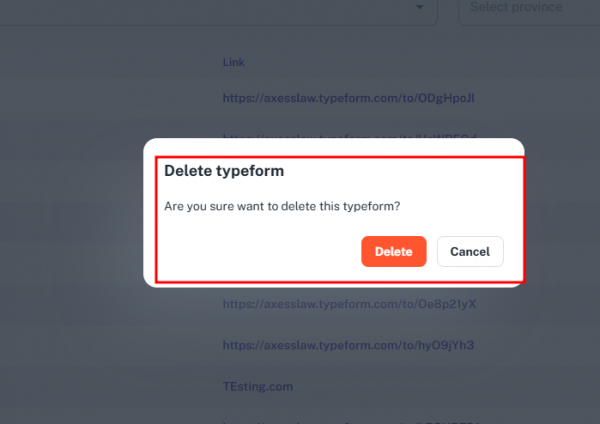
Terms and Policy
The Terms and Policy permission allows administrators to manage the system’s Terms & Conditions and Privacy Policy through the Admin Panel.When enabled in the Role settings, this permission ensures that users can create, view, and delete policy entries, which are presented to end users during registration for compliance and informed consent.
Policy Access
- View – Open and read the details of a specific Terms and Policy entry.
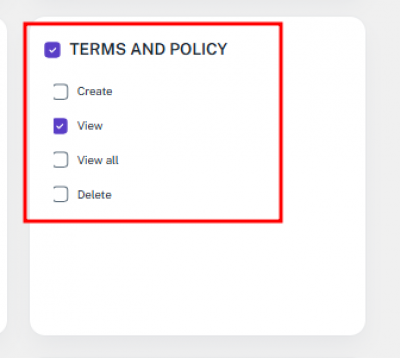
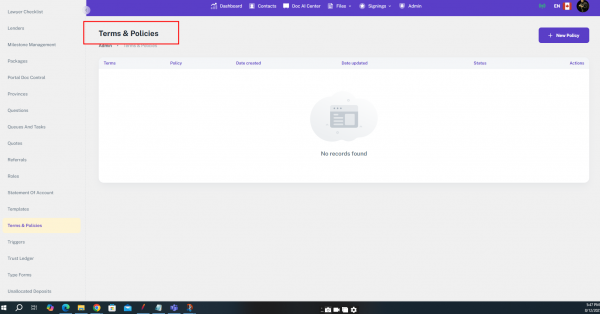
- View All – View the complete list of Terms and Policy entries stored in the system.
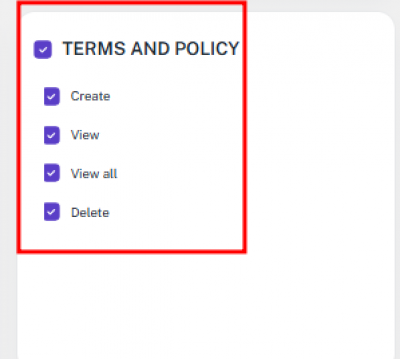
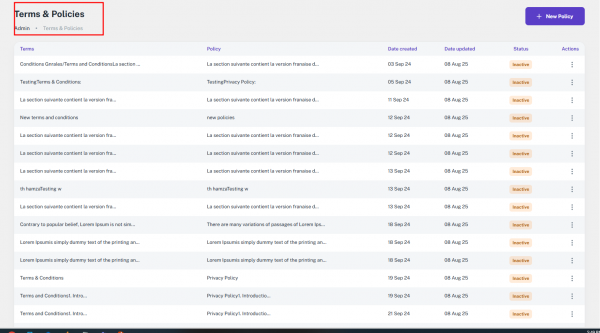
Policy Management
- Create – Add new Terms and Policy entries into the system.
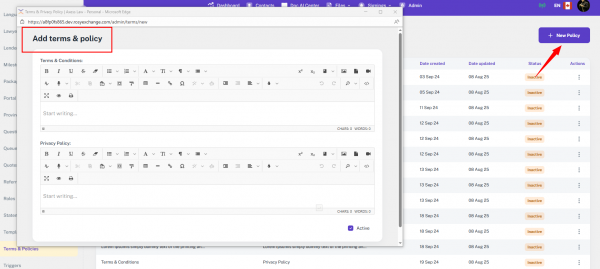
- Delete – Remove an existing Terms and Policy entry from the system.
Tax Config
The Tax Config permission allows administrators to manage tax-related settings across the system. When enabled in the Role settings, this permission ensures users can configure, view, and create tax rules and rates to ensure accurate tax application on transactions and documents.
Tax Configuration Access
- View – Open and review details of a specific tax configuration.
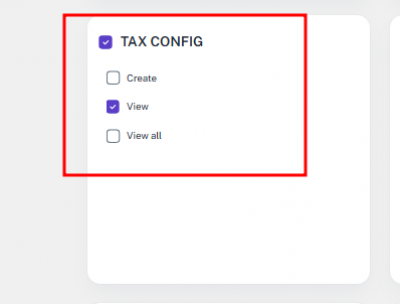
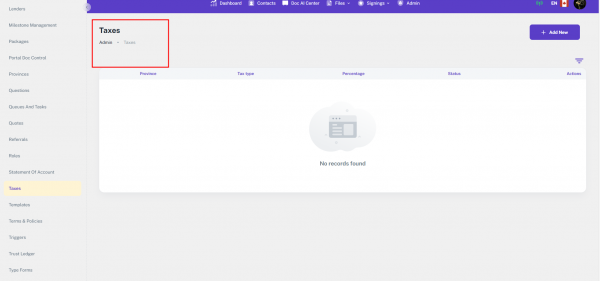
- View All – View the complete list of all tax configurations in the system.
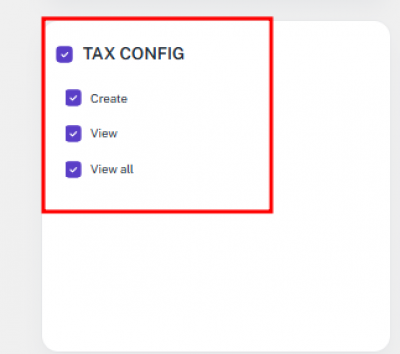
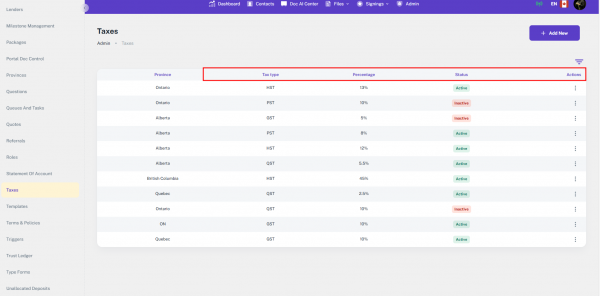
Tax Configuration Management
- Create – Add new tax configurations, including applicable tax rates and rules.
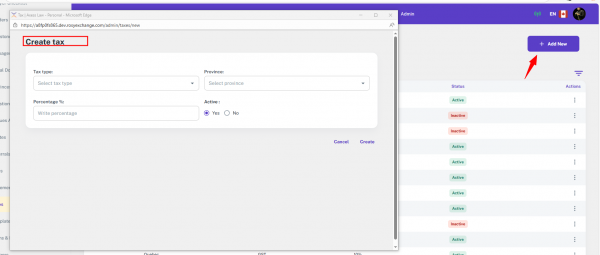
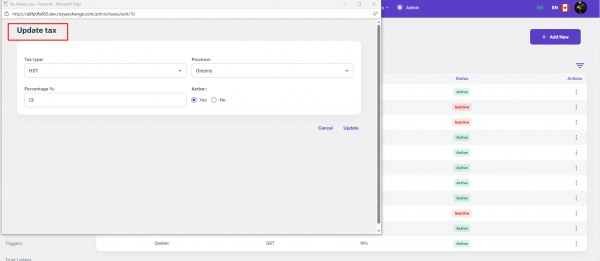
Requisition Template
The Requisition Template permission allows users to manage predefined requisition document templates used throughout the system. When enabled in the Role settings, users can view, create, and update requisition templates to maintain accurate and consistent documentation for various processes.
Template Access
- View – Open and review details of a specific requisition template without making changes.
- View All – Access the complete list of all requisition templates stored in the system.
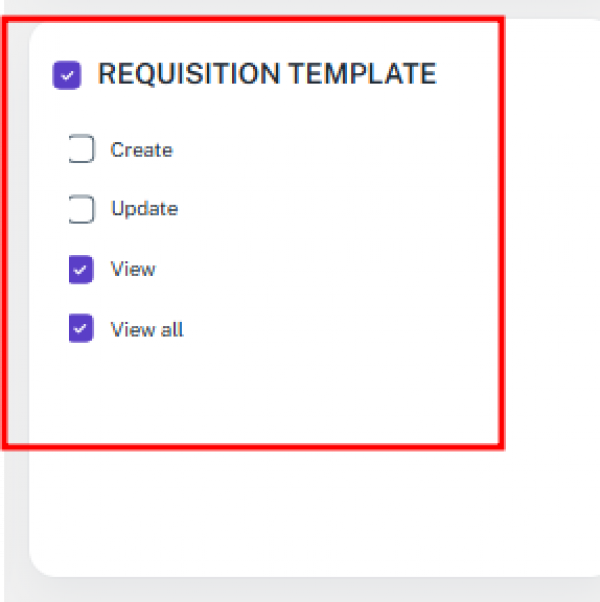
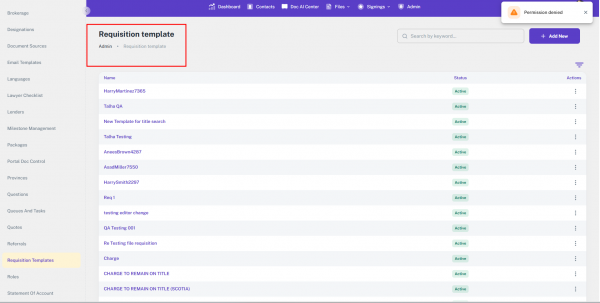
Template Management
- Create – Add a new requisition template by entering all required details and content.
- Update – Permits the user to edit or update existing requisition templates.
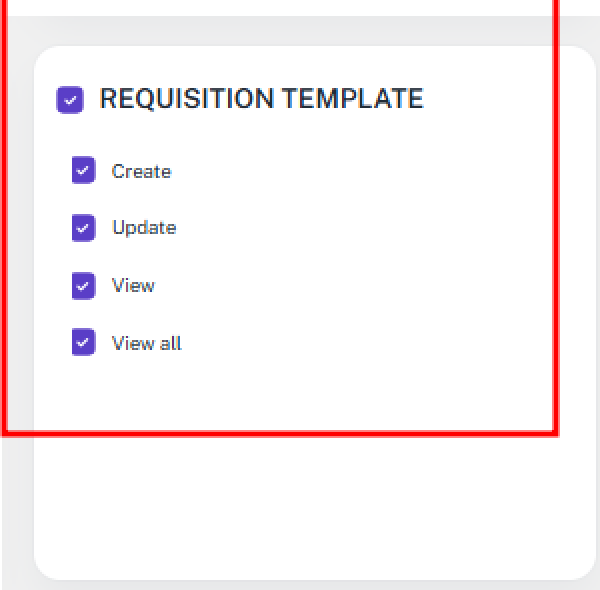
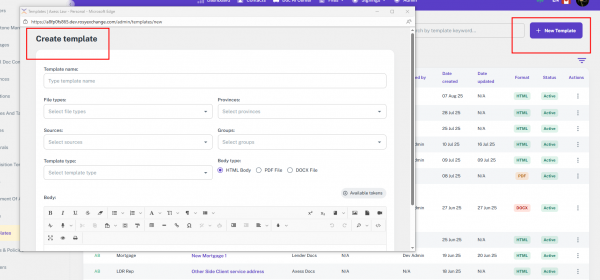
Statement of Account Config
The Statement of Account Config permission allows users to manage financial fee configurations that automatically populate Statements of Account based on file type and province. When enabled in the Role settings, users can view, create, and manage these configurations to ensure accurate fee calculations in financial statements.
Configuration Access
- View – Open and review the details of a specific Statement of Account configuration.
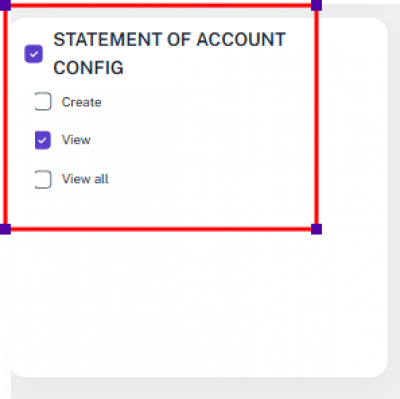
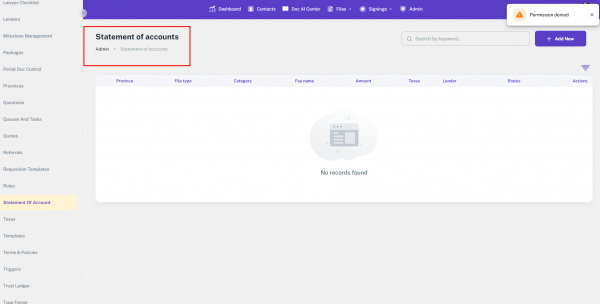
- View All – Access the complete list of all Statement of Account configurations in the system.
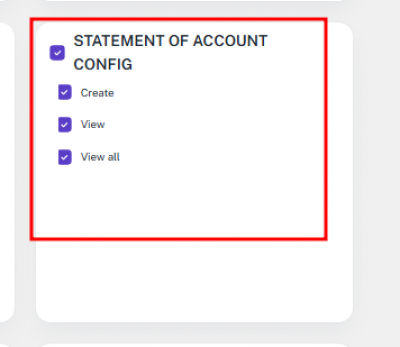
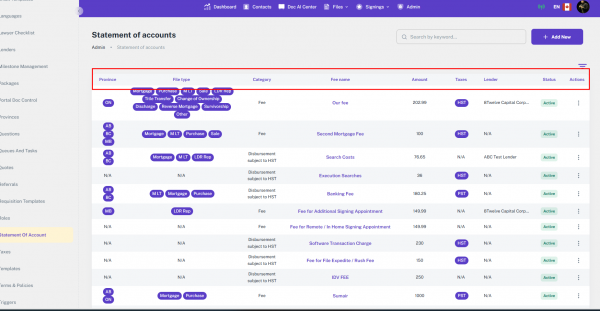
- Create – Allows the user to add new fee configurations used in statements of account.
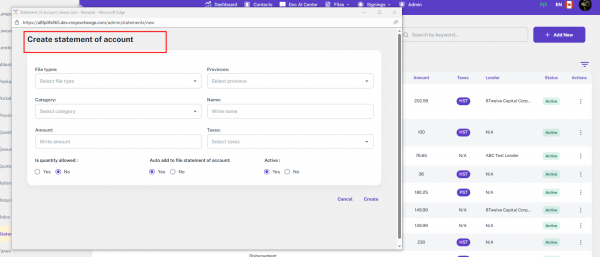
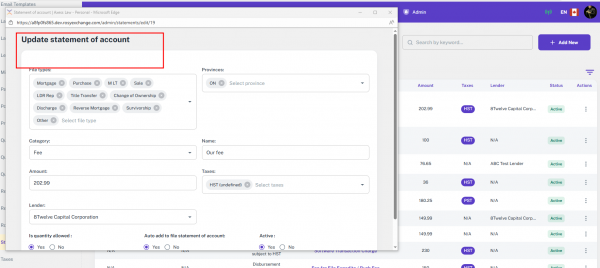
File Statement of Adjustment – Role Permissions
The File Statement of Adjustment permission allows users to access and manage statements of adjustment for individual files.When enabled in the Role settings, this permission provides access to the Accounting section under All Files, where users can create, view, and manage file-specific financial adjustments.
Adjustment Access
- View – Open and review details of a specific file’s statement of adjustment.
- View All – Access the complete list of all file statements of adjustment in the system.
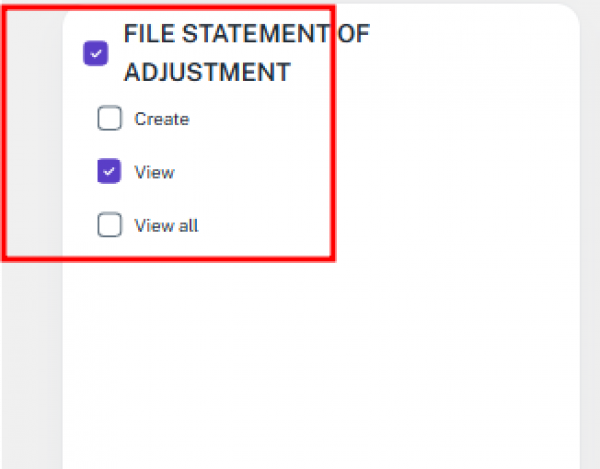
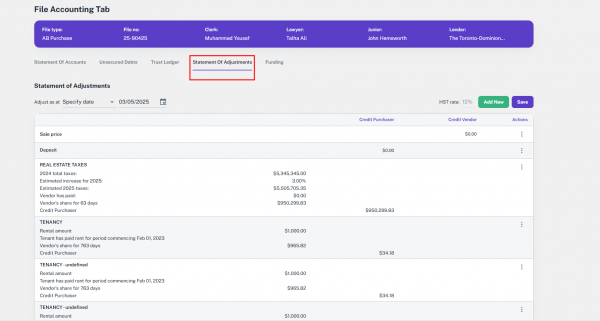
Adjustment Management
- Create – Allows the user to create new statements of adjustment for files.
Trust Ledger Config – Role Permissions
This guide explains how to assign and use the Trust Ledger Config permissions when creating a role. These permissions control access to trust ledger financial transactions within files, ensuring records remain accurate and balanced.
View
- Enables the user to open and review details of a specific trust ledger record.
View All
- Grants access to the complete list of all trust ledger entries across files.
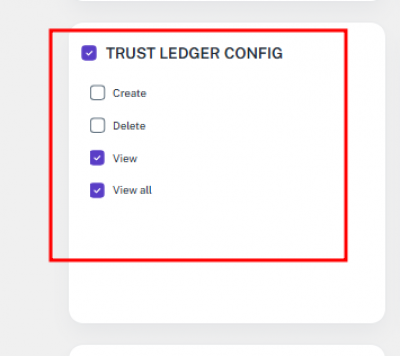
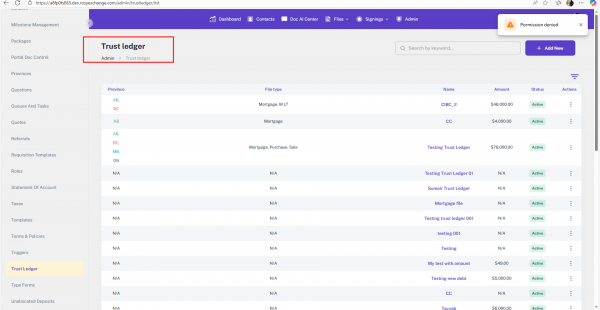
Create
- Allows the user to add new entries or configurations in the trust ledger.
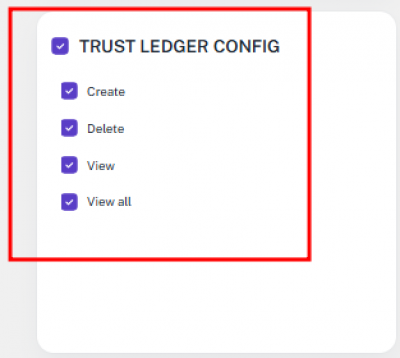
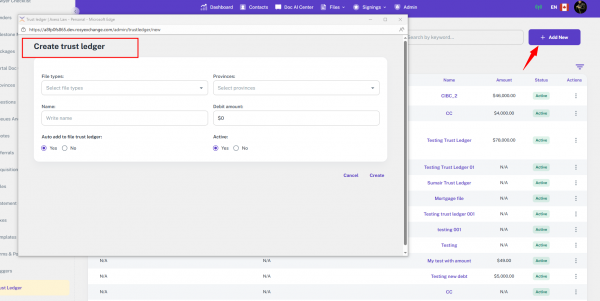
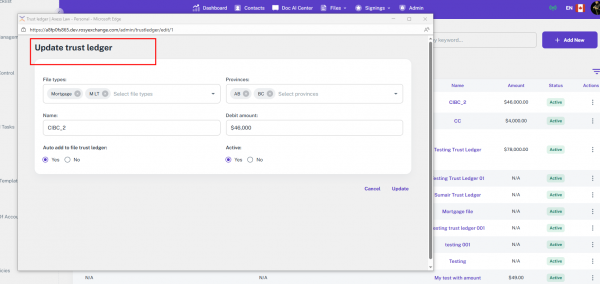
Delete
- Permits the user to remove existing trust ledger entries or configurations.
User Assignment & Holidays – Role Permissions
This guide explains how to assign and use the User Assignment & Holidays permissions when creating a role. These permissions control how staff allocation, holiday calendars, and blackout periods are managed, ensuring fair workload distribution and accurate scheduling.
View
- Allows the user to see details of a specific user assignment or holiday record.
View All
- Grants access to the full list of all user assignment rules and holiday entries in the system.
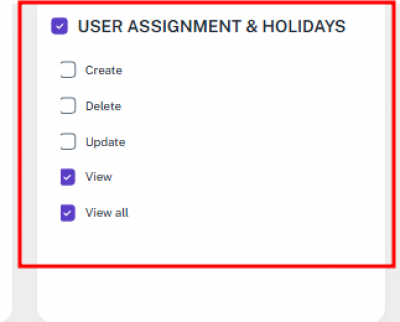
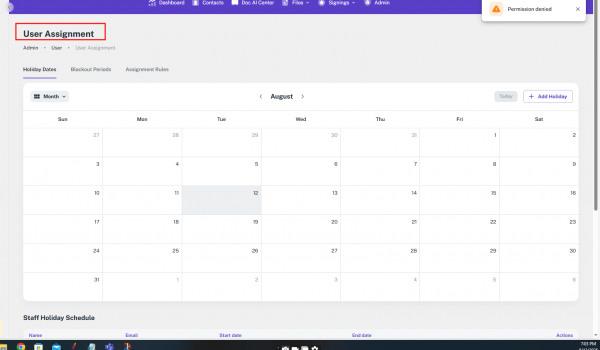
Create
- Permits the user to add new user assignment rules or holiday records.
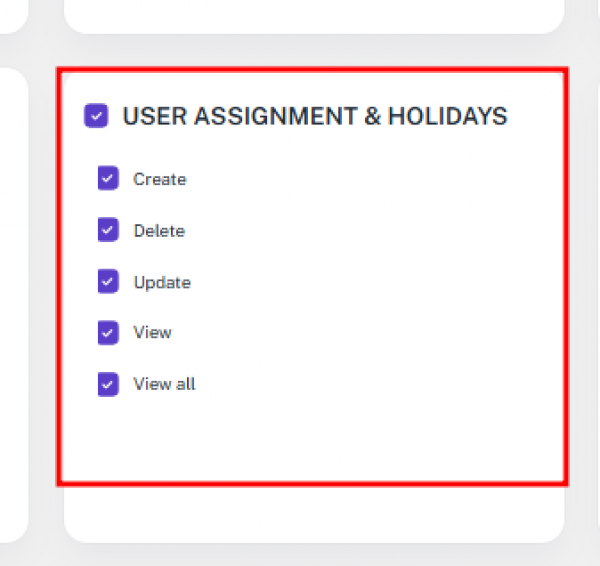
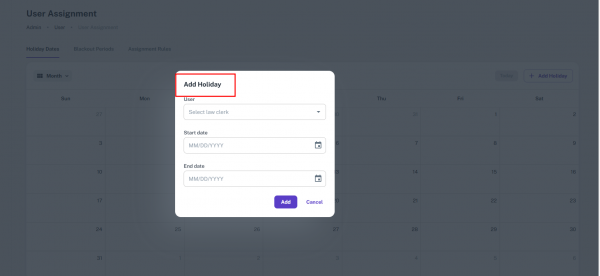
Delete
- Grants permission to remove existing assignments or holiday entries.
Update
- Enables the user to edit and update user assignment rules, holiday calendars, and blackout settings.
Unallocated Deposit – Role Permissions
This guide explains how to assign and use the Unallocated Deposit permissions when creating a role. These permissions allow users to manage unallocated funds in the system, ensuring proper tracking and allocation to the correct files
View
- Permits the user to open and review details of a specific unallocated deposit.
View All
- Grants access to the full list of all unallocated deposits stored in the system.
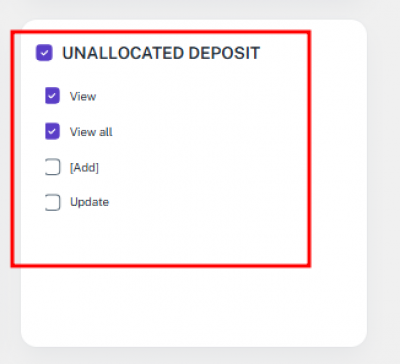
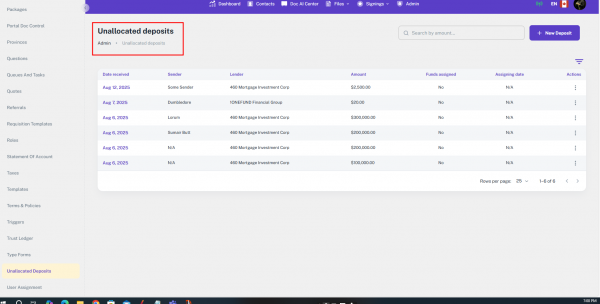
Add
- Enables the user to create new unallocated deposit entries by entering key details such as sender, amount, lender, and receipt date.
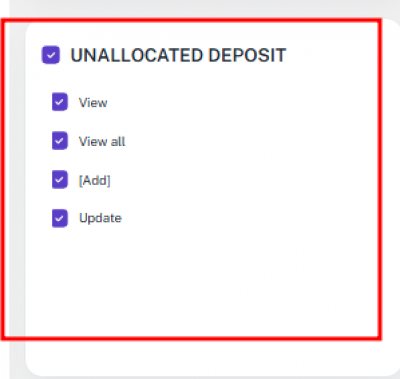
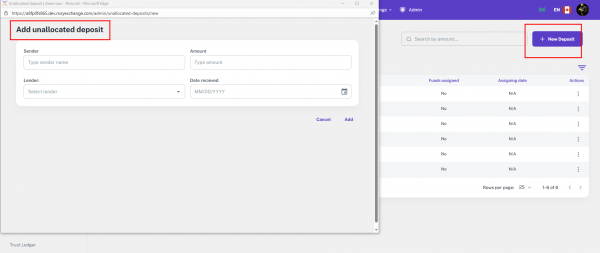
Update
- Allows the user to edit and update existing unallocated deposit records, including changes to allocation status or assignment details.
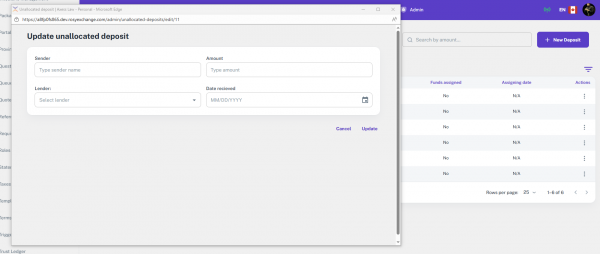
File Assignment Rules – Role Permissions
This guide explains how to assign and manage File Assignment Rules permissions when creating a role. These permissions allow users to define staff allocation rules, holiday calendars, blackout periods, and file assignment priorities. The feature ensures balanced workload distribution and supports broker preferences such as the order of suggested and selected lawyers, law clerks, and junior clerks.
View
- Permits the user to open and review details of a specific file assignment rule.
View All
- Grants access to the complete list of all file assignment rules stored in the system.
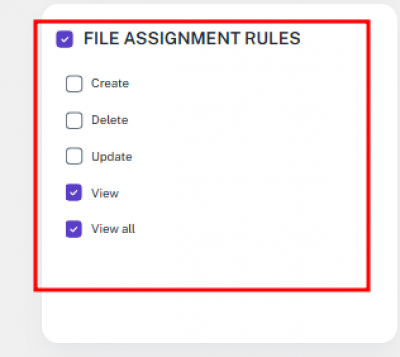
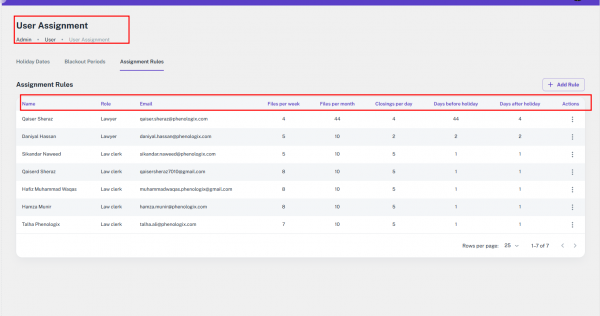
Create
- Allows the user to set up new file assignment rules, including defining the priority order for lawyers, law clerks, and junior clerks.
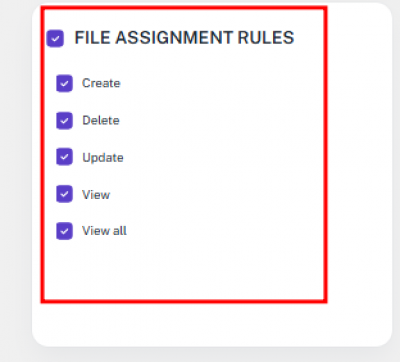
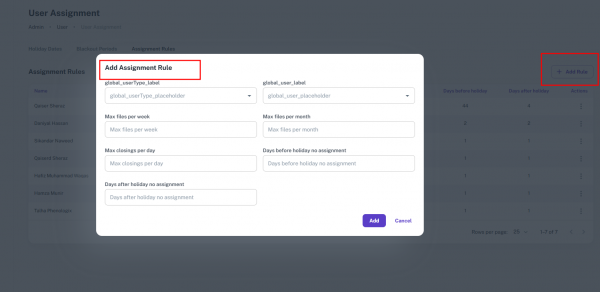
Update
- Enables the user to edit and adjust existing file assignment rules, such as modifying priority settings or role allocations.
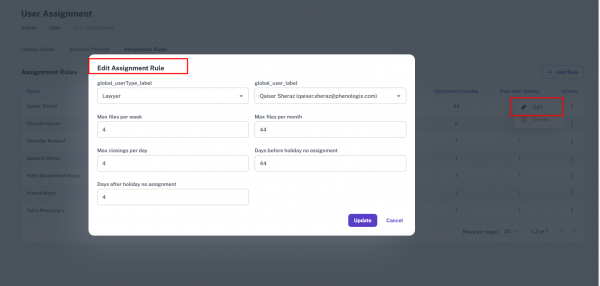
Delete
- Grants permission to remove file assignment rules that are no longer required.
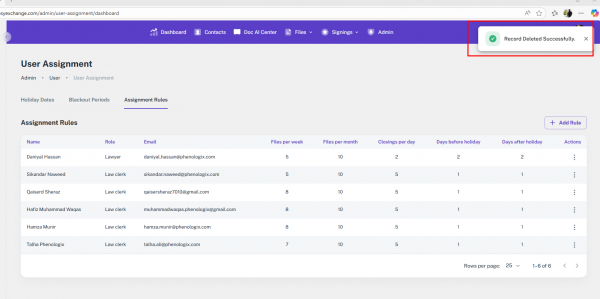
Blackout Period – Role Permissions
This guide explains how to configure and manage Blackout Period permissions when creating a role. Blackout periods are used to control staff availability for file assignments by defining restricted dates and affected team members.
View
- Enables the user to open and review details of a specific blackout period entry.
View All
- Grants access to the complete list of all blackout periods in the system.
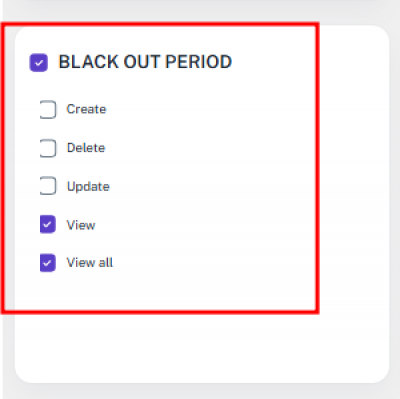
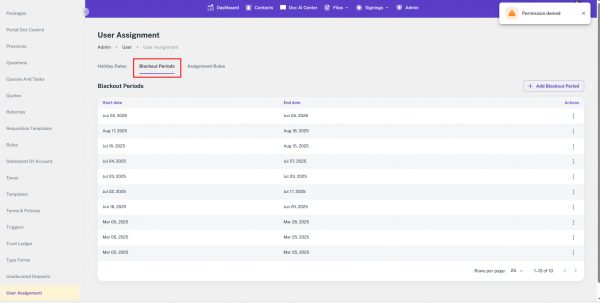
Create
- Allows the user to add new blackout periods by specifying date ranges and affected staff members.
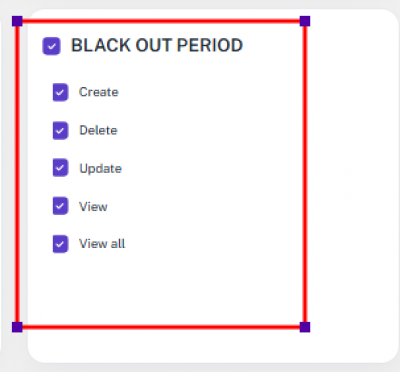
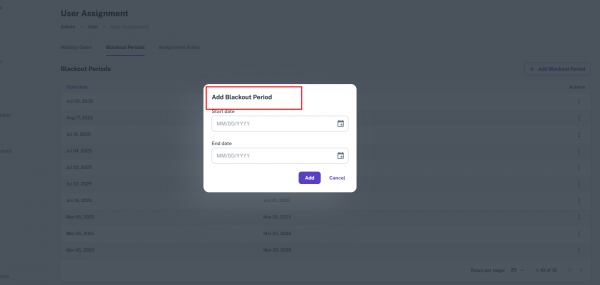
Update
- Permits the user to modify an existing blackout period, including updating dates, ranges, or assigned staff.
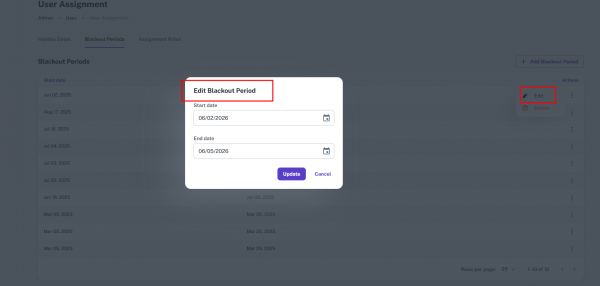
Delete
- Grants permission to remove blackout periods that are no longer required.
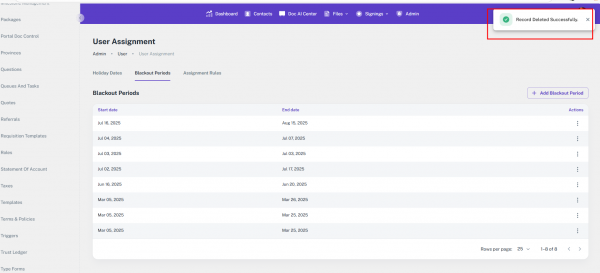
System Logs – Role Permissions
This guide explains how to configure and use System Logs permissions when creating a role. The System Logs card provides access to the system’s email log records, allowing users to monitor failed email attempts and troubleshoot delivery issues.
Get Failed Emails
- Allows the user to retrieve and view all failed email records.
- Provides detailed information including:
- Subject line of the email
- Sender address
- Recipient(s)
- Response status (success/failure reason)
- Timestamp of the attempt
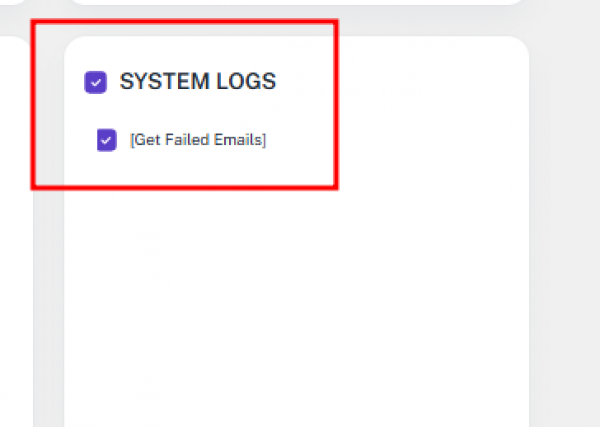
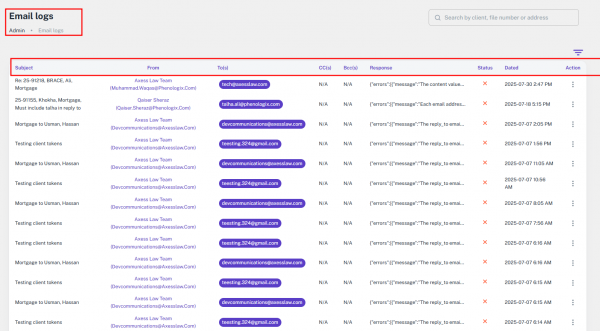
Task Email Trigger – Role Permissions
This guide explains how to configure and manage Task Email Trigger permissions when creating a role. The Triggers section allows Admin users to automate specific actions based on conditions such as file type, province, lender, tasks, and email templates. These triggers ensure automated emails are sent at the right time, improving workflow efficiency and communication.
View
- Allows the user to open and review details of a specific task email trigger.
View All
- Grants access to the complete list of all task email triggers in the system.
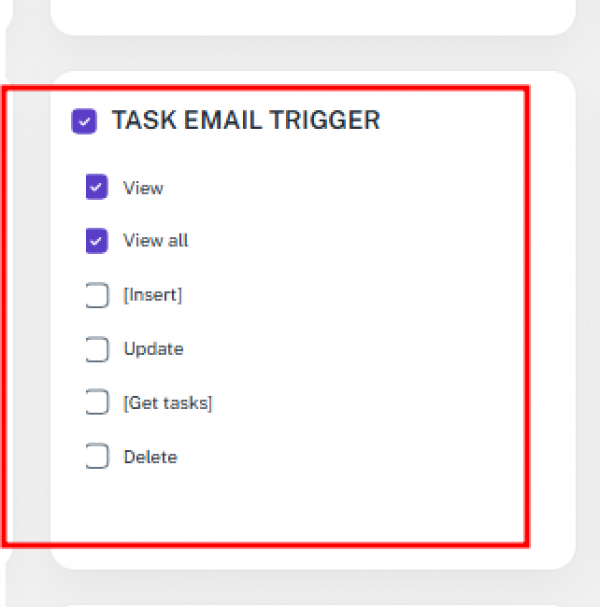
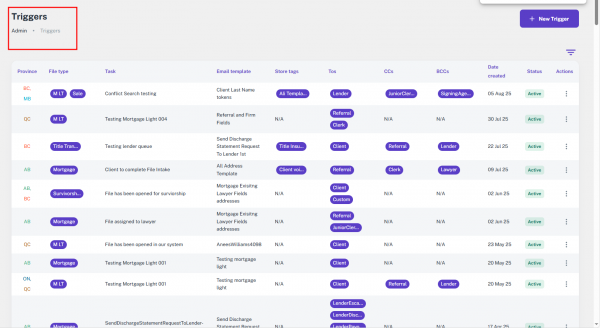
Insert
- Permits the user to create a new task email trigger by defining rules, recipients (TO, CC, BCC), follow-ups, and timing configurations.
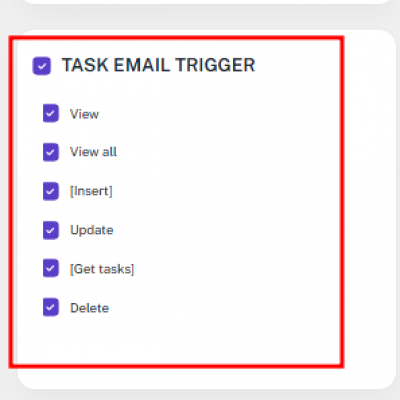
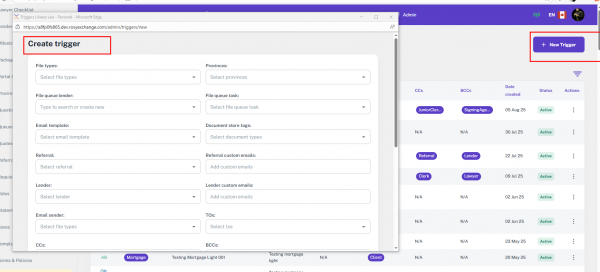
Update
- Enables the user to edit or adjust existing task email triggers.
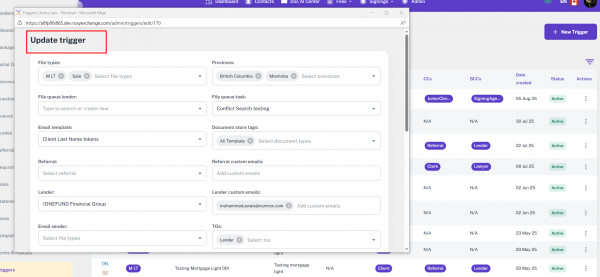
Get Tasks
- Allows the user to retrieve task lists when setting up or modifying a trigger.
Delete
- Permits the user to remove an existing task email trigger from the system.
Milestone Management – Role Permissions
The Milestone Management module, accessible from the Admin menu, allows administrators to configure, track, and manage milestone rules that automate progress monitoring within files. The table view includes details such as trigger name, provinces, file types, sub-types, start/stop conditions, interval, max attempts, sender, recipients, lenders, referrals, status, and actions.
View
- Allows the user to view details of a specific milestone configuration.
View All
- Grants access to the complete list of all milestones in the system.
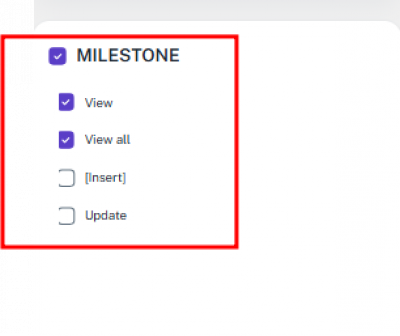
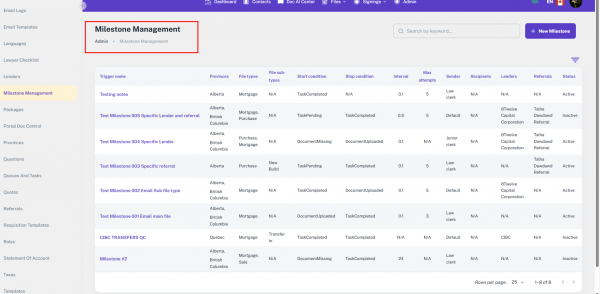
Insert
- Enables the user to create and add new milestone configurations, defining rules and parameters.
Update
- Allows editing and modifying existing milestone configurations.
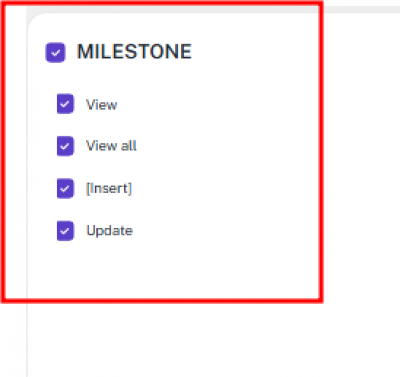
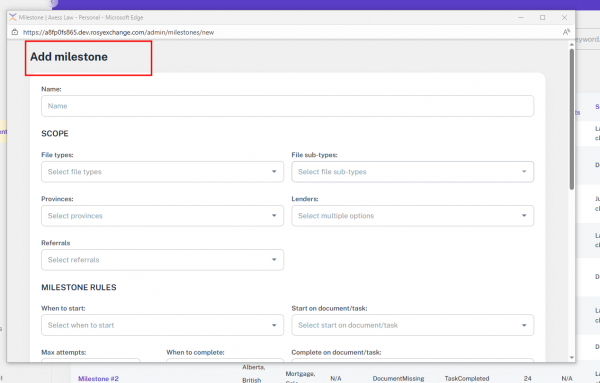
Lawyer Review Checklist – Role Permissions
The Lawyer Review Checklist module, accessible from the Admin tab, allows users to manage checklist items categorized by File Type and Province. Each checklist entry includes details such as name, applicable provinces, file types, status, and available actions. When a new file is created, the system automatically associates relevant checklist items based on the selected province and file type. These checklist items appear within the file’s details, ensuring consistent legal reviews and compliance with regional and file-specific requirements.
View
- Allows the user to view details of a specific lawyer review checklist item.
View All
- Grants access to the complete list of all lawyer review checklist items in the system.
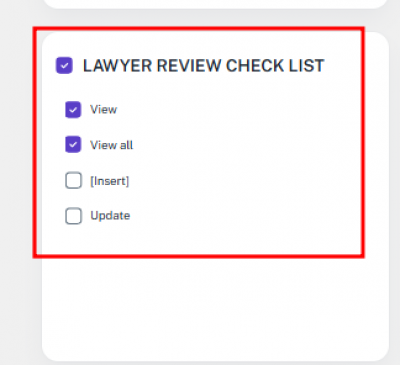
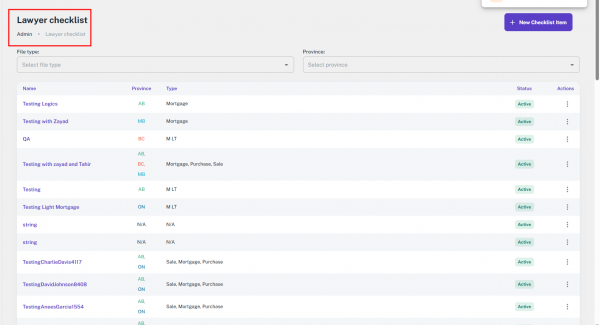
Insert
- Enables the creation of new lawyer review checklist items, specifying file type, province, and status.
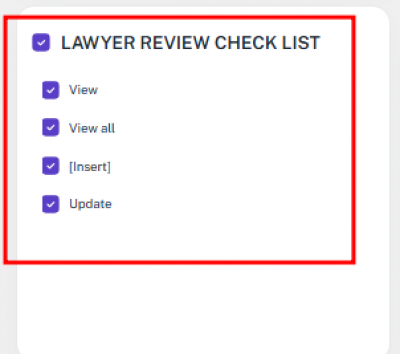
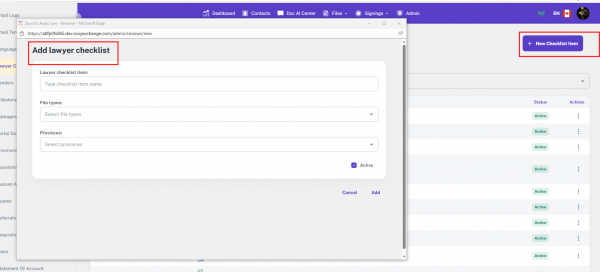
Update
- Permits editing and updating of existing checklist items.
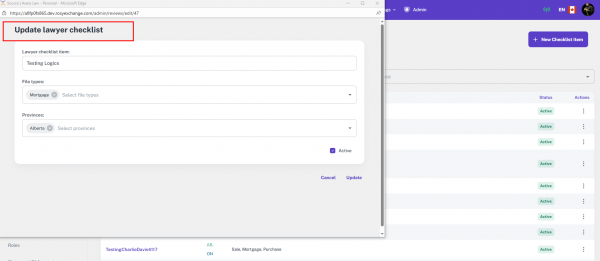
Lawyer Review File Checklist – Role Permissions
The Lawyer Review File Checklist section, accessible from the All Files view, displays all lawyer checklist items associated with individual files. This feature ensures that users can review and update checklist statuses to maintain compliance and confirm that legal review processes are properly tracked and completed.
Update
- Permits editing or updating the status and details of checklist items linked to a specific file.
Get
- Allows retrieval of all lawyer review checklist items associated with a selected file.
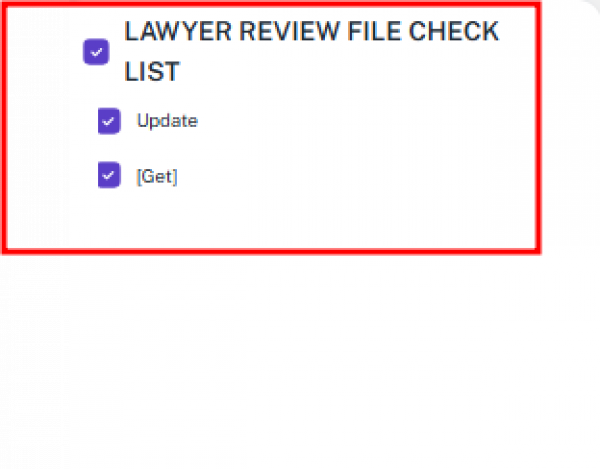
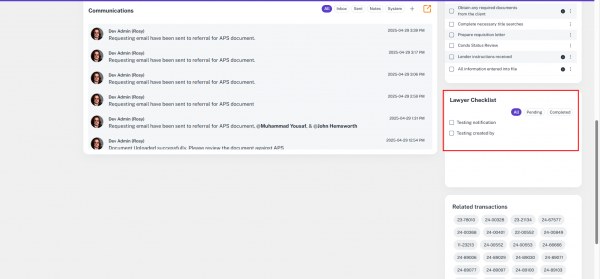
File Debt Statement – Role Permissions
The File Debt Statement section, located in the File Accounting module under the Unsecured Debt tab, allows users to manage unsecured debt records for a file. This ensures financial accuracy by enabling the addition, review, update, and removal of debt entries.
Get All
- Allows viewing or retrieving all unsecured debt statements within a file’s accounting Unsecured Debt tab.
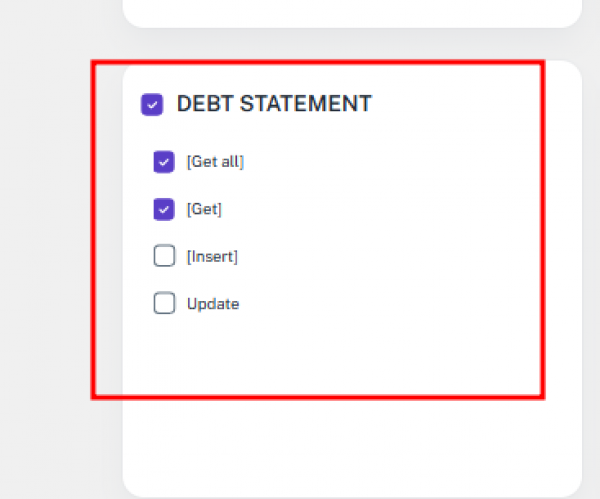
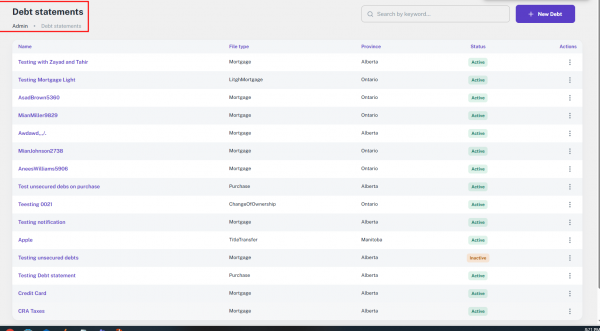
Insert
- Permits adding new unsecured debt records in the Unsecured Debt tab.
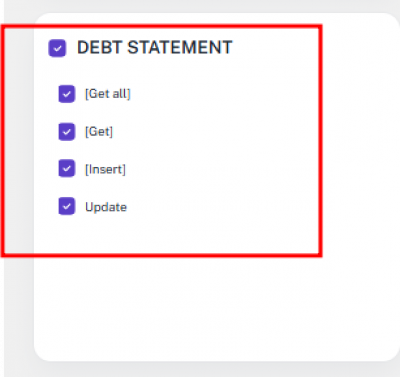
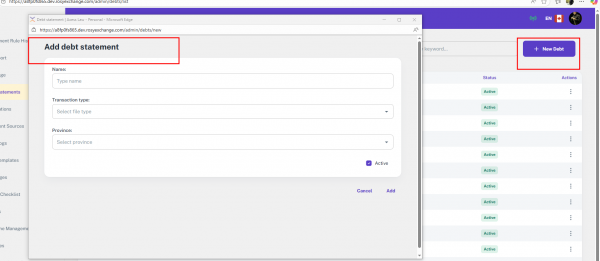
Update
- Enables editing or updating existing unsecured debt entries.
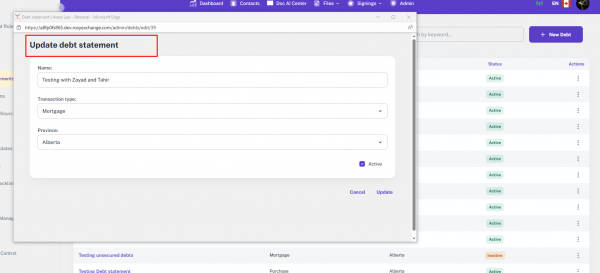
Delete
- Permits removing unsecured debt records from the system to maintain accurate file accounting.
AI Model Rule – Role Permissions
The AI Model Rule section, accessible from the Admin menu, allows users to configure and manage AI-based rules tailored for specific files, provinces, roles, and tasks. The system displays a table listing attributes such as Name, Format, Type, File Type, Province, Role, Rule, Task, Date Created, along with available actions for each rule.
Get All
- Grants access to view the full list of all AI model rules in the system.
Get
- Allows viewing detailed information about a specific AI model rule.
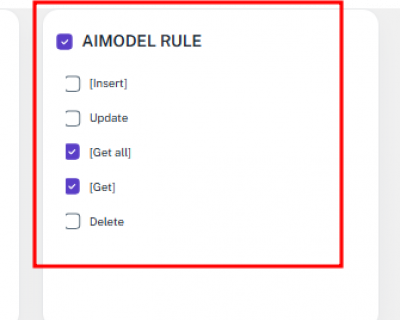
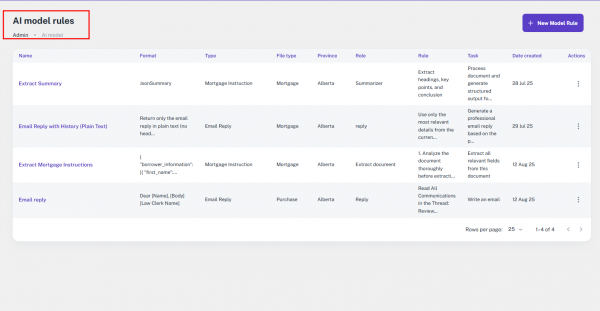
Insert
- Permits adding new AI model rules, including all required attributes (e.g., name, format, type, file type, province, role, and task).
Update
- Enables editing or modifying existing AI model rules.
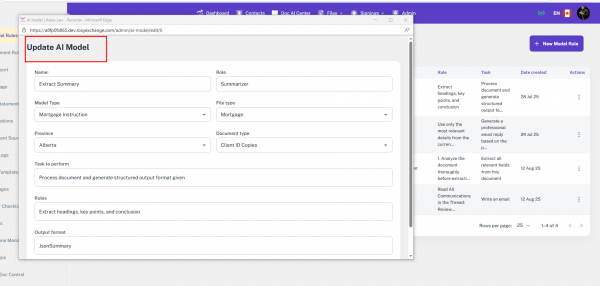
Delete
- Permits removal of existing AI model rules from the system
14.19 Terms and Policies
The Terms & Policies section in the Admin panel allows administrators to add and manage the system’s Terms & Conditions and Privacy Policy. These policies are displayed to users during registration, and users can view their details before agreeing to them.
14.19.1 Interface
Method – Access the Terms & Policies Section
Step 1 – Go to the Admin Tab
- Click the Admin tab from the top navigation bar.
- The left-side panel will appear.
Step 2 – Open Terms & Policies
- From the left menu, click Terms & Policies.
- You will be redirected to the Terms & Policies Management page.
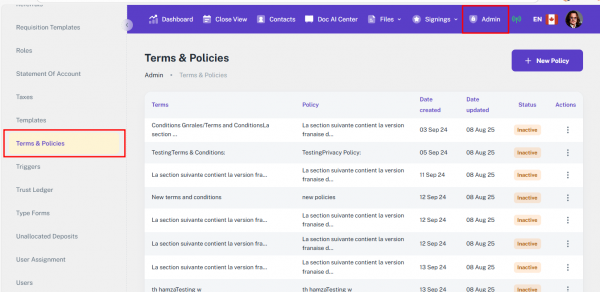
Features on the Terms & Policies Management Page
Add New Policy
- Click the Add New Policy button to create a new Terms & Conditions and Privacy Policy entry.
- When a new policy is added, the previous active policy automatically becomes inactive.

Policy List Table – The table displays:
- Terms – Content of the Terms & Conditions.
- Policy – Content of the Privacy Policy.
- Date Created – When the policy was added.
- Cate – Policy category.
- Updated – Last updated date.
- Status – Active or Inactive.
- Action – A View button to preview policy details.
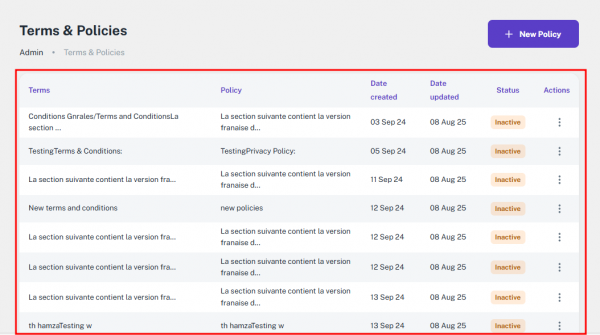
Method – Add a New Policy
Step 1 – Open the Add Policy Page
- Click Add New Policy.
- The Add Policy page will open
Step 2 – Fill in the Policy Details
- Terms & Conditions – Use the rich text editor to enter the terms.
- Privacy Policy – Use the rich text editor to enter the privacy policy content.
- Active – Tick the checkbox to make this policy active.
Step 3 – Save or Cancel
- Add – Save the policy.
- Cancel – Discard changes and return to the previous page.
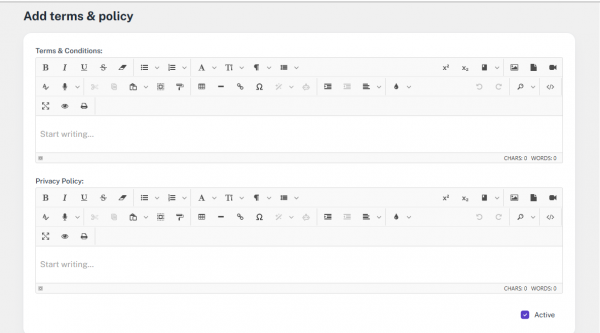
How Policies Are Shown to Users
- During registration, users see the current active Terms & Conditions and Privacy Policy.
- Users can click on the policy name to read the full details before agreeing.
14.20 Quotes
The Quotes section allows administrators to create, edit, and manage quotes linked to specific file types and provinces. These quotes can include dynamic tokens that automatically pull in relevant client or user details when the quote is used.
14.20.1 Interface
Step 1 – Open the Quotes Section
- From the top header menu, click the Admin tab.
- A left-side navigation panel will appear.
- Select Quotes to open the section.
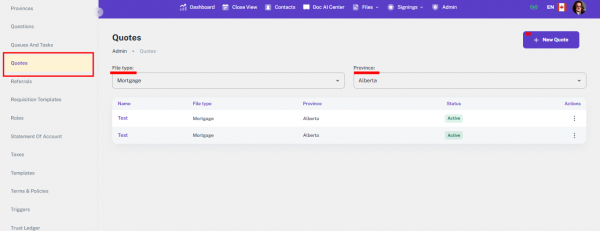
Step 2 – Filter Quotes
- At the top of the page, use the following filters:
- File Types – Select from the dropdown.
- Province – Select from the dropdown.

Step 3 – View the Quotes Table
The table displays:
- Name – The quote title.
- File Type – The file category linked to the quote.
- Province – The region the quote applies to.
- Status – Active or Inactive.
- Actions – Edit button to update the quote.

Step 4 – Add a New Quote
- Click Add Quote to open the creation page.
- Fill in:
- Name – Title of the quote.
- Transaction Type – Select from the dropdown.
- Province – Select from the dropdown.
- Body – Enter the quote content in the Rich Text Editor (supports formatting and styling).
- Preview as PDF – Option to view the quote in PDF format before saving.
- Available Tokens – Click to open a popup with predefined dynamic tokens, such as:
- UserAccount → [User.FullName]
- ClientEmail → [Client.Email]
- These tokens automatically populate with actual data when the quote is used.
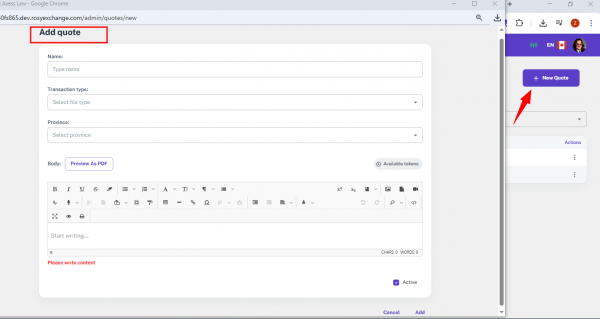
Step 5 – Edit an Existing Quote
- In the Actions column, click Edit to open the quote in the same interface as the Add Quote page.
- Update the name, transaction type, province, and body content as needed.
- Adjust tokens or formatting, and preview before saving changes.
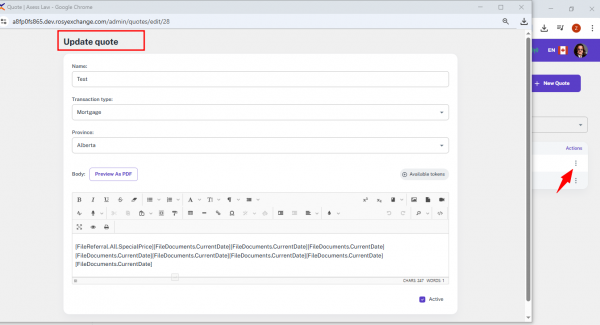
14.20.2 Functionality
The Quotes module integrates with the Referrals feature to automate quote generation, apply special pricing rules, and ensure accurate document delivery for referral-based clients.
How It Works:
Referral-Based Quote Generation
- When a file is created, the system checks the File Type and automatically matches it with the corresponding quote template configured in the Quotes module.
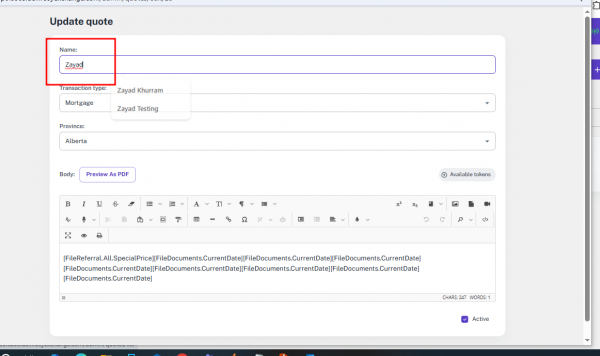
Special Pricing for Referral Clients
- In the Referrals section, users can set Special Pricing 1 and Special Pricing 2 for each referral.
- When creating or updating a referral file, the system applies the correct special pricing tier and fetches the matching quote template based on the file type and assigned pricing level.
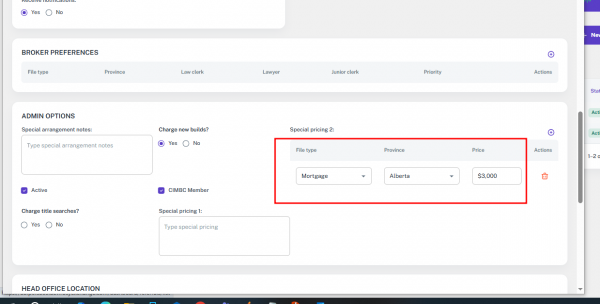
Automated Quote Population in Referral Files
- Once a referral file is created, the quote section is automatically populated with the correct referral quote template.
- This eliminates manual selection and ensures the referral’s agreed pricing is always applied.
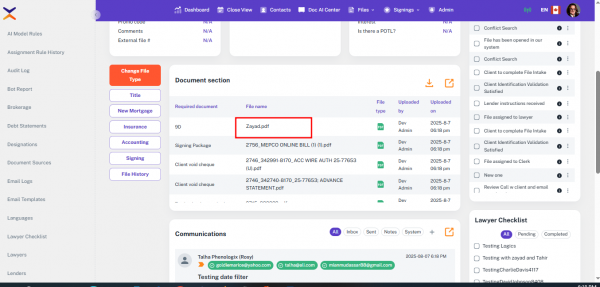
Quotation Delivery for Referrals
- The populated quote is used to generate a quotation document.
- This document can be previewed, edited if required, and sent directly to the referral or client from within the file.
14.21 Packages
The Packages module enables administrators to create, manage, and organize document packages containing templates and portal document controls. Packages can be customized by Transaction Type, Province, Lender, and ordered templates, ensuring efficient and relevant document handling.
14.21.1 Interface
Step 1 – Open the Packages Section
- From the top header menu, click the Admin tab.
- A left-side panel will appear.
- Select Packages to open the section.
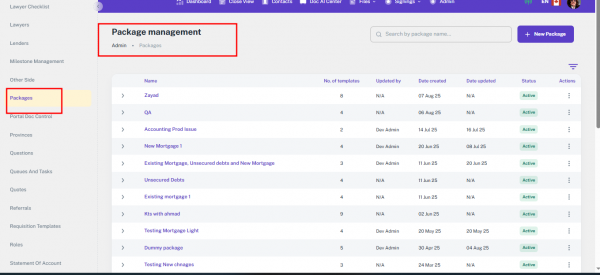
Step 2 – View the Packages Table
- The Packages table shows all your packages at a glance. You can see:
- Name: The package title
- Templates: How many templates are in it
- Updated By: Who last changed it
- Dates: When it was created and last updated
- Status: Active or Inactive
- Actions: Edit or Delete
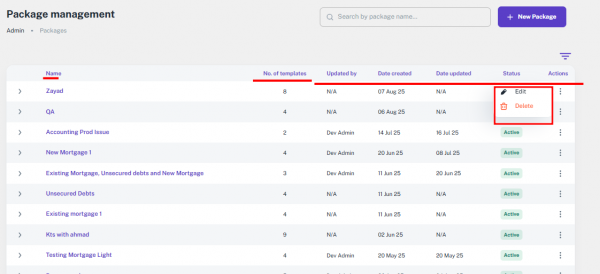
Step 3 – See Details Inside a Package
- To see what templates are in a package:
- Click the arrow next to the package name.
- A smaller table will appear showing:
- Template Name – Name of each template or document
- Transaction Type – Type of file (Purchase, Sale, Refinance)
- Provinces – Where it applies
- Sources & Groups – Linked sources and categories
- Dates – When it was created and last updated
- Status – Active or Inactive
- Actions – Delete a template if needed
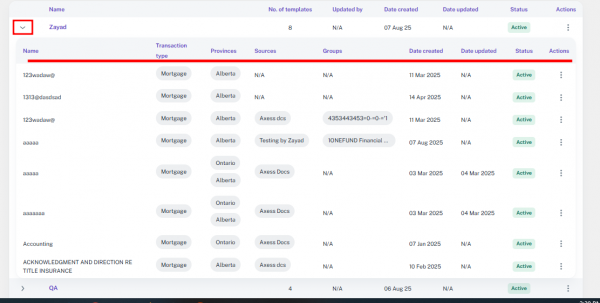
Step 4 – Add a New Package
- Click Add New Package to open the creation page, which is divided into three main sections:
- Package Setup Section
- Fill in:
- Package Title
- Transaction Type
- Province
- Lender
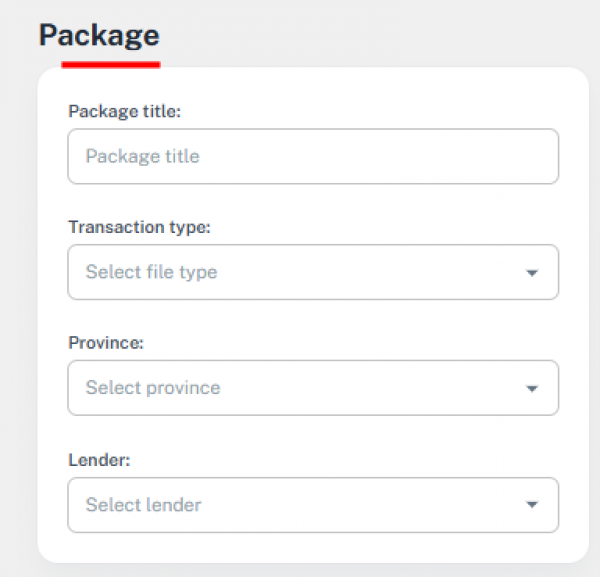
Below the form, the Order Table displays:
- Order – Sequence number.
- Name – Template/control name.
- Actions – Remove the item.
Templates Section
- Search and select templates to add.
- Templates appear in a table with Name and Actions (Select).
- Selected templates move to the Order Table.
- Options include:
- Preview PDF
- Define template content in a rich text editor for email output.
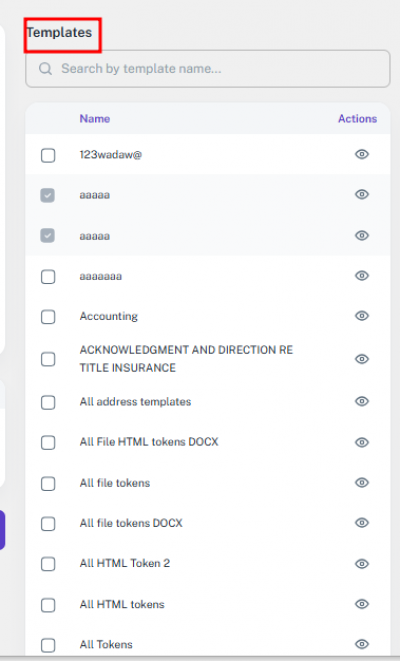
Portal Doc Controls Section
- Search and select portal documents to add to the package.
- For each document, click Actions to configure:
- Control Name
- Document Type (dropdown)
- File Types (multi-select)
- Provinces (multi-select)
- Lenders (multi-select)
- Include in Dashboard for Roles (e.g., Junior Clerk, Lawyer)
- Notify Lenders (multi-select)
- Language Options – English (EN) or French (FR)
- Checkboxes – Carry Over to Existing Files, Active/Inactive
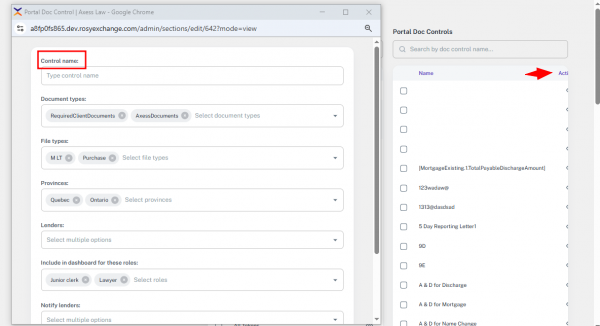
Step 5 – Edit a Package
- Click Edit in the main Packages table.
- The same form as “Add New Package” opens, pre-filled with existing data.
- You can:
- Update package details.
- Reorder or remove templates and portal controls.
- Add new items.
- Edit template content.
- Adjust portal doc settings.
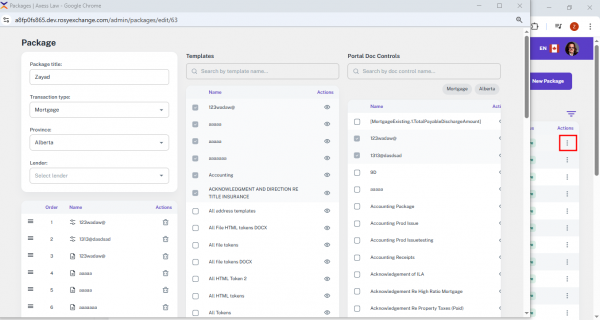
Step 6 – Search Packages by Date Range
- Use Start Date and End Date filters to find packages created or updated within a specific time range.
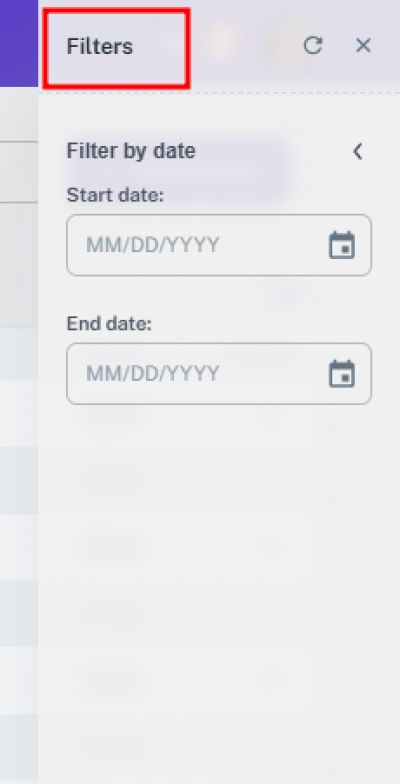
14.21.2 Functionality
Portal Doc Control Integration
- When a Portal Document Control is created, it becomes available in the Packages module.
- Selecting a portal document automatically creates a corresponding template in the package.
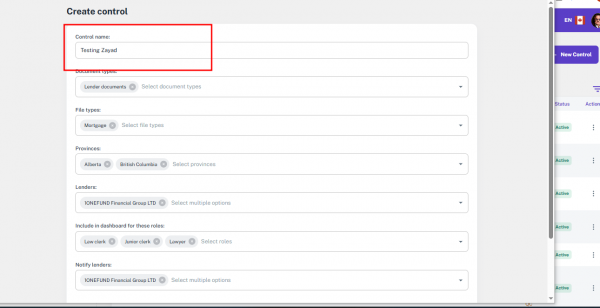
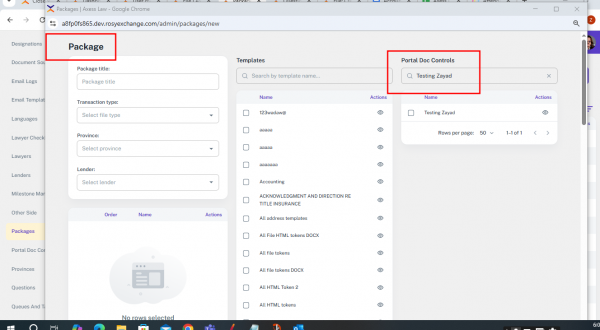
Portal Document Display
- When creating a new package, the selected Transaction Type and Province must also be filtered out in the Portal Document Control. For example, if Transaction Type: Mortgage and Province: Alberta are selected, only documents matching that type and province should be displayed in the Portal Documents or Templates. If we select the lender, it will be filtered out in the portal doc control.
14.22 Provinces
This guide explains how to access, view, and manage provinces within the Admin panel. Provinces act as a core filter and data point across multiple modules in the portal.Changes made here will instantly reflect throughout the platform, ensuring jurisdictional accuracy and streamlined workflows.
14.22.1 Interface
Accessing the Provinces Section
- Go to the Admin tab from the left-side navigation panel.
- Click Provinces.
- The system will display a searchable and filterable table of all provinces.
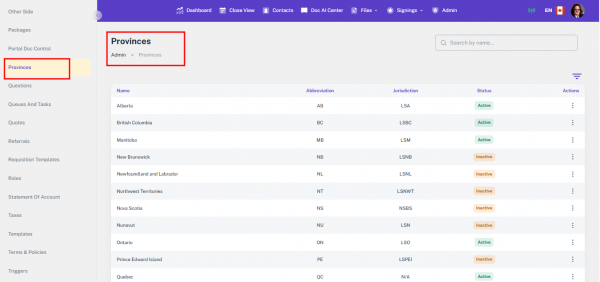
Table View – Columns Displayed
- The table retrieves province data from the backend and shows the following columns:
- Name – Full name of the province.
- Abbreviation – Short code for the province.
- Jurisdiction – The jurisdiction under which the province falls.
- Status – Shows if the province is Active or Inactive.
- Action – Option to disable a province.
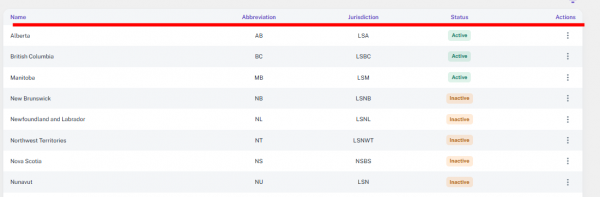
Status Filter – Filter the table by:
- Search Bar – Search provinces by name or code.
- Status Filter – Filter the table by:
- Active
- Inactive
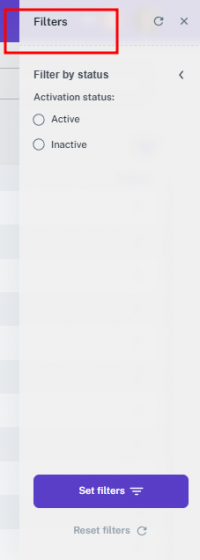
14.22.2 Functionality
The Province entity serves as a core data point across the portal, influencing workflows, data display, and compliance rules in multiple modules. Its configuration directly determines what information users see, which options they can select, and how files are processed.
System-Wide Effect of Province Updates
- When a province is edited or marked as Inactive in the Admin > Provinces section, the impact is immediate and system-wide:
- Dashboard Filters & File Visibility – Inactive provinces no longer appear as filter options; files tied to those provinces may be hidden or reclassified.
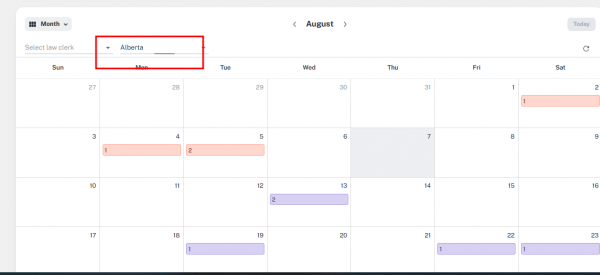
- Package Creation & Templates – Available document templates, portal documents, and lenders are filtered by province; an inactive province removes these associations.

- Doc AI Center Categorization – Province-based sorting in Un-Assigned, Ready to Import, and Completed is updated instantly.
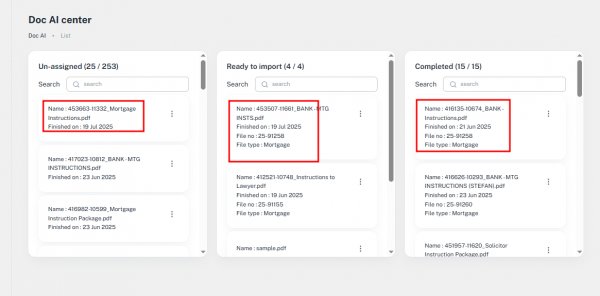
- My Files / All Files Views – Province-based filtering and sorting reflect the updated status.
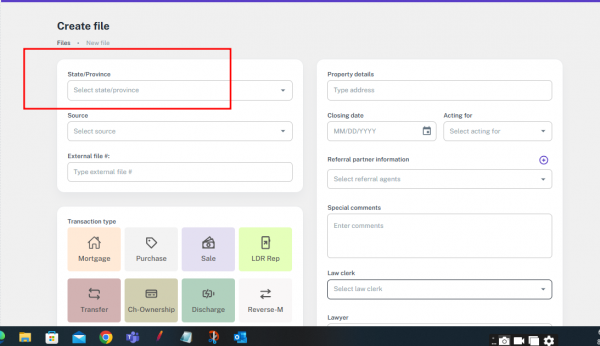
- Downstream Workflows – Automated checklists, milestone timelines, and jurisdiction-specific triggers adapt to the change.
Key Module Integrations
Admin Modules
- AI Model Rules – Uses province to apply jurisdiction-specific AI document classification rules.
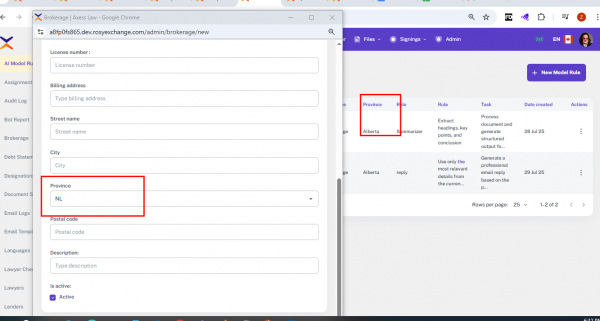
- Bot Reports – Filters automated activity reports by province for regional performance tracking.
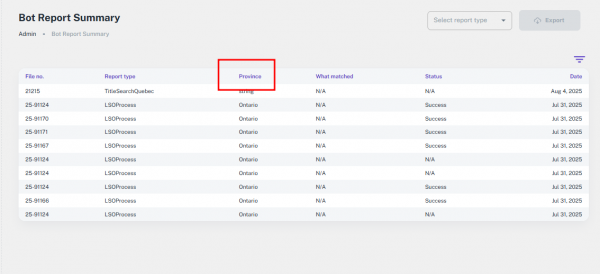
- Packages – Ensures only province-relevant document packages are available.
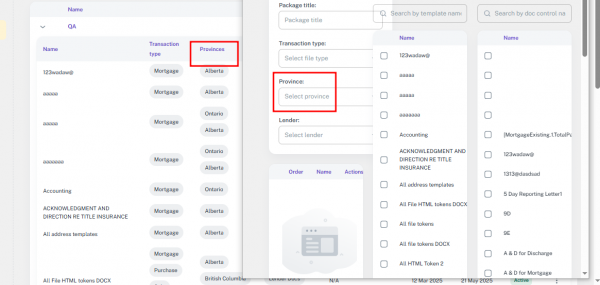
- Portal Document Control – Restricts document access and visibility based on province.
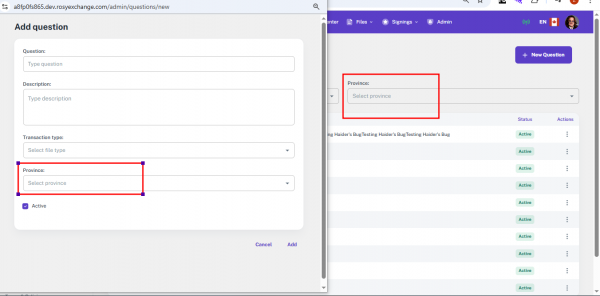
- Taxes – Applies correct tax rates and structures depending on province.
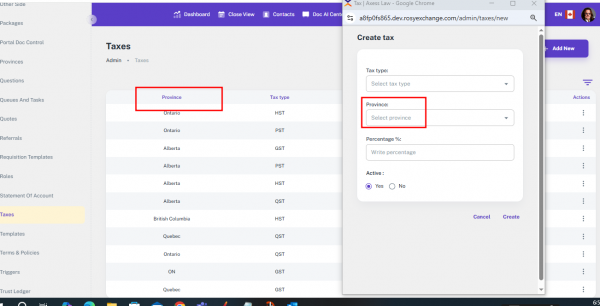
- Templates – Loads province-specific templates for file creation
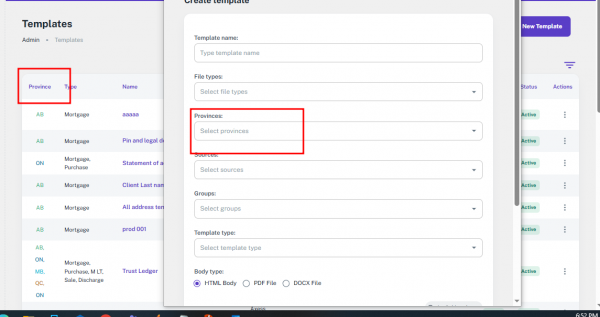
- Triggers – Activates workflow triggers only for matching provinces.
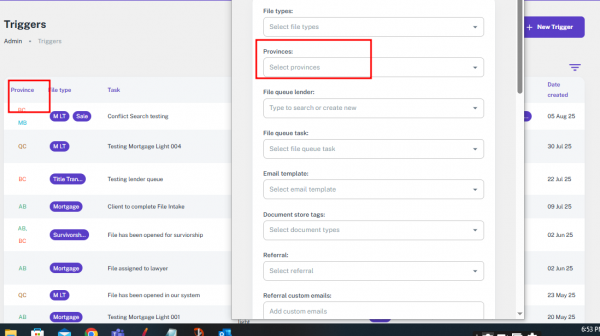
- Users – Filters user lists and permissions by province of operation.
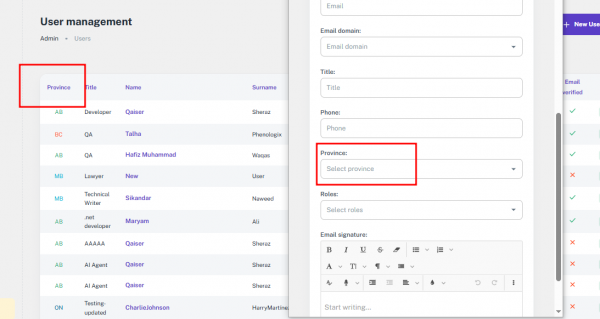
- Brokerage – Shows broker records relevant to the selected province.
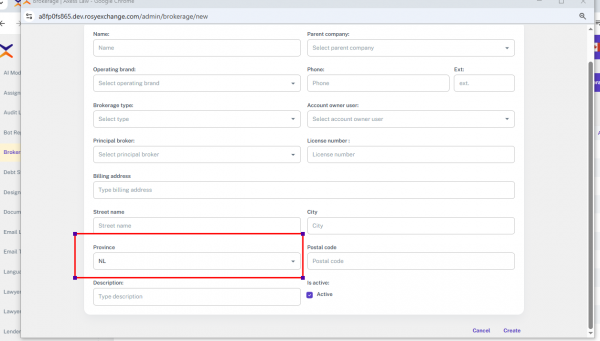
- Debt Statements– Calculates debt details based on provincial regulations.
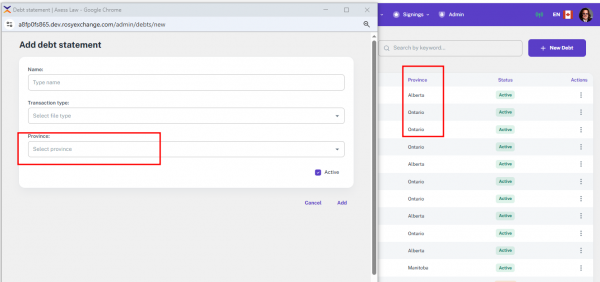
- Lawyer Checklist – Displays checklist items tied to province-specific requirements.
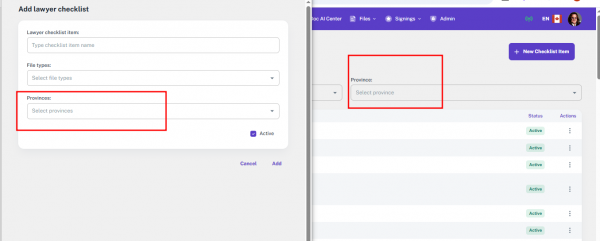
- Lawyers– Filters lawyer directory by province jurisdiction.
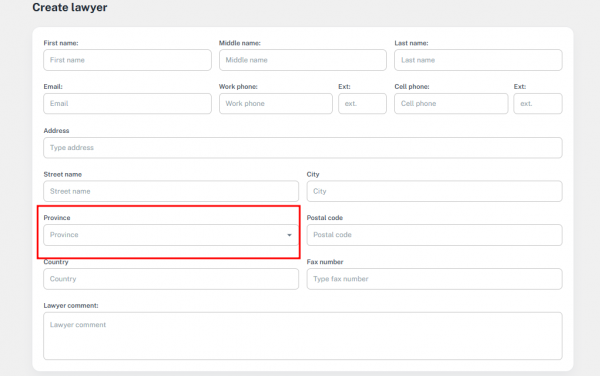
- Lenders – Lists lenders operating in the selected province only.
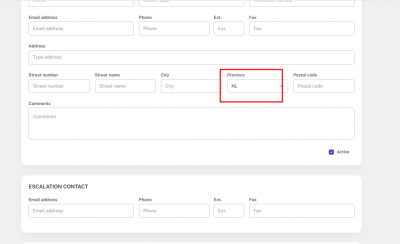
- Milestone Management – Adjusts milestones based on province workflows.
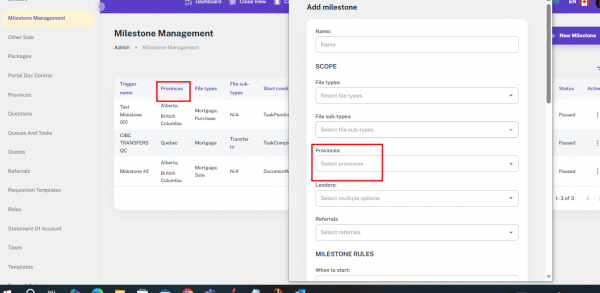
- Questions – Presents only questions relevant to the file’s province.
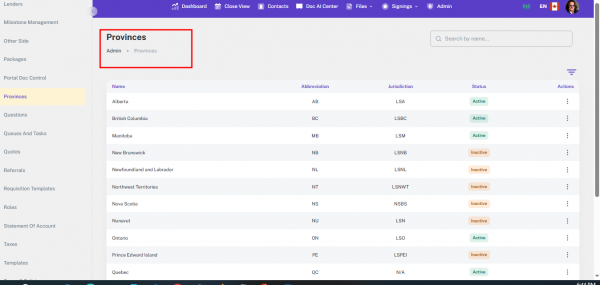
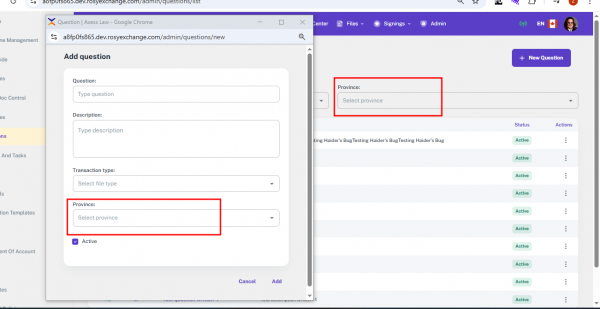
- Queues & Tasks) – Filters tasks and queues for province-based teams.
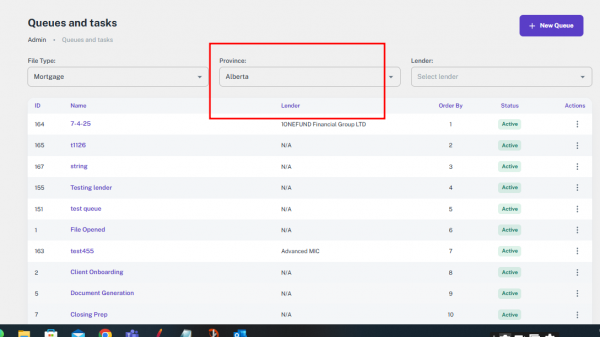
- Quotes & Referrals – Applies province-specific pricing and referral rules.
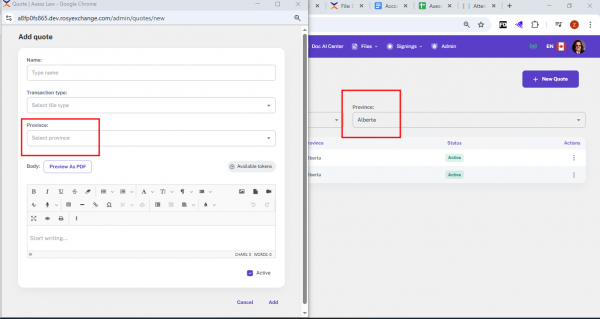
- Statement of Account – Shows financial statements with correct provincial details.
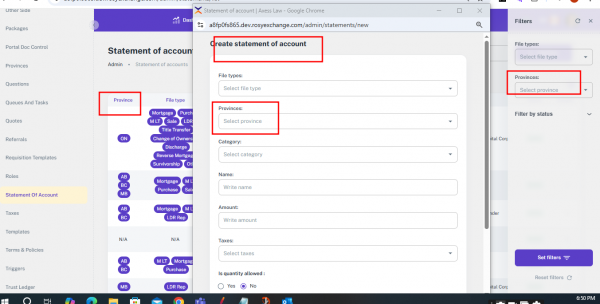
- Trust Ledger – Applies province-specific trust accounting rules.
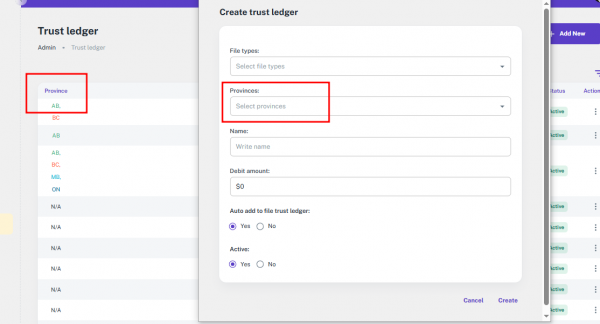
- Type Forms – Loads only forms valid for the selected province.
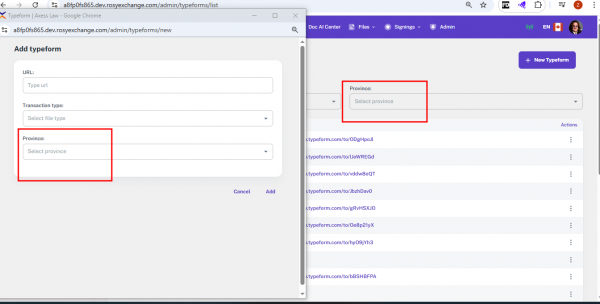
Admin Control & Data Integrity
- Enable/Disable Provinces – Inactive provinces are automatically removed from dropdowns, filters, and selection lists in all modules.
- Instant System Updates – Any changes reflect immediately for all users, ensuring consistent province data across the portal.
- Error Prevention – Eliminating inactive provinces from user selection reduces incorrect data entry and mismatched records.
Province in File Creation
- When creating a new file, Province is a mandatory field that drives multiple downstream configurations:
- Document Templates – Automatically loads templates linked to the selected province.
- Lender & Referral Partner Lists – Displays only lenders and referral agents that operate in the chosen province.
- Team Role Assignments – Law Clerk, Lawyer, and Junior Clerk dropdowns are filtered based on province-specific staffing.
- Compliance & Procedural Rules – Jurisdiction-specific legal requirements, formats, and workflows are applied automatically.
14.23 Questions
The Questions Module allows administrators to create, edit, and manage questions that appear in the Referral Portal. These questions help guide referral partners when creating new files, ensuring all necessary information is captured correctly.
14.23.1 Interface
Method 1: Accessing the Questions Module
Step 1 – Open Module
- From the Admin Panel (left-side menu), click Questions.
- The Questions List Page opens, displaying all available questions.
- A table-based view shows existing records.
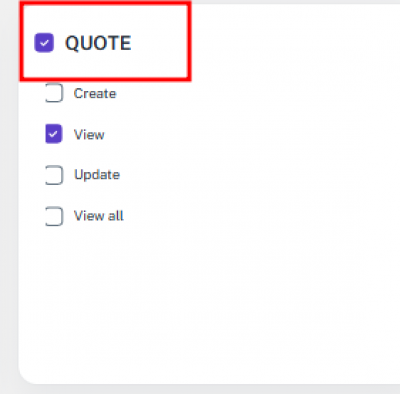
Method 2: Searching & Filtering Questions
- Admins can quickly locate specific questions using search and filter tools.
- Options Available:
- Search by File Type – Finds questions linked to a particular file type.
- Filter by Province – Displays only questions for the selected province.
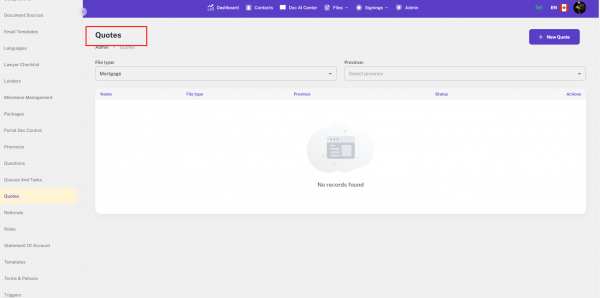
Method 3: Understanding the Main Table
The Questions Table displays the following columns:
- Province – Province linked to the question.
- Type – The transaction or file type.
- Question – The actual question text.
- Description – Additional context or notes.
- Status – Indicates if the question is Active or Inactive.
- Actions – Options to Edit or Delete a question.
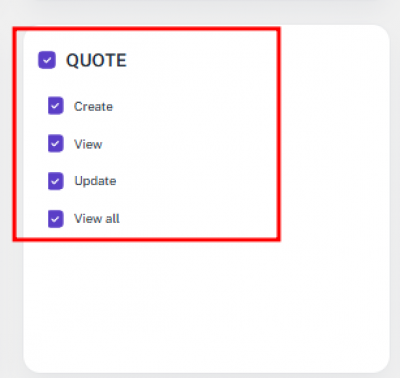
Method 4: Adding a New Question
Step 1 – Add Question
- Click Add New Question.
Step 2 – Fill in Details
- Question – Enter the text of the question.
- Description – Provide supporting details or context.
- Transaction Type – Select the relevant file/transaction type.
- Province – Assign the province where this question applies.
- Status – Mark as Active if the question should appear immediately.
Step 3 – Save
- Click Add to save the question.
- Click Cancel to discard changes.
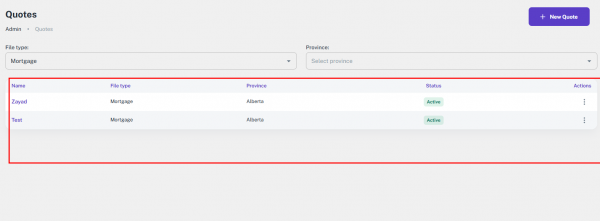
Method 5: Editing an Existing Question
Step 1 – Edit Record
- In the Actions column, click Edit for the desired question.
Step 2 – Update Details
- Modify the text, description, province, or status as needed.
Step 3 – Save Changes
- Click Save to update the record.
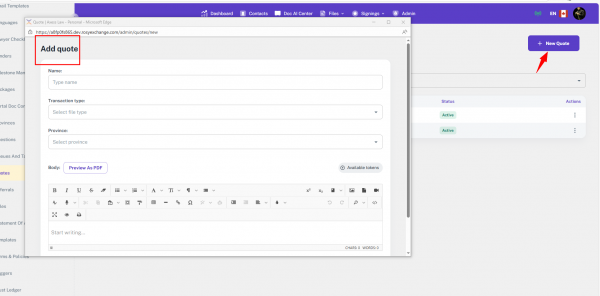
14.23.2 Functionality
The Questions Module directly impacts the Referral Portal experience when partners create new files.
Automatic Display of Questions
While creating a new Mortgage file, once File Type and Province are selected, the system automatically displays relevant questions:
- Fixed Questions – Standard questions for mortgage compliance, shown to all users.
- Custom Questions – Admin-defined questions linked to the selected province and transaction type.
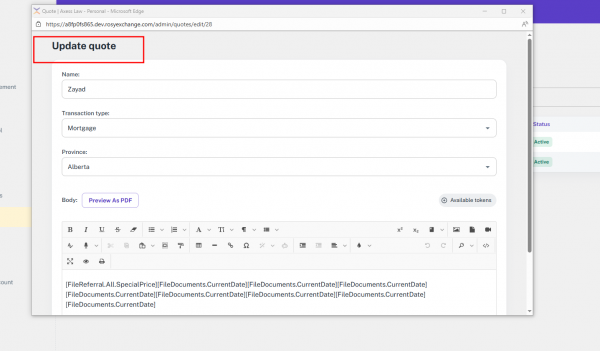
Dynamic Question Injection
- After the File Number and Province are set, the system automatically injects questions into the File Digest section.
- This eliminates manual setup and ensures required questions are always visible.
Fixed vs. Custom Questions
- Fixed Questions – Predefined and always shown for certain file types (e.g., Mortgage).
- Custom Questions – Created by Admins, tailored to provinces and file types.
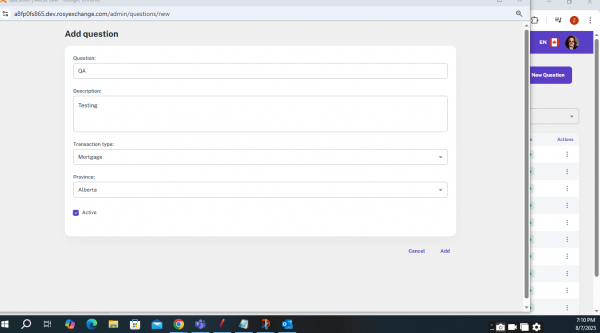
User Experience Impact
- Referral partners see only relevant questions based on file type and province.
- Reduces errors in data collection.
- Minimizes confusion for users.
- Avoids unnecessary back-and-forth with administrators.
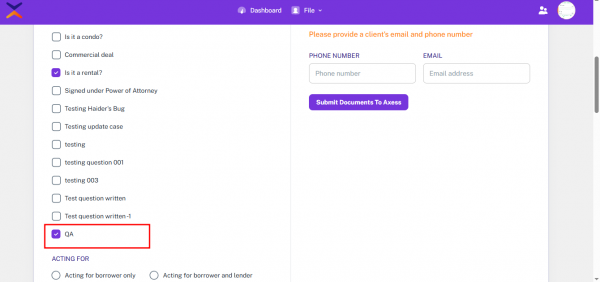
14.24 User Assignment
The User Assignment Module, located under the Admin section, manages staff allocations by integrating holiday calendars, blackout periods, and assignment rules. It ensures balanced workloads by automating file assignments based on staff availability, workload limits, and broker preferences. Real-time alerts prevent rule violations and maintain efficiency in task distribution.
14.24.1 Interface
Method 1: Accessing the User Assignment Module
Step 1 – Open Module
- From the Admin Panel (left-side menu), click User Assignment.
- The User Assignment Management Page opens.
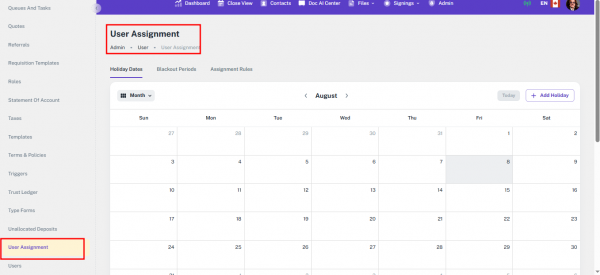
Method 2: Managing the Holiday Calendar
- The Holiday Calendar provides a visual view of important dates such as holidays and blackout dates, helping to plan staff availability
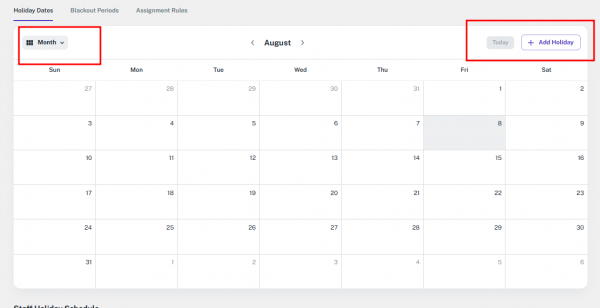
Step 1 – Add Holiday
- Click Add Holiday.
- Enter the following details:
- User – Select the user taking leave.
- Start Date – First day of holiday.
- End Date – Last day of holiday.
- Click Add to save the holiday entry.
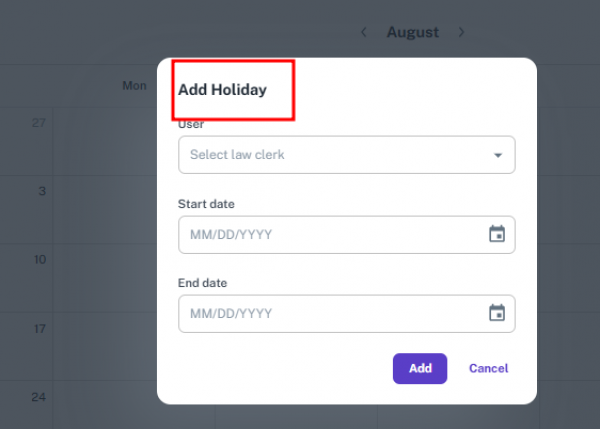
Method 3: Managing Blackout Periods
- Blackout periods define dates when no file assignments can occur for any user.
Step 1 – View Blackout List
- A table displays existing blackout periods with:
- Start Date
- End Date
- Actions (Edit/Delete)
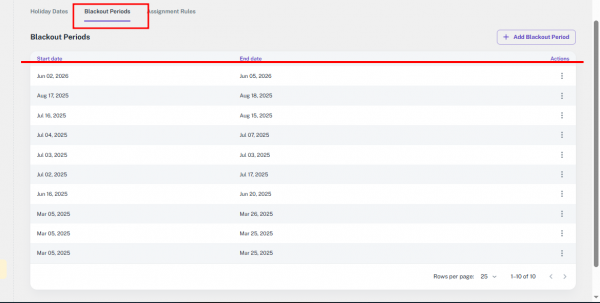
Step 2 – Add Blackout Period
- Click Add Blackout Period.
- Enter:
- Start Date
- End Date
- Save to finalize the blackout period.
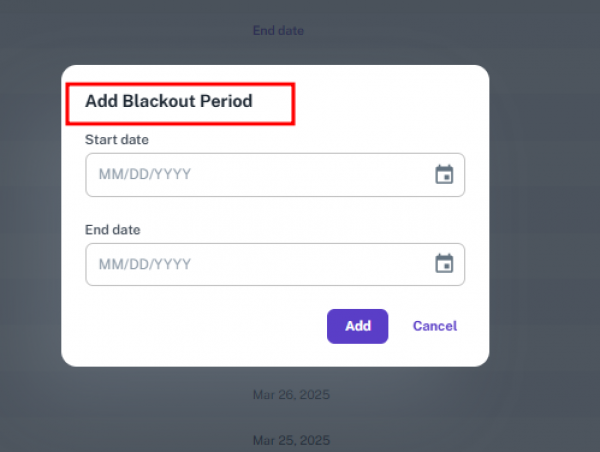
Method 4: Configuring Assignment Rules
- Assignment Rules define workload and scheduling limits for individual users.
Step 1 – View Rules Table
- The table shows:
- Name, Role, Email
- Files per Week, Files per Month, Closings per Day
- Days Before Holiday, Days After Holiday
- Actions (Edit/Delete)
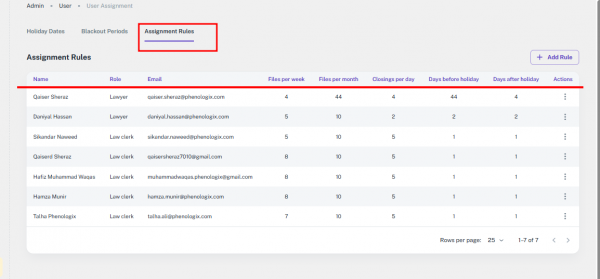
Step 2 – Add Assignment Rule
- Click Add Rule.
- Enter details:
- User Type – Lawyer, Clerk, etc.
- User Name – Select staff member.
- Max Files per Week
- Max Files per Month
- Max Closings per Day
- Days Before Holiday (No Assignments)
- Days After Holiday (No Assignments)
- Save to activate automated assignment for that user.
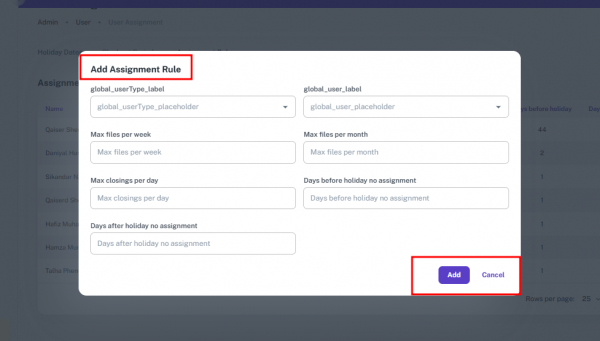
14.24.2 functionality
Blackout Periods
- Prevents file assignments on restricted days.
- Ensures no errors from assigning tasks during non-working periods.
Holiday Management
- Helps plan workload around staff absences.
- Reduces risk of missed deadlines during peak periods.
System Warnings
- Alerts when workload rules are at risk of being exceeded.
- Ensures compliance with defined assignment policies.
Rule-Based File Assignment
- Automatically balances workload across staff.
- Prevents over-assignment and ensures quality service.
- Improves transparency in how assignments are distributed.
Integration Point: Broker Preferences
- The User Assignment Module integrates with Broker Referral Priority Rules.
- When a new file is created:
- The system checks broker priority order (1st, 2nd, 3rd).
- It matches staff availability and limits from Assignment Rules.
- The system auto-assigns the role (Lawyer, Law Clerk, Junior Clerk) to the highest-priority eligible staff member.
- This ensures both broker requirements and internal workload rules are respected.
14.25 Type Forms
The Type Forms Module allows administrators to manage form links for specific file types and provinces. These links are used dynamically in system communications, ensuring the correct form is always shared with users.
14.25.1 Interface
Method 1: Accessing the Type Forms Module
Step 1 – Open Module
- From the Admin Panel (left-side menu), click Type Forms.
- The Type Forms Management Page opens.
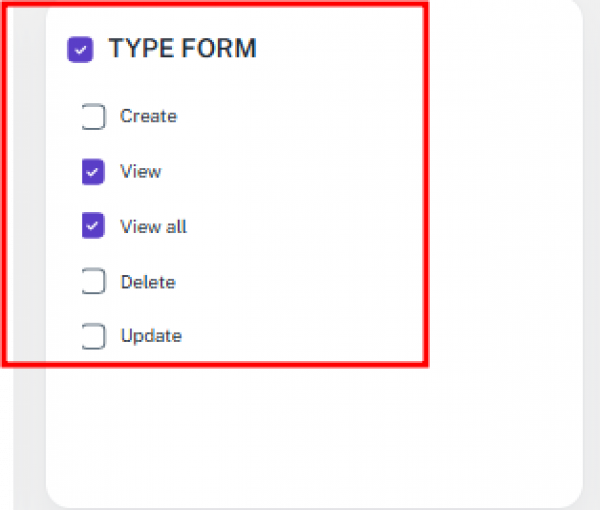
Method 2: Using Filters
Step 1 – Select Criteria
- Admins can refine the view by:
- File Type – e.g., Sale, Mortgage.
- Province – Select the applicable province.
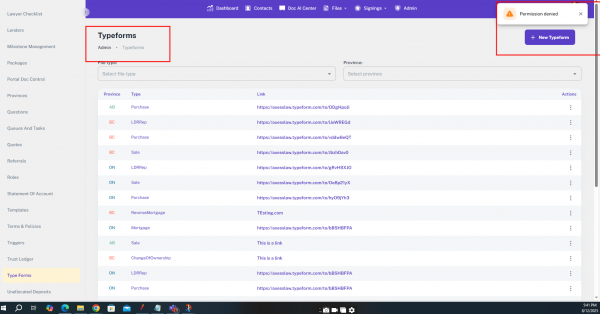
Method 3: Reviewing the Table
- The Type Forms table includes:
- Province – Province where the form applies.
- Type – Transaction or file type.
- Link – URL of the type form.
- Actions – Edit or Delete.
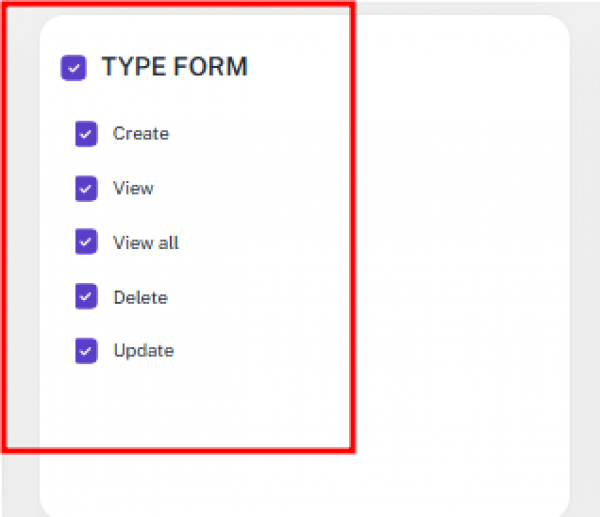
Method 4: Adding a New Type Form
Step 1 – Open Form
- Click Add New Type Form.
Step 2 – Enter Details
- URL – Enter the Type Form link (e.g., hosted on Typeform).
- Transaction Type – Select the file type.
- Province – Choose the applicable province.
Step 3 – Save
- Click Save to store the new type form.
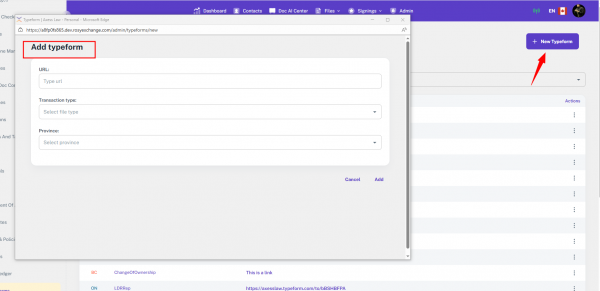
Method 5: Editing a Type Form
Step 1 – Select Entry
- In the Actions column, click Edit.
Step 2 – Update Details
- Change the URL, Transaction Type, or Province.
- Save changes.
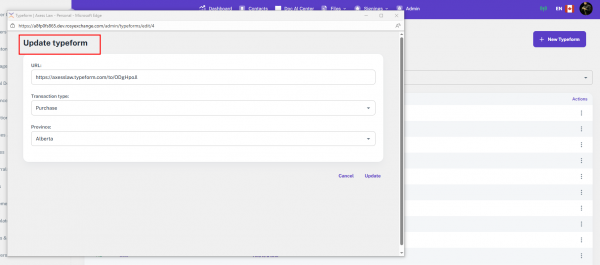
14.25.2 Functionality
The Type Forms Module integrates directly with system email communications through a placeholder token.
Typeform Token Integration
- Each entry includes a token: typeformlink.
- This token is placed in email templates.
- When an email is triggered (e.g., file creation, document request):
- The system checks the file type and province.
- Retrieves the matching Type Form link
- Replace the typeformlink token with the actual URL.
Centralized Updates
- If an Admin updates a Type Form link in this module, the change is applied everywhere the token is used.
- Ensures accuracy and reduces errors in communication.
Example Scenario
- File Type: Mortgage
- Province: Ontario
- Email template includes: “Please fill out this form: typeformlink”
- The system replaces the token with the correct Ontario Mortgage Type Form link.
14.26 File Report
This guide shows you how to open the Files Report, use filters (like CIBC and Quebec), search, export, and create a new file. Using filters and search helps you quickly find the right files and track progress without manual work.
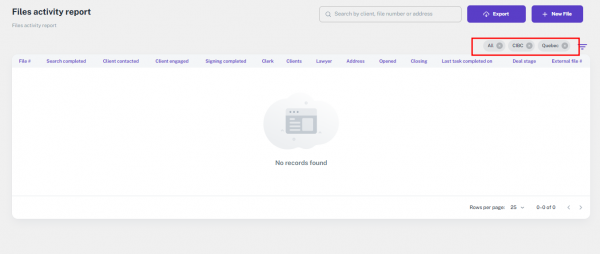
14.26.1 Interface
Method 1: Open the Files Report (from Files menu)
Step 1 – Open the report
- Click Files in the top menu.
- From the drop down, click Files Report.
- The File Activity Report page opens.
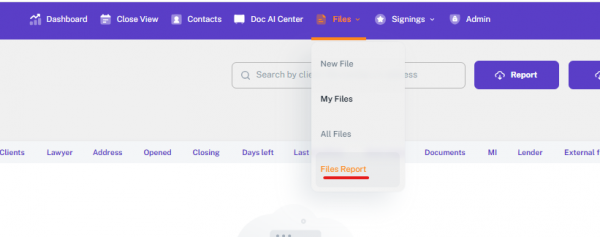
Step 2 – Review the default view
- A default filter is already applied:
- All (scope)
- CIBC (Lender)
- Quebec (Province)
- This means you will see only files where the lender is CIBC and the province is Quebec.
Step 3 – Know what you’re looking at (columns)
- The table shows: File #, Search Completed, Client Contacted, Client Engaged, Signing Completed, Clerk, Clients, Lawyer, Address, Opened, Closing, Last Task Completed on, Deal Stage, External File #.
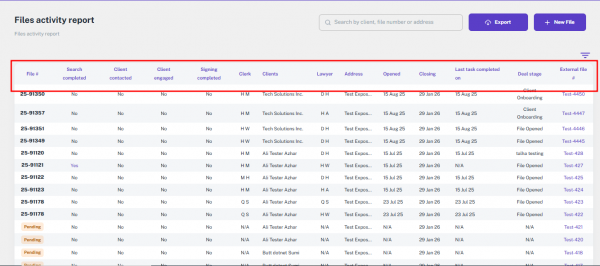
Step 4 – Quick actions on the page
- Search (find a file by keywords like file #, client, address)
- Filters (narrow results)
- Export (download the report)
- Create New File (add a file)
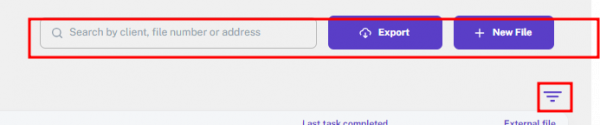
Method 2: Find the right files (Filters & Search)
- Option A – Use Filters (recommended)
- Click Filters.
- Choose what you need:
- Status, File Types, Provinces, Tasks, Queue, Lender, Brokerage, Signing Agent, User, Deal Negotiator, Opening Date, Closing Date.
- Click Set Filter to apply the filters.
- (Optional) Click Reset Filter to clear and start over.
- Tip: To see files from other lenders or outside Quebec, change Lender from CIBC and/or Province from Quebec.
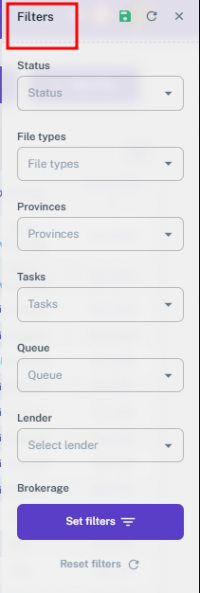
Option B – Use Search
- In Search, type a keyword (e.g., file #, client name, address).
- Press Enter to update results.
- Combine Search with Filters for the most precise list.
Method 3: Export the report
- Apply any filters you want (so the export contains only what you need).
- Click Export.
- The report downloads (open it in your spreadsheet tool for sharing or analysis)
Method 4: Create a new file from the report
- Click Create New File.
- Fill in the required details.
- Click Save.
- The new file will appear in the report based on your current filters
14.26.2 Functionality
Centralized Tracking
- You get a single page to view all file activities and progress.
- No need to open each file one by one.
Default Filters Save Time
- By default, only CIBC lender files and Quebec province files appear.
- CIBC is a major lender; with the default filter, all files where the lender is CIBC and the province is Quebec will appear right away.
Quick Progress Monitoring
- Columns show the full client journey: from search completed to deal closing.
- This helps lawyers, clerks, and admins track responsibilities and deadlines.
Easy Reporting
- Export the report anytime for record-keeping or analysis.
- Useful for compliance, audits, or sharing updates with teams.
Better File Management
- Filters allow you to focus on exactly what you need (e.g., by status, lender, or date).
- Ensures no file is missed, and work stays organized.
14.27 Unallocated deposits
The Unallocated Deposits Module allows administrators to track and manage funds that have been received but are not yet assigned to specific files. This ensures accurate financial tracking and proper allocation across the system.
Method 1: Accessing the Unallocated Deposits Module
Step 1 – Open Module
- From the Admin Panel (left-side menu), click Unallocated Deposits.
- The Unallocated Deposits Management Page opens.
Method 2: Viewing Deposits in the Main Table
T * he Unallocated Deposits Table provides an overview of all received deposits.
Displayed Columns:
- Date Received – Date when the funds were received
- Sender – Name of the individual or entity who sent the funds.
- Lender – Associated lender for the deposit.
- Amount – Total deposit amount.
- Funds Assigned – Status indicating if the funds have been allocated.
- Assigning Date – Date when funds were assigned to a file.
- Actions – Options to Edit or Delete the record.
Method 3: Using Filters to Locate Deposits
- Admins can filter deposit records to narrow down results.
Step 1 – Apply Filters
- Start Date – Select the beginning of the date range.
- End Date – Select the end of the date range.
- This helps locate deposits received within a specific period.
Method 4: Adding a New Unallocated Deposit
Step 1 – Add Deposit
- Click Add New Deposit.
Step 2 – Fill in Details
- Sender – Enter or select the sender’s name.
- Amount – Enter the deposit amount.
- Lender – Select the lender from the dropdown list.
- Date Received – Select the date of receipt.
Step 3 – Save
- Click Save to create the new deposit entry.
Method 5: Editing an Existing Deposit
Step 1 – Edit Record
- In the Actions column, click the Edit icon for the desired deposit.
Step 2 – Update Details
- Modify the required fields (e.g., amount, lender, date).
Step 3 – Save Changes
- Click Save to update the deposit record.
14.28 Queues and Task
This guide explains how to create, edit, and manage queues and tasks in the system, including filtering by file type, province, and lender
14.28.1 Interface
Method 1: Access Queues and Tasks
- Use this method to open and view all available queues and tasks.
Step 1 – Open the Queues and Tasks Section
- From the top header menu, click Admin.
- In the left-side panel, select Queues and Tasks.
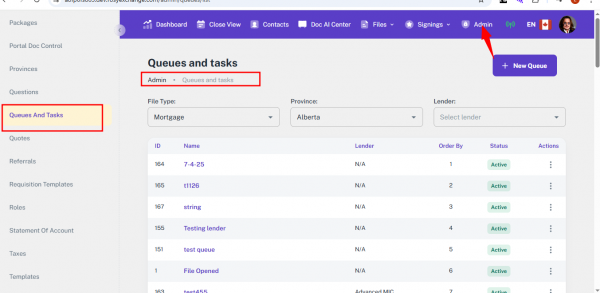
Step 2 – Apply Filters
- Use the three dropdowns at the top to narrow results:
- File Type – e.g., Mortgage, Purchase, Sale, Transfer.
- Province – e.g., Alberta, Ontario, Quebec.
- Lender – e.g., ONEFUND Financial Group, Airline Financial Credit Union.

Step 3 – View the Results
- The system displays a table with the following columns:
- ID – Task ID number.
- Name – Task name.
- Lender – Associated lender.
- Ordered By – Sequence of queues in files.
- Status – Current task status (Pending, Completed).
- Action – Edit or View Task options.
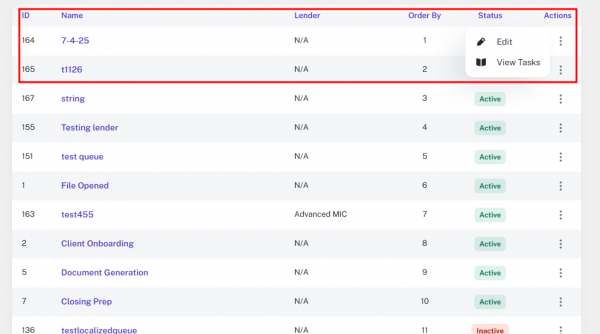
Method 2: Add a New Queue
- Use this method when you need to create a new queue.
Step 1 – Add a New Queue
- Select the desired File Type, Lender and Province for the queue. After making the selection, the table below will refresh to show only queues that belong to that file type, lender and Province.
- On the Queues and Tasks page, click the Add Queue button at the top-right.
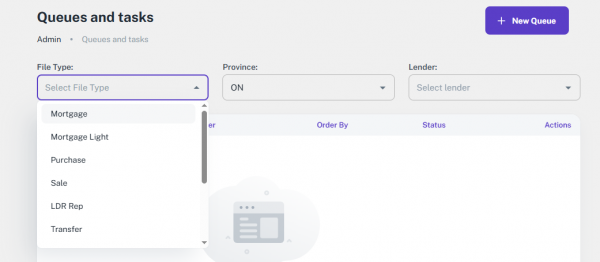
Step 2 – Fill in Queue Details
- Queue Title – Enter the name of the queue.
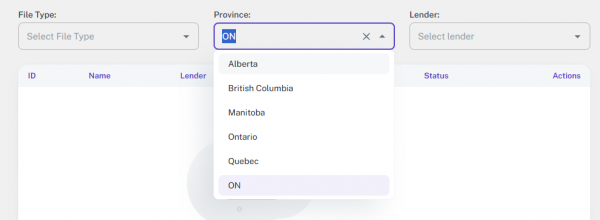
- Lender – Choose from the dropdown list.
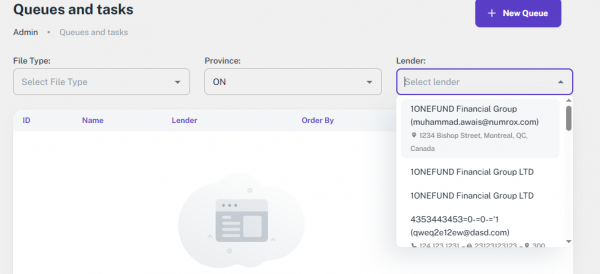
- Language Options – Select English (EN) or French (FR)
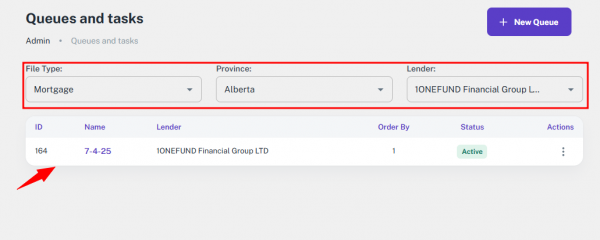
- Active Checkbox – Tick to activate, untick to deactivate.
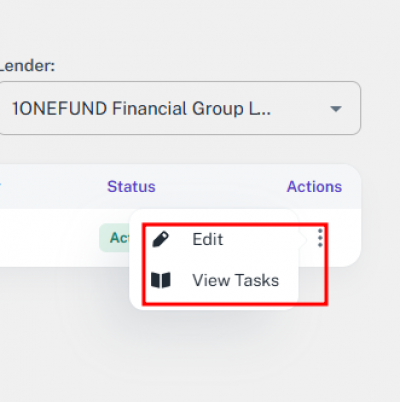
Step 3 – Save the Queue
- Click Save to create the queue of selected file types, lender and provinces.
- Click Cancel to discard changes.
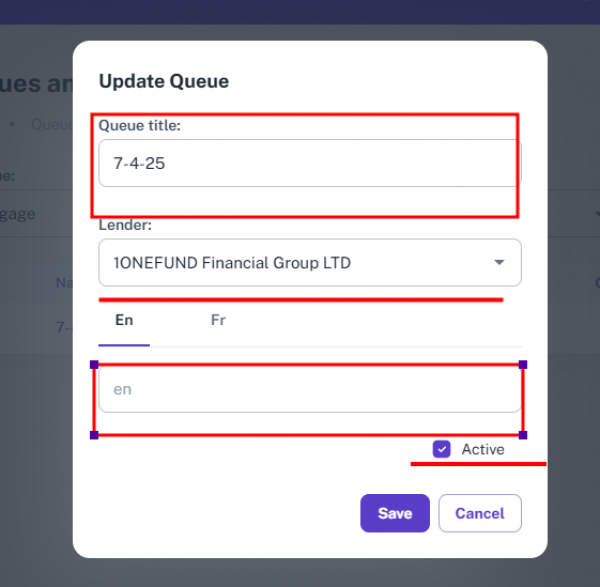
Method 3: Edit an Existing Queue
Step 1 – Locate the Queue
- Use filters to find the queue in the table.
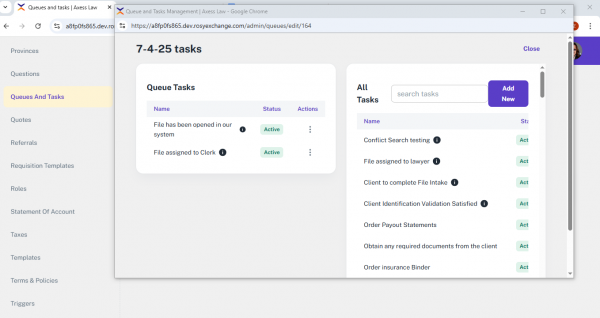
Step 2 – Edit Queue Details
- In the Action column, click Edit.
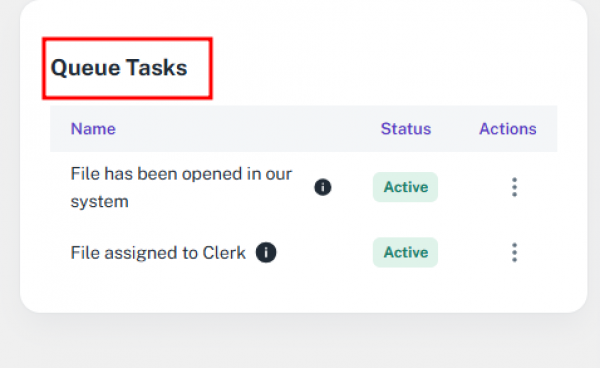
Update:
- Queue Title
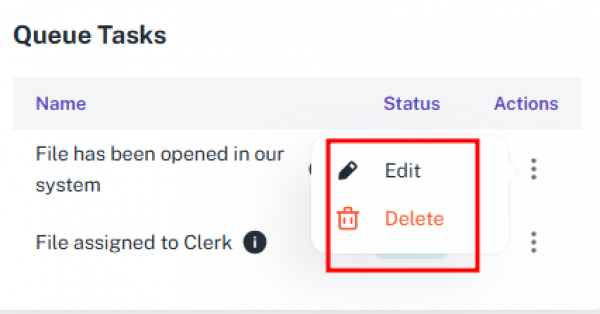
- Lender
- Language (EN/FR)
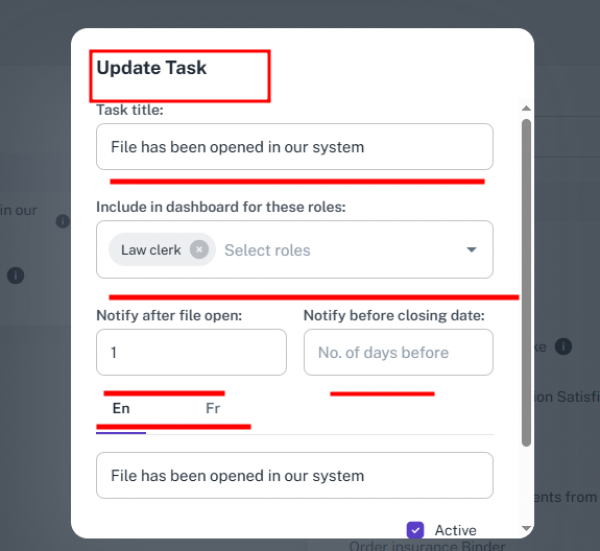
- Active Status
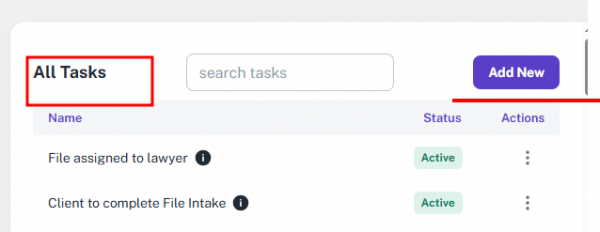
Step 3 – Save Changes
- Click Save to apply updates.
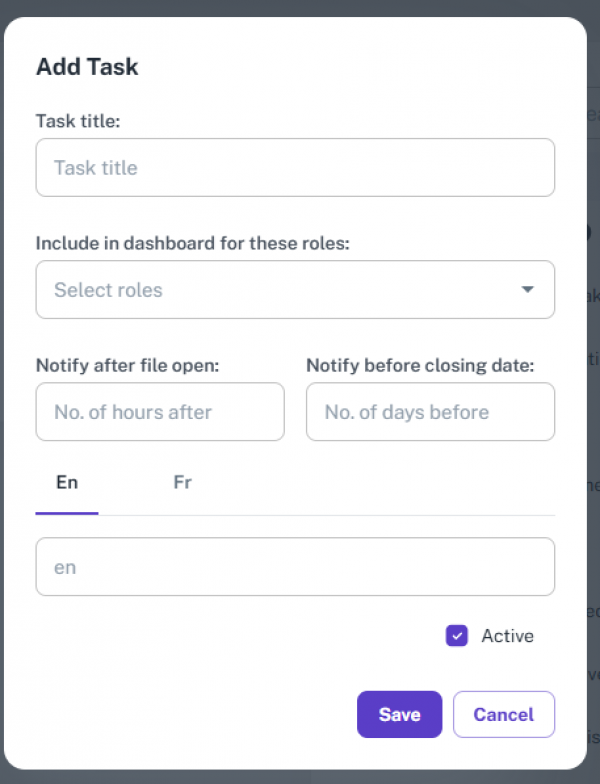
Method 4: View and Manage Queue Tasks
Step 1 – Open the Queue
- In the Action column, click View Task.
Step 2 – Manage Queue Tasks
- In the Queue Tasks section:
- Edit – Update task title, roles, notifications, language, or status.
- Delete – Remove the task after confirming in the popup.
Step 3 – Manage All Tasks
- Switch to the All Tasks section.
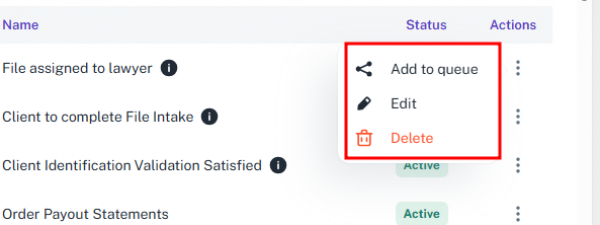
- Use the dropdown in the Action column to:
- Add to Queue – Link the task to the current queue.
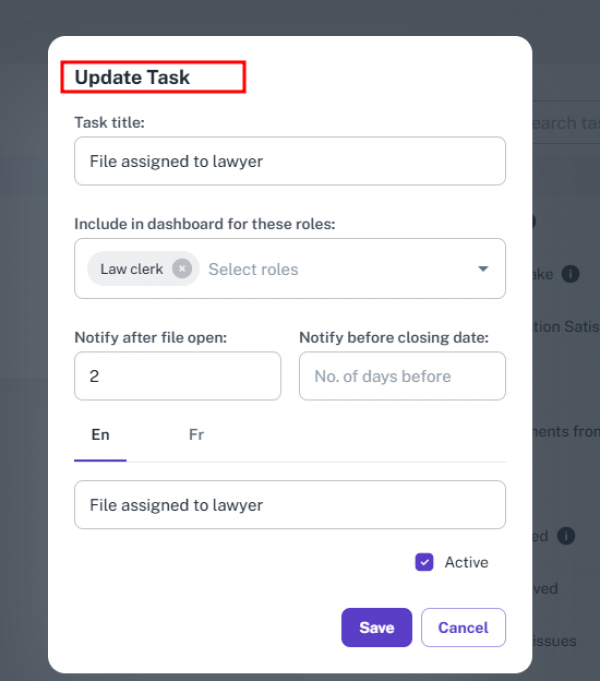
- Edit – Update task details.
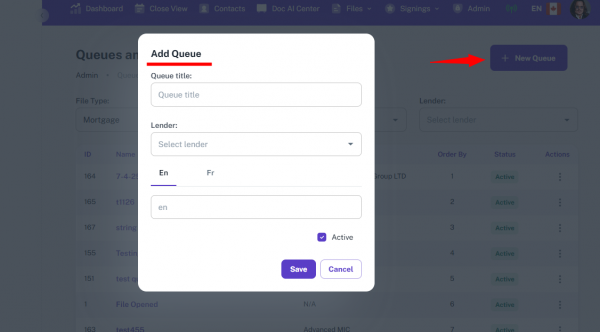
- Delete – Permanently remove the task.
14.28.2 functionality
Method 1: Adding a Task (System-Wide Visibility)
Step 1 – Navigate to the All Tasks Section
- Go to: Admin Tab → Queues and Tasks → All Tasks → Add Task.
Step 2 – Fill in Task Details
You will need to provide:
- Task Title – Name of the task.
- Dashboard Role Visibility: Choose which roles (Law Clerk, Junior Clerk, Lawyer) can receive the updates for this task.
- Notification Settings – Decide when notifications are sent (After File Open, Before Closing Date).
- Language – EN or FR.
- Status – Active or Inactive.
Step 3 – Save the Task
- Once saved, the task will automatically appear in the Task Management section of all applicable File Details pages.
Method 2: Adding Task Details in a Specific File
Step 1 – Open the File
- Go to the file’s Detail View and scroll down to the Task Management section.
Step 2 – Task Context
- Tasks are automatically shown based on the selected File Type, lender and Province.
- Each task includes a progress bar, which moves to complete when the task is finished.
Step 3 – Add Task Details
- Click the + Add button to include extra tasks for specific files.
Method 3: Functional Benefits of Adding Tasks
- When you add tasks, the system:
- Shows them system-wide wherever relevant.
- Provides role-based visibility.
- Integrates them automatically at the file level.
- Supports notification triggers based on your chosen settings.
- Allows removal of outdated tasks to avoid clutter.
- Lets you reuse or assign tasks to multiple queues.
Method 4: Adding a Queue (Organizing Tasks)
Step 1 – Navigate to the Add Queue Section
- Go to: Admin Tab → Queues and Tasks → Add Queue.
Step 2 – Fill in Queue Details
You will need to enter:
- Queue Title – Name of the queue.
- Associated Lender – Select from the dropdown.
- Language Preference – EN or FR.
- Status – Active or Inactive.
Step 3 – Save the Queue
- Once created, you can add tasks from the All Tasks section to this queue.
Method 5: Functional Benefits of Adding Queues Queues help by:
- Creating structured workflow segmentation.
- Grouping and delegating tasks easily.
- Improving visibility and control over different setups.
- Allowing region-based, type-based, or role-based file handling.